How to fix
Disable Data Logging
on Windows
Boost your privacy on Windows 10 by disabling data logging effortlessly. Follow our expert-tested guide for optimized settings that ensure peace of mind.

Why does How to Disable Data Logging on Windows 10 occur?
- Data tracking by Microsoft
- Use of cookies and web beacons
- User preferences during installation
- Choice of account type (Microsoft vs Local)
- Privacy settings not configured properly
Repairs Windows system files, removes malware, and restores a clean OS state — without reinstalling.
Is it possible to disable data logging on Windows 10? I’m pretty sensitive about data tracking, so it would be great to put on extra security.
Windows 10 privacy terms have already been discussed by thousands of people all around the world and it seems that Microsoft Community is a bit anxious about the data logging enabled on this particular OS. In fact, it’s not surprising that Windows 10 tracks some piece of information since these days probably there is no big IT company that is not using cookies, web beacons, and other technologies for gathering (usually non-personal) information, which is later used for statistics, improvement of various services, and other purposes. Although Microsoft has been accused of data logging, it’s very important to stress the fact that Microsoft included options to disable data logging in Windows 10. Therefore, no complaints should be expresses because it’s up to you share information with Microsoft or not. Unfortunately, but by choosing more privacy on Windows 10, you may not be able to use some useful W10 services. If, nevertheless, you have already decided to disable all the data logging, we will provide you a guide that will explain how this should be done.
How to Disable Data Logging on Windows 10?
To disable Microsoft Data Logging on W10 OS you have two options – to do that during Windows 10 installation or via Windows 10 settings.
Method 1. Disable data logging during Windows 10 installation
- During Windows 10 installation two privacy options are given – Customize or Express Settings. Here you should opt for Customize.
- When a Customize window shows up, untick everything that you are not fond of sharing with Microsoft and only then proceed with the installation.
- When you receive a window asking which account you prefer using (Microsoft or Local), select Local account if you do not want Microsoft to collect account-related information. Local account does not contain personal information about you and your PC as it’s a simple randomly created user account, which is created for the use on a one specific Windows run PC.
Method 2: Disable data logging via Windows 10 Settings
In case you did not wondered about data logging during Windows 10 installation, it’s not a big deal. There are various privacy-related settings, which once changes may prevent Microsoft from logging your data. For this purpose, you have to do the following:
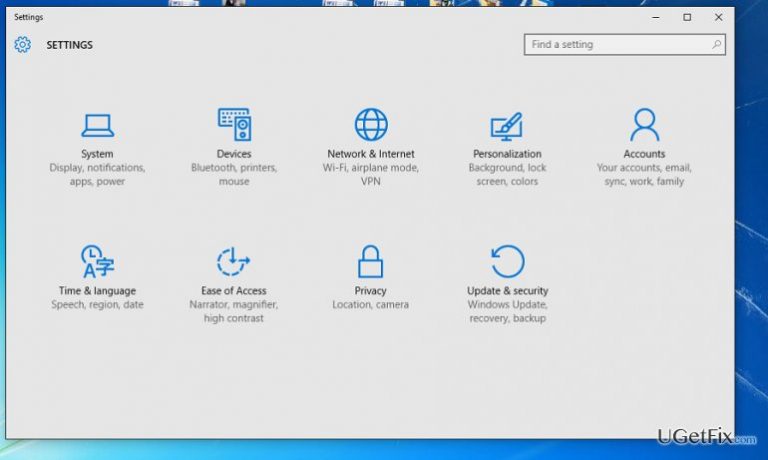
- Click on Win key and select Settings (at the bottom of the menu);
- Click on Privacy. Here you should see various privacy-related options (advertising ID, sending of data to Microsoft on your typing/keylogging, websites accessing your data, apps accessing your data, location and others) that can be turned off. Select the ones that you disapprove off and turn them off.
- After that, go to the Feedback & Diagnostics and set Feedback frequency to Never.
- Besides, change Send your device data to Microsoft to Basic.
Method 3. Disable Data logging on Microsoft Edge
Don’t get surprised by hearing that Microsoft Edge has built-in settings for data logging too. Probably each web browser has such, but not all of them allow disabling. Luckily, Microsoft Edge’s settings can be changes, so for more private web browsing, perform the following steps:
- Open Microsoft Edge and click on the Menu (three dots at the right-top corner).
- Select Settings and click on View advanced settings on the drop down menu.
- Find Privacy and Services header and turn off features that does not fit you.
That’s it. Now you have disabled data logging on Windows 10. Hopefully, now you feel at least a little bit secure in terms of your privacy while using your PC.
Bottom line
To disable data logging on Windows 10, you can choose the Customize option during installation and untick sharing preferences. Additionally, selecting a Local account can help prevent Microsoft from collecting account-related information. If these methods do not work, consider reviewing your privacy settings in Windows 10.
Frequently asked questions
To disable data logging for Windows 10 applications, go to Settings > Privacy > Activity history and toggle off 'Let Windows collect my activities from this PC.'
Navigate to Settings > Privacy > Diagnostics & feedback, then select 'Basic' under Diagnostic data and turn off 'Improve inking & typing.'
Yes, in Windows 11, you can disable data logging by going to Settings > Privacy & security > Diagnostics & feedback, and adjusting the diagnostic data settings accordingly.




Report an issue
What's wrong with this guide? We review every report and update or remove content.
Report received — thank you. We'll review and fix it.
You need a free account to submit a report.
Be the first to comment