How to fix
Disable Default Windows Sound Effects
on Windows
Silence annoying default sound effects in Windows 10 and 11 effortlessly. Enjoy a personalized experience with our expert-tested guide. Fixed in minutes!

Why does How to Disable Default Windows Sound Effects occur?
- Default sound effects are part of the Windows Default Sound Scheme
- Changing the desktop theme resets sound settings to default
- Desktop themes include sounds along with images and colors
- User may not have saved changes after customizing sounds
- Windows may automatically revert sound settings after updates
Repairs Windows system files, removes malware, and restores a clean OS state — without reinstalling.
I don’t understand why Windows sound effects keep re-enabling? I disable them, but soon the Windows boot up starts emitting beeping sounds and other default sound effects can be heard.
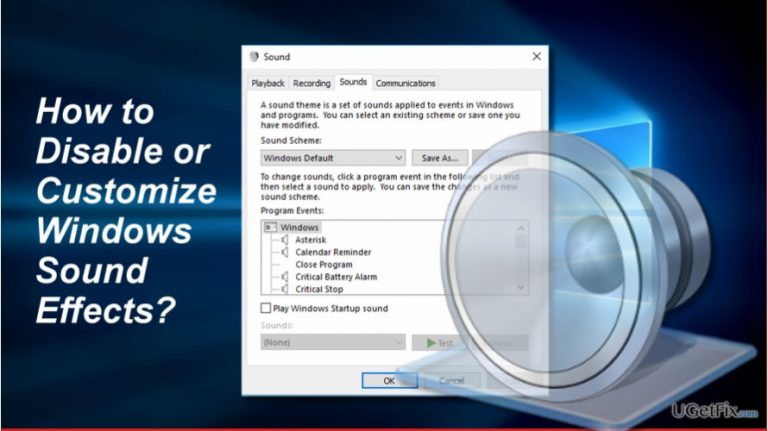
Just like the package of default apps, settings, and features, Windows OS features a package of default sound effects. These include Startup Beep, Minimize/Maximize Beep, Close Program Beep, Beep of not Permitted Act, and many other sounds. In tandem they are dubbed as Windows Default Sound Scheme. Unfortunately, the repetitive sound effects often get irritating. For example, Windows 7 features a click sound while switching folders in Windows Explorer. Luckily, all Windows versions can be customized, meaning that default sound effects can be disabled or modified in a preferable way.
Before introducing the tutorial on how to customize Windows sound effects we’d like warn you that sounds keep turning back on. Usually, people consider that the settings of sound effects are automatically reset to default out of nowhere. Actually, the sounds may be reset right after changing the theme of the desktop. That’s because desktop themes are usually bound with background images, colors, mouse cursor, and sounds in Windows 7, 8, 8.1, and 10. Therefore, if you change the desktop theme, navigate to the Sounds and customize or disable the sounds as well.
Disabling All Default Sound Effects
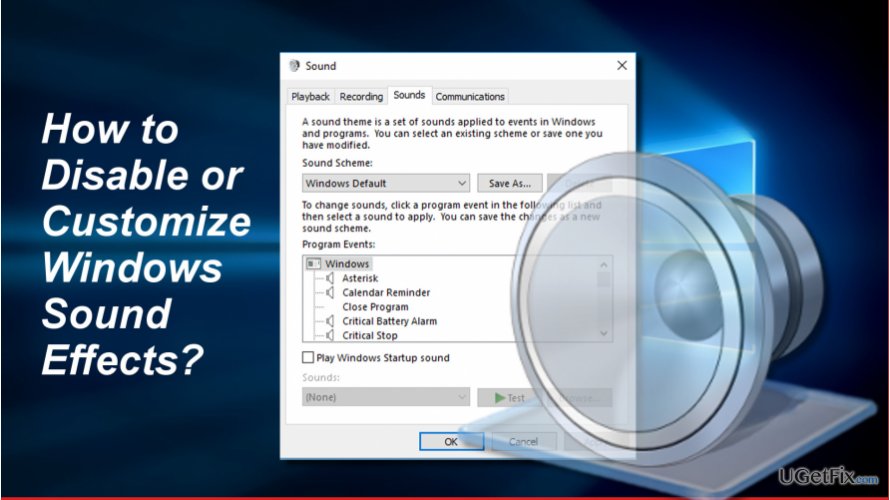
1. Locate the Speaker icon in the system tray and select Sounds.
2. OR open Start -> Control Panel -> Hardware and Sounds -> Sounds.
3. Click Sound Scheme on the Sounds tab.
4. Select No Sounds.
5. To disable Windows Startup sounds, remove the check mark from the Play Windows Startup sound box.
6. To disable sounds for specific events, such as Notifications, Battery Alarm, Critical Stop, New Text Message Notification, etc. select a sound effect from the list.
7. Click Sound and select None.
8. Click OK to save the changes and close Sound Control Panel.
Modifying Sounds Effects
If you prefer hearing default Windows Sounds under various circumstances, you may like to change the sounds. To change the sounds for notifications, action center, warnings, and other important Windows events, open the Sounds Control Panel as explained above. Then:
1. Select an event which sound you want to modify.
2. Click the Sounds box to select the sound file or click Test to preview different sound effects.
3. To use a custom sound file, you can click Browse button and select the preferred sound effect. NOTE: it must be in the .wav file format.
4. To save it as a sound effect, click Save As and type in the name.
5. When the new sound effect is saved, set it as a sound effect by clicking on a required even and selecting the new effect.
Turning Windows Explorer Click Sound Off in Windows 7
1. Open Windows Sounds and select Start Navigation sound effect.
2. Select Sounds and click None.
3. Click OK to save the changes.
Windows Explorer Click Sound has been disabled by default in Windows 10 because people expressed their annoyance related to this sound massively.
Bottom line
To disable default Windows sound effects, you can select 'No Sounds' in the Sound Scheme and uncheck the 'Play Windows Startup sound' option. Additionally, you can customize sounds for specific events by selecting 'None' for each sound effect. If these methods do not work, consider checking for updates or restoring your system settings.
Frequently asked questions
To disable default sound effects in Windows 10, right-click the speaker icon in the taskbar, select 'Sounds', then uncheck 'Play Windows Startup sound' and adjust the sound scheme to 'No Sounds'.
Disabling sound effects in Windows 11 may slightly improve performance, especially on older hardware, as it reduces the system's resource usage.
Yes, you can customize sound effects in Windows 10 by going to 'Sounds' in the Control Panel and selecting different sounds for specific events in the 'Program Events' section.




Report an issue
What's wrong with this guide? We review every report and update or remove content.
Report received — thank you. We'll review and fix it.
You need a free account to submit a report.
Be the first to comment