How to fix
Disable Driver Signature Enforcement
on Windows
Easily disable Driver Signature Enforcement in Windows 11 for enhanced customization. Follow our expert-tested guide for seamless adjustments.

Why does How to disable Driver Signature Enforcement in Windows 11 occur?
- Older or less common hardware devices may not have digitally signed drivers available
- Users may find the feature inconvenient due to extra installation steps
- Need to install unsigned drivers for testing or development
- Malicious or untested drivers could cause system issues
- Disabling the feature can lead to security risks
Repairs Windows system files, removes malware, and restores a clean OS state — without reinstalling.
Hello. I was wondering if there is a way to disable Driver Signature Enforcement in Windows 11. If so, how would I do it?
Driver Signature Enforcement is a security feature in Windows that ensures that only digitally signed drivers[ref en-1] are installed on a system. The feature verifies the authenticity and integrity of the drivers before they are installed on the system.
The benefits of Driver Signature Enforcement include increased security, as it helps prevent malicious or untested drivers from being installed on the system. This can help prevent system crashes, data loss, and other problems caused by faulty or malicious drivers.[ref en-2]
However, there are also some disadvantages to Driver Signature Enforcement. For example, some older or less common hardware devices may not have digitally signed drivers available, making it difficult or impossible to install them on a system with Driver Signature Enforcement enabled. Additionally, some users may find the feature to be an inconvenience, as it can add extra steps to the process of installing new hardware.
Users may want to disable Driver Signature Enforcement in scenarios where they need to install unsigned drivers. This is typically only done in advanced scenarios such as testing, development, or troubleshooting, or when using older or less common hardware that does not have a digitally signed driver available.
Disabling Driver Signature Enforcement can be risky as it opens the system to the installation of malicious or untested drivers. It is important that users only disable this feature if it is absolutely necessary and that they obtain the unsigned drivers from a reputable source. You can follow our guide where you will learn two ways to disable Driver Signature Enforcement in Windows 11.
Method 1. Use Windows Recovery Environment
- Press the Windows key to launch the Start menu
- Click on the Power icon
- Press and hold the Shift key
- Click on Restart to enter the recovery mode
- Once the OS enters the recovery environment, click on Troubleshoot
- Next, click Advanced options
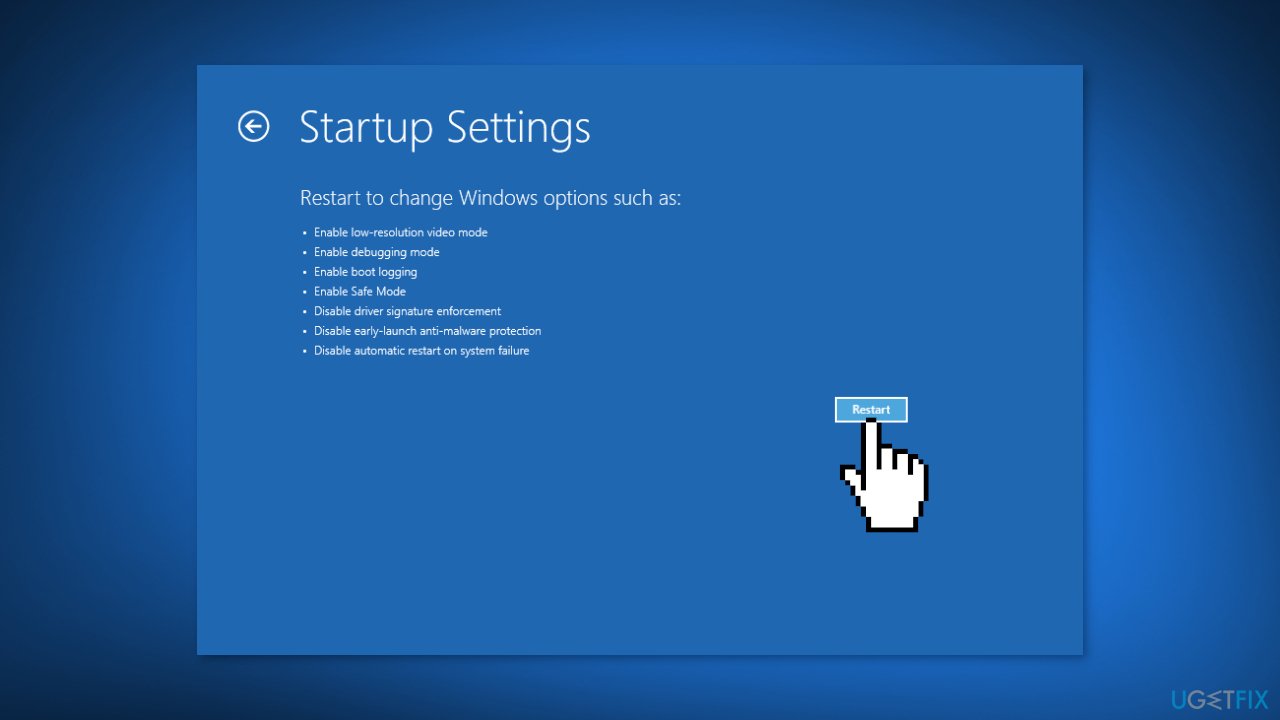
- Select Startup settings from the six options listed
- Click on the Restart button
- If prompted, enter the BitLocker recovery key
- Press the F7 or 7 key to boot Windows with the Driver Signature Enforcement feature disabled
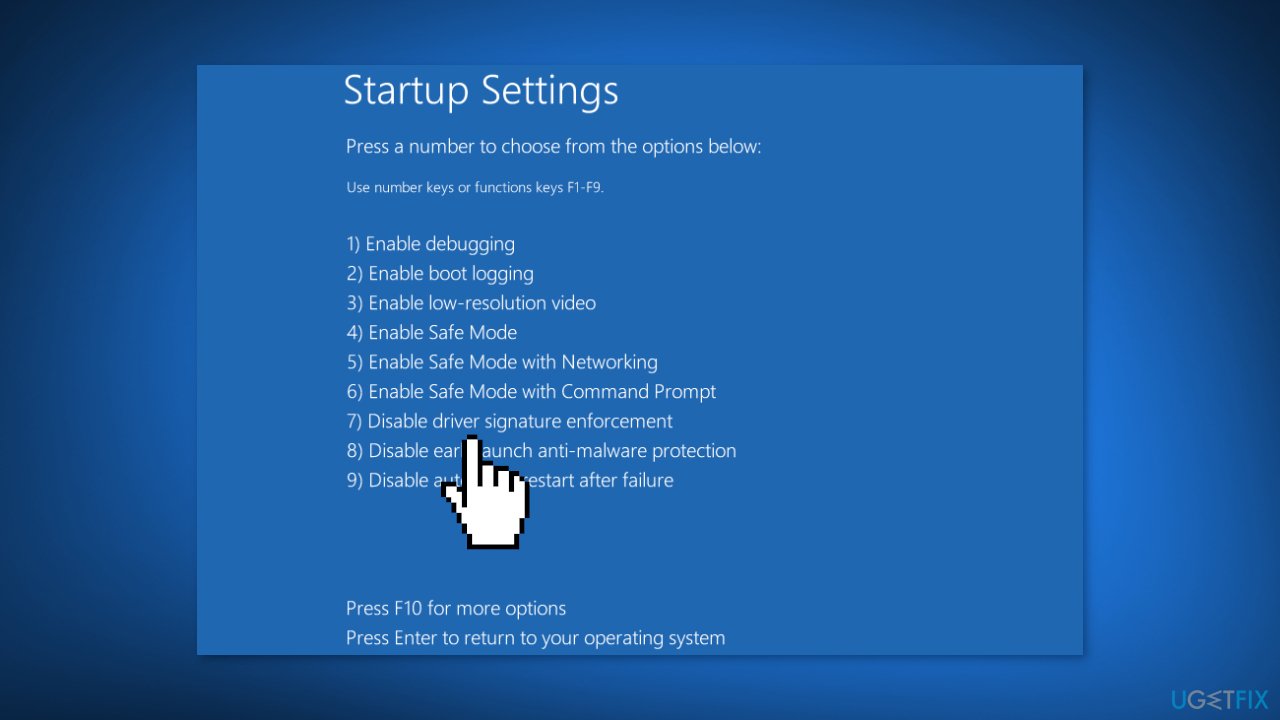
- Once the system restarts, the Driver Signature Enforcement feature will be disabled in Windows 11
- To re-enable the feature, just restart the computer
Method 2. Use the Local Group Policy Editor
- Press the Windows key + R to launch the Run dialog box
- Enter gpedit.msc in the text field
- Click OK or hit Enter to launch the Local Group Policy Editor
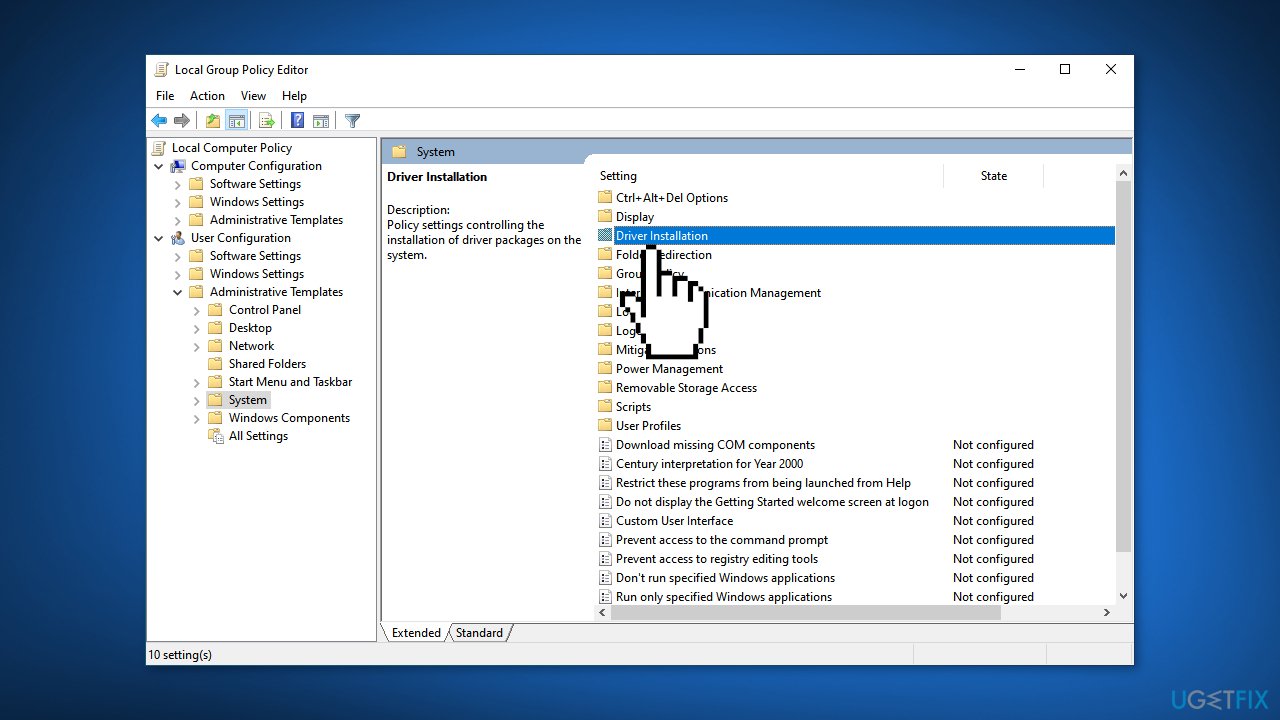
- Double-click on Administrative Templates under User Configuration in the navigation pane on the left
- Click on System
- Double-click on Driver Installation on the right
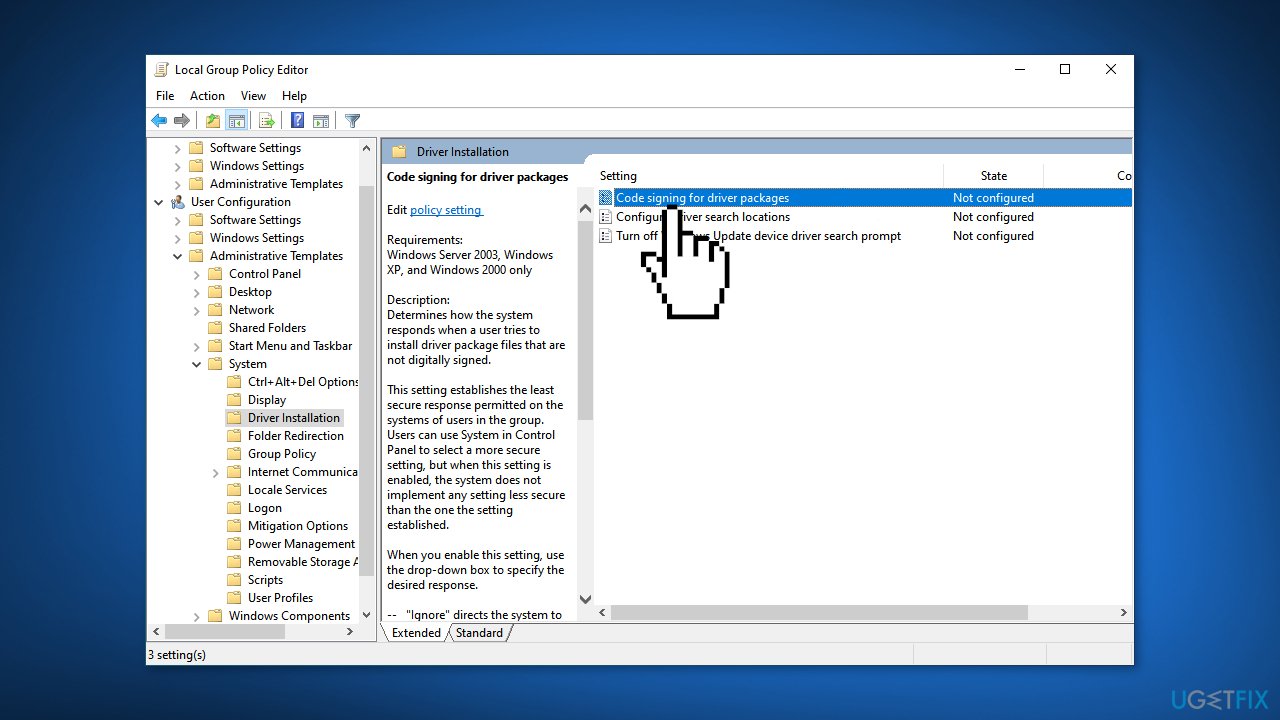
- Next, double-click on Code signing for driver packages
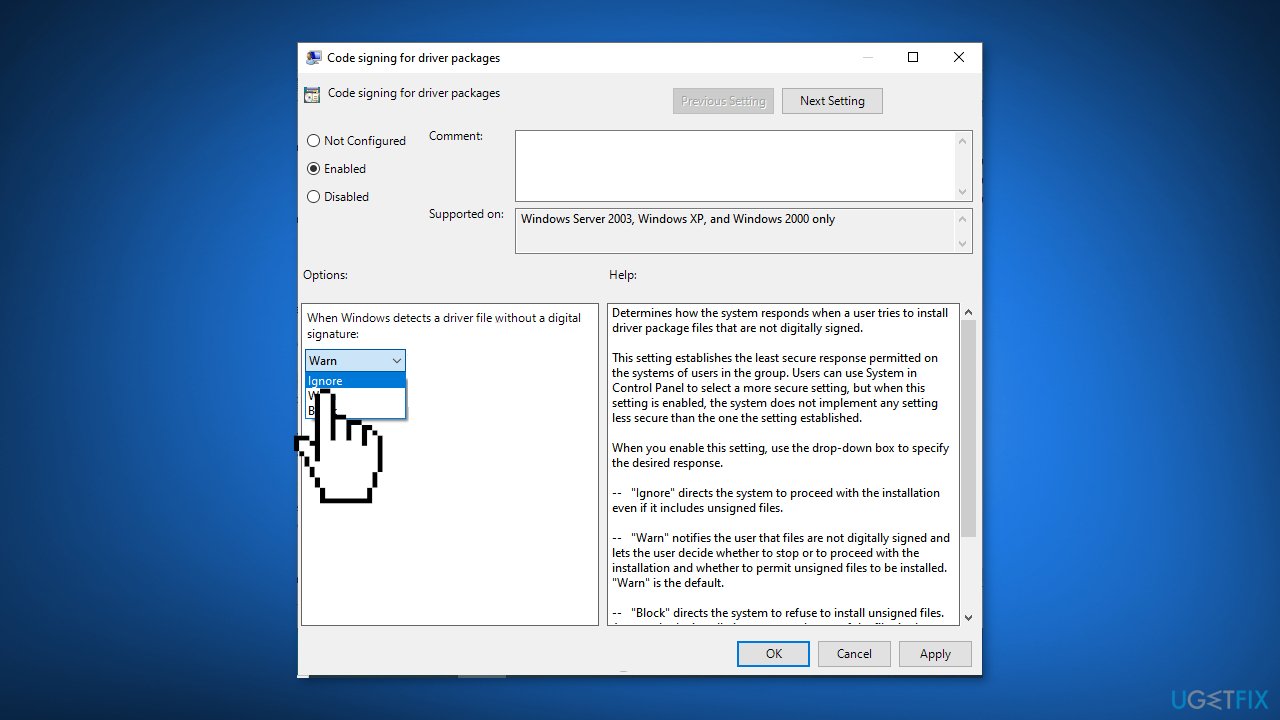
- Select the Enabled option
- Click on the When Windows detects a driver file without a digital signature dropdown menu and select Ignore
- Click OK to save the changes
Note: This method will only work for those running the Pro edition as the Local Group Policy Editor is not available in the Home edition.
Bottom line
To disable Driver Signature Enforcement in Windows 11, you can use the Windows Recovery Environment or follow specific steps outlined in the guide. It is crucial to ensure that any unsigned drivers are obtained from reputable sources. If these methods do not work, consider seeking further assistance or alternative solutions.
Frequently asked questions
You can access the Advanced Startup Options by holding the Shift key while clicking on Restart in the Start menu or Settings. From there, navigate to Troubleshoot > Advanced options > Startup Settings and click Restart.
Yes, disabling Driver Signature Enforcement can make your Windows 11 system more vulnerable to unsigned drivers, potentially leading to instability or security risks. It is recommended to only disable this feature temporarily for driver installations.
Yes, you can re-enable Driver Signature Enforcement by restarting your PC and following the same steps to access the Startup Settings, selecting the option to enable it. This will restore the default security settings for driver installations.




Report an issue
What's wrong with this guide? We review every report and update or remove content.
Report received — thank you. We'll review and fix it.
You need a free account to submit a report.
Be the first to comment