How to fix
Disable Feedback Hub Notifications
on Windows
Easily disable Feedback Hub notifications on Windows 10 to enhance your focus and productivity. Follow our expert-tested guide for zero distractions.

Why does How to disable Feedback Hub Notifications on Windows 10 occur?
- Feedback Hub app collects user feedback and data
- Constant notifications frustrate users
- Pop-up requests reoccur if closed without feedback
- Users may not be aware of app's purpose
- App may be perceived as more irritating than useful
Repairs Windows system files, removes malware, and restores a clean OS state — without reinstalling.
Hello, I wonder is it possible to stop Microsoft from sending feedback requests? I mean a pop-up box at the bottom right corner of the screen.
Feedback Hub is an app that came with all of the newly presented Windows 10 features.[ref en-1] Operating system developers supplemented the newest Windows 10 updates with a variety of new features. Since Windows 10 is running on most of the people‘s computers for a few years now, we won‘t expatiate on the novelties present in Windows 10 OS.
However, up until now, many people are not fully aware of the purpose and performance of some Windows 10 Apps. In this short post, we would like to address a Feedback Hub app, which seems to be more irritating than useful from the Windows 10 users‘ viewpoint.
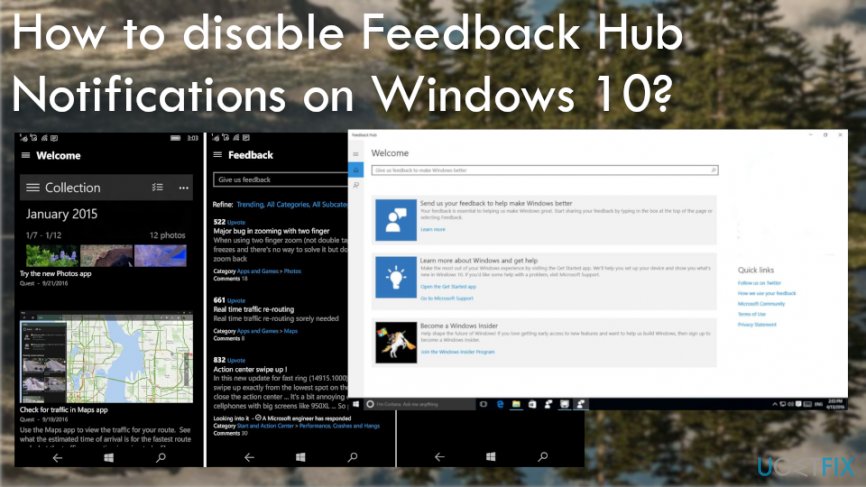
Feedback App (a.k.a. Feedback Hub) is an application developed by Microsoft. As its name suggests, the purpose of the app is to collect feedbacks about Windows 10 operating system in general, apps running on it, features, problems, and other heated issues.
People are supposed to share suggestions and report the recent issues. Feedback Hub is used by people who run Windows Insider and actively participate in rating the builds, submitting feedback Quests or earning badges.
The main issue customers have with Windows 10 applications like Feedback Hub is the fact that personal information[ref en-2] not only data about the resources and usage of your device can be tracked and collected by the application. Also, these constant notifications frustrate people on the daily bases.
However, the application often becomes too irritating to keep due to the constant Feedback Requests that pop-up randomly at the bottom-right corner of the desktop. If the PC owner closes the pop-up without sharing a feedback, the pop-up will soon reoccur.
Fix for unwanted Feedback Hub notifications
Disabling Feedback Hub Notifications
If constant feedback requests are getting on your nerves, you can disable Feedback Hub and, therefore, get rid of the pop-ups. For this purpose, please perform the following steps:
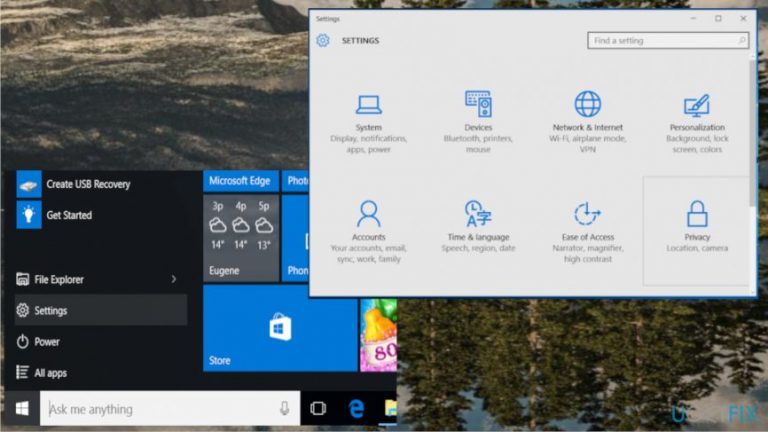
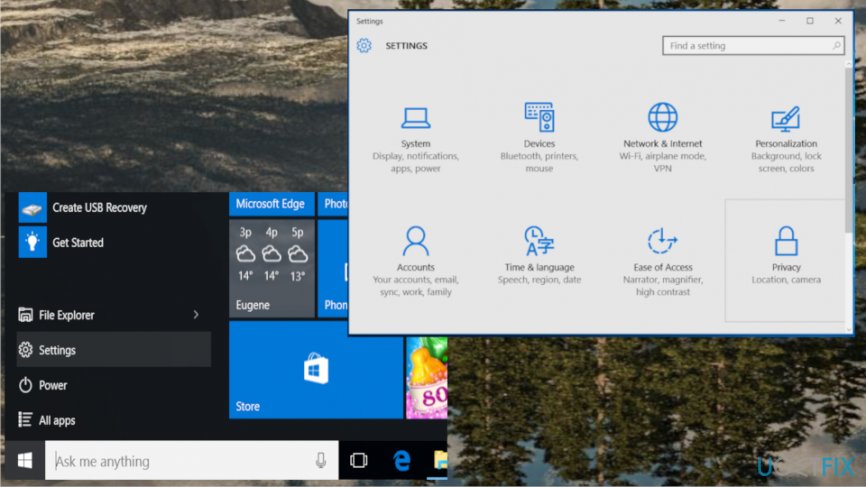
- Press Windows key + I to open Settings app.
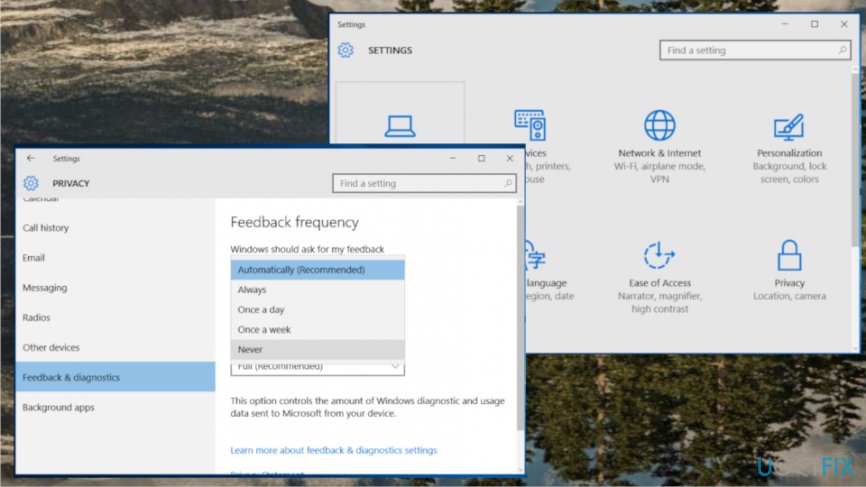
- Open Privacy and select Feedback & diagnostics from the left pane.
Feedback hub notifications windows key - At the top of the page, you should see a Windows should ask for my feedback option. Click on an arrow to expand a drop-down menu.
- Select Never if want to disable the pop-ups permanently.
- Additionally, disable all notifications related to Windows Feedback Hub via System.
Feedback hub notifications settings - Open Settings and select System.
- Click Notifications & Actions and find Show notifications from these apps.
- Locate Windows Feedback and turn it off.
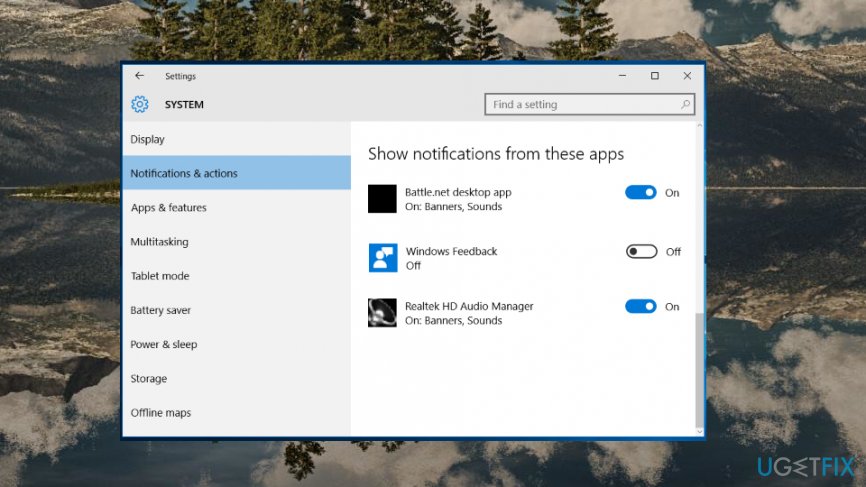
Disable feedback hub notificaions application
As you probably already know, most of the customized settings are modified after Windows 10 restore, enabling of System Restore Point or sometimes even installation of Windows Updates. Therefore, notifications related to Windows Feedback Hub may be automatically enabled. To prevent this from happening, you should also rename the Windows Feedback app folder:
- Right-click on Windows key and select File Explorer.
- Navigate to the C:\\Windows\\SystemApps and locate the WindowsFeedback_cw5n1h2txyewy folder.
- Right-click on it and select Rename.
- Change the name of the folder by adding a prefix ‚back,‘ ‚changed,‘ ‚old,‘ or similar and save it.
Bottom line
To stop unwanted Feedback Hub notifications, users can try deleting the app using a third-party removal tool or manually disabling it. If these methods do not resolve the issue, consider seeking further assistance or exploring additional removal options.
Frequently asked questions
To disable Feedback Hub notifications, go to Settings > Privacy > Feedback & diagnostics, and toggle off the option for Feedback notifications.
No, disabling Feedback Hub notifications will only stop alerts from that specific app, leaving other notifications intact.
While you cannot completely uninstall Feedback Hub, you can disable it by going to Settings > Apps > Apps & features, selecting Feedback Hub, and choosing 'Uninstall' to remove it from your system.




Report an issue
What's wrong with this guide? We review every report and update or remove content.
Report received — thank you. We'll review and fix it.
You need a free account to submit a report.
Be the first to comment