How to fix
Disable File Explorer Ads
on Windows
Eliminate annoying File Explorer ads in Windows 10 easily. Follow our expert-tested guide for a smoother experience and enjoy a clutter-free interface.

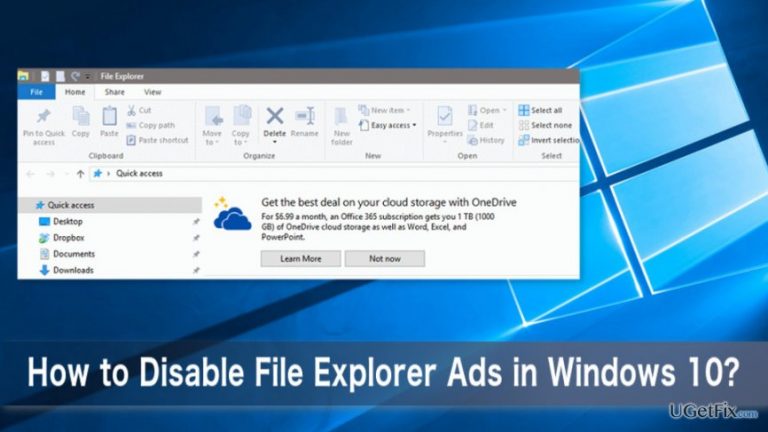
Why does How to Disable File Explorer Ads in Windows 10 occur?
- Windows 10 includes self-promotional ads
- Users receive suggestions to buy Office 365
- Ads promote OneDrive subscriptions
- Microsoft Edge is suggested over other browsers
- Ads appear in various parts of the OS
Repairs Windows system files, removes malware, and restores a clean OS state — without reinstalling.
After installing Windows 10 Creators Update, I start seeing ads in the start menu and File Explorer. It’s annoying. Is there a way to disable them?
File Explorer ads are one of the most annoying features of Windows 10. Indeed, the latest version of the operating system is full of advertisements. Nevertheless, Microsoft does not deliver third-party ads; self-promotion is also considered as annoying by the users. Some users may remember an aggressive and annoying campaign that pushed Windows 7 and 8.1 users to upgrade to Windows 10 for free. Maybe, in this case, users should not be surprised or angry about these promotions. They got a product for free; thus, developers need to apply another monetization strategy. However, in the middle of summer 2016, the situation has changed. Users, who had delayed installation of the upgrade, lost their chance to do it for free. Currently, in order to update current Windows version, usersu have to purchase the license for Windows 10. However, this doesn’t prevent from seeing undesired advertisements from Microsoft.
These ads might show up in various places of the operating system, for instance, in the start and share menus, the lockscreen, the File Explorer and even in some of the programs. However, Microsoft does not call them as “ads.” They are presented as “tips” or “suggestions" for users. But it does not change the fact that users are annoyed and bothered by this activity. The most of the complaints are related to File Explorer ads that usually offer to buy the license for Office 365, take a great offer for a subscription to OneDrive or install Microsoft Edge and use this browser instead of Google Chrome or Firefox. Undoubtedly, seeing undesired “suggestions" every single day is tiresome. What is more, it seems that these commercial offers started appearing more aggressively after Creators Update. However, the same issue has been reported in Anniversary Update as well. Thus, it's a major problem of the Windows 10 operating system. Fortunately, there’s a way to disable File Explorer ads and stop receiving other suggestions from Microsoft in the strangest corners of the operating system. The company left users to turn off these ads.
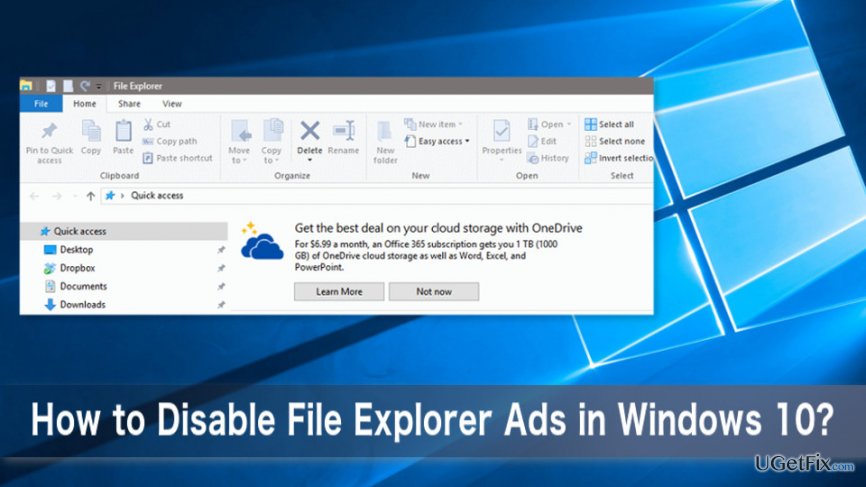
Steps for turning off File Explorer Ads in Windows 10
If you are bothered by File Explorer ads or other “tips" from Microsoft, you can turn them off quite easily. It doesn’t matter whether you have Anniversary Update or Creators Update installed, you still have to perform the same task and untick “Show sync provider notifications” option. In order to find this sneaky entry, follow these steps:
1. Open File Explorer.
2. Go to View, choose Options and open Change folder and search options on the top right corner of the menu bar.
3. In the appeared “Folder Options” windows, choose the View tab.
4. In the Advanced settings box, find “Show sync provider notifications” entry and uncheck it.
5. Click Apply, and then OK to save the changes.
Bottom line
To disable File Explorer ads, users can adjust settings in the operating system to turn off tips and suggestions. If the issue persists, consider looking for additional settings or updates that may address the problem.
Frequently asked questions
To disable File Explorer ads in Windows 10, go to Settings > Personalization > Start and toggle off 'Show suggestions occasionally in Start.'
Disabling ads in File Explorer can help declutter your view, but it may not significantly impact overall performance.
Yes, in Windows 11, you can disable ads by going to Settings > Personalization > Start and turning off 'Show recently opened items in Jump Lists on Start or the taskbar.'




Report an issue
What's wrong with this guide? We review every report and update or remove content.
Report received — thank you. We'll review and fix it.
You need a free account to submit a report.
Be the first to comment