How to fix
Disable Forced Restarts After Windows Updates
on Windows
Stop unwanted interruptions! Discover how to disable forced restarts after Windows 10 or 11 updates for smoother computing—expert-tested solutions inclu…

Why does How to Disable Forced Restarts After Windows Updates occur?
- Windows updates are set to run automatically
- Users may miss update notifications
- Forced restarts occur without user approval
- File loss can happen due to unexpected reboots
- Windows continuously checks for updates
Repairs Windows system files, removes malware, and restores a clean OS state — without reinstalling.
I’m shaking out of frustration!! Why is this happening I don’t know, but this time Windows made me angry, seriously. I set Windows to notify me before running any updates. After that, I left my computer on all night to render my video project. Can you imagine how frustrated I was after founding Windows system updated and the system upgraded by force??? My whole work went for nothing! Please tell me how to stop those automatic updates because the next time this will happen I’m about throwing my laptop out of the window.
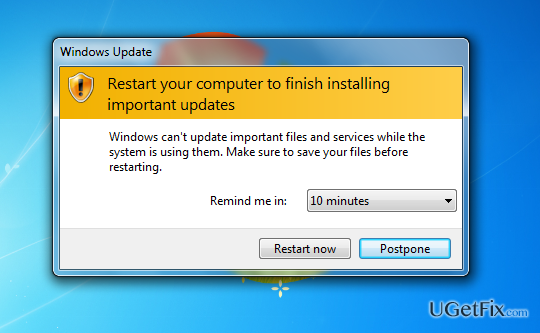
More and more people every day are complaining about automatic Windows 10 updates. We are quite sure that each Windows user has experienced forced restarts at least once. Windows system continuously checks for updates and notify the user about pending ones. The notification is displayed in a pop-up window that occurs at the bottom right corner of the screen. Usually, the user can select to delay the update by selecting the time of the pop-up window to show up again (10min, 15min, 30min, 1h, 4h, etc.). Unfortunately, if you tend to leave your PC overnight, you may miss the pop-up, which is why Windows reboots automatically. Although system restarts have a good reason, which is a proper security updates, Windows really cross the borders as those restarts are initiated by force without user’s approval. That’s a big deal because there are lots of people who have experienced file loss. That’s why we want to prevent this from happening again by presenting you two methods that will help to stop Windows from restarting your PC after updates.
How to disable force restarts after Windows updates?
Method 1
Specialists refer to the disabling forced restart as a quick registry hack. This method works on all Windows versions, including 7, 8, 8.1, 10, XP, and even Vista. What this hack does? It disables forced restart, what means that the required update will be run, but the system will not reboot. You will have to do that by yourself once you save all the files that you were currently working on. To disable force restarts, you have to do the following:
- Click Win key + R, type regedit to the run dialog, and hit Enter.
- When Registry Editor window opens, go to the following location: HKEY_LOCAL_MACHINE\SOFTWARE\Policies\Microsoft\Windows\WindowsUpdate\AU.
- In fact, the part WindowsUpdate\AU has to be created manually. For this purpose, click Win key, go to New, and select Key.
- Type WindowsUpdate and hit Enter.
- After that, right-click on the WindowsUpdate key, navigate your mouse on New, and select Key.
- Type AU in the opened window and press Enter.
- Then, select AU Key from the left pane, right-click on the right-pane, navigate to New, and select DWORD (32-bit).
- Type NoAutoRebootWithLoggedOnUsers in the opened window and hit Enter afterwards.
- Double-click on the newly created value and type 1 into the data box.
- After that, click OK and reboot your PC.
Disable Forced Restarts with Group Policy
Those who run Professional, Enterprise or Ultimate Windows versions, you can disable forced restarts quite easily. This method works in the same way as the previously described one, but this one is a bit easier. Thus, in case your PC runs aforementioned versions, you can use group policy editor:
- Press Win key + R, and type gpedit.msc, and press Enter to open Local Group Policy Editor.
- Go to the Computer Configuration\Administrator Templates\Windows Components\Windows Update.
- Double-click on the No auto-restart with logged on users for scheduled automatic update installations that can be found on the right pane.
- Set this setting to Enabled and hit OK.
- Finally, reboot your PC.
Bottom line
To disable forced restarts after Windows updates, you can use a quick registry hack that works on all Windows versions. This method allows updates to run without automatically rebooting the system. If these methods do not work, consider seeking further assistance or exploring additional settings.
Frequently asked questions
To disable forced restarts, go to Settings > Update & Security > Windows Update, then click on 'Advanced options' and select 'Notify to schedule restart' under 'Restart your device.'
Yes, in Windows 11, you can pause updates by going to Settings > Windows Update and selecting 'Pause updates' for a specified period.
Yes, you can set active hours by navigating to Settings > Update & Security > Windows Update, then clicking on 'Change active hours' to specify your preferred times.




Report an issue
What's wrong with this guide? We review every report and update or remove content.
Report received — thank you. We'll review and fix it.
You need a free account to submit a report.
Be the first to comment