How to fix
Disable Game Bar
on Windows
Easily disable Game Bar on Windows 10 to enhance performance and improve your gaming experience. Expert-tested tips for a hassle-free setup.

Why does How to Disable Game Bar on Windows 10 occur?
- Game bar does not allow recording of File Explorer or desktop
- Recorded video files disappear randomly
- Recorded videos do not show in the specified location
- Desktop freezes due to Game bar pop-up
- Accidental activation of Game bar by pressing Windows key + G
Repairs Windows system files, removes malware, and restores a clean OS state — without reinstalling.
I’ve never used Game bar and do not intend doing so. Is there a way to disable it?
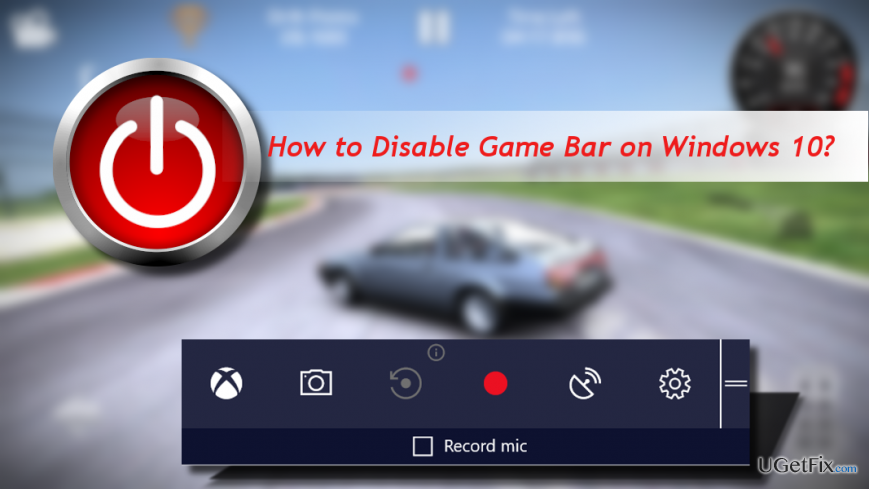
Game bar is a screen recording utility, which has been introduced with Windows 10 OS. The tool has primarily been oriented to devoted PC gamers who opt for capturing videos, broadcast they game play online, take screenshots or get a quick access to Xbox. The tool can be opened by clicking Windows key + G. Pressing this hotkey, the system will open a confirmation pop-up at the bottom of the screen, which asks “Do you want to open Game bar.” If the user really wants to access the desktop recording tool, he/she can press “Yes, this is a game” option. Then the system launched the Game bar, which looks like that:
In addition to game recording, Game bar allows recording of Windows Media Player and other third-party players. In a nutshell, Game bar is one of the many great Microsoft’s decisions, which allows Windows 10 users to reject installation of third-party tools. But why so many gamers still prefer third-party recording apps and opt for disabling Game bar?
Why would someone need to uninstall Game bar?
Despite many advantages, Windows 10 Game bar did not met the expectations of many advanced PC gamers. Some PC owners complain about the fact that the tool does not allow recording areas like File Explorer or the desktop. The others claim that recoded video files disappear randomly or does not show in the C:\\Users\\UserAccountName\\Videos\\Captures location. Besides, continues desktop freezes and delivery of the Game bar pop-up after accidentally clicking the Windows key + G hotkey are annoying.
Disabling Game Bar on Windows 10
Whatever the reason why you want to disable Game bar is, there is a way to do so disregarding the fact that the app is pre-installed default Windows 10 apps.
Disable Game DRV
If you opt for minimizing Game bar consumption of system’s resources, you can disable Game DRV feature. Nevertheless, you will be able to use other Game bar functions:
1. Press Windows key + I to open Settings.
2. Open Gaming and click Game DRV.
3. Turn off the Record in the background while I'm playing a game option.
Disable Game bar completely
1. Press Windows key + I to open Settings.
2. Click Gaming and open Game bar.
3. Disable the Record game clips, screenshots, and broadcast using Game bar option.
Disable Xbox Game Monitoring
Xbox Game Monitoring is bound with the Xbox app. It keeps working even if Game bar is disabled. Therefore, you’ll have to disable it separately:
1. Press Windows key + R, type regedit, and press Enter.
2. Open the HKEY_LOCAL_MACHINE key and double click on SYSTEM.
3. The double click on CurrentControlSet and Services.
4. Scroll down until you find xbgm and click it.
5. Now right-click on the Start REG_DWORD and select Modify.
6. Type the value 4 (the default value should be 3).
7. Click OK to save the changes and close the Registry Editor.
Disable Xbox app
As we have already pointed out, Game bar is tied to Xbox app. Thus, if you are using neither Xbox not Game bar, you can also uninstall the Xbox app completely.
1. Press Windows key and type PowerShell.
2. Right-click on the search result and select Run as administrator.
3. Copy and paste the Get-AppxPackage *xboxapp* | Remove-AppxPackage command and press Enter.
TIP: scan the system with [d1] to make sure that all Registry keys, system files, apps, and features are functioning properly.
Bottom line
To disable Game bar, you can minimize its resource consumption by disabling the Game DRV feature through Settings. If you still encounter issues, consider uninstalling Game bar or using third-party recording tools.




Report an issue
What's wrong with this guide? We review every report and update or remove content.
Report received — thank you. We'll review and fix it.
You need a free account to submit a report.
Be the first to comment