How to fix
Disable Game Pass ads after logging in to Windows
on Windows
Easily disable Game Pass ads on Windows 10 or 11 for a cleaner experience. Follow our expert-tested guide and enjoy seamless gameplay without distractions!

Why does How to disable Game Pass ads after logging in to Windows occur?
- Recent forced upgrade by Microsoft
- Intrusive full-screen ads after logging in
- Disruption of user experience
- Impact on productivity and aesthetics
- Perceived invasion of privacy
Repairs Windows system files, removes malware, and restores a clean OS state — without reinstalling.
Hello. Every time I log into Windows 11, I receive a full-screen ad for Xbox Game Pass. Is there a way to disable these ads?
Microsoft offers a subscription service called Game Pass[ref en-1] that lets customers access a huge selection of video games every month. A vast selection of games in multiple genres, including productions from Xbox Game Studios and other independent creators, are available for download and play for subscribers. Without requiring separate game purchases, the service offers a varied gaming experience across Xbox platforms, Windows PCs, and mobile devices.
Many users have reported experiencing an intrusive issue with Game Pass advertisements after logging in to their Windows 11 PCs. This problem seems to have emerged following a recent forced upgrade by Microsoft. Upon logging in, users find themselves confronted with a full-screen ad promoting Game Pass, creating an unwanted and disruptive experience.
The impact of this issue can be significant, as it disrupts the seamless and personalized nature of the user experience. Users, particularly those who may have purchased new PCs with the expectation of a clean and efficient system, find the intrusive Game Pass ads to be a source of frustration. The constant display of these ads not only hampers user productivity by requiring an additional step to dismiss the ad but also detracts from the overall user interface aesthetics.
Such unwanted advertisements can also be perceived as an invasion of privacy, as users expect to have control over the content they encounter on their personal devices. In addition, the full-screen nature of these ads can be particularly jarring, especially for users who value a streamlined and distraction-free start to their computing experience.
Potential solutions to address this issue may involve adjusting settings within the Windows operating system to disable or limit the display of these Game Pass ads. Users may seek assistance from official Microsoft support channels or community forums to explore and implement potential remedies. As the problem appears to be related to a recent upgrade, Microsoft may release subsequent updates or patches that address this concern and provide users with the option to customize their ad experience further.
In this guide, you will find 2 steps that should help you disable Game Pass ads after logging in to Windows. If you experience any other operating system issues, you can try running a maintenance tool like [d1] that can fix most system errors, BSODs,[ref en-2] corrupted files, and registry issues. Otherwise, follow the step-by-step instructions below.
Solution 1. Disable Xbox App at Startup
- Click on Start and search for the Xbox app; click on the app when it appears.
- Navigate to the top-left of the screen and click on the Profile/Sign-in menu item.
- Select Settings from the menu.
- In the left panel, click on General.
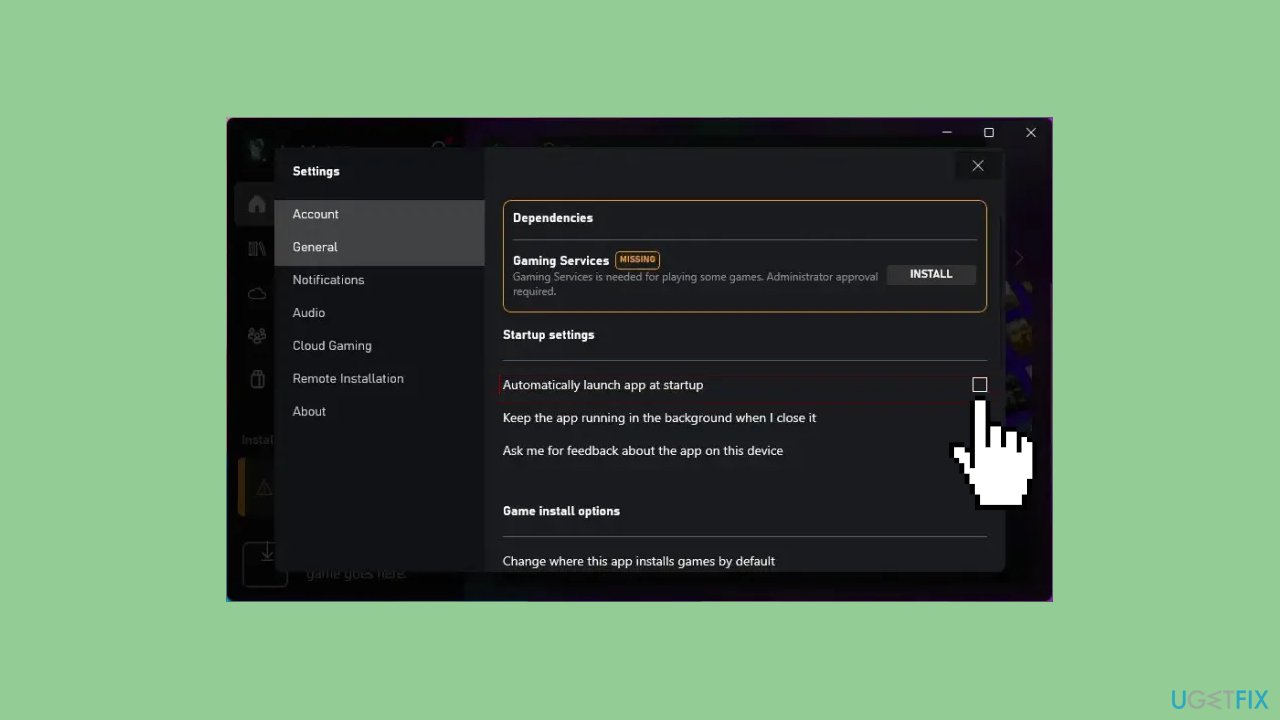
- Uncheck the option Automatically launch app at startup under Startup settings.
- Close the Xbox app to apply the changes.
- After following these steps, you should no longer see the advertising upon startup.
Solution 2. Uninstall Xbox-related Apps
- Press the Windows key on your keyboard or click on the Start button to open the Start menu.
- In the search bar, type Settings and click on the Settings app from the search results.
- In the Settings window, select Apps or Apps & features, depending on your Windows version.
- Scroll down the list of installed apps to find either Xbox or Xbox Console Companion.
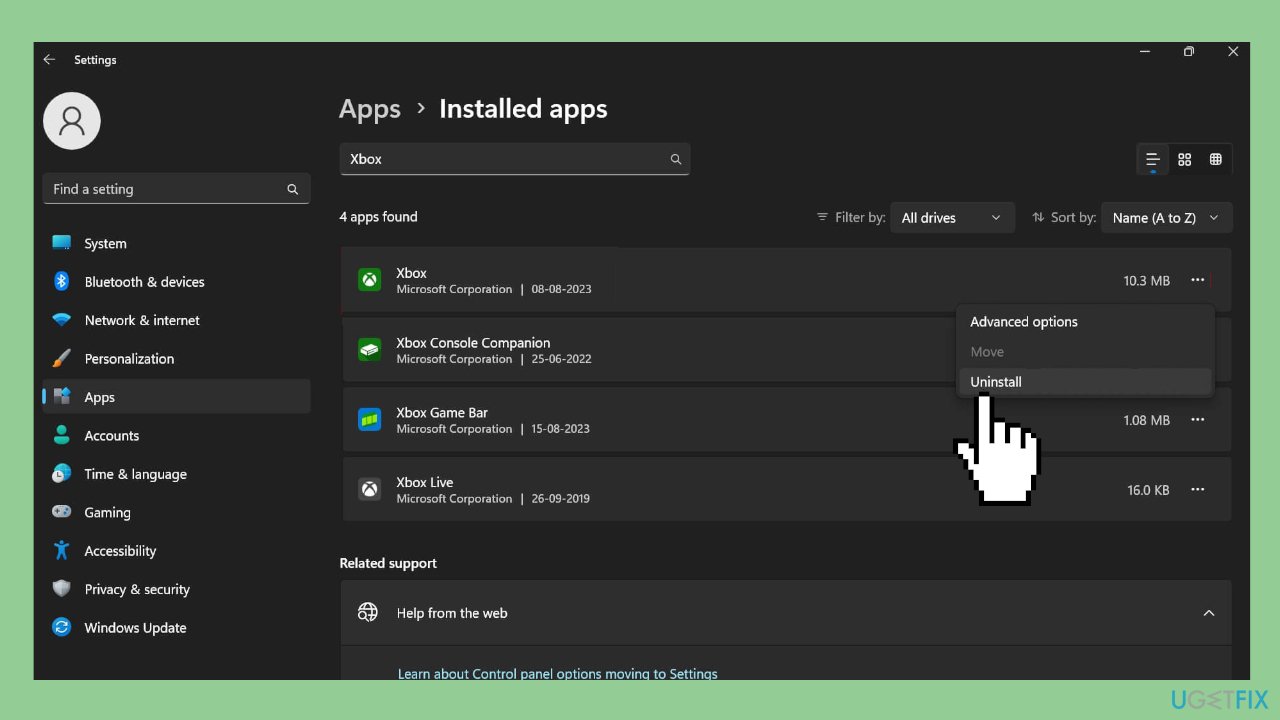
- Click on the Xbox app or Xbox Console Companion to highlight it.
- Click on the Uninstall button that appears after selecting the app.
- Follow the on-screen prompts to confirm the uninstallation.
- Allow the system to complete the uninstallation process.
- Once finished, close the Settings window.
- Verify that the Xbox app or Xbox Console Companion is no longer present on your system.
Bottom line
To disable Game Pass ads, users may need to adjust settings within the Windows operating system or seek assistance from Microsoft support channels. Exploring community forums for potential remedies may also be beneficial. If none of these solutions work, users should stay updated for future Microsoft patches that may address the issue.
Frequently asked questions
To disable Game Pass ads in Windows 10, go to Settings > Gaming > Xbox Game Bar and toggle off the option for 'Show tips when I start a game.'
Yes, in Windows 11, navigate to Settings > Gaming > Xbox Game Pass and turn off notifications related to Game Pass promotions.
No, you don’t need an Xbox account; simply adjust the gaming settings in Windows 10 or Windows 11 to stop the ads.




Report an issue
What's wrong with this guide? We review every report and update or remove content.
Report received — thank you. We'll review and fix it.
You need a free account to submit a report.
Be the first to comment