
How to disable GameBarPresenceWriter.exe and GamingServices?
Prefer to fix it yourself? The manual steps follow.
4 methods in this guide
Hello. I have recently spotted that some processes and services - GameBarPresenceWriter.exe and GamingServices to be precise - keep starting up each time I launch a game. What is annoying that there is no need for these to be running, as I do not play Xbox or other Microsoft-developed games. I'd like to find a solution on how to disable these permanently if that's even possible...
For a Windows machine to run correctly, it needs to have many services and processes running in the background. Despite this, there are many optional processes that are enabled by default by Microsoft, regardless if users ask for it or not. GameBarPresenceWriter.exe and GamingServices are the processes that users were concerned about, as they did not believe they were necessary.
GameBarPresenceWriter.exe is an executable that is used by something called Game Bar used via the Xbox Console Companion. This feature was introduced by Microsoft in order to allow users to take a screenshot, record video footage, monitor FPS, CPU, and GPU usage, among other functions, when playing video games on a Windows machine.
Additionally, the feature can also allow players to enable and disable the gaming mode, which turns off certain system processes to make the gaming experience better. Users can launch GameBarPresenceWriter.exe and the Game Bar themselves.
GamingServices.exe is another Microsoft process that is used by Xbox Live to provide support for the "Play Everywhere" service. Therefore this one might not be needed if you are no longer have a subscription for Xbox Live.
The most common complaint is, however, is that users do not need the functionality that these services provide. And, as soon as they try to shut them down via the Task Manager, it automatically returns as soon as the new game is launched or when a PC is rebooted.
In some cases, both of GamingServices.exe and GameBarPresenceWriter.exe might be using too much CPU or other computer resources. This can be related to numerous problems, including corrupted system files, malware infections, and much more. The increased resource usage could be one of the main reasons to disable GameBarPresenceWriter.exe and GamingServices for good.
Below you will find ways how to disable GameBarPresenceWriter.exe and GamingServices - some of these might be difficult to execute for a novice user, so follow each step carefully.
Solution 1. Turn Xbox Game bar via Settings
Before you meddle with services, you should attempt do turn off the Game Bar via the settings menu.
- Right-click on Start button and pick Settings
- Go to Gaming
- Turn the switch next to Xbox Game Bar to the left to disable it.
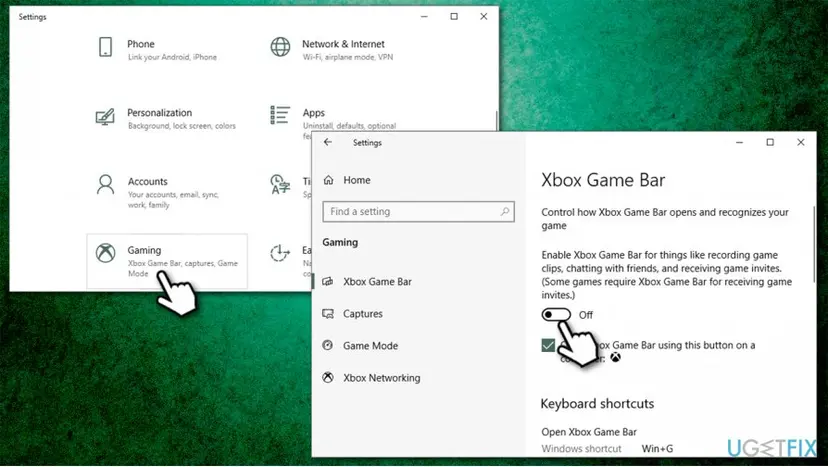
How to disable gamebarpresencewriter exe and gamingservices disable game bar via settings
Solution 2. Disable Game Bar via Xbox Console Companion
- Type in Windows Console Companion and press Enter
- Once the app opens, press the Settings button
- Go to Game DVR tab
- Turn off the Record game clips and screenshots using Game DVR.
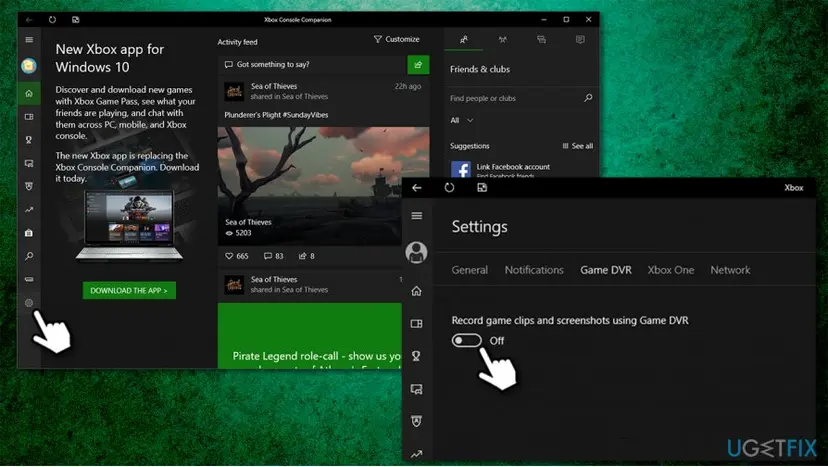
How to disable gamebarpresencewriter exe and gamingservices disable game bar via xbox companion
Solution 3. Disable Game Bar via Registry Editor
Keep in mind that deleting incorrect files in the Registry editor can cause serious PC issues, so please backup your registry database before performing any changes to it. Once done, proceed with the following:
- Type in regedit into Windows search box
- Right-click on search result and and select Run as administrator
- Navigate to the following location on Registry Editor:
\\HKEY_CURRENT_USER\\SOFTWARE\\Microsoft\\Windows\\CurrentVersion\\GameDVR
- Right-click on AppCaptureEnabled and select Modify
- Change value from 1 to 0 and press OK
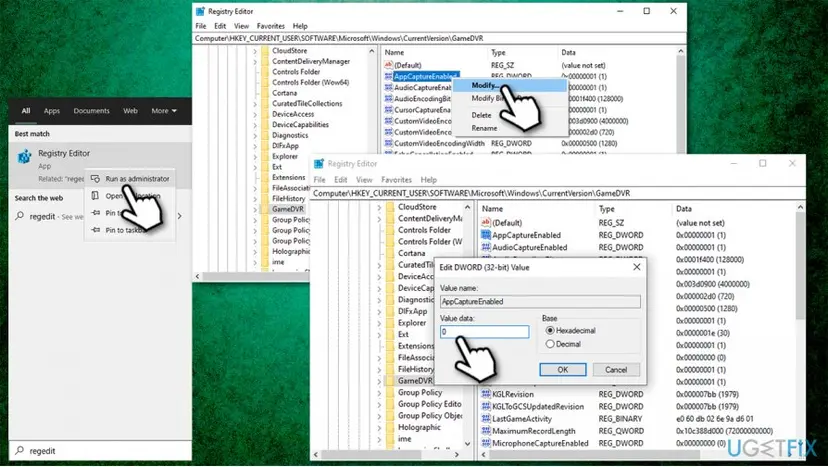
How to disable gamebarpresencewriter exe and gamingservices disable game bar via windows registry - Reboot your PC.
Solution 4. Uninstall Xbox app to disable GamingServices
Since the GamingServices can not be disabled for startup, you can attempt to uninstall the newest Xbox app from your computer (this is a different app than the Xbox Console Companion):
- Right-click on Start button and select Apps & Features
- Scroll down to locate Xbox
- Click on Uninstall and then confirm with Uninstall once again
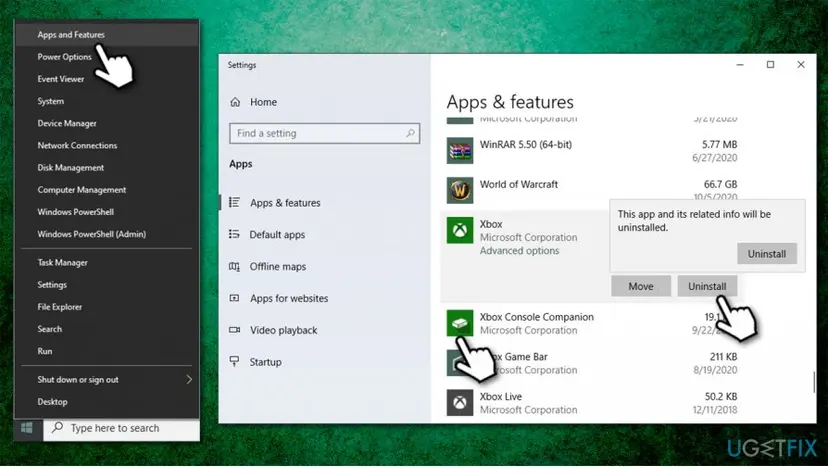
How to disable gamebarpresencewriter exe and gamingservices uninstall xbox app - Follow on-screen instructions to delete the app fully.
Did this fix work?
One click, no account. It tells the next reader which guides are worth their time.
Questions and experiences: disable GameBarPresenceWriter.exe and GamingServices
Still broken, or found a fix we did not cover? Ask here: members and our editors answer. Reading is open; writing needs a free account.
…