How to fix
Disable “Getting to know you” feature
on Windows
Discover quick ways to disable the "Getting to know you" feature in Windows 10, enhancing your privacy and user experience. Expert-tested solutions!

Why does How to disable “Getting to know you” feature on Windows 10 occur?
- Monitors and collects information about user’s activities
- Necessary for providing better user experiences
- Collects contacts, recent calendar events, speech, handwriting patterns, typing history
- Privacy concerns about data collection
- Dependency of Cortana and Dictation on this feature
Repairs Windows system files, removes malware, and restores a clean OS state — without reinstalling.
How can I turn off "Getting to know you” on Windows 10? This feature seems a little bit creepy…
"Getting to know you” is Windows 10 feature, that generally speaking, monitors and collects information about user’s activities on the computer. Nevertheless, this service is necessary for providing better user experiences; some people do not find this feature satisfying. Users who are concerned about their privacy fear that Microsoft simply stalks them.
According to Microsoft, this feature allows “Windows and Cortana to get to know your voice, and writing to make better suggestions for you.” In order to do that, Microsoft collects:
- contacts,
- recent calendar events,
- speech,
- handwriting patterns,
- typing history.
As you can see, data collection is mostly important to Cortana - Windows assistant that can be controlled by voice.
Collected information helps to recognize not only user’s voice, but also find contacts quicker, necessary documents and other information. Thus, when this feature allows getting the best results and improving the experience when controlling your device by voice. Though, not all Windows 10 users use this modern feature or find it comfortable.
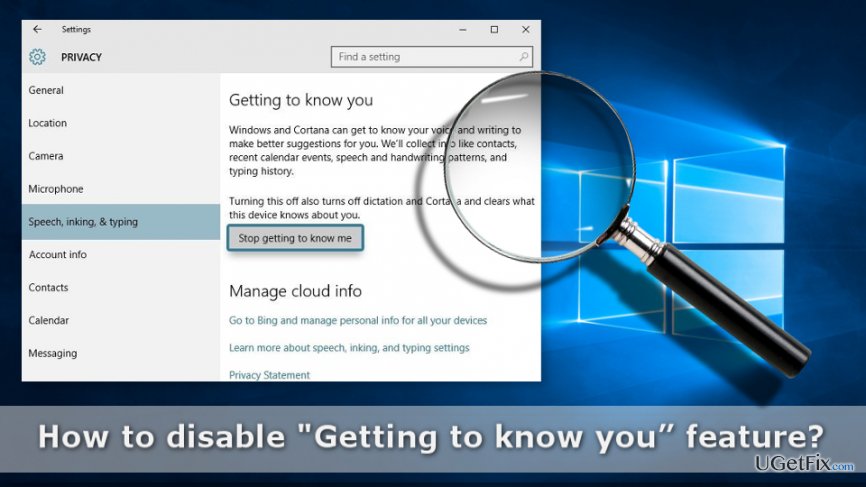
However, privacy-related concerns motivate lots of users to disable "Getting to know you” feature. Just like any other Windows feature, this one can also be adjusted via Settings app. All you have to do is to open Privacy setting options and find Stop getting to know me button.
However, before you start, you need to know that turning off this feature also leads to an inability to use Cortana and Dictation on your device. Thus, if you want to use these services, you should let Windows continue collecting information about you.
Turning off "Getting to know you” on Windows 10
By default "Getting to know you” is turned on because Microsoft wants to know their users better and offer more convenient experience. As you already know, this feature is also necessary for Cortana to work properly.
However, if you are concerned about your privacy and do not want to enhance your working with PC experience with Cortana, you should turn off this feature. Once it’s done, all the tracking activities will be stopped.
However, before you start, we feel the need to remind you that disabling this feature will affect work with Cortana and Dictation on you PC. However, if it doesn’t seem like a problem, follow the steps below and turn off "Getting to know you” feature:
1. Click Start and open Settings app.
2. Select Privacy option.
3. Click Speech, inking, & typing option in the left panel.
4. Then Getting to know you window appears. It includes a Stop getting to know me button. Choose Turn off.
Once you disable "Getting to know you” feature, you can be sure that your work with computer is protected from the vigilant Microsoft’s eye.
If you ever find the need to explore what personalized experiences can Windows offer to you and get back to using Cortana, you can turn on this feature by following the same steps. However, instead of “Turn off” you will need to choose “Turn on” option.
Bottom line
To disable the 'Getting to know you' feature on Windows 10, open the Privacy settings and find the 'Stop getting to know me' button. Be aware that turning off this feature will also disable Cortana and Dictation. If these steps do not resolve your concerns, consider further privacy settings adjustments or consult additional resources.
Frequently asked questions
You can disable the 'Getting to know you' feature by going to Settings > Privacy > Activity history and unchecking the relevant options.
Disabling this feature may enhance your privacy and reduce background activity, potentially leading to a slight improvement in performance.
Yes, Windows 11 has a similar feature, and you can disable it through Settings > Privacy & security > Activity history.




Report an issue
What's wrong with this guide? We review every report and update or remove content.
Report received — thank you. We'll review and fix it.
You need a free account to submit a report.
Be the first to comment