How to fix
Disable Microsoft Edge PDF Reader
on Windows
Easily disable the Microsoft Edge PDF Reader on Windows 10 for a smoother browsing experience. Follow our expert-tested guide for quick results!

Why does How to Disable Microsoft Edge PDF Reader on Windows 10 occur?
- Microsoft Edge PDF Reader is set as default after Windows Updates
- System Restore resets default PDF reader
- Windows 10 File association protection mechanism reverts settings
- Irrelevant or unrecognizable registry entries in UserChoice directory
Repairs Windows system files, removes malware, and restores a clean OS state — without reinstalling.
Please tell me if it’s possible to disable Edge PDF reader? I prefer using Adobe reader, but Edge PDF reader blocks Adobe and sets itself as default all the time.
Many people complain about Microsoft’s decision to set Microsoft Edge PDF Reader by default. While this tool is handy as it supports PDF files and allows viewing them. However, most of the Windows 10 users opt for using Adobe Reader or another third-party PDF reader because they enable both viewing and editing PDF files, as well as a handful of other functions. Luckily, it’s not difficult to change the default PDF reader via Default Apps. The problem is that Microsoft Edge PDF reader is reset as a default after the installation of Windows Updates, System Restore or other important system changes. The culprit of this inconvenience is related to the Windows 10 File association protection mechanism, which reverts default Windows 10 set when the particular software inserts irrelevant/ unrecognizable registry to the UserChoice directory. If you cannot disable Edge PDF reader or if Action Center always delivers a notification that Microsoft Edge PDF reader has been reset to default automatically, you will have to change the situation manually.
How to Disable Microsoft Edge PDF Reader on Windows 10?
Solution 1. Make Adobe as a default PDF reader
- Download Adobe Reader and install it.
- Once done, press Windows key + I to open Settings.
- Click System and open Default Apps (on the left pane).
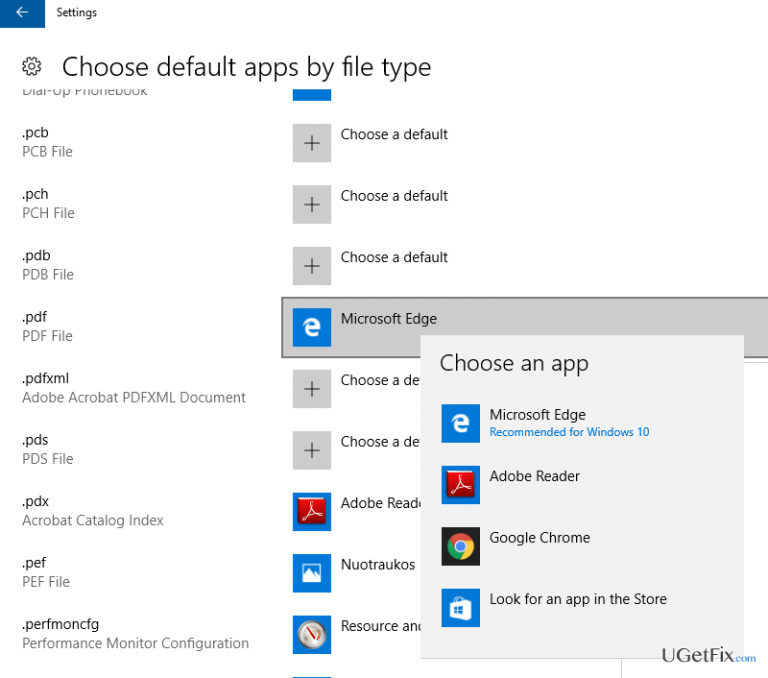
- At the bottom of the page, find Choose default apps by file type option and click it.
- Find .pdf on the left pane.
- Click Microsoft Edge next to .pdf and select Adobe Reader instead.
Solution 2. Use an elevated Command Prompt
If the previous method failed to disable Microsoft Edge PDF reader, you would have to initiate a registry hack to stop this reader from replacing third-party programs by force. For this purpose, you have to:
- Right-click Windows key and select Command Prompt (Admin).
- Copy and paste for /f “usebackq” %i in (`reg query hkcr /f “AppX”`) do reg query %i\DefaultIcon | find “MicrosoftEdgePDF” && reg add %i /v NoOpenWith /t REG_SZ /f command in the Command Prompt window and press Enter.
IMPORTANT: before initiating any changes on the Windows Registries, it’s advisable to create registry backups. This is a precautionary measure to prevent the permanent registry damage, which may cause various errors or even system’s crash. If you don’t know how to create backups, please refer to this post.
Finally, we would highly recommend you not to forget about the PC’s optimization. As the time goes by, Windows OS gets clogged with file leftovers, outdated registries, damaged system files, potentially unwanted or even dangerous programs, and so on. Therefore, we would highly recommend you to install [d1] and allow it to address all the problematic points.
Bottom line
To disable Microsoft Edge PDF Reader, you can set Adobe Reader as the default PDF reader through the Default Apps settings. If that fails, an elevated Command Prompt can be used to perform a registry hack. If none of these methods work, further troubleshooting may be necessary.
Frequently asked questions
You can disable the Microsoft Edge PDF Reader by going to Settings > Apps > Default apps, then changing the default PDF viewer to another application like Adobe Reader.
No, as long as you set another application as the default PDF viewer, you will still be able to open PDF files without any issues.
Yes, you can re-enable it by going back to the Default apps settings and selecting Microsoft Edge as the default PDF viewer again.




Report an issue
What's wrong with this guide? We review every report and update or remove content.
Report received — thank you. We'll review and fix it.
You need a free account to submit a report.
Be the first to comment