How to fix
Disable Microsoft search bar on desktop
on Windows
Easily disable the Microsoft search bar on your Windows 10 or 11 desktop for a cleaner look. Follow our expert-tested guide and optimize your setup today!

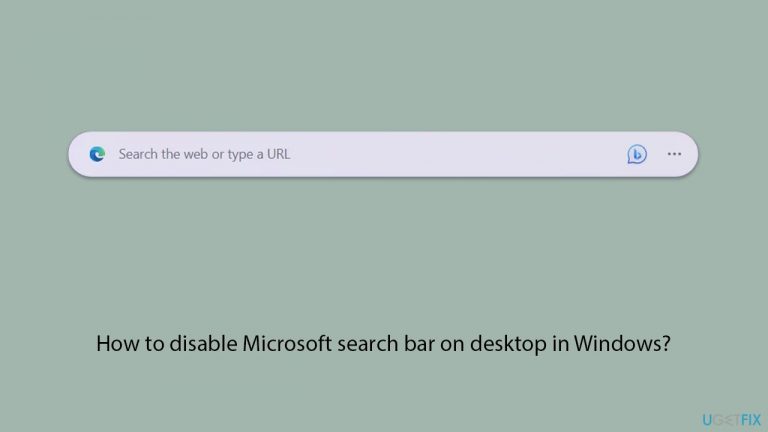
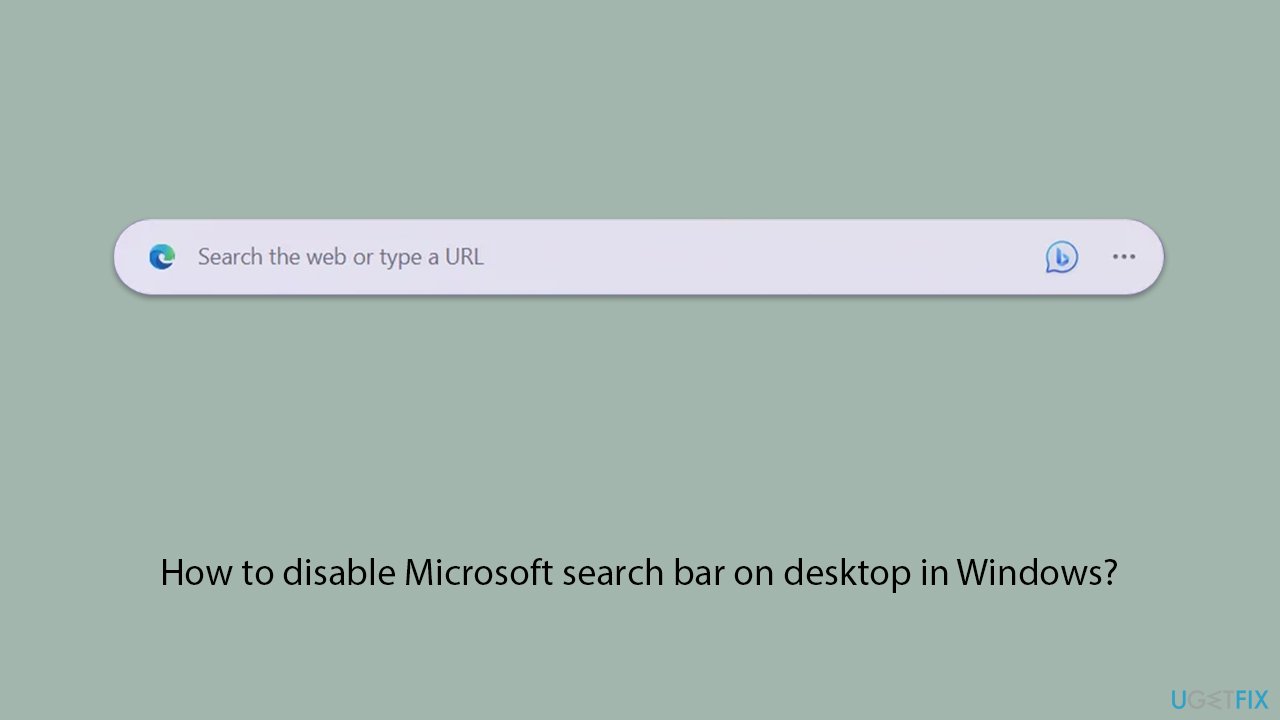
Why does How to disable Microsoft search bar on desktop in Windows occur?
- Microsoft Edge is built into the Windows operating system
- An update introduced a prominent search bar
- The search bar obstructs desktop wallpapers
- The search bar can reappear after restarting Windows
- Temporary solutions do not provide a permanent fix
Repairs Windows system files, removes malware, and restores a clean OS state — without reinstalling.
Hey. For a few months now, I keep getting this annoying search bar in the middle of my wallpaper from Microsoft Edge. I turn it off, but then it comes back again. How can I remove the search bar from the desktop permanently?
Microsoft Edge is now built into the Windows operating system, bringing with it a slew of new capabilities. While these additions are intended to improve the user experience, they are not always well welcomed.
A notable example is an update that introduced a search bar placed prominently in the middle of the screen. Although intended for convenience, this feature has been criticized for obstructing desktop wallpapers and causing unintended interactions, which many find intrusive.
To temporarily disable this feature, users can click on the three vertical dots within the search bar interface and deselect the "Auto-launch search bar" option. However, this solution is not permanent; the search bar reappears after certain triggers, such as restarting Windows, leading to frustration among users seeking a clutter-free desktop.
Those who want to permanently remove the Microsoft Search bar from their desktop must take a more sophisticated solution that involves modifying the Windows Registry database. The Windows Registry is a vital system file that contains low-level settings for the operating system and installed apps. Altering the Registry can have a substantial impact on the system's functionality and stability, therefore proceed with caution.
Before making any changes, make sure to back up the Registry and understand the processes involved in the update process. Incorrect alterations might cause system instability or possibly make the system unusable; needing a fresh Windows installation.
For safety, users might consider consulting a professional or utilizing a PC repair and maintenance tool [d1]. These tools are designed to simplify system adjustments and mitigate the risks associated with manual Registry edits, providing a safer alternative for customizing Windows settings to individual preferences.
Step 1. Backup your Registry database
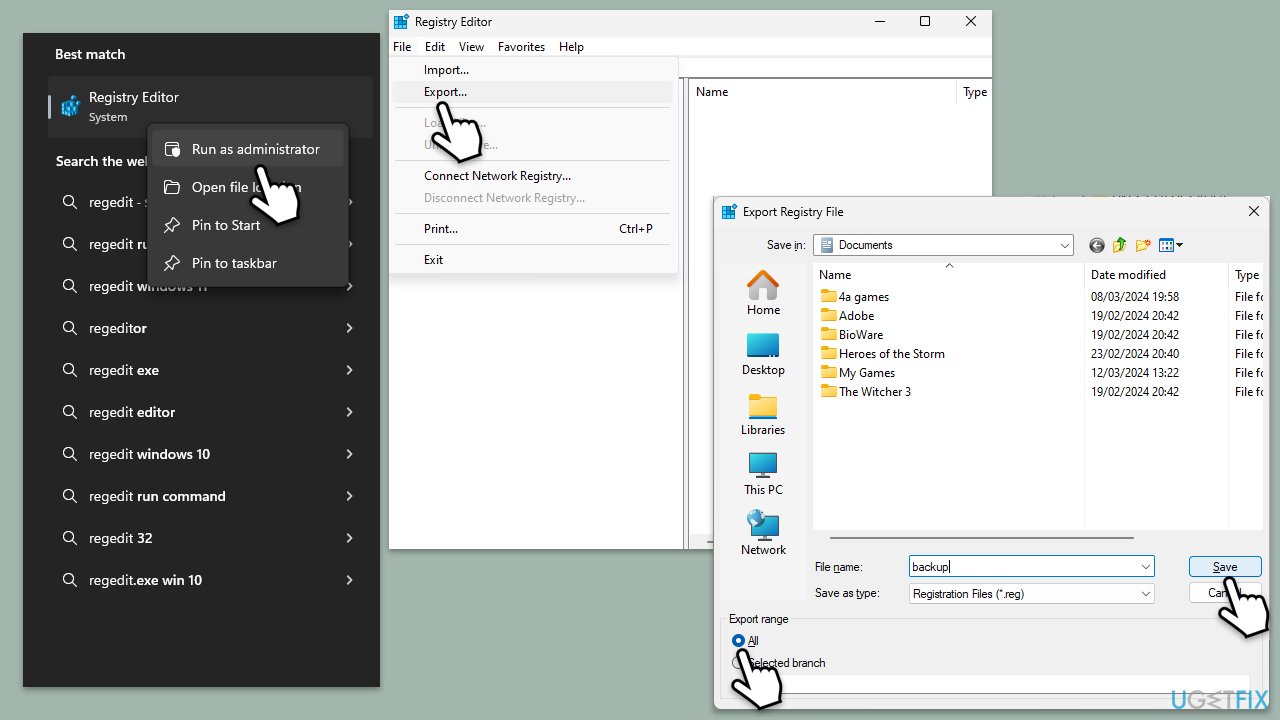
As mentioned, a Registry is extremely important and if mishandled can cause system instability or corruption. To prevent this, it is necessary to make a backup of the database, which can be achieved as follows:
- Type in regedit in Windows search.
- Right-click the Registry Editor result and select Run as administrator.
- When the User Account Control window shows up, click Yes.
- Click File > Export.
- Select the location where you would like to store the backup of your Registry.
- Ensure the Export range is set to All and then click Save.
Step 2. Alter the Edge-related Registry entry
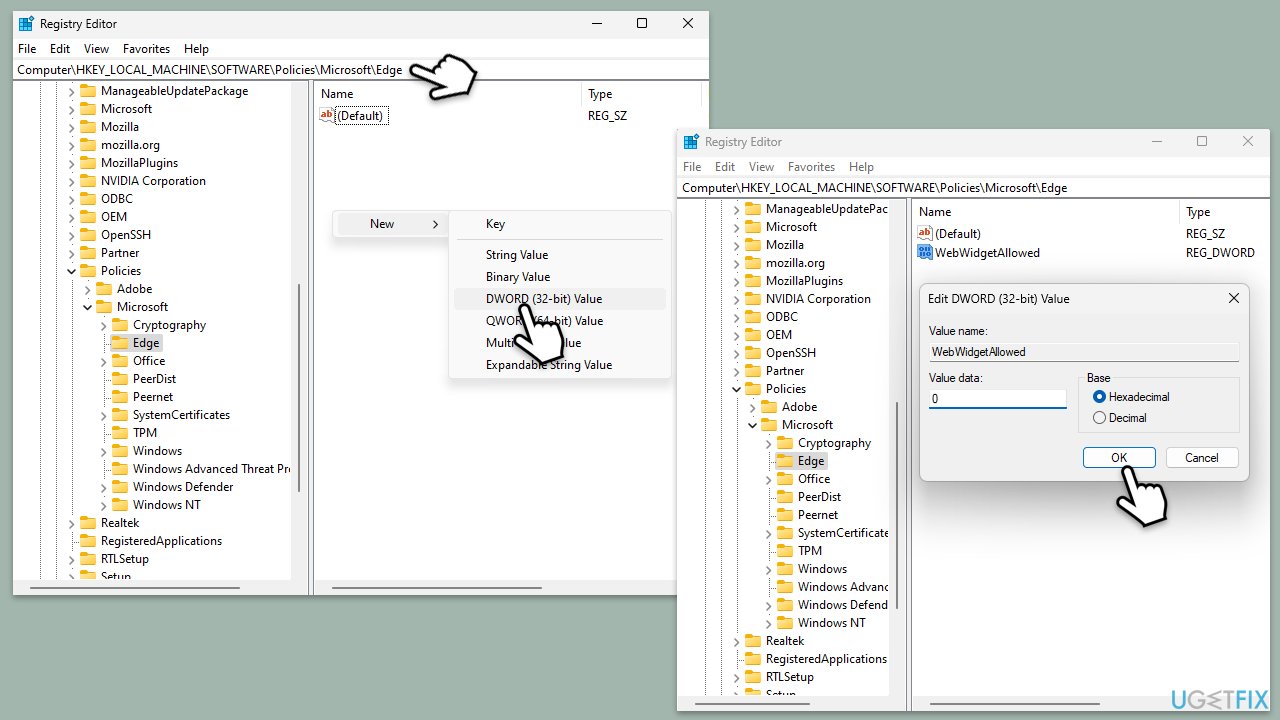
Now that you have the database backed up, you should proceed with modifying registry entries - this should permanently remove the Microsoft search bar from the desktop.
- Open Registry Editor as administrator as explained in the previous step.
- Here, navigate to the following location:
Computer\HKEY_LOCAL_MACHINE\SOFTWARE\Policies\Microsoft\Edge - On the right side of the window, check for the WebWidgetAllowed key.
- If it doesn't exist, right-click on empty space, select New > DWORD (32-bit) Value, and name it WebWidgetAllowed.
- Double-click the WebWidgetAllowed key.
- In the Value data section, enter 0 and click OK.
- Close down the Registry Editor and restart your system for the changes to take effect.
Bottom line
To disable the Microsoft search bar on your desktop, you can temporarily click on the three vertical dots in the search bar and deselect the 'Auto-launch search bar' option. For a permanent solution, you will need to modify the Windows Registry, ensuring to back it up first. If these methods do not work, consider consulting a professional or using a PC repair tool.
Frequently asked questions
Right-click on the taskbar, hover over 'Search,' and select 'Hidden' to remove the search bar from your desktop.
Disabling the search bar does not disable the search functionality; you can still access it via the Start menu or by pressing the Windows key.
Yes, you can customize search settings by going to Settings > Privacy & Security > Search permissions before choosing to hide the search bar.




Report an issue
What's wrong with this guide? We review every report and update or remove content.
Report received — thank you. We'll review and fix it.
You need a free account to submit a report.
Be the first to comment