How to fix
Disable Modern Standby
on Windows
Easily disable Modern Standby in Windows 10 to enhance performance and save battery life. Expert-tested solutions with screenshots for your convenience.

Why does How to disable Modern Standby in Windows 10 occur?
- Computer keeps running instead of going to sleep
- Battery drains quickly due to constant connectivity
- Overheating issues caused by Modern Standby
- Firmware bugs preventing proper sleep mode
- Hidden options making it difficult to disable Modern Standby
Repairs Windows system files, removes malware, and restores a clean OS state — without reinstalling.
Hello, I have an issue with my Dell laptop because my computer might go out of the market for good. It can't go to sleep as it supposed to. It randomly woke up, the battery drains quickly, and overheating overall is causing additional problems. It seems that the computer keeps on running, so it going to wear down. How can I disable Modern Standby completely? I think this is the thing that creates all the issues for me.
Users[ref en-1] encounter issues whit the computer resuming from sleep/ standby and the issue creates frustration when it is not easy to disable Modern Standby in Windows, especially the newer versions of Windows 10 devices. This feature uses Wi-Fi, and other connections, so it continually brings the device from deep sleep to fetch updates or sync accounts, emails.
Certain devices can have network connections during disable Modern Standby in Windows 10, others can't because firmware can have bugs and keep the device awake and make the modern Standby options invisible on purpose. So the disabling function cannot be accessed easily.
People want to disable Modern Standby in Windows because even when this mode supposed to improve the experience and performance, it is not providing any usefulness. Constant connection to the internet is not the best thing since the operating system keeps the connection to the outside world and wears the machine down, drains the battery, uses other resources, and triggers some issues regarding privacy or security.
It becomes difficult to disable Modern Standby in Windows 10 because of those firmware issues and hidden options from the user. However, the disabled Modern Standby can save battery by not having your computer connected to Wi-fi or the internet while sleeping. Also, when the device is not connecting to the internet or searching for connections it cannot connect to rogue AP as you travel about. You can avoid being subject to potential tracking.[ref en-2]
Windows team states that the system is active during this mode and that background tasks can run, the network is still active, you can receive events like account or device syncing, reminders, and all. Microsoft doesn't provide any easy switches or disable features, so there are some hacks with the Windows registry that help to disable Modern Standby on Windows.
How to disable Modern Standby in Windows 10
The issue with Modern Standby disabling dates back to 2018, so there might be fixes that are no longer available or working. The same thing might be with settings that are no longer available after updates or on particular operating systems. We have a few solutions for you, but more recent versions of Windows devices that encounter the issue to this day no longer can be fixed by changing the registry values. The option to disable Modern Standby only present if the particular laptop supports this function. Some of the firmware has bugs, so the device won't go to sleep when needed.[ref en-3] There are no fixes for such cases, unfortunately.
Edit Registry to disable Modern Standby in Windows
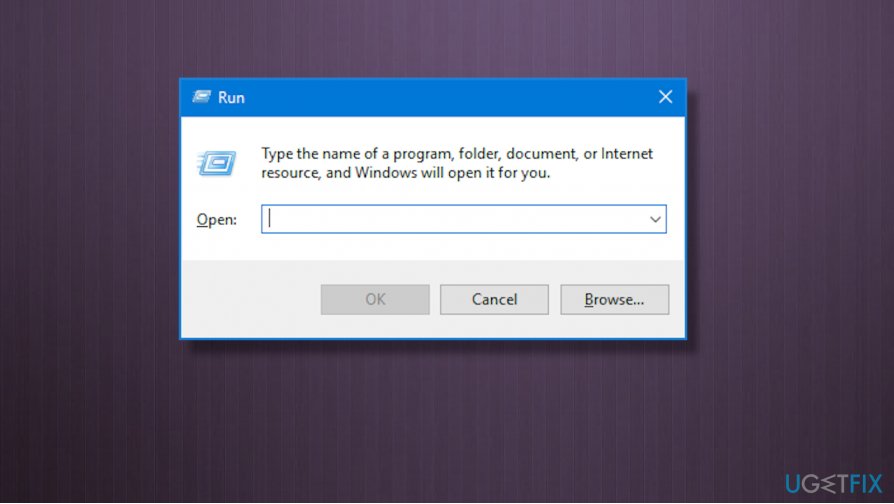
- In the search box on the taskbar type regedit and select the Registry Editor result.
- Or press the Start button and find Run, enter regedit there and click OK.
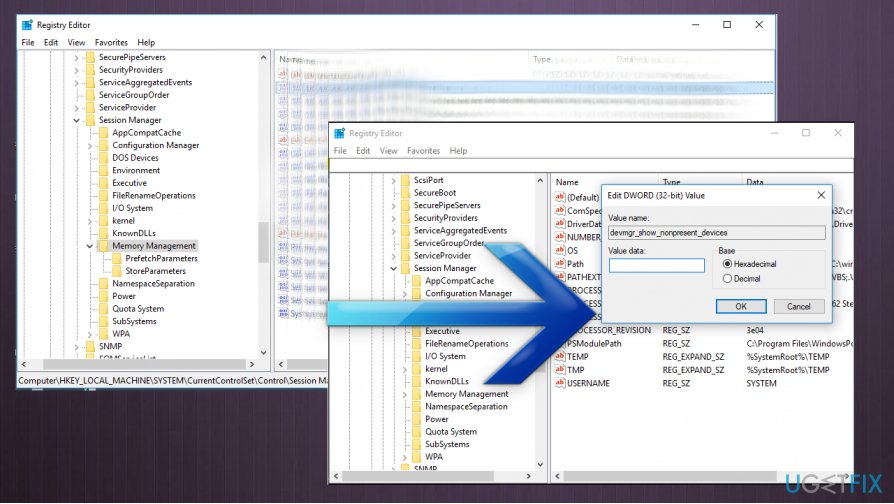
How to disable modern standby in windows 10 regedit - Expand Computer\\HKEY_LOCAL_MACHINE\\SYSTEM\\CurrentControlSet\\Control\\Power keyset.
- Double-click on CsEnabled.
- Change the value from 1 to 0 and restart the device.
How to disable modern standby in windows 10 regirstry editor
Check configurations
- Open Command Prompt window and type powercfg /a there
- Press Enter.
- If you see Standby (S0 Low Power Idle) Network Disconnected, your device is set to disconnect from the wi-fi while sleeping.
Bottom line
To disable Modern Standby in Windows 10, users may need to access hidden options or adjust firmware settings. Disabling this feature can help save battery and prevent unwanted internet connections while the device is asleep. If these fixes do not work, consider seeking further technical assistance.
Frequently asked questions
Modern Standby allows your device to stay connected to the internet while in sleep mode, which can drain battery life. Disabling it can help improve battery performance and system stability.
You can disable Modern Standby by opening Command Prompt as an administrator and executing the command 'powercfg -h off' to turn off hibernation, which disables Modern Standby.
Disabling Modern Standby may improve battery life and overall system performance by preventing unnecessary background activity while your device is asleep.




Report an issue
What's wrong with this guide? We review every report and update or remove content.
Report received — thank you. We'll review and fix it.
You need a free account to submit a report.
Be the first to comment