How to fix
Disable or enable taskbar’s News and interests
on Windows
Easily enable or disable the News and Interests feature on your Windows 10 taskbar for a cleaner look. Expert-tested tips for optimal customization!

Why does How to disable or enable taskbar’s News and interests in Windows 10 occur?
- New Windows updates installed
- Introduction of News and interests feature
- Large popup display on hover
- User preference for a clutter-free taskbar
- Desire to avoid clickbait articles
Repairs Windows system files, removes malware, and restores a clean OS state — without reinstalling.
Hello. A few days ago, I installed the newest Windows updates, and I found this new weather/news bar that shows a giant popup on my screen when I hover over it. Seeing how it takes a large portion of the taskbar, and I don't want to view these news articles, maybe you can advise on how to disable this thing?
Most of the time, users who simply install the updates and reload the PC do not notice much difference, although it does not mean that Microsoft did not apply those in the background. Some of the new implementations are visible right away, however.
With the release of 21H1,[ref en-3] there came new features and improvements to Windows 10. While some of the new features came as nice additions to users' experience (for example, Magnifier now can read the text for you out loud), others were completely new - News and interests can now be found in the taskbar.
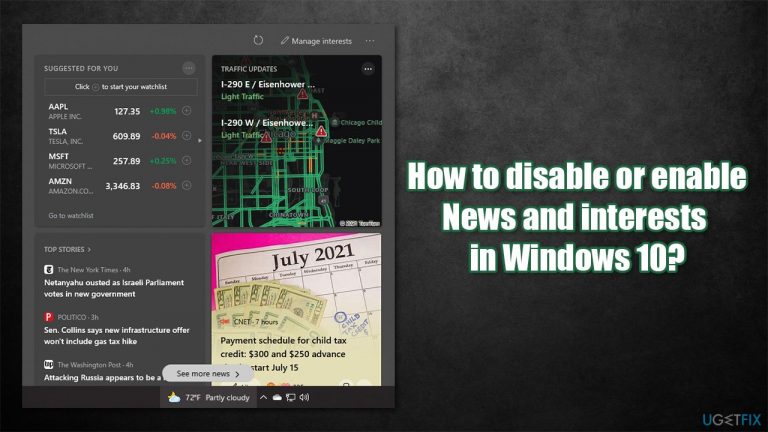
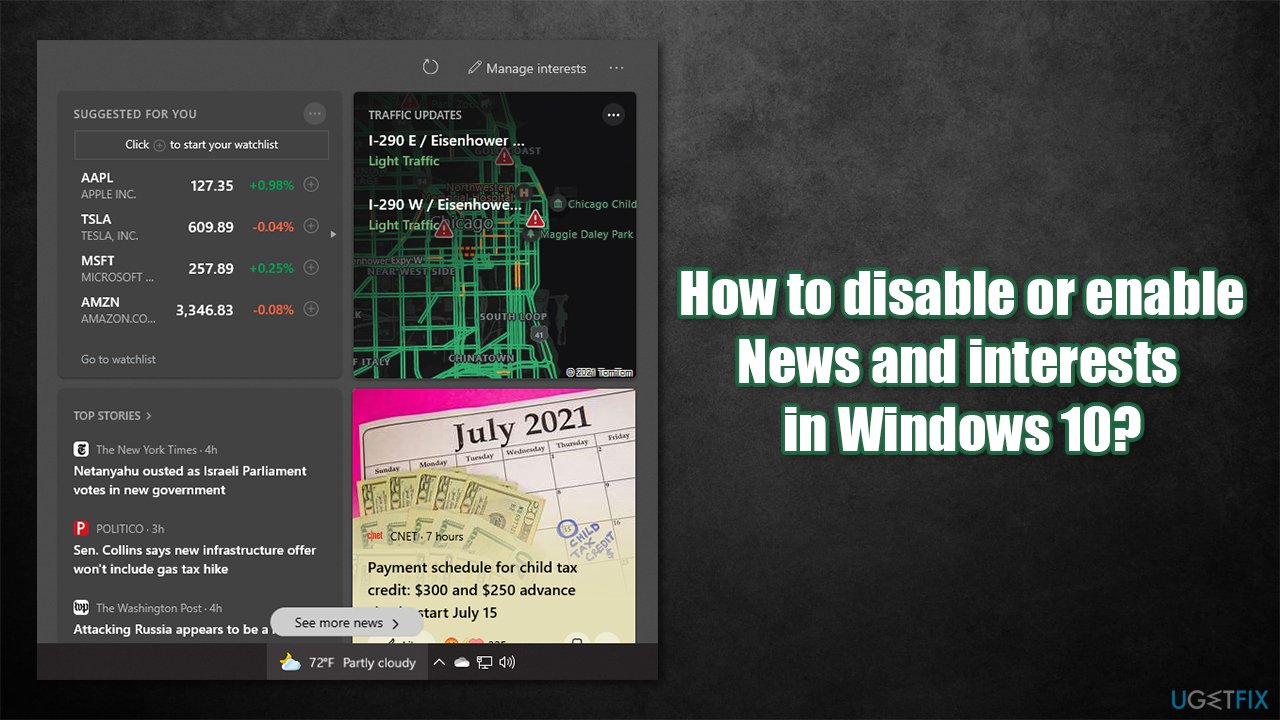
As soon as the latest update is installed, you would notice that there is a new addition to your taskbar - it shows the weather icon and precise weather conditions based on your location. This is not the only feature of the new News and interests bar - they can see plenty of information once they hover over the item:
- Top stories and news feed: you can view the latest news from the most prominent outlets (you can also react with emojis, like an article if you want to, hide the story, share, and influence whether a similar story would be shown to you in the future);
- Traffic updates: do not be late with the help of the most recent updates to traffic on routes you use the most;
- Personalized stocks: get the latest updates for the stock changes that matter to you.
While the new feature is generally welcomed, there are plenty of users who do not like the clutter that it creates. One user wrote that he doesn't want to see the "clickbait articles from MSN"[ref en-2] upon hovering over the icon, which is fair enough. The way to disable News and interests bar might not be that apparent straight away.
Many users tried to double-click the bar and look for the feature to be disabled via Windows settings - to no avail. This is because the control of the feature is enabled by right-clicking the taskbar. Below we provide a detailed guide on how to disable or enable the weather and interests feature and how to change its settings.
Some users also complained that the feature is simply not showing up on their taskbars. In this case, you should check your system for file corruption (you can do it automatically with a system repair tool [d1]) or reinstall the latest Windows updates.
Option 1. Disable or enable News and interests
It is easy to turn the news/weather widget on or off. Here's how:
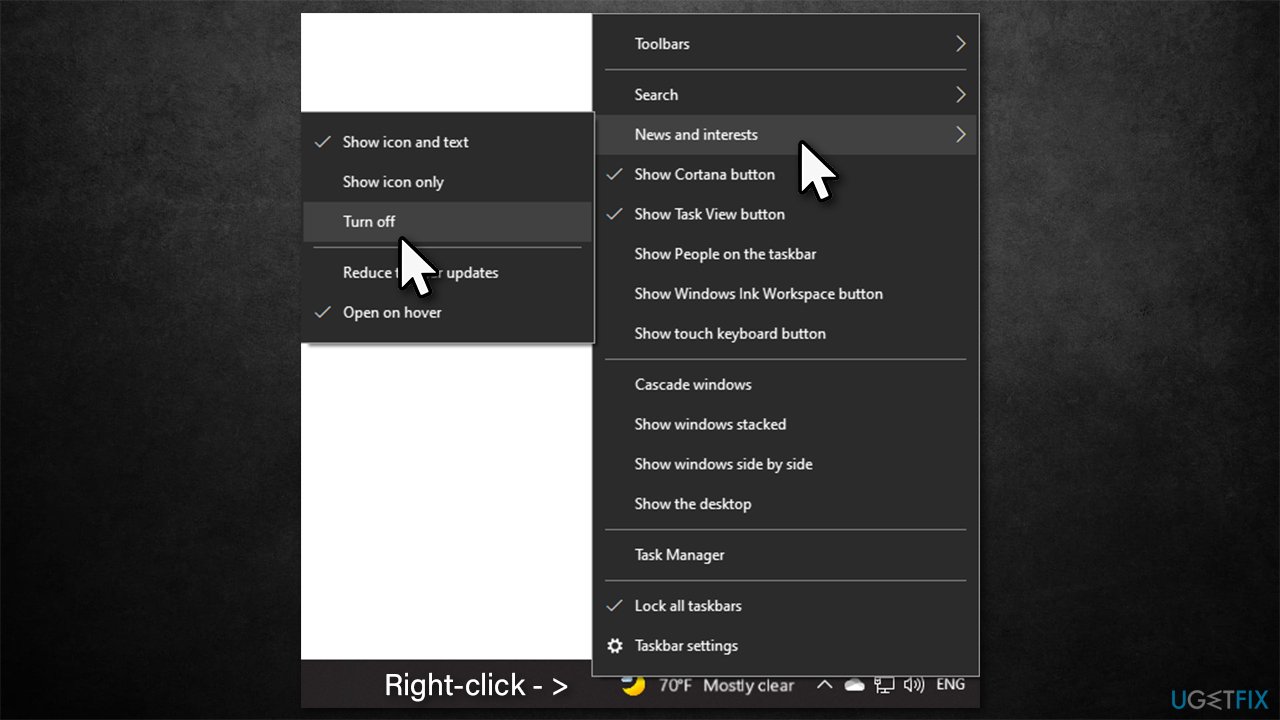
- Right-click anywhere on the taskbar within the empty space area
- Hover over News and interests
- Here, you will have several options available to you:
Show icon and text - default option, the bar is turned on
Show icon only - only weather icon will be shown without the exact temperature value
Turn off - use this is you want to disable News & Interests
Open on hover - unticking this option would remove the pop-up window that shows news, stock values, and other information on a mouse hover.
Option 2. Modify Windows registry
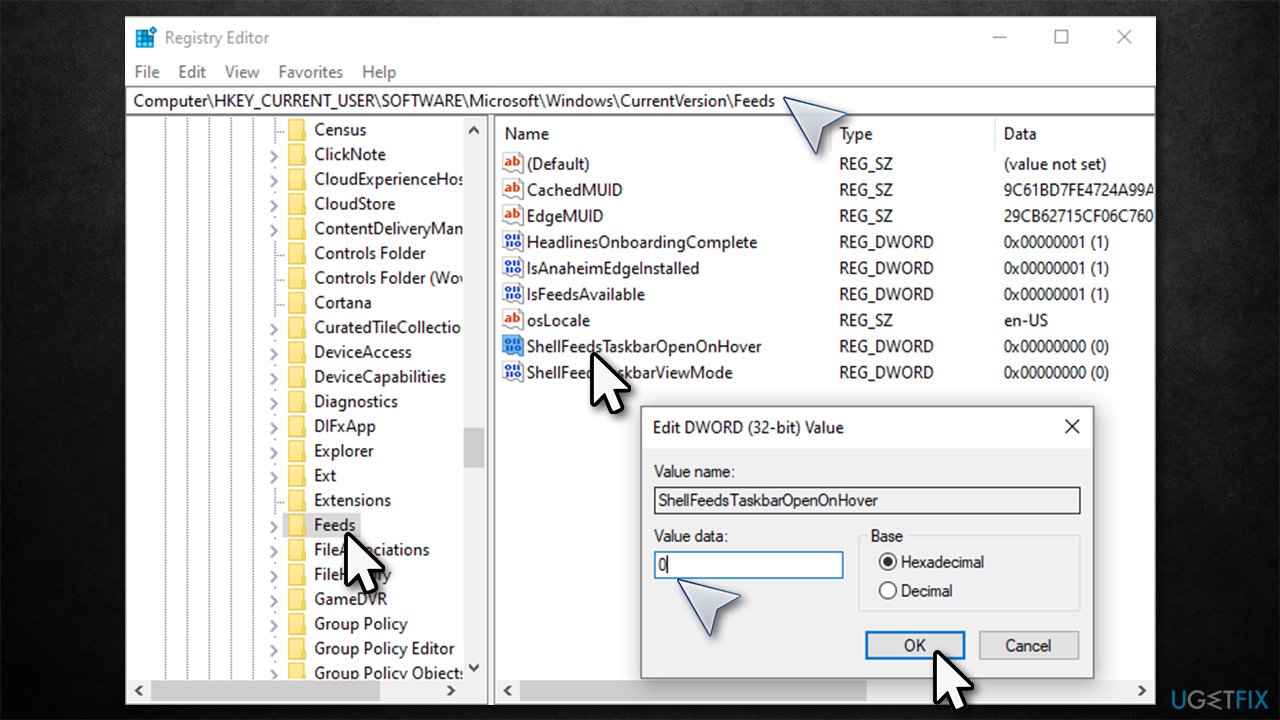
If you have some type of problem with disabling or enabling the feature, you can modify the registry[ref en-1] instead. Keep in mind that you should first make a registry backup before proceeding with the next steps:
- Type regedit in Windows search and press Enter
- When User Account Control shows up, click Yes
- Navigate to the following location within the Registry Editor:
HKEY_CURRENT_USER\\SOFTWARE\\Microsoft\\Windows\\CurrentVersion\\Feeds - On the right side of the window, double-click the ShellFeedsTaskbarViewMode key
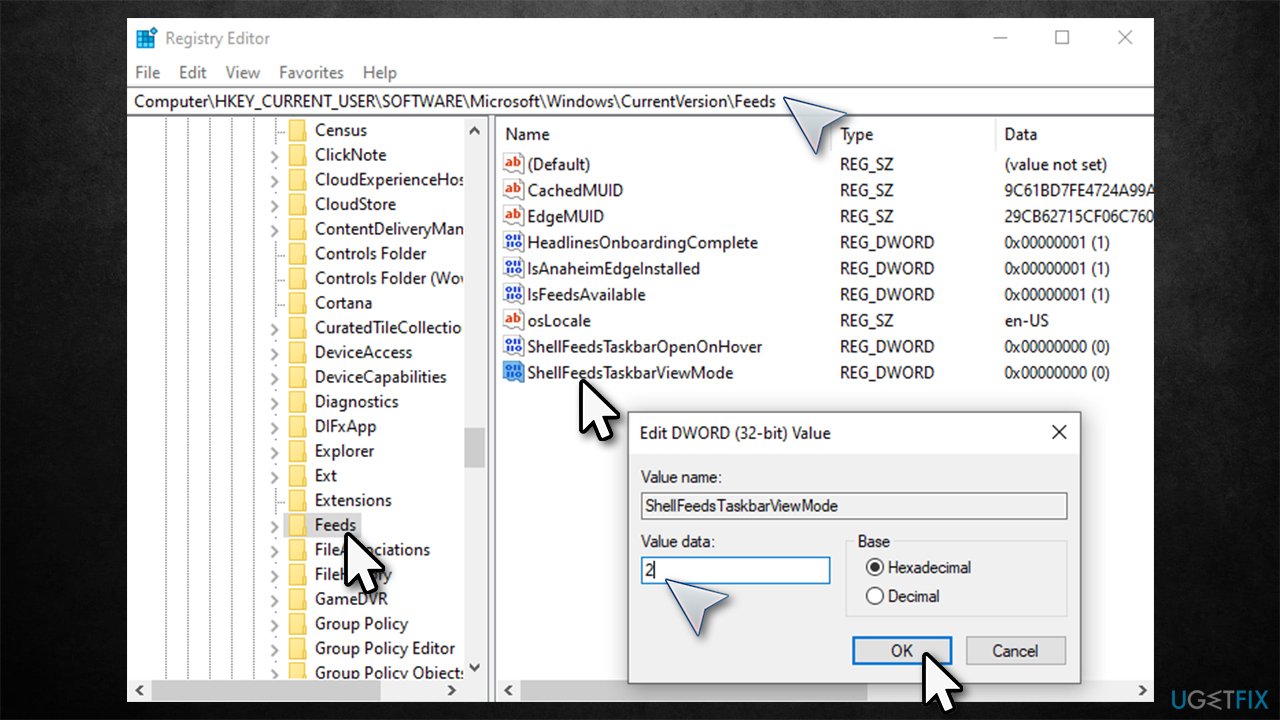
- Set the key's value as required:
2 = disable
0 = enable
1 = enable the icon-only mode.
Note that you could also double-click the ShellFeedsTaskbarOpenOnHover and Disable the hover mode with 0 or enable it with the 1.
Fix News and interests/weather icon in the taskbar missing
As already mentioned, some users found that the weather icon within the taskbar was missing after they rebooted their PCs to apply the updates correctly. In this case, we recommend you perform the following steps:
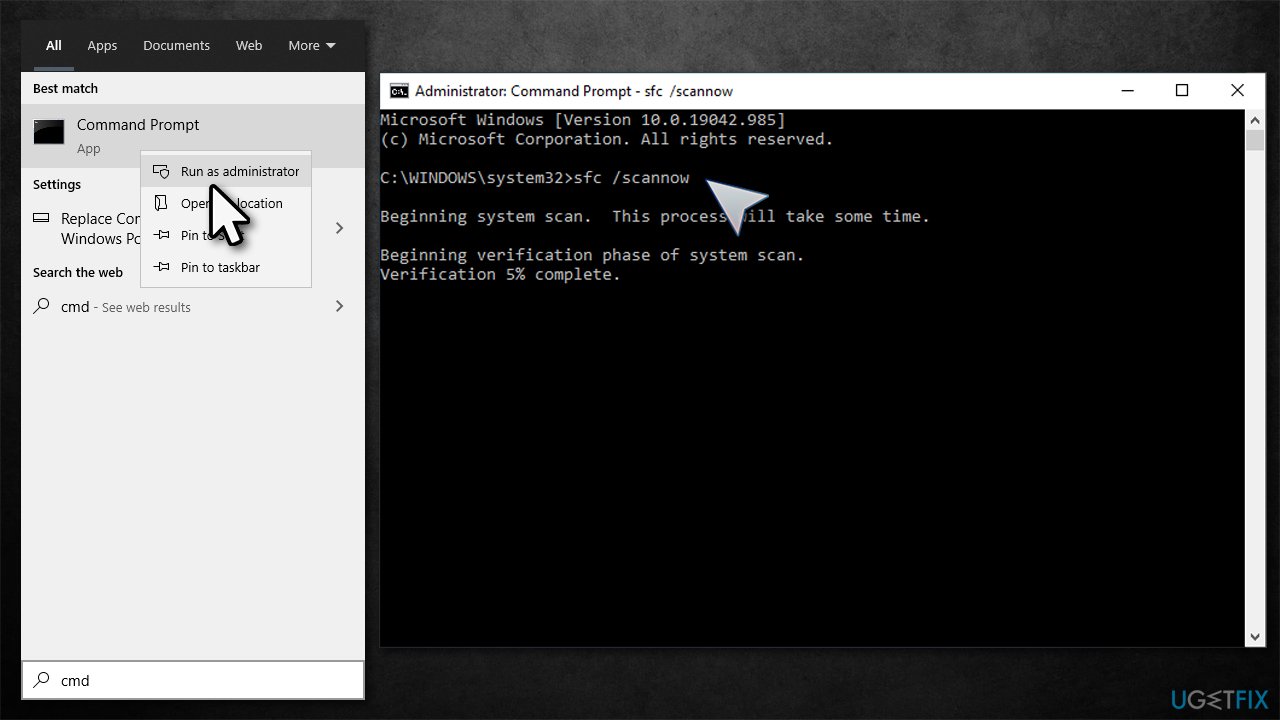
1. Run System File Checker/DISM
- Type cmd in Windows search
- Right-click on Command Prompt result and pick Run as administrator
- Paste in the following command like and hit Enter:
sfc /scannow
- After the scan finishes, paste in the following commands, pressing Enter each time:
DISM /Online /Cleanup-Image /CheckHealth
DISM /Online /Cleanup-Image /ScanHealth
DISM /Online /Cleanup-Image /RestoreHealth - Restart your PC.
2. Reinstall the latest Windows updates
- Type in Control Panel in Windows search and press Enter
- Here, select Uninstall a program under the Programs section
- On the left, select View the installed updates
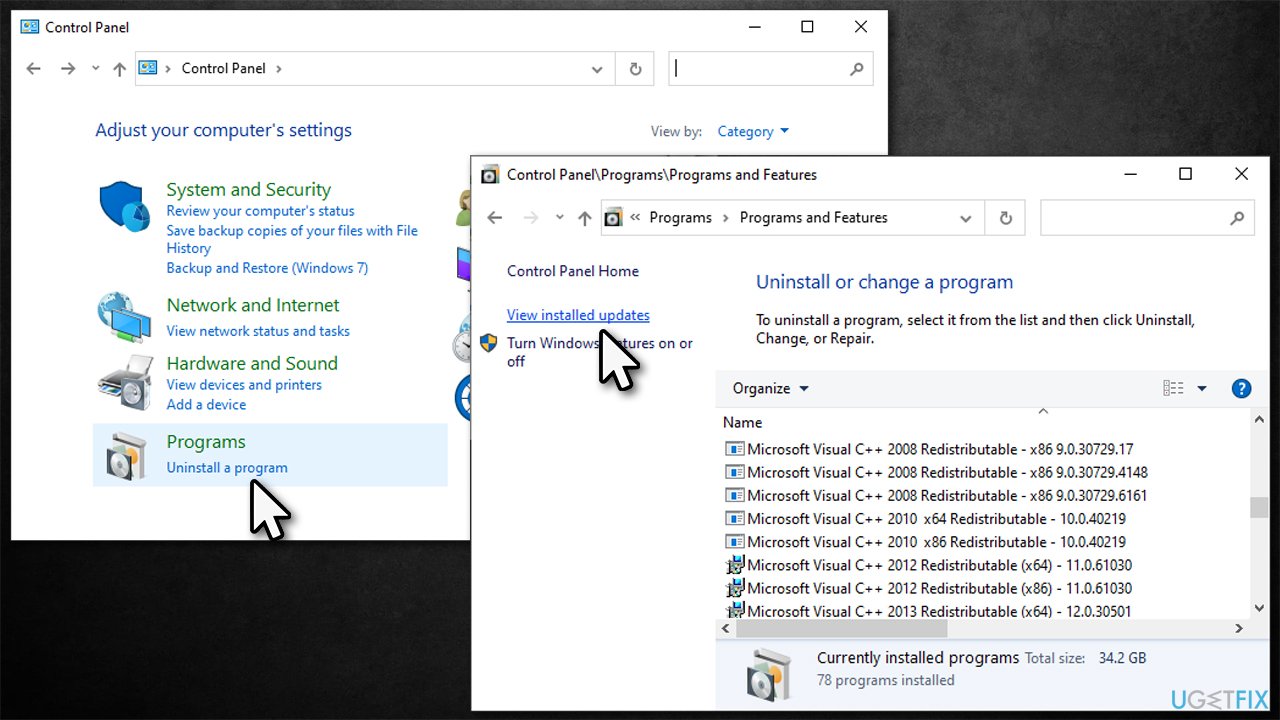
- In here, check the latest updates by sorting them by the Installed On
- Pick the update you most recently installed (for example, KB5003637), right-click and select Uninstall
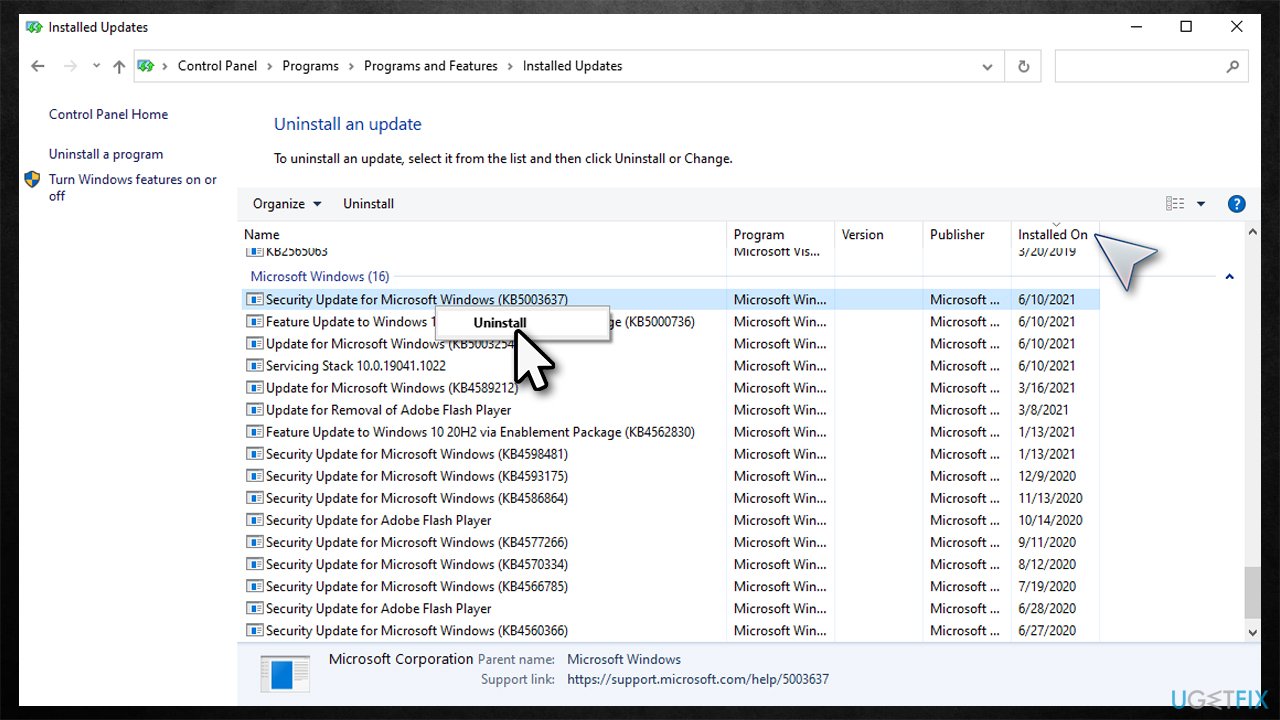
- Follow on-screen instructions and restart your machine
- Once loaded, use Check for Updates to install the latest Windows updates again.
Bottom line
To disable the News and interests feature, you can right-click on the taskbar and select the appropriate option. If you prefer to enable it again, the same steps can be followed. If none of these solutions work, consider checking for further updates or seeking additional support.
Frequently asked questions
Right-click on the taskbar, select 'News and interests', and then choose 'Turn off' to disable the feature.
Yes, you can re-enable it by right-clicking on the taskbar, selecting 'News and interests', and choosing your preferred display option.
No, disabling News and interests will not affect other taskbar functionalities; it simply removes the news widget from view.




Report an issue
What's wrong with this guide? We review every report and update or remove content.
Report received — thank you. We'll review and fix it.
You need a free account to submit a report.
Be the first to comment