How to fix
Disable Remote Desktop Connection
on Windows
Easily disable Remote Desktop Connection on Windows 10 and 11 to enhance security and performance. Follow our expert-tested guide for a hassle-free tweak!

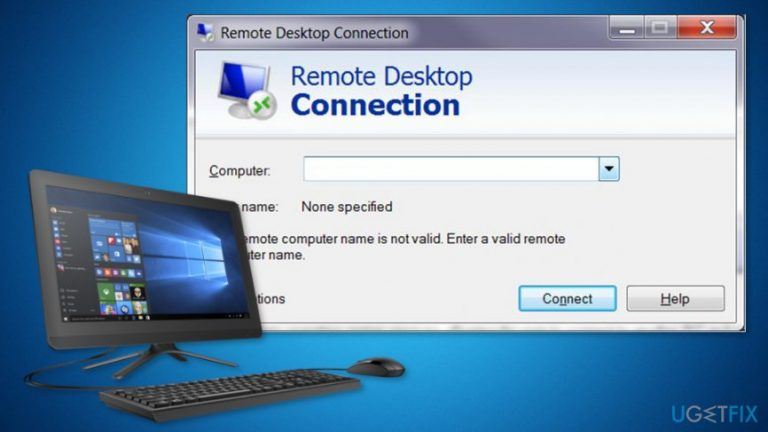
Why does How to Disable Remote Desktop Connection in Windows occur?
- Computer viruses use Remote Desktop Connection to launch attacks.
- Cyber criminals exploit Windows Remote Desktop vulnerabilities.
- Remote Desktop may be enabled manually by users.
- Users may not be aware of the security risks associated with Remote Desktop.
- Remote Desktop is not enabled by default, leading to potential confusion.
Repairs Windows system files, removes malware, and restores a clean OS state — without reinstalling.
I am concerned that lots of computer viruses use Remote Desktop Connection to launch the attacks. I would like to disable it. Is it possible?
Remote Desktop Connection allows connecting one computer to another or gives other user access to your computer. This feature might be convenient if you need to transfer or exchange various information. For instance, if you work not only from the office but from home too, you can access all work-related info using your home PC with the help of this Windows feature.
Unfortunately, cyber criminals and hackers tend to take advantage of Windows Remote Desktop. Although Microsoft tries to strengthen this feature, detect and patch all vulnerabilities, it’s still not the safest Windows service.
Security experts provide numerous tips how to secure Windows Remote Desktop, such as create strong passwords, restrict access using firewalls, limit users who can log in, keep software updated and so on. However, massive cyber attacks motivated more and more people to turn off this feature.
Typically, this Windows feature is not enabled by default. Therefore, if you have never enabled it manually, you should not worry about it. Otherwise, you should consider turning it off. If you do not use it or found an alternative way to exchange or control a computer remotely, you should definitely disable Remote Desktop Connection in Windows. The instructions below will show you how to do it in Windows, 7, 8 and 10.
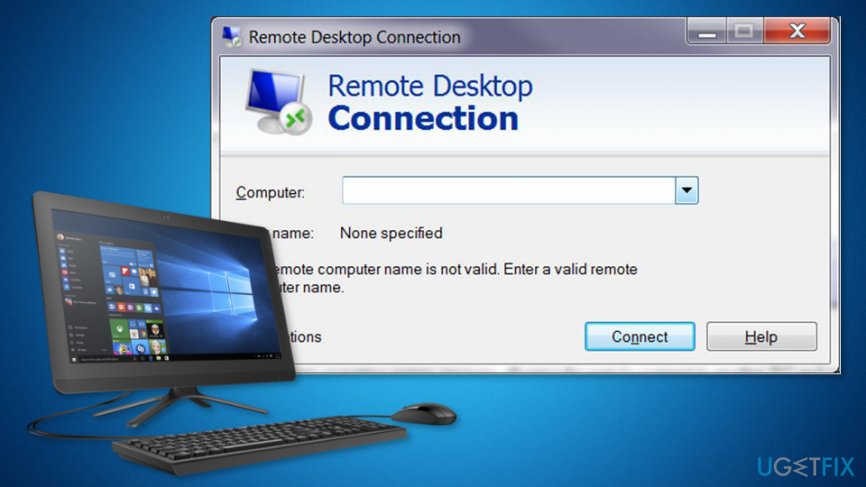
Disable Remote Desktop Connection
In order to turn off Remote Desktop Connection, you have to unmark the check box near Don’t Allow (Remote} Connections to this Computer option in System Properties. The instructions how to access these settings are presented below.
Instructions for Windows 7 and 8 users:
- Open Start and go to Control Panel.
- When in Control Panel, open System And Security.
- Select System option in the right panel.
- On the left, you should see Remote Settings on the left. Click on it.
- The previous step triggers System Properties dialogue box. Open Remote tab.
- Check Don’t Allow Connections To This Computer.
- Click OK to save the changes.
Guidelines for Windows 8.1 users:
Microsoft eliminated Remote Desktop section from the Remote tab. Thus, you have to install a Remote desktop app from Windows Store. Once it’s done, you will be able to disable this feature
- Click Windows + X and choose System.
- Selected Advanced System Settings that are located in the left panel.
- Open Remote tab.
- Tick the box near Don’t Allow Remote Connections to this Computer option.
Guide for Windows 10 users:
Differently than Windows 8.1, Windows 10 has Remote Desktop integrated again. Therefore, you just have to follow these simple steps to disable Remote Desktop Connection:
- Type “remote settings” into Cortana search box.
- Choose "Allow remote access to your computer” from the results. Once you click this option, you will open Remote System Properties window.
- Check the box near Don’t Allow Remote Connections to this Computer.
If you ever need to enable Remote Desktop Connection, you have to follow the same steps, but unmark the check box saying Don’t Allow Remote Connections to this Computer.
Bottom line
To disable Remote Desktop Connection, users should access System Properties and uncheck the option for allowing connections. Instructions vary slightly for Windows 7, 8, and 10, but generally involve navigating through Control Panel and System settings. If these steps do not resolve the issue, consider seeking further technical assistance.
Frequently asked questions
To disable Remote Desktop Connection in Windows 10, go to Settings > System > Remote Desktop, and toggle off the 'Enable Remote Desktop' option.
Yes, in Windows 11, you can disable Remote Desktop through Group Policy by navigating to Computer Configuration > Administrative Templates > Windows Components > Remote Desktop Services and setting the 'Allow users to connect remotely using Remote Desktop Services' policy to Disabled.
If you can't find the Remote Desktop settings, ensure you are using Windows 10 Pro or Windows 11 Pro, as Remote Desktop is not available in the Home editions of these operating systems.




Report an issue
What's wrong with this guide? We review every report and update or remove content.
Report received — thank you. We'll review and fix it.
You need a free account to submit a report.
Be the first to comment