How to fix
Disable “Shake to minimize”
on Windows
Easily disable the "Shake to minimize" feature in Windows 10 and Windows 11 for a smoother experience. Expert-tested with clear instructions.


Why does How to disable “Shake to minimize” in Windows occur?
- Windows minimizes unexpectedly due to accidental triggering of the feature while moving or resizing windows.
- Users have multiple windows open, increasing the likelihood of accidental minimization.
- The Shake to Minimize feature was retained in Windows 10 and 11, causing confusion for users upgrading from previous versions.
- Mixed reviews from users indicate that while some find it useful, others experience frustration with its functionality.
- The feature was first introduced in Windows 7, leading to varying user experiences across different versions.
Repairs Windows system files, removes malware, and restores a clean OS state — without reinstalling.
I would like to disable the "Shake to minimize" feature in Windows. Often, I have many windows open while I'm working, and they sometimes minimize for no reason, which is really bothersome. Is there a way to disable this?
Windows, the popular operating system developed by Microsoft, has introduced various features to enhance user experience and productivity over the years. One such feature is "Shake to Minimize," which was first introduced in Windows 7 and retained in subsequent versions, including Windows 10 and 11. The feature allows users to minimize all open windows on their desktops by simply grabbing and shaking the title bar of any active window.
The concept behind Shake to Minimize is to provide a quick way to declutter the desktop and focus on a single window. By grabbing and shaking the title bar of an active window, all other open windows are minimized, leaving only the active window visible. This can be useful when a user has multiple windows open and wants to quickly minimize them to access something else on the desktop.
However, despite its intended functionality, Shake to Minimize has received mixed reviews from Windows users. Some users find it a convenient feature that helps them streamline their workflow, while others have reported issues with its functionality. Complaints have surfaced that windows minimize randomly when users do not want them to, disrupting their workflow and causing frustration.
Many users have reported that Shake to Minimize can be triggered accidentally when moving or resizing windows, resulting in unintentional minimization of windows. For example, if a user is dragging a window to reposition it on the desktop or resizing a window to adjust its dimensions, the shaking motion may inadvertently trigger the feature, causing all other open windows to minimize unexpectedly.

As a result, some users have expressed a desire to disable the Shake to Minimize feature to prevent accidental minimization of windows. While doing so is relatively easy, the function to do so is not present for all users, so we provide plenty of alternatives on how to fix this issue.
If you have problems with your PC or want to optimize it (like removing junk or clearing unused registries), scan the system with the [d1] repair tool.
Method 1. Use Windows settings
The most straightforward way to disable "Shake to minimize" in Windows is to do so via settings. Here's how:
- Click on Start and pick Settings.
- Go to the System section.
- On the left side of the window, select Multitasking.
- Under the Title bar window shake, click the switch to the Off position.
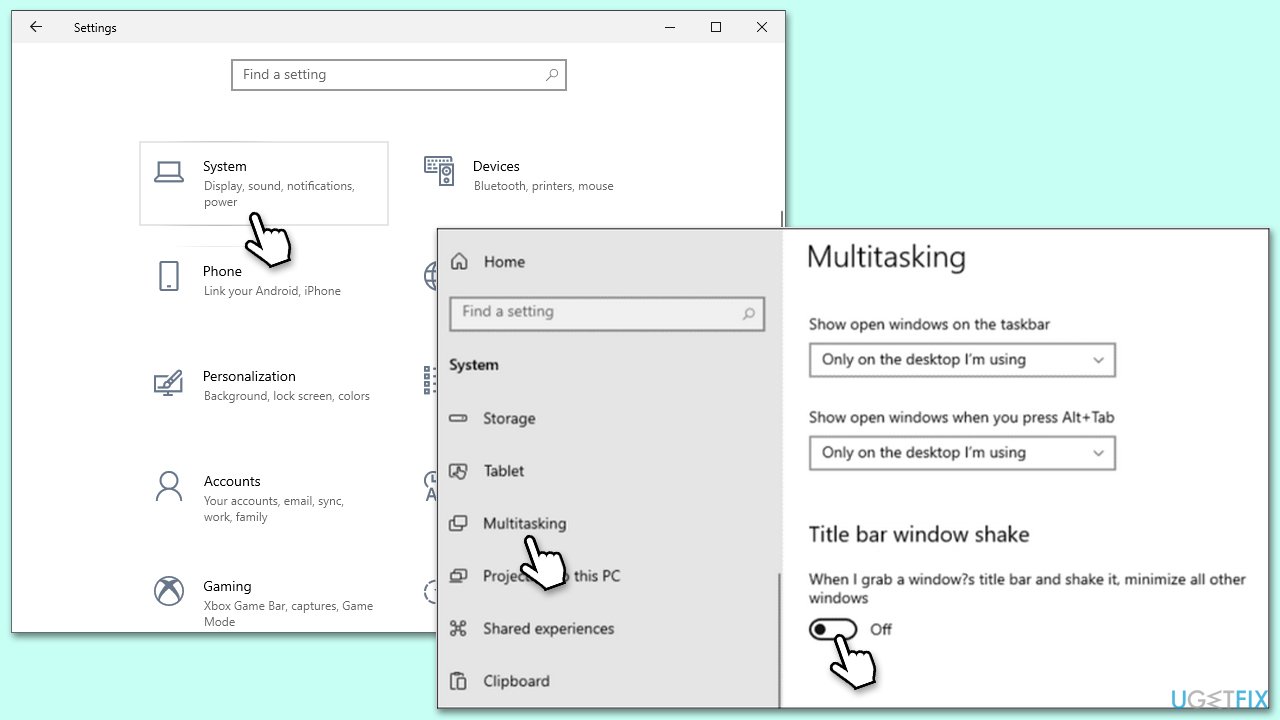
If this section is not present for you, you can check out one of the methods below to bypass this.
Method 2. Edit Local Group Policy
For the methods below, you'll need administrator's rights, so make sure you are logged in as administrator.
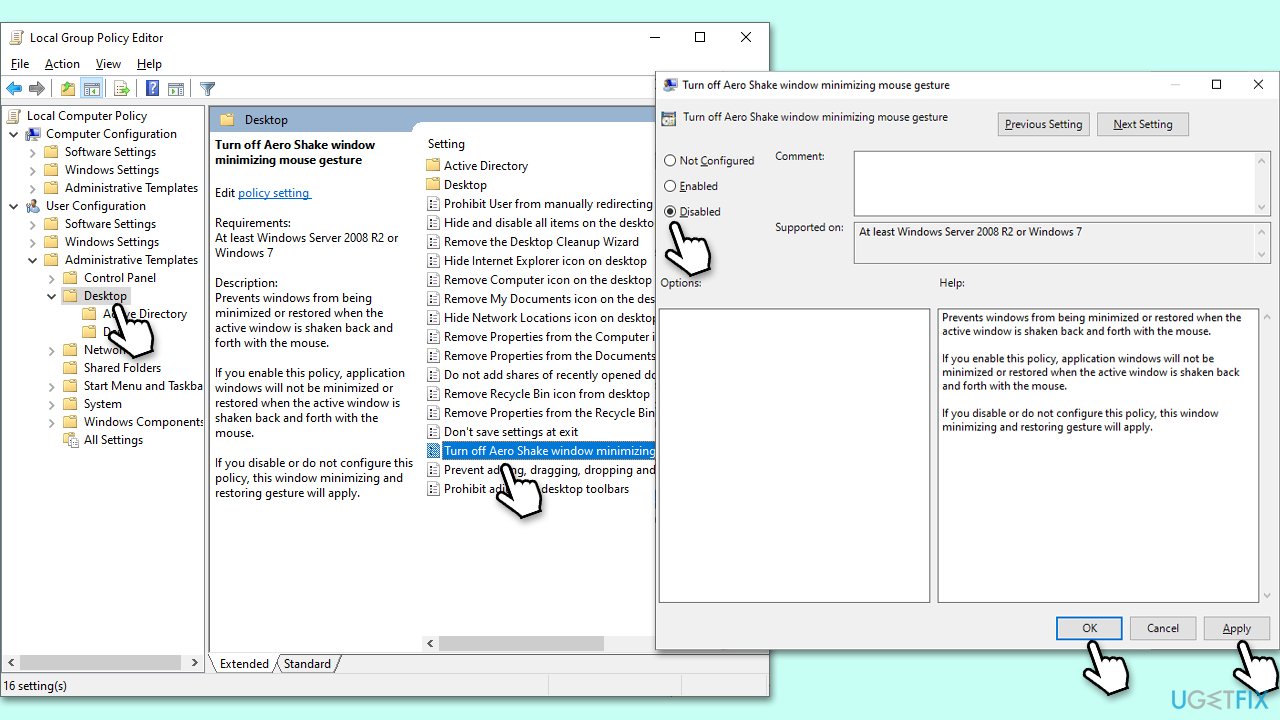
- Type Group Policy in Windows search and press Enter.
- Go to the following location:
User Configuration > Administrative Templates > Desktop - On the right side of the window, double-click the Turn off Aero Shake window minimizing mouse gesture entry.
- Select Disabled.
- Click Apply and OK.
Method 3. Edit the Registry
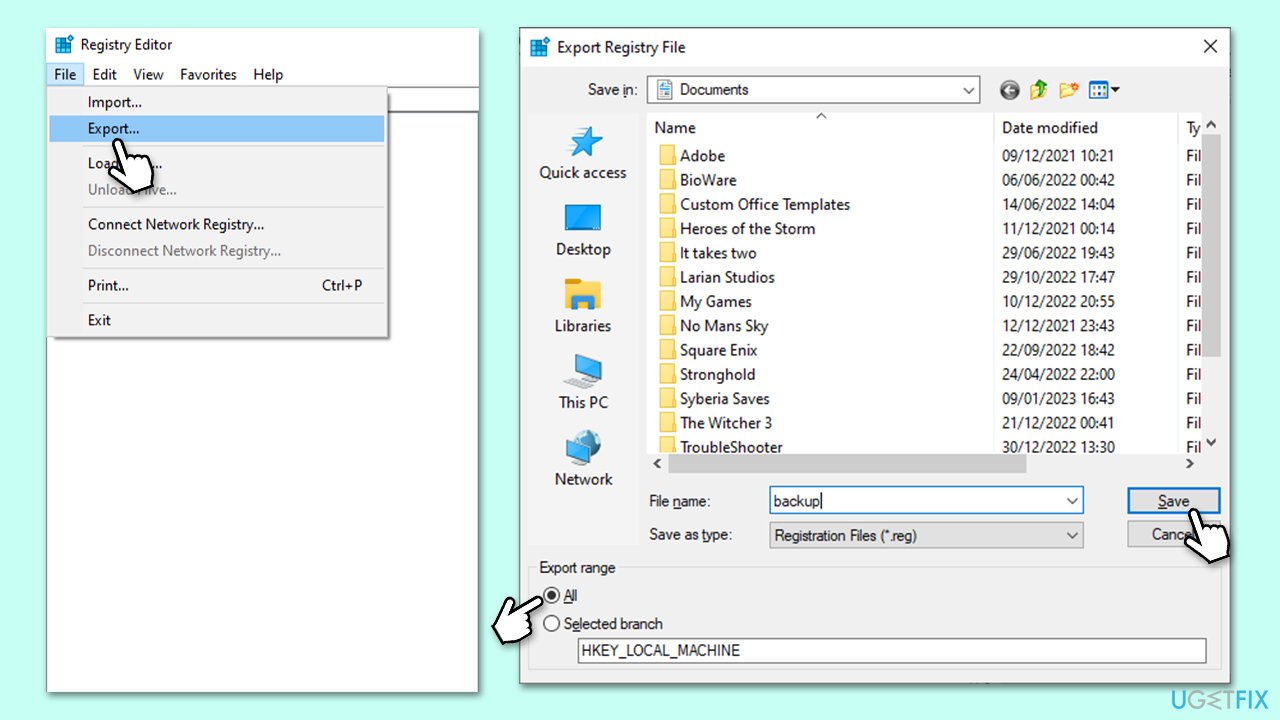
We highly recommend backing up the registry before editing it. Follow these steps:
- Type regedit in Windows search and press Enter.
- User Account Control (UAC) will ask whether you want to make changes - click Yes.
- When Registry Editor opens, click File > Export.
- Under Export range, pick All.
- Name it and save it to the location of your preference.
Once done, follow these instructions to disable "Shake to minimize" via the Registry Editor:
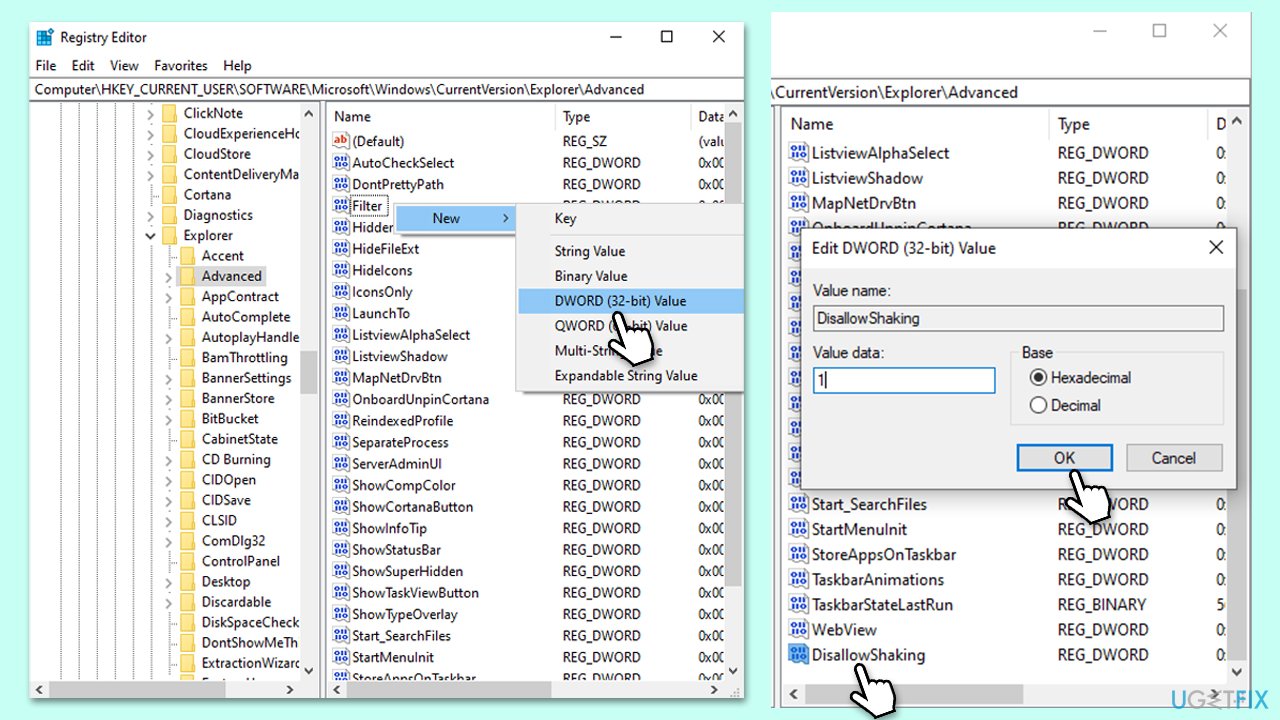
- In the Registry Editor, go to the following location (you can copy and paste this into the address bar at the top):
Computer\HKEY_CURRENT_USER\Software\Microsoft\Windows\CurrentVersion\Explorer\Advanced - On the right side, locate the DisallowShaking registry entry. If it is not there, you should create it by right-clicking on an empty space and selecting New > DWORD (32-bit) Value, and naming it DisallowShaking.
- Double-click the registry and set the Value data to 1.
- Press OK and restart your PC.
Bottom line
To disable the Shake to Minimize feature, users can follow specific steps provided in the guide. If these steps do not resolve the issue, consider exploring alternative methods or third-party software to manage window behavior.
Frequently asked questions
To disable 'Shake to minimize' in Windows 10, right-click on the Start button, select 'System', then go to 'Advanced system settings', under 'Performance', click 'Settings', and uncheck 'Enable Peek'.
Yes, in Windows 11, you can disable 'Shake to minimize' by going to Settings, selecting 'System', then 'Multitasking', and toggling off the 'Snap windows' feature.
Disabling 'Shake to minimize' will not affect other window management features in Windows 10 or Windows 11; it simply prevents the specific action of shaking a window to minimize it.




Report an issue
What's wrong with this guide? We review every report and update or remove content.
Report received — thank you. We'll review and fix it.
You need a free account to submit a report.
Be the first to comment