How to fix
Disable Startup Programs
on Windows
Easily disable startup programs in Windows 10 for faster boot times and improved performance. Follow our expert-tested guide today!

Why does How to Disable Startup Programs in Windows 10 occur?
- Many useless programs run at system startup
- Users often overlook startup settings during software installation
- Pre-selected settings in installation wizards enable startup programs
- Some programs are not used frequently and run in the background
- Certain processes are crucial for system stability and efficiency
Repairs Windows system files, removes malware, and restores a clean OS state — without reinstalling.
Hello, I want to speed up my computer’s start up. I found that many useless programs are run with system startup and work in the background. I would like to know how can disable some of these programs in Windows 10?
Technical characteristics, such as CPU, RAM, Hard drive, etc., have the biggest impact on computer's speed and startup time. Nevertheless, Windows 10 is the fast operating system; having lots of programs that start up with system boot might reduce the speed. For this reason, you should disable startup programs if you do not use them frequently.
Some programs or processes are crucial for keeping the system stable and working efficiently. However, there are numerous other apps that are not used on a daily basis. Or you may have installed particular programs, such as Skype or Torrents, long time ago and do not use them anymore. However, they are launched and keeps running in the background since Windows is booted. Thus, disabling them is a good idea.
When installing new software, users are usually asked whether the want to run the program on startup or not. However, the majority of people do not pay proper attention to software setup. Often installation wizards include pre-selected settings that set program to run on system startup.
Rushing to click the “Next” button and installing the program quicker, users usually set applications to boot together with the computer. There’s nothing bad in such activity. However, it may have an impact on the startup speed.
However, before disabling startup programs and apps, you should take a look how at their Startup impact. Some of the programs or processes may not affect booting speed. Thus, there’s no need to disable them.
Disabling startup programs
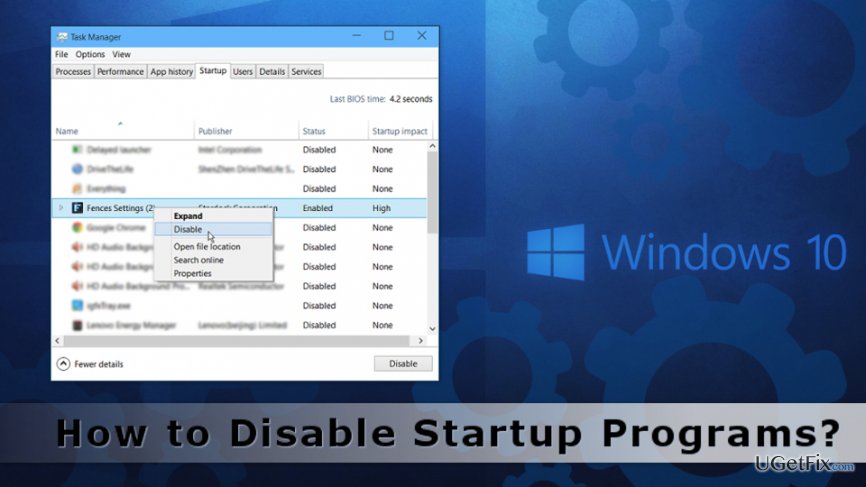
Disabling startup programs in Windows 10 is not a hard task. However, as we have already mentioned, you should check their impact on startup. You can do it by accessing Startup settings from the Task Manager.
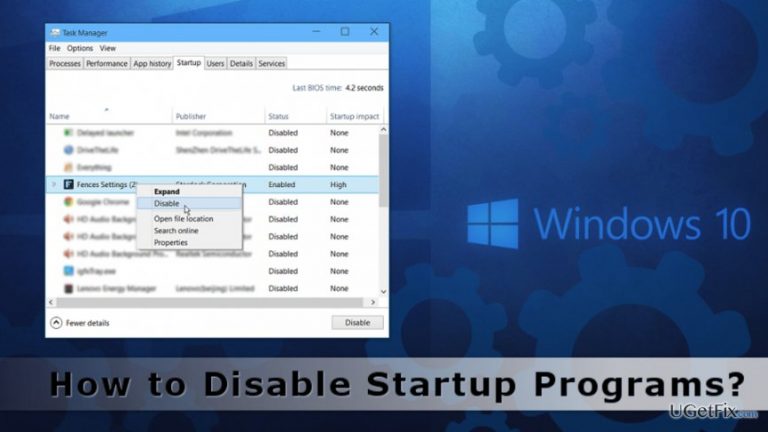
1. Open the Task Manager by pressing Ctrl + Shift + Esc on a keyboard.
2. In the appeared dialog window, go to Startup tab where you see the list of programs. First of all, take a look at the last column on the right. It reveals the Startup impact. Thus, if you see “None,” there’s no need to disable these programs. They are not responsible for slow booting speed.
3. Once you find the program that negatively affects startup speed, you have to right-click it. From the drop-down menu, choose “Disable" option.
That’s all. Within three simple steps, you can disable startup applications and speed up your computer at least a little.
However, if you ever need to enable these programs, you can do it simply as well. In order to allow startup apps, you have to follow these similar steps:
1 Access Task Manager.
2. Open Startup tab.
3. Right-click programs yo want to enable during startup. From the drop-down menu, chose “Enable" option.
As you can see, enabling/disabling startup programs is easy. Thus, you can play with it and improve your computer’s performance.
Bottom line
To disable startup programs in Windows 10, you can access the Task Manager and check the Startup tab. This allows you to identify and disable programs that negatively impact startup speed. If these steps do not improve your computer's startup time, consider further troubleshooting or seeking professional assistance.
Frequently asked questions
To disable startup programs in Windows 10, right-click the taskbar, select 'Task Manager', go to the 'Startup' tab, and disable the programs you do not want to start automatically.
Yes, you can go to 'Settings' > 'Apps' > 'Startup' to manage which applications are allowed to run at startup in Windows 10.
Disabling unnecessary startup programs can significantly improve boot time and overall performance of Windows 10 by freeing up system resources.




Report an issue
What's wrong with this guide? We review every report and update or remove content.
Report received — thank you. We'll review and fix it.
You need a free account to submit a report.
Be the first to comment