How to fix
Disable Sync Provider Notification
on Windows
Easily disable Sync Provider Notifications in Windows 10 to enhance your system's performance and focus. Expert-tested tips for smooth operation.

Why does How to Disable Sync Provider Notification in Windows 10 occur?
- Microsoft's decision to include ads in Windows 10 updates
- Users' complaints about ads in File Explorer
- The introduction of the Sync provider notification feature
- The presence of ads promoting OneDrive and Office 365
- The lack of an option to disable pre-installed advertisements
Repairs Windows system files, removes malware, and restores a clean OS state — without reinstalling.
I think Microsoft overplayed the game with advertising... I had many doubts whether to install Creators Upddate or not, but I eventually installed it. Guess what? After that, my PC is full of ads. Lock screen, Start , and File Explorer delivers pop-ups promoting OneDrive and other Microsoft‘s services. I find such behaviour the most irritating so far. Is there a way to disable Windows ads?
The abundance of new Windows 10 features, services, apps, and other innovations, their advantages and usefulness have already been widely discussed on various blogs and forums. Undoubtedly, Windows 10 is the best Windows version throught the long Windows history. However, some of the Microsoft staff‘s decisions, such as the collection of users‘ data or ads and notifications in Start, Lock Scren or File Explorer, haven't been welcomed.
People complain about Ads and Notifications in File Explorer
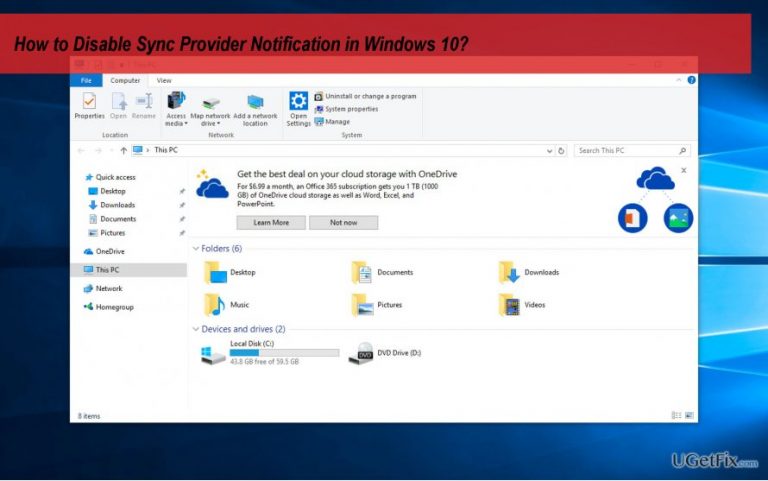
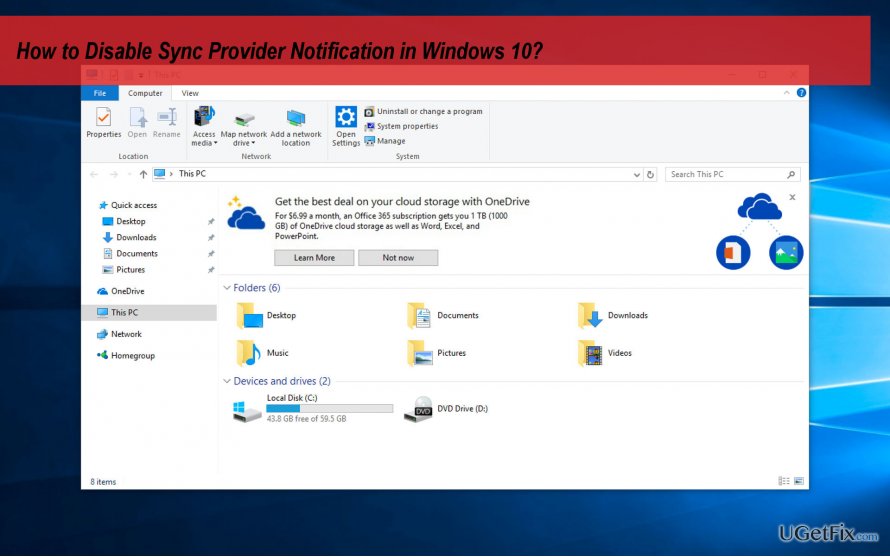
People were complaining about ads and suggestion on Lock Screen and Start after installation of Windows 10 Anniversary Update. Sadly, Microsoft disregarded Windows users‘ requests to disable pre-installed advertisements. On top of that, instead of turning them off, even more ads appeared on the Creators Update now flooding File Explorer. Microsoft refer to these ads as „Sync provider notification feature“ and claim that their purpose is to help Windows 10 users to get information about the latest improvements and services easily.
What do ads in File Explorer usually promote?
File Explorer ads are positioned right below the address bar. Luckily, Microsoft is not promting third-party software, at least not yet. However, infomation about new features or OneDrive, Office 365 subscription offers are extremelly common.
Turning Off Ads and Notifications in File Explorer
Many Windows 10 Creators Update users expressed anger regarding ads and notifications in File Explorer. Even thogh Microsoft‘s decision to inject them is not praisworthy, praisworthy is the fact that Microsoft allows turning them off. Thus, to disable Sync provider notifications in File Explorer, you have to:
- Right-click on Windows key and select File Explorer.
- Click Change folder and and search options or Options to open Folder Options.
- Click View tab on the Folder Options dialog.
- Open Advanced Settings and locate the Show sync provider notifications option.
- Uncheck the Show sync provider notifications box and click Apply to save the changes.
If, however, after reboot or installation of Windows Update the Sync provider notifications were enabled, we would recommend turning them off permanently via the Registry Editor:
- Press Windows key + R, type regedit, and press Enter.
- Click OK on the UAC to proceed.
- Navigate to the HKEY_CURRENT_USER\Software\Microsoft\Windows\ CurrentVersion\Explorer\Advanced directory.
- Locate the ShowSyncProviderNotifications DWORD key on the right sid and double click it.
- If such value does not exist, right-click on an empty space of the Registry Editor‘s window and click New.
- Select DWORD (32-bit) and name it as ShowSyncProviderNotifications.
- Finally, change its value to 0.
Bottom line
To disable Sync provider notifications in File Explorer, users can right-click the Windows key, select File Explorer, and then access Folder Options to adjust settings. If these steps do not resolve the issue, users may need to explore additional settings or consider third-party solutions.
Frequently asked questions
To disable sync provider notifications, go to Settings > Accounts > Sync your settings and toggle off the options you want to disable.
No, disabling sync provider notifications will not affect your synced data; it only stops the notifications related to syncing.
Yes, you can re-enable sync provider notifications by following the same path in Settings and toggling the options back on.




Report an issue
What's wrong with this guide? We review every report and update or remove content.
Report received — thank you. We'll review and fix it.
You need a free account to submit a report.
Be the first to comment