How to fix
Disable Toast notifications in Google Chrome
on Windows
Easily disable Toast notifications in Google Chrome on Windows 10 or 11 for a distraction-free experience. Expert-tested solutions included.


Why does How to disable Toast notifications in Google Chrome occur?
- Toast notifications are triggered by user actions such as saving a page or bookmarking a link.
- Users may find notifications intrusive during focused tasks.
- Frequent notifications can appear in quick succession, causing distraction.
- Some users may view notifications as unnecessary clutter for regular actions.
- Users working on sensitive content may prefer to minimize distractions.
Repairs Windows system files, removes malware, and restores a clean OS state — without reinstalling.
Whenever I copy something on Chrome, it shows up a toast notification and stays up way too long for my liking. Is there a way to disable toast notifications in Chrome?
Disabling toast notifications in Google Chrome
Toast notifications in Google Chrome are brief pop-ups that appear near the top of the browser interface. They are triggered by user actions such as saving a page, bookmarking a link, or enabling a feature. These notifications provide immediate feedback and often include interactive buttons, such as "Undo" or "Dismiss," making them a helpful tool for quickly completing follow-up tasks without navigating away from the current screen. Designed to improve productivity, these notifications can save time and streamline interactions within Chrome.
Despite their utility, toast notifications are not always welcomed by all users. Some find them intrusive, especially during tasks that require focus or if notifications frequently appear in quick succession. Others may view them as unnecessary clutter, particularly for actions they perform regularly and no longer need confirmation for. Additionally, users working on sensitive content may prefer to minimize distractions or prevent inadvertent clicks on action buttons.
This feature was officially introduced in Chrome version 130, released in October 2024, as part of Google’s effort to enhance interactivity and accessibility. While the feature is enabled by default, Chrome allows users to manage their presence through its experimental flags menu, giving them the option to disable notifications or adjust their behavior.
If you’re among those who prefer not to see toast notifications, you can disable them or customize their settings. Instructions for doing so are provided below this article. To further optimize your system, consider using [d1] repair to resolve any Windows-related issues and clean out unnecessary files for a smoother experience.

Method 1. Disable Toast Notifications Through Chrome Flags
Toast notifications can often be controlled using Chrome’s experimental flags. This is a straightforward method to manage new or optional browser features.
- Open Chrome and type chrome://flags in the address bar, then press Enter.
- You will access the advanced configuration page.
- Use the search bar to look for the keyword Toast and press Enter.
- Locate the relevant flag, which in this case is Top Chrome Toasts.
- From the drop-down menu, select Disabled.
- Restart Chrome by pressing Relaunch now for the changes to take effect.
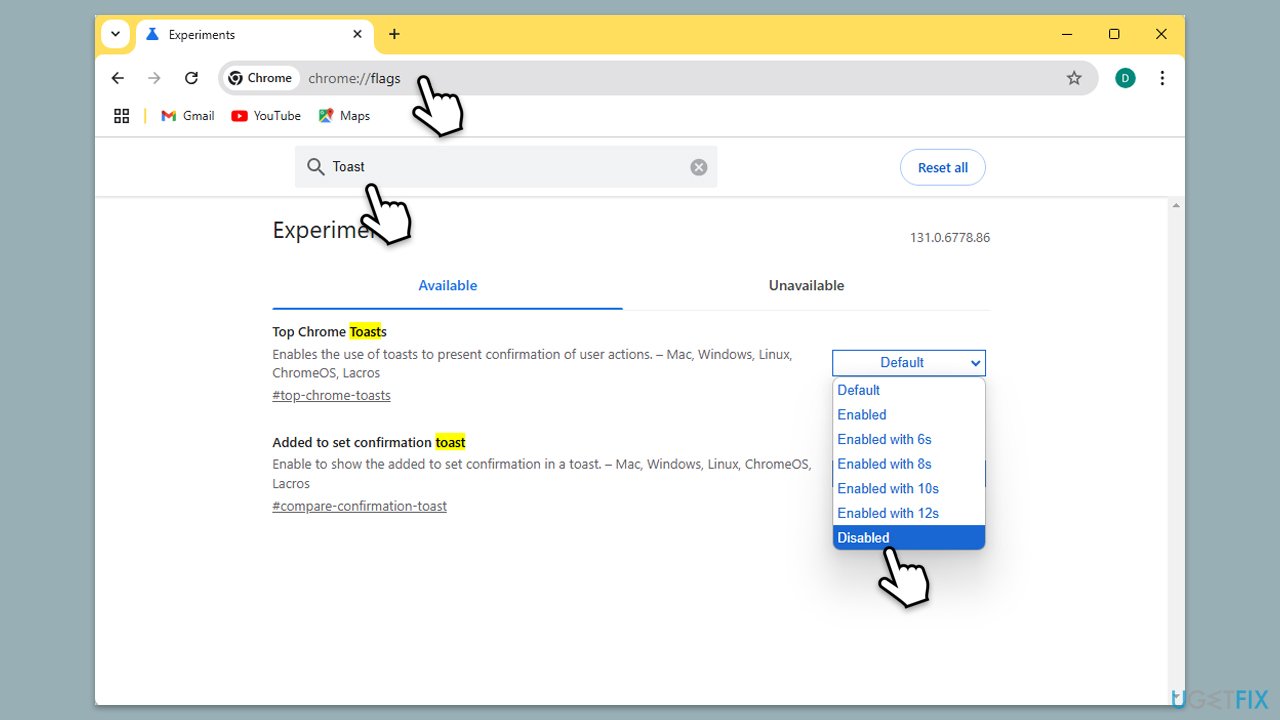
Note: if you want to modify the setting instead, you can select other options from the drop-down menu, such as enabling them for a certain period of time, for example, 6 seconds or 12 seconds.
Method 2. Adjust Chrome’s notification behavior for Toast alerts
Toast notifications are a unique UI feature, but you can minimize their presence through Chrome’s notification settings.
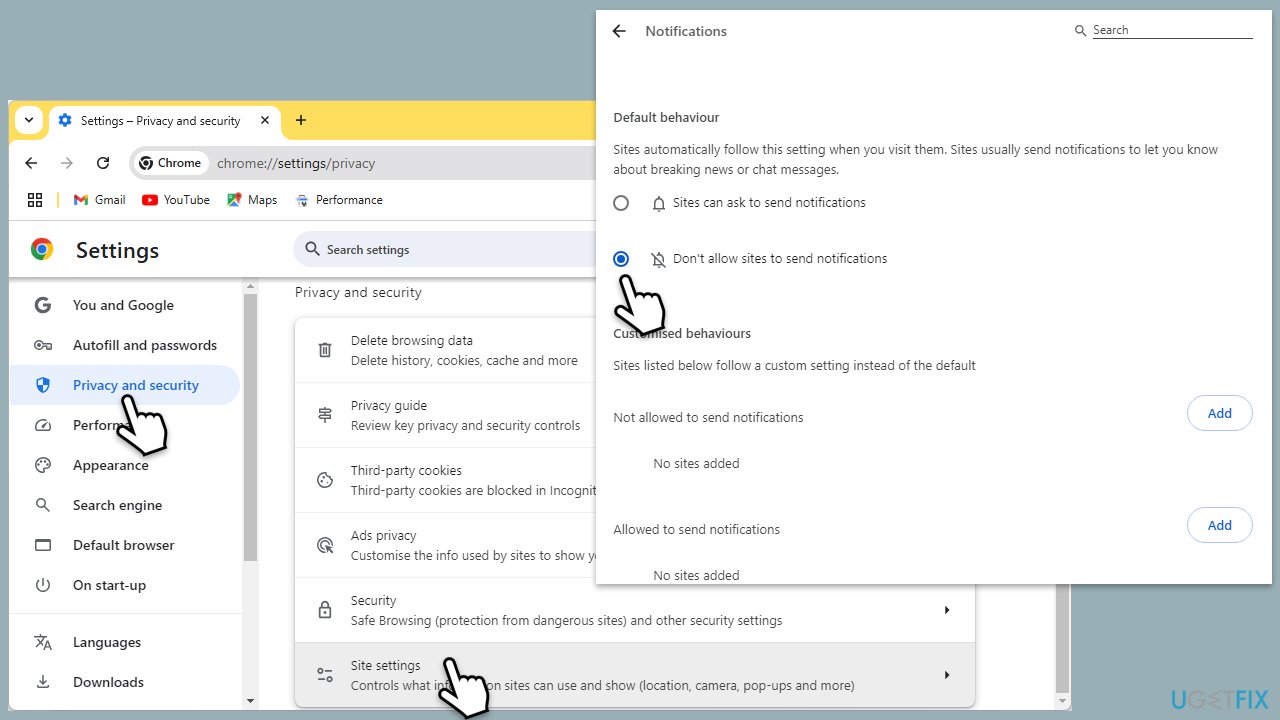
- Open Chrome and go to Settings.
- Select Privacy and Security in the section on the left.
- On the right side, find and click Site Settings.
- Under Permissions, look for Notifications and select it.
- Here, you can change permissions for the toast-like notifications to be disabled - simply select Don't allow sites to send notifications.
- Alternatively, you can always allow or deny notifications for any website individually - simply click on the three vertical dots next to a web address and select either Allow or Block (depending on whether notifications were blocked or allowed previously).
Method 3. Revert to the previous Chrome version
If Toast notifications are a recent addition and causing significant disruption, reverting to an earlier version of Chrome can help. This is not recommended as running older software versions might pose some security risks.
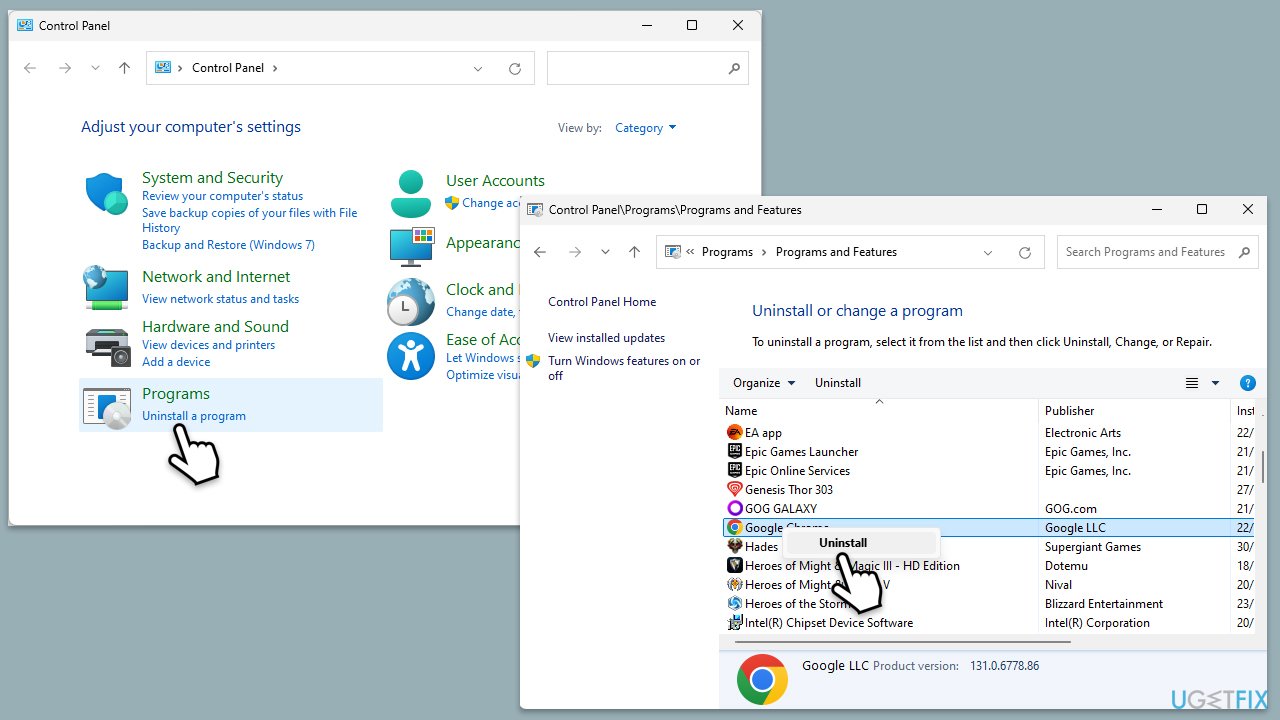
- Type Control Panel in Windows search and hit Enter.
- From here, navigate to Programs > Uninstall a program.
- Locate Google Chrome from the list and right-click it, then select Uninstall.
- Follow the prompts to remove Chrome.
- Download an older version from a trusted archive source.
To disable Google Chrome from being updated again:
- Press Win + R, type services.msc, and hit Enter.
- Scroll through the list to find Google Update Service (gupdate) and Google Update Service (gupdatem).
- Right-click on each service, select Properties and change the Startup type to Disabled.
- Click Stop if the service is currently running, then click Apply and OK.
- Restart your system to ensure the changes take effect.
Bottom line
To disable toast notifications in Google Chrome, users can manage their settings through Chrome's experimental flags menu. Instructions for disabling or customizing notifications are provided in the article. If these methods do not work, consider using repair tools to resolve any Windows-related issues.
Frequently asked questions
To disable Toast notifications from Google Chrome on Windows 10, go to Settings > System > Notifications & actions, find Google Chrome, and toggle off the notifications.
Yes, on Windows 11, open Settings, navigate to System > Notifications, locate Google Chrome, and turn off the notification settings for the browser.
No, disabling Toast notifications in Google Chrome will only affect the browser and will not impact notifications from other applications on Windows.




Report an issue
What's wrong with this guide? We review every report and update or remove content.
Report received — thank you. We'll review and fix it.
You need a free account to submit a report.
Be the first to comment