How to fix
Disable UAC Error “This app has been blocked for your protection”
on Windows
Easily disable the UAC error "This app has been blocked for your protection" on Windows 10. Quick fixes and expert-tested solutions await!

Why does How to Disable UAC Error “This app has been blocked for your protection” on Windows 10 occur?
- Attempting to run a setup.exe file
- Installing legitimate software from official websites
- Installing software from third-party download sources
- Launching apps that have been running on the system for a long time
- User Account Control (UAC) settings being too aggressive
Repairs Windows system files, removes malware, and restores a clean OS state — without reinstalling.
An error “This app has been blocked for your protection” keeps showing up on my screen. This happens when I attempt to install new apps, but none of the apps I try to install are dangerous.
Sometimes the same warning is thrown when trying to run programs that are already installed on the system. This annoys me a lot. Could you, guys, please help me?
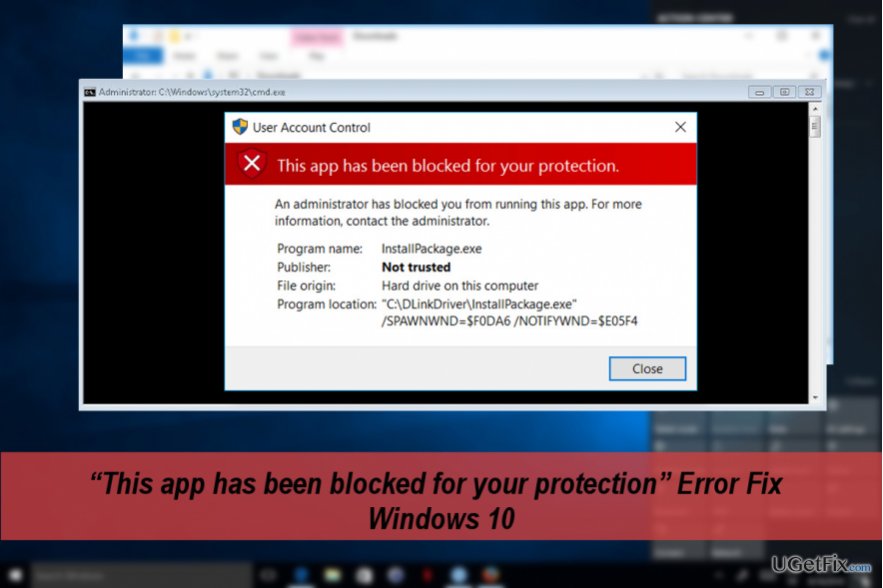
Many Windows 10 users expressed frustration that the "This app has been blocked for your protection" error message causes. The error shows up under various conditions; for example, when the computer owner attempts to run a setup.exe[ref en-1] file, install legitimate software both from its official website and third-party download source or sometimes even when launching a random app or file that has been running on the system for a long time. The full error message says:
This app has been blocked for your protection – An administrator has blocked you from running this app. For more information, contact the administrator.
It’s important to stress the fact that the "This app has been blocked for your protection" error shows on the system even if the PC's owner signed into Windows as Administrator.[ref en-2] In addition, the message can sometimes (NOT always) be followed by a question: "Do you want to allow this app to make changes to your device?" and the PC user has to choose "Yes" or "No."
If you are trying to install new software, please make sure that it’s hundred percent safe before clicking "Yes." That’s because the "This app has been blocked for your protection" error message is a part of Windows 10 feature known as User Account Control (UAC.)[ref en-3] It has been developed to strengthen PC’s protection from malware, virus and other cyber threats.
Therefore, if you are receiving this alert, you should double check if the changes that you are currently initiating will not damage the system. While usually, UAC blocks the installation of unauthorized or malicious apps, sometimes Windows 10 protection gets over aggressive, which is why people are not allowed to install legitimate apps or files. Luckily, it’s possible to disable the "This app has been blocked for your protection" UAC alert by following the steps below.
IMPORTANT: we strongly DO NOT recommend disabling the UAC error "This app has been blocked for your protection." This way, you will reduce your PC’s protection and may stumble upon the installation of a virus. If, however, this alert is too annoying for you, we would recommend using a professional anti-malware that would protect your PC from malicious programs. Our recommendation is [d1].
Disabling the "This app has been blocked for your protection" error
NOTE: apply the steps provided below only if the “This app has been blocked for your protection” error prevents you from downloading/installing/running a 100% safe app.
Method 1. Run an Elevated Command Prompt
- Log on as administrator.
- Right-click on "Windows" key and select "Command Prompt (Admin)."
- Right-click on the first search result and select "Run as Administrator."
- Type in the full path of the application, for example, C:\\Dell\\Drivers\\24T1W\\R235168\\Setup.exe.
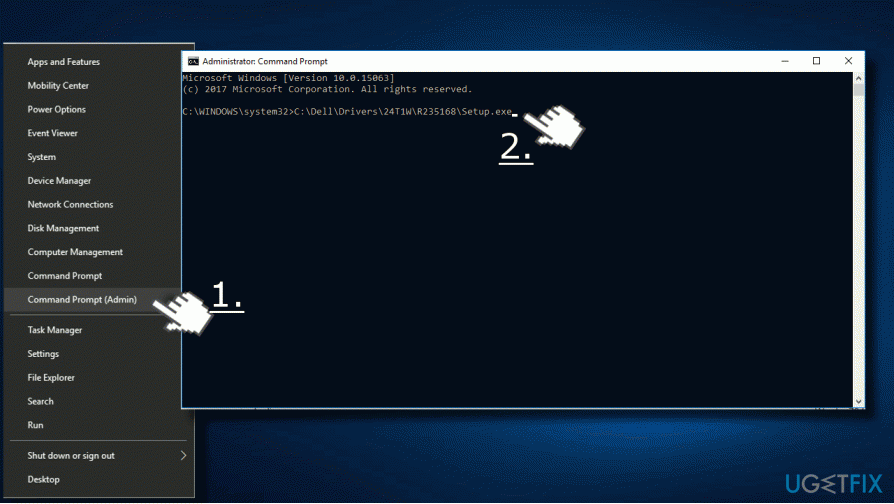
Enter full apps path
Method 2. Enable the hidden Administrator account
To fix "This app has been blocked for your protection" error may show up due to the hidden built-in Administrator account. The hidden account may be the culprit why some of the legitimate .exe files are blocked. To fix that, you should:
- Right-click on "Windows key" and select "Command Prompt (Admin)."
- Type in the net user administrator /active:yes command and press "Enter."
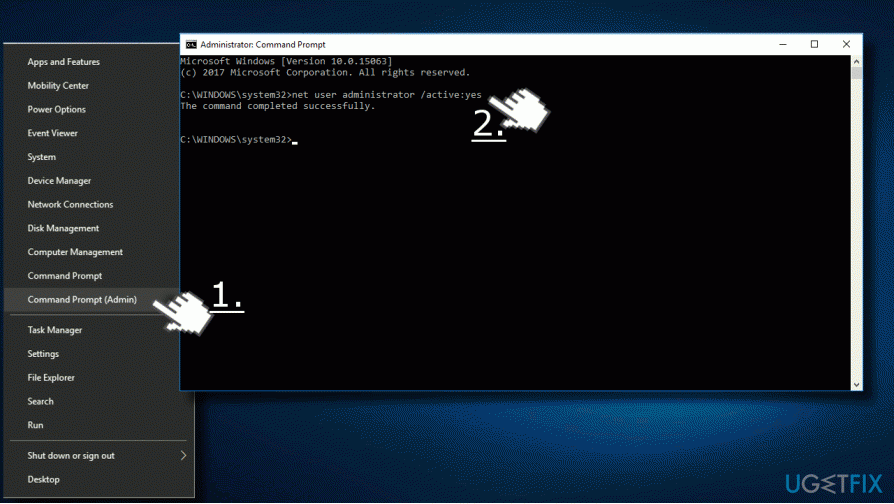
Active hidden admin account - Close the Command Prompt and sign out from your account.
- You’ll see the Administrator account on the bottom left of the screen.
- Sign in to it.
- Find the application or the .exe file that you could not install/run before and check if the "This app has been blocked for your protection" error is gone.
- If the problem has been resolved, sign out from the Administrator account and sign in to the original account.
- To finish up the task, open the Command Prompt as explained above and type in the net user administrator /active:no command to disable the hidden Administrator account.
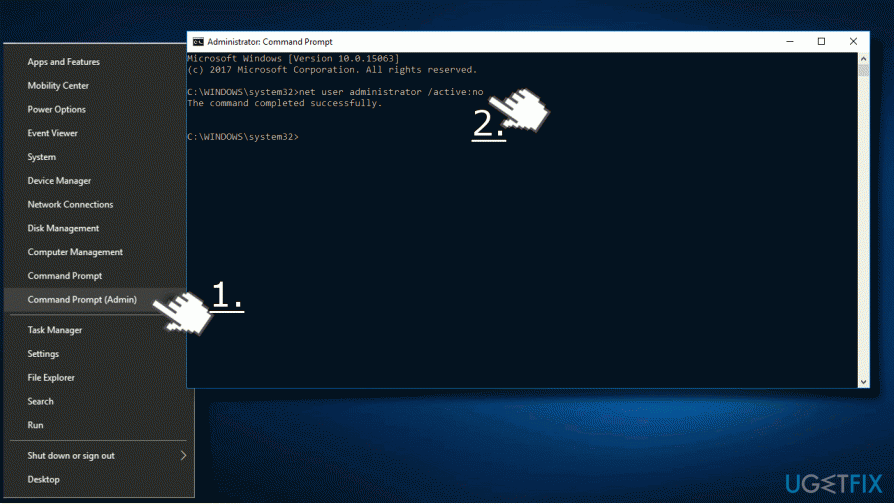
Disable hidden admin account
Bottom line
To disable the UAC error, you can adjust the User Account Control settings, run the app as an administrator, or check the app's properties to unblock it. If these solutions do not resolve the issue, consider seeking further assistance or checking for system updates.
Frequently asked questions
You can disable the UAC prompt by going to Control Panel > User Accounts > Change User Account Control settings and moving the slider to 'Never notify'.
Yes, turning off UAC can make your system more vulnerable to malware and unauthorized changes, so it's advisable to re-enable it after running your desired applications.
You can right-click the blocked application, select 'Properties', and then under the 'Compatibility' tab, check the 'Run this program as an administrator' option to bypass the UAC prompt.




Report an issue
What's wrong with this guide? We review every report and update or remove content.
Report received — thank you. We'll review and fix it.
You need a free account to submit a report.
Be the first to comment