How to fix
Disable volume change sound effect
on Windows
Silence the volume change sound effect in Windows 10 and 11 effortlessly. Follow our expert-tested guide and enjoy a quieter experience today!

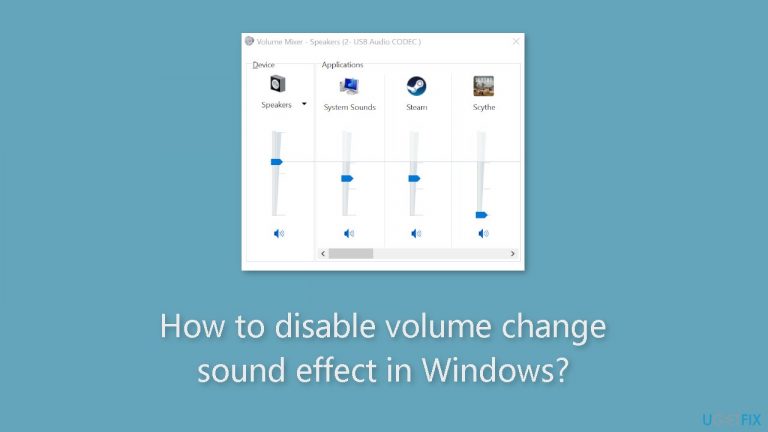
Why does How to disable volume change sound effect in Windows occur?
- Accessibility feature designed to provide feedback
- Annoying sound for users with Bluetooth headsets
- Disruptive in quiet or communal settings
- Interferes with focus during work or calls
- Uncomfortable for individuals with hearing loss
Repairs Windows system files, removes malware, and restores a clean OS state — without reinstalling.
Hello. Is there a way to disable the annoying sound that appears every time you make a volume change on Windows?
The Windows volume change sound effect is an accessibility feature designed to give feedback when specific actions, like increasing the volume level, are carried out. It is frequently represented by the well-known "beep" or "ding" sound. This aural indication was intended to be useful for many people, but it can occasionally become annoying, especially for individuals who wear Bluetooth headsets or have increased sensitivity to auditory stimuli.
Some users experience problems when the Windows computer's beep sound is activated while altering the volume. When utilizing Bluetooth headsets, this can be especially annoying because the sound is played through the speakers or headphones, potentially impacting those nearby as well as the user. In peaceful or communal settings like libraries, meetings, or late-night work sessions, the beeping sound might be disruptive.
The irritation goes beyond the obtrusiveness of sound. It can interfere with focus, stop a video call in its tracks, or just annoy nearby residents. Moreover, the buzzer sound can be upsetting or uncomfortable for people who might have hearing loss or use hearing aids.
Windows offers users the choice to manage or turn off the volume change sound effect as a solution to this problem. There are numerous ways to deal with this issue. One option is to change the level using different techniques that don't activate the sound, like the previously stated mouse scroll wheel or touchpad. Users can also use Windows settings to turn off the beep sound while keeping other crucial system noises, which will help to create a smoother auditory experience.
In this guide, you will find 4 steps that should help you disable the volume change sound effect in Windows. If you experience any OS issues, you can use a maintenance tool like [d1] that can fix most system errors, BSODs,[ref en-1] corrupted files, and registry[ref en-2] issues. Otherwise, follow the step-by-step instructions.
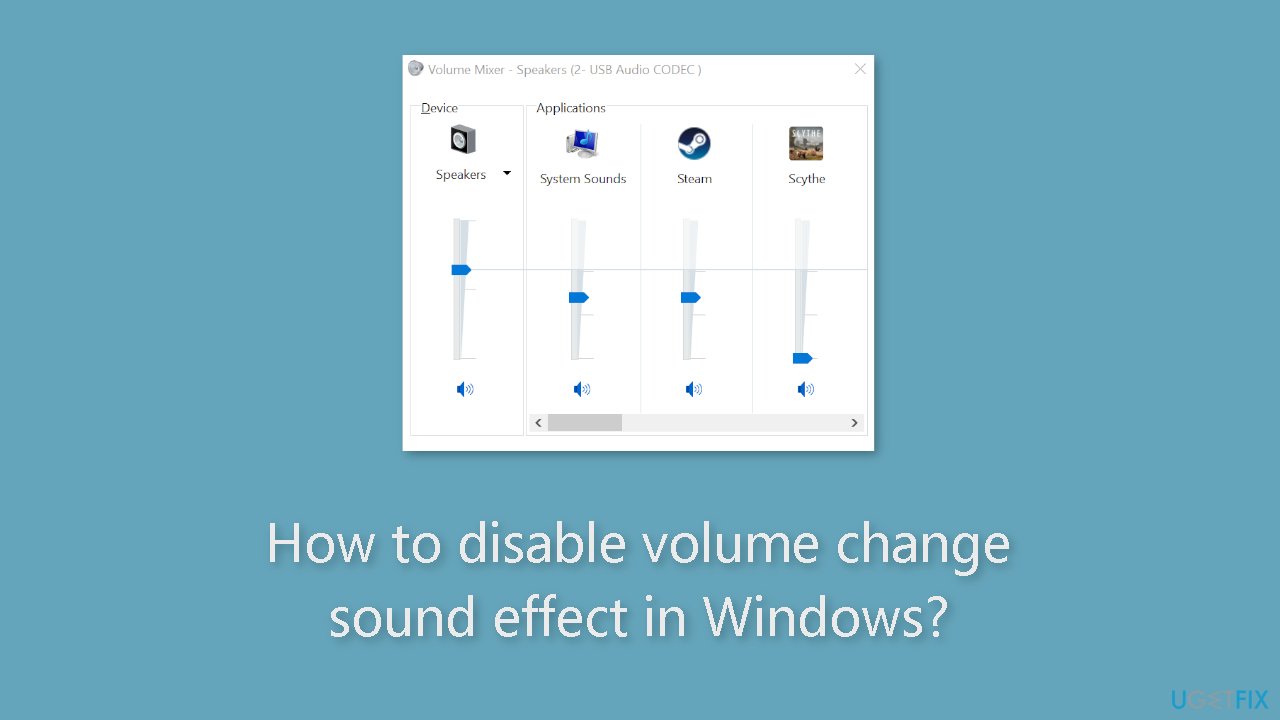
Method 1. Use the Touchpad or Mouse
On both Windows 11 and Windows 10, you can seamlessly modify the volume without triggering the audible beep sound. This feature allows you to change the volume using your mouse scroll wheel or laptop touchpad while keeping other notification sounds intact. Here's how to do it:
Windows 11:
- Hover your cursor over the volume icon in the system tray.
- Scroll up and down using your mouse wheel or touchpad.
- The volume level will adjust smoothly without producing the beep sound on your speaker or wired headset.
Windows 10:
- Click the volume icon in the system tray to reveal the volume slider.
- Hover your cursor over the slider.
- Scroll or swipe up and down using your mouse or touchpad to modify the volume without any beep sound interference.
Method 2. Disable the Sound for your Wired Headset or Speaker
Windows 11:
- Press the Windows key + R to open the Run dialog box.
- Type mmsys.cpl and click OK to open Sound.
- In the Sound dialog, open the Sounds tab.
- Under the Program Events section, scroll down and select Notifications.
- Next, under the Sounds section, click the Window Notify System Generic drop-down.
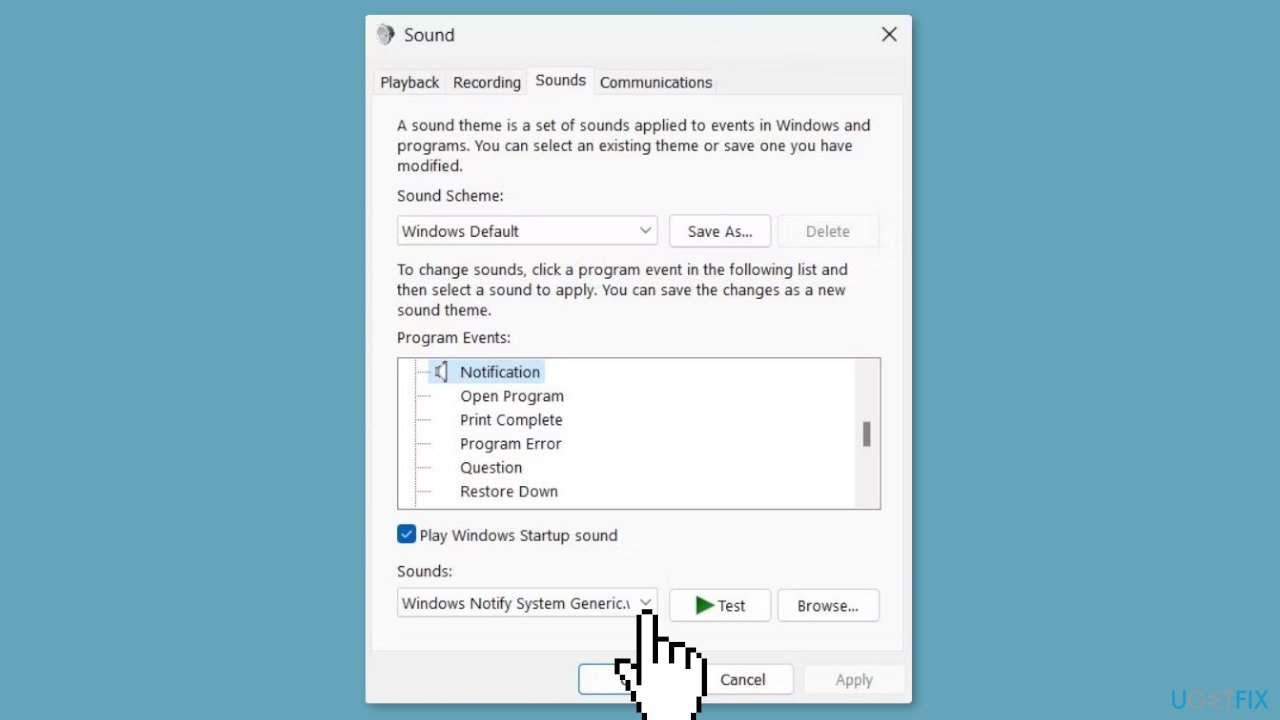
- Scroll all the way to the top and select (None).
- Click Apply and OK to save the changes.
Windows 10:
- Right-click on the volume icon in the system tray and select Sound.
- Open the Sounds tab in the Sound dialog.
- Under the Program Events section, scroll down and select Default Beep.
- Under the Sounds section, click the Windows Background drop-down.
- Scroll all the way up and select (None).
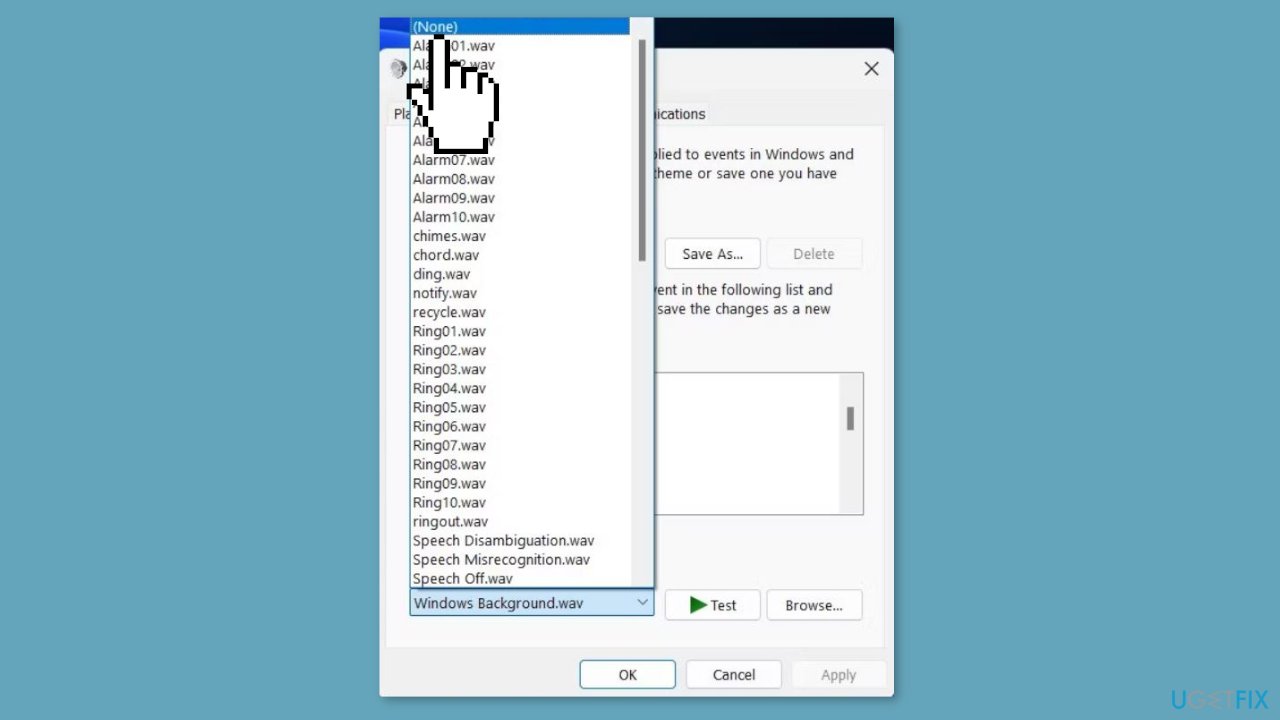
- Click OK and Apply to save changes.
Method 3. Disable the Sound for your Bluetooth Headset or Speaker
- Press the Windows key + R to open the Run box.
- Type regedit and click OK to open Registry Editor.
- Click Yes if prompted by User Account Control.
- In Registry Editor, navigate to the following location:
HKEY_LOCAL_MACHINE\SYSTEM\ControlSet001\Control\Bluetooth\Audio\AVRCP\CT
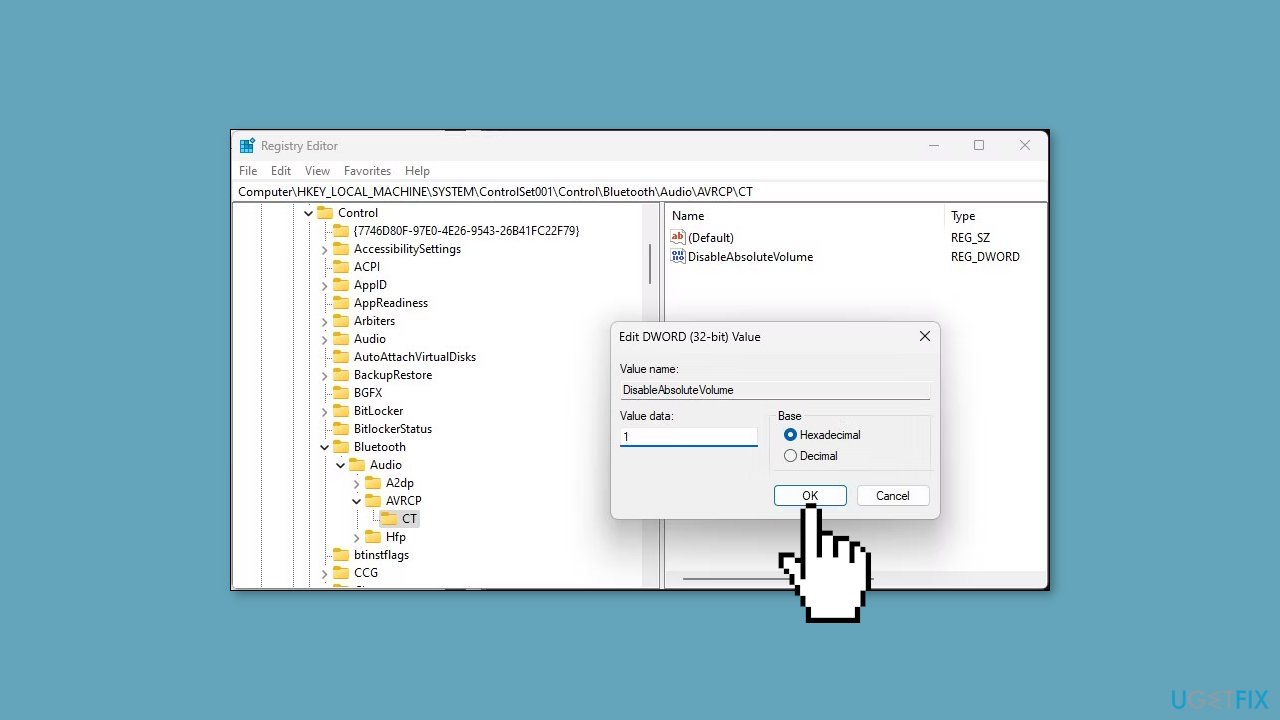
- You can also copy and paste the path to locate the key.
- In the right pane, locate the DisableAbsoluteVolume DWORD value. If no such value exists, you'll need to create one.
- To create a new value, right-click on the CT subkey on the left pane and select New > DWORD (32-bit) Value.
- Rename the value as DisableAbsoluteVolume.
- Double-click on DisableAbsoluteVolume and type 1 in the Value data field.
- Click OK to save the changes.
- Close Registry Editor and restart your computer.
Method 4. Use the PowerShell
- Press the Windows key.
- Type powershell.
- Right-click on Windows PowerShell and select Run as administrator.
- In PowerShell, type the following command and press Enter:
Set-Service beep -StartupType Disabled
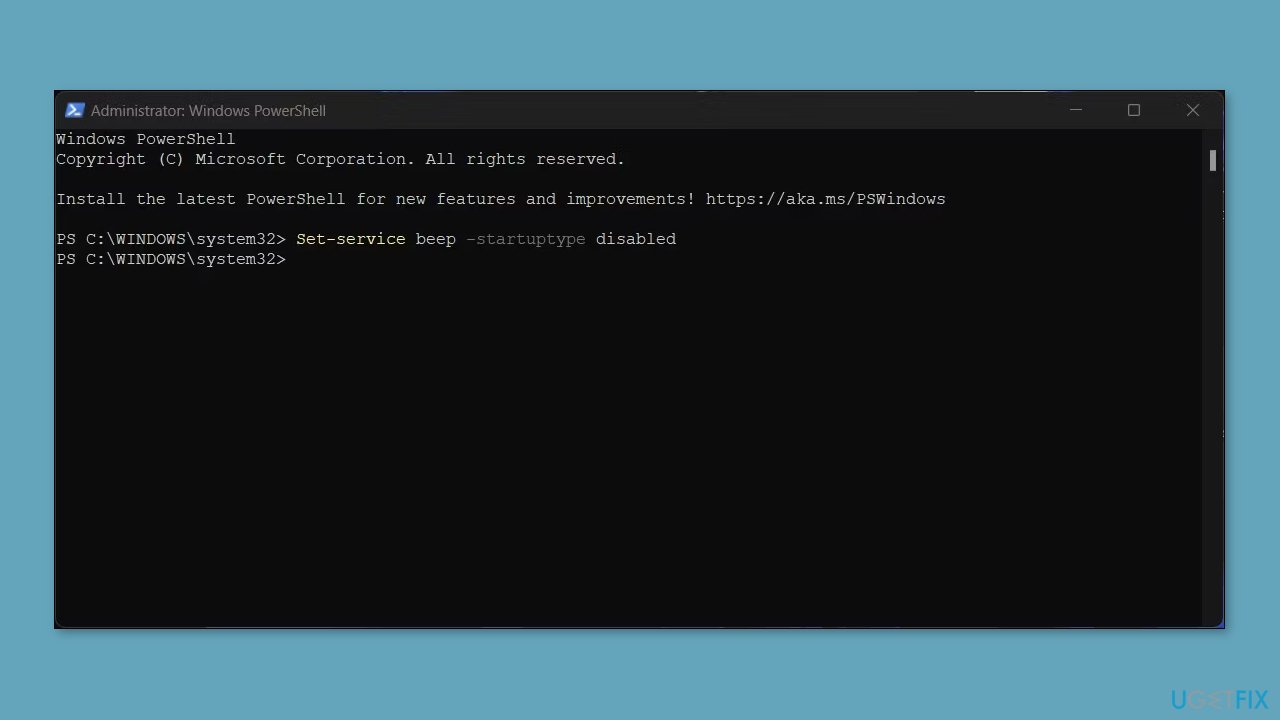
- This command may not return any output, but it should disable the beep sound.
- To enable the beep sound again, type the following command and press Enter:
Set-Service beep -StartupType Auto
Bottom line
To disable the volume change sound effect in Windows, users can adjust settings to turn off the beep sound while keeping other system noises. Additionally, using the touchpad or mouse scroll wheel can help avoid activating the sound. If these methods do not resolve the issue, consider using a maintenance tool to fix system errors.
Frequently asked questions
To disable the volume change sound effect in Windows 10, go to Settings > System > Sound, then click on 'Advanced sound options' and uncheck 'Play sound effects' under 'App volume and device preferences.'
Yes, in Windows 11, you can turn off the volume change sound effect by navigating to Settings > System > Sound, then selecting 'Sound control panel' and unchecking 'Play Windows Startup sound' if applicable.
Disabling the volume change sound effect will not affect other audio notifications; it specifically targets the sound that plays when adjusting the volume.




Report an issue
What's wrong with this guide? We review every report and update or remove content.
Report received — thank you. We'll review and fix it.
You need a free account to submit a report.
Be the first to comment