How to fix
Disable website recommendations
on Windows
Easily disable website recommendations in Windows 10 or 11 to enhance your browsing experience. Expert-tested tips for a distraction-free setup!

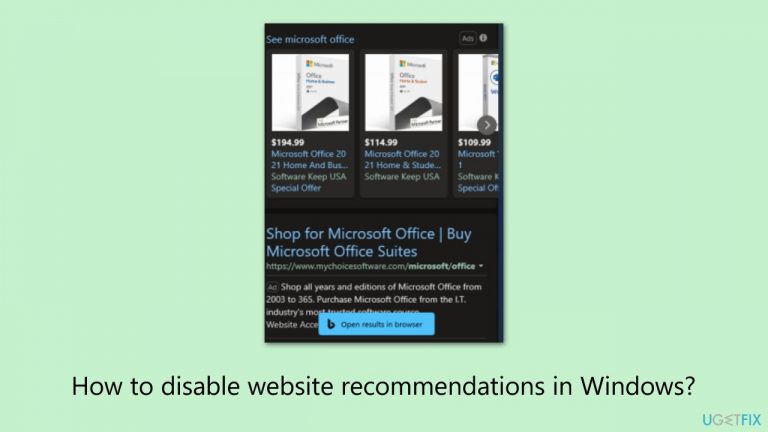
Why does How to disable website recommendations in Windows occur?
- Integration of Bing search results
- Cluttered search experience
- Privacy concerns
- Data usage issues
- Preference for local file focus
Repairs Windows system files, removes malware, and restores a clean OS state — without reinstalling.
Hello. I would like to disable the website recommendations I see in Windows 11 but I have no idea how to do this at all.
Windows Search has long been an integral part of the Microsoft Windows operating system, evolving significantly since its inception. Initially designed as a straightforward tool for locating files and folders on a personal computer, it has undergone numerous enhancements to improve user experience and functionality.
A notable expansion in its capabilities occurred when Microsoft integrated Bing search results into the Windows Search feature. This integration marked a significant step in making Windows Search a more versatile and comprehensive tool, offering users not only local file searches but also the vast expanse of internet-based information at their fingertips.
While the integration of Bing search results in Windows Search is hailed as a useful addition for many, it does not universally resonate with all users. For some, the inclusion of web-based search results in their local search queries is seen as an unnecessary complication, detracting from the simplicity and focus of the tool.
Reasons for this dissatisfaction vary; some users might find it cluttering the search experience with irrelevant information, while others might have concerns over privacy, data usage, or simply prefer a more streamlined search experience focused solely on their local files.
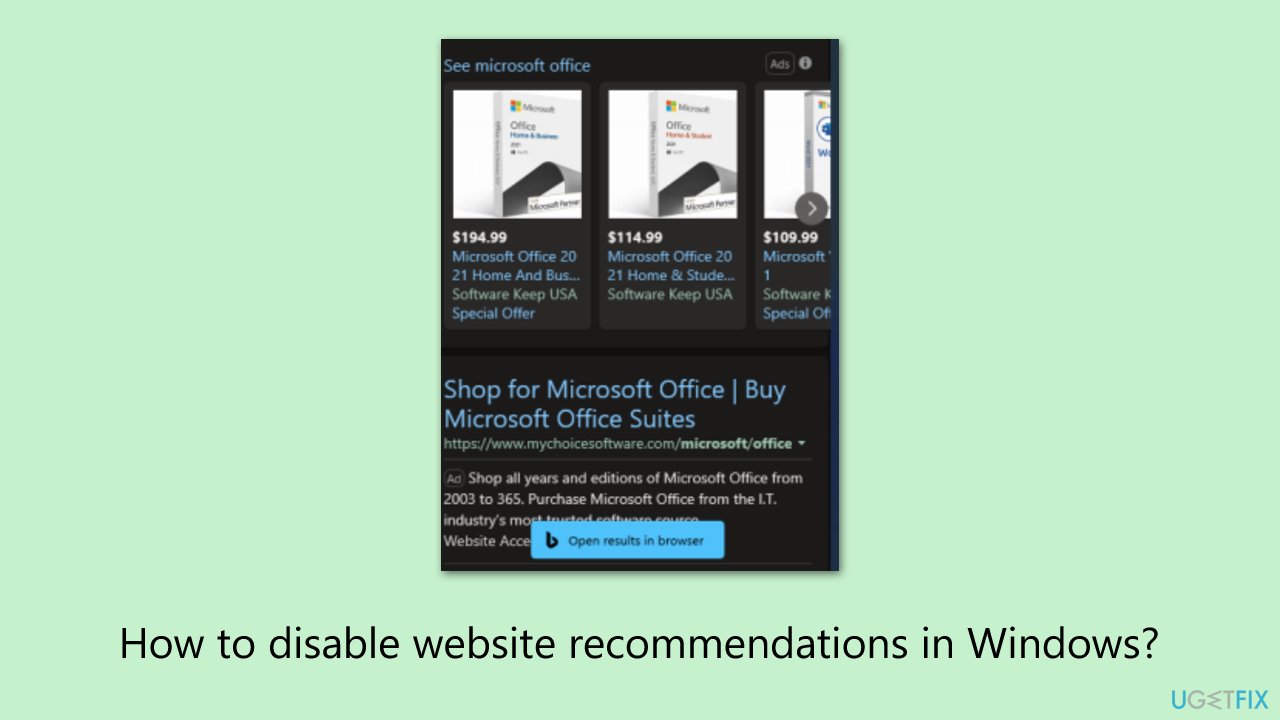
Acknowledging the diversity in user preferences, there are several ways to disable the website recommendations in Windows. These methods range from simple settings adjustments within the Windows operating system to more advanced techniques that might involve registry edits or group policy changes. You can choose an approach that best suits your technical comfort and needs. It is important to note that these methods do not hinder the overall functionality of Windows Search but simply tailor it to better align with individual user preferences.
In addition to customizing search features, maintaining the overall health and performance of a Windows PC is crucial. Utilizing a PC repair tool can be an effective strategy in this regard. These tools are designed to address various underlying issues in the Windows operating system automatically.
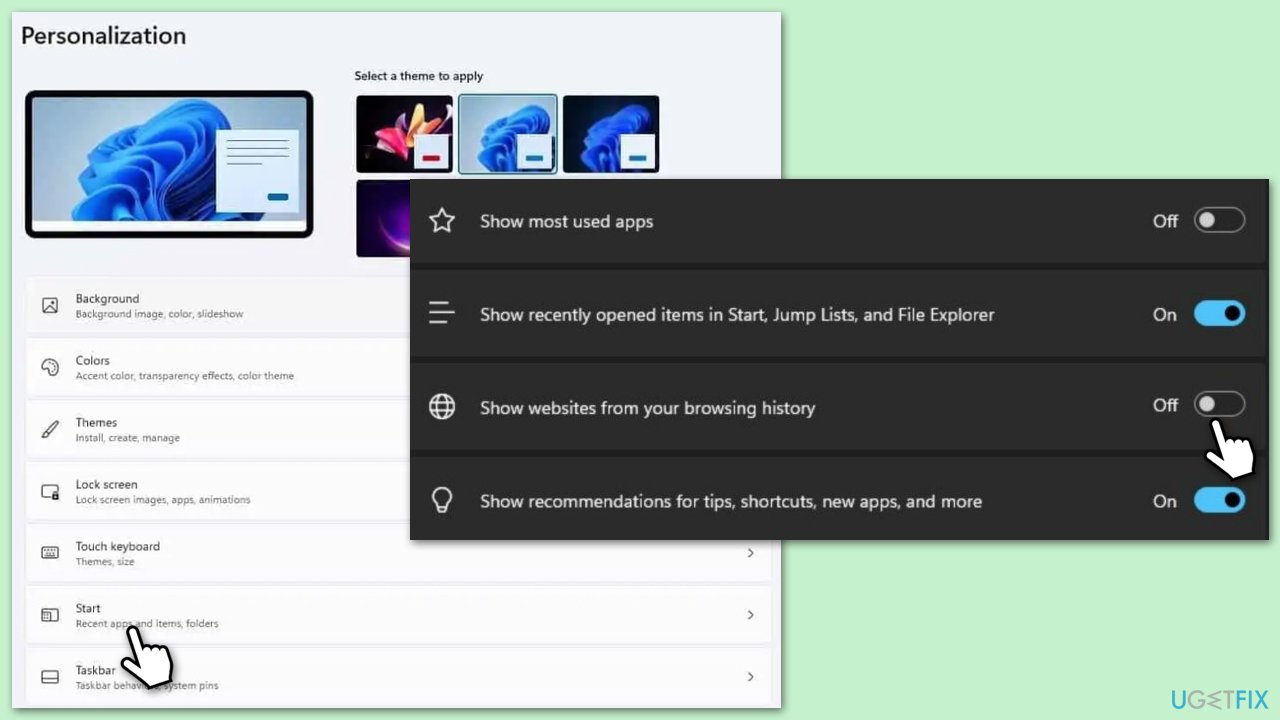
Fix 1. Disable website recommendations via Windows Settings
This approach involves accessing the settings menu of the Windows operating system to alter the search functionality. By delving into the search settings, you can easily switch off the feature that displays web-based recommendations, thus ensuring your searches remain local to your computer.
- Open the Start menu by pressing the Windows key on your keyboard.
- Select the Settings option.
- Go to the Personalization category.
- Select the Start section.
- Scroll down to find Show websites from your browsing history and disable the feature.
- Toggle this option to the off position to disable web recommendations.
Fix 2. Edit Group Policy to restrict web results
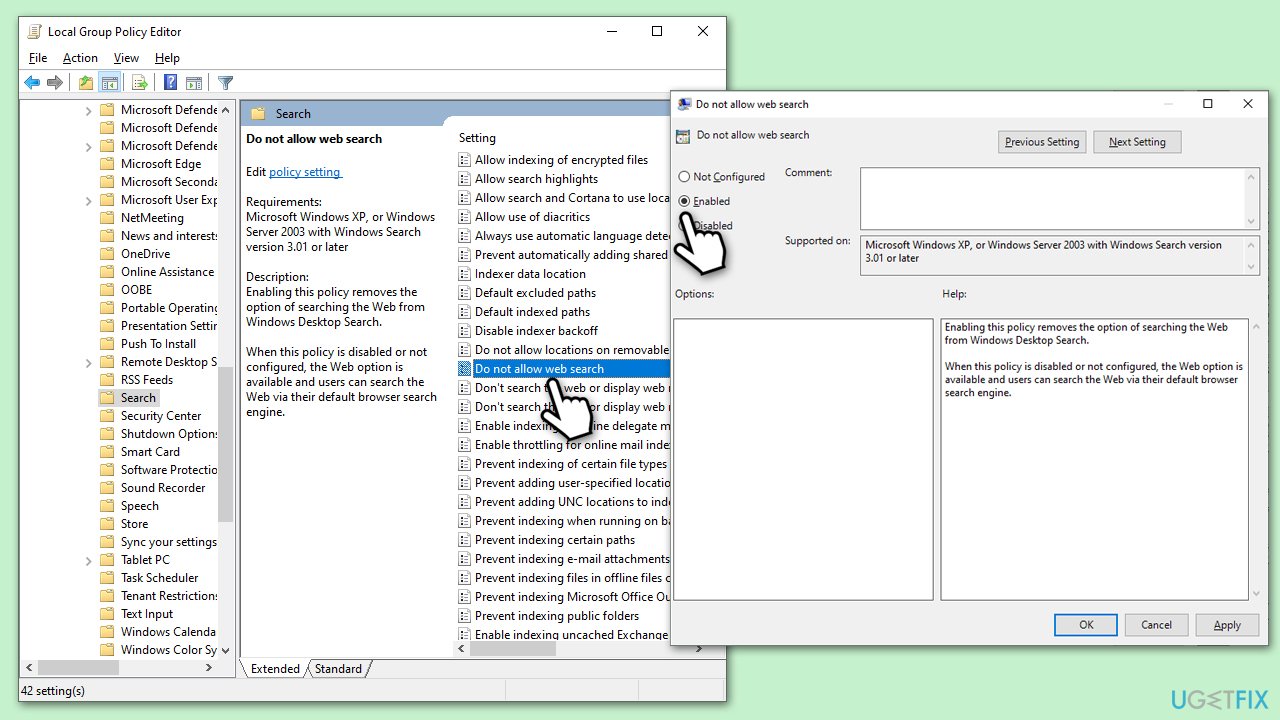
This solution is suitable for users who have access to the Group Policy Editor, a powerful tool within Windows that allows for more advanced system customizations. By modifying specific policies, you can effectively restrict Windows Search from displaying results from the web, thereby focusing solely on local content.
- Press the Win + R simultaneously to open the Run dialog box.
- Type gpedit.msc and press Enter to launch the Group Policy Editor.
- In the Group Policy Editor, navigate to User Configuration > Administrative Templates > Windows Components > Search.
- Look for a policy named Do not allow web search.
- Double-click on this policy and set it to Enabled.
- Apply the changes and exit the Group Policy Editor.
Fix 3: Modify Windows Registry to remove web search
Altering the Windows Registry is a more technical approach that involves editing system registry keys to remove web search capabilities. This method is recommended for advanced users who are comfortable with making changes to the system registry.
- Press the Win + R simultaneously to open the Run dialog box.
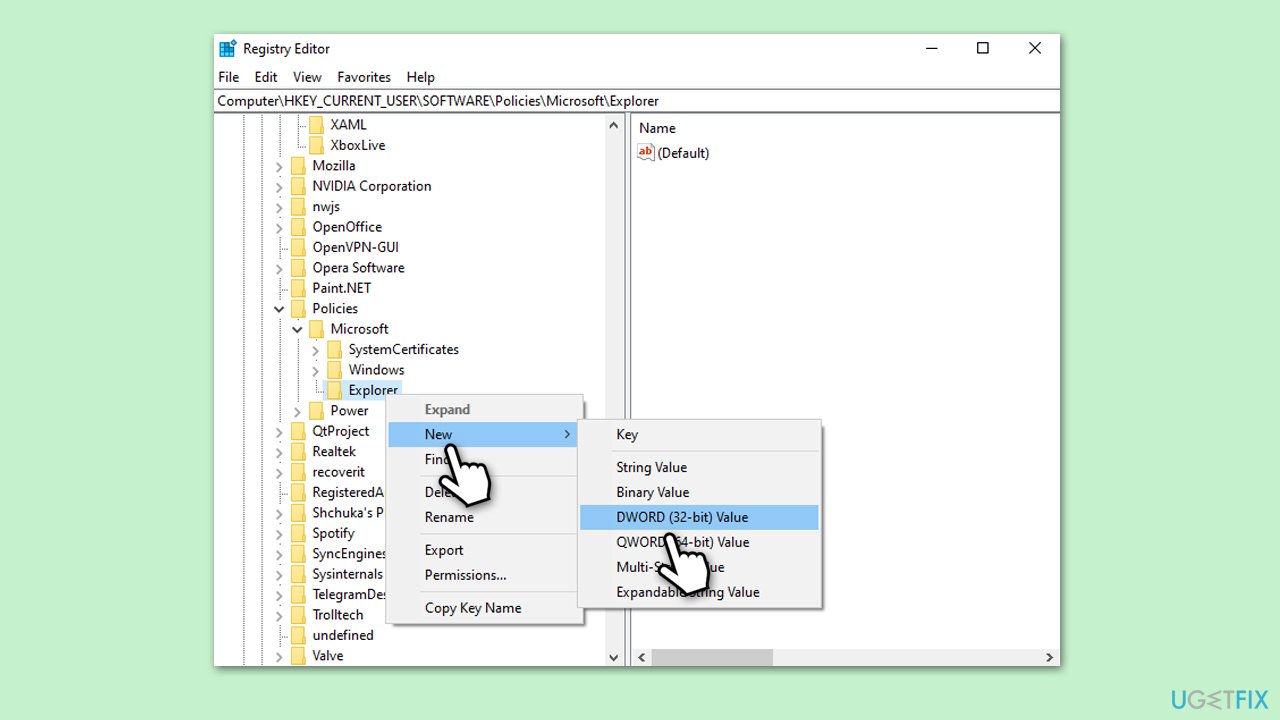
- Type regedit and press Enter to open the Registry Editor.
- Navigate to the following path:
HKEY_CURRENT_USER\Software\Policies\Microsoft\Windows\Explorer - Right-click on the Explorer folder, select New, then DWORD (32-bit) Value.
- Name the new DWORD as DisableSearchBoxSuggestions.
- Double-click on DisableSearchBoxSuggestions and set its value to 1.
- Close the Registry Editor and restart your computer for the changes to take effect.
Bottom line
To disable website recommendations in Windows, you can adjust settings within the operating system or use more advanced techniques like registry edits or group policy changes. These methods will help tailor the search experience to your preferences. If none of these solutions work, consider utilizing a PC repair tool to address any underlying issues.
Frequently asked questions
To disable website recommendations in Windows 10, go to Settings > Privacy & security > Activity history and uncheck 'Let Windows collect my activity from this PC.'
Yes, in Windows 11, navigate to Settings > Privacy & security > Activity history, and toggle off the option for 'Let Windows collect my activity from this PC'.
Disabling website recommendations may limit personalized suggestions, but it will not affect your overall browsing functionality in Windows 10 or Windows 11.




Report an issue
What's wrong with this guide? We review every report and update or remove content.
Report received — thank you. We'll review and fix it.
You need a free account to submit a report.
Be the first to comment