How to fix
Disable Windows Smartscreen
on Windows
Easily disable Windows Smartscreen to enhance your privacy settings on Windows 10 or 11. Follow our expert-tested guide for seamless configuration.

Why does How to Disable Windows Smartscreen occur?
- Windows SmartScreen prevents unrecognized apps from running
- SmartScreen collects information about downloaded applications
- Lack of information on the downloaded program from Microsoft's servers
- Users find SmartScreen notifications annoying
- SmartScreen is designed to protect against potentially unwanted applications
Repairs Windows system files, removes malware, and restores a clean OS state — without reinstalling.
I'm using Windows 10, and recently I came across "Windows Defender SmartScreen prevented an unrecognized app from running" notification. It started to annoy me as the alert prevents me from running legitimate and not dangerous applications. Could you please show me how to disable Windows SmartScreen?
Windows SmartScreen is an inbuilt technology which helps users protect their computers from potentially unwanted and dangerous applications. Initially, it was designed for Internet Explorer[ref en-1] to block phishing sites and malicious browser applications. Although, Microsoft now has implemented the technology directly to the Windows OS[ref en-2].
Once users enable SmartScreen, it starts collecting information about the applications you download and install on your computer. The gathered data is transmitted to Microsoft's servers where it is being compared to the report of malicious programs.
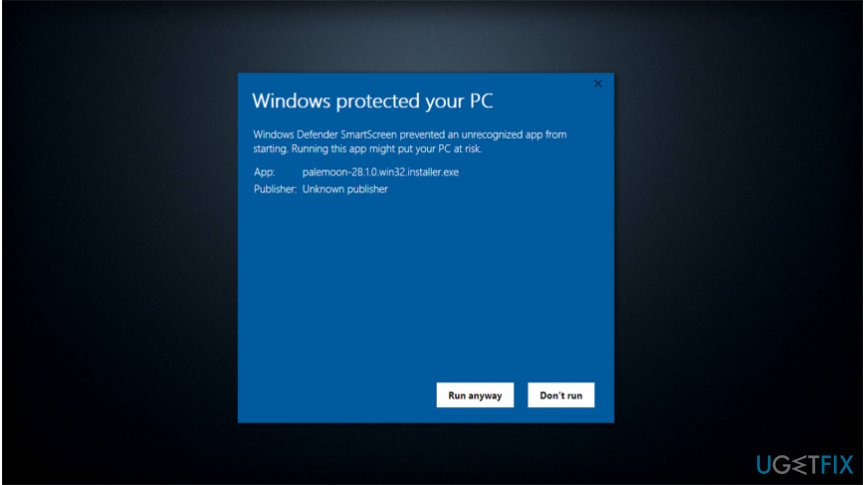
If the details of the app match the information of a potentially unwanted program[ref en-3], Microsoft's servers inform Windows and users receive the following notification:
Windows protected your PC
Windows Defender SmartScreen prevented an unrecognized app from running. Running this app might put your PC at risk.
More information
However, users report that Windows Defender SmartScreen might get annoying as well — If Microsoft's servers have no information about the program you just downloaded, you will continue to receive the message indicated above and prevented from running the app.
Nevertheless, Windows SmartScreen is a useful feature which can help you build an extra layer of security. However, some people might want to learn how to disable Windows SmartScreen and get rid of annoying alerts. Note that we would recommend keeping the technology enabled. Although, you can find instructions on how to turn it off below.
Easy steps to disable SmartScreen on Windows 10 and 8
If you have decided to disable Windows SmartScreen, you should get a professional antivirus to keep your PC safe. Please, download it from the official website and make sure that it includes real-time protection. Additionally, [d1] is a great tool to fix virus damage in case your PC was infected.
Deactivate SmartScreen on Windows 8
- Click Windows key + R and type Control Panel;
- Once it opens, go to System and Security > Action Center;
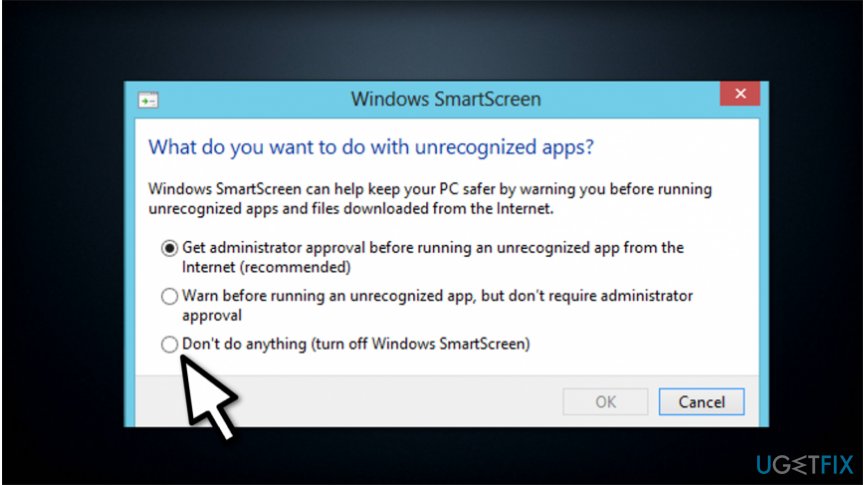
Disable windows smartscreen on windows - Find Change Windows SmartScreen settings button on the left pane and click on it;
- Check the mark next to Don't do anything (turn off Windows SmartScreen) and press OK.
Turn off SmartScreen on Windows 10
- Type Windows Defender Security Center on the Menu search and click on the shortcut;
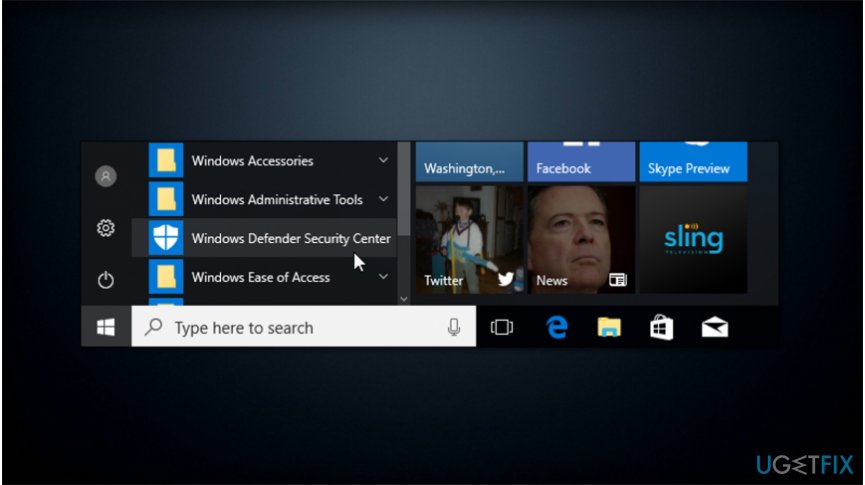
Windows defender security center - Find and hit App & browser control;
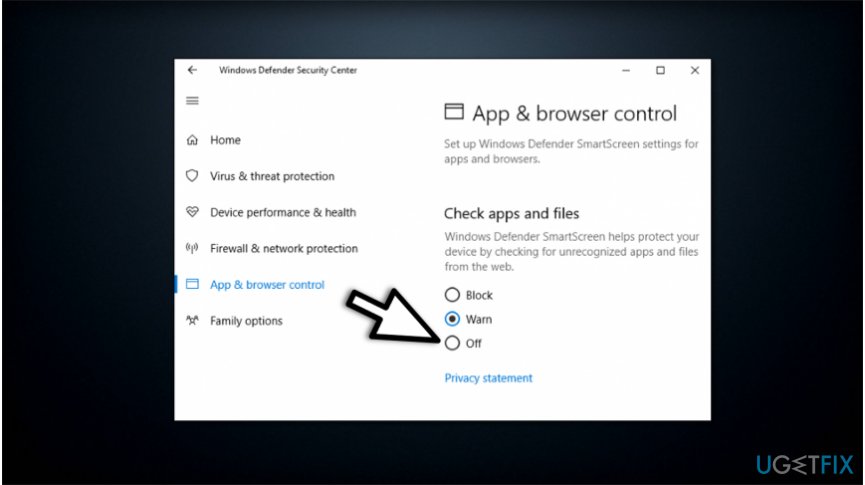
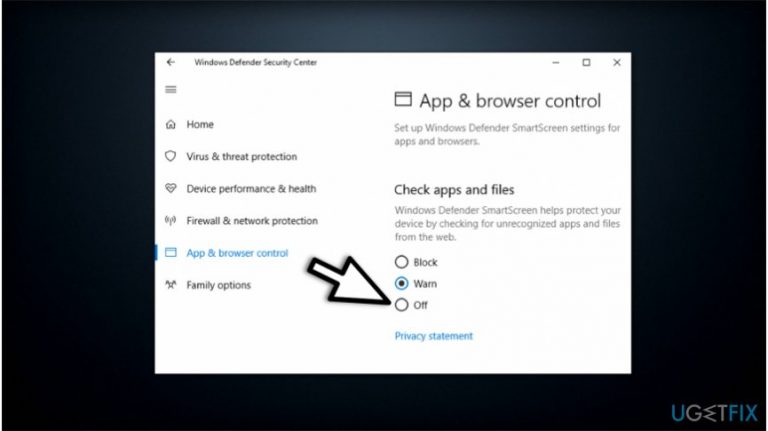
Turn off smartscreen on windows - Select Off below Check apps and files option.
Bottom line
To disable Windows SmartScreen, users can follow specific steps in the Control Panel. It is recommended to have a professional antivirus for protection after disabling SmartScreen. If none of the fixes work, consider seeking additional technical support.
Frequently asked questions
To disable Windows Smartscreen in Windows 10, go to Settings > Update & Security > Windows Security > App & browser control, and toggle the Smartscreen settings to 'Off.'
Disabling Windows Smartscreen can increase the risk of downloading malicious software, so it is recommended to only do so if you are confident in your online safety practices on Windows 11.
In Windows 10, you can turn off Smartscreen for specific apps by going to Settings > Update & Security > Windows Security > App & browser control and selecting 'Reputation-based protection settings' to adjust app-specific settings.




Report an issue
What's wrong with this guide? We review every report and update or remove content.
Report received — thank you. We'll review and fix it.
You need a free account to submit a report.
Be the first to comment