How to fix
Enable “Allow apps from the Store only” Feature
on Windows
Easily configure Windows 10 to allow only Store apps, enhancing security and performance. Expert-tested solutions await, with screenshots for clarity.


Why does How to Enable “Allow apps from the Store only” Feature on Windows 10 occur?
- PUPs installation from third-party sources
- Downloading apps from unverified websites
- Lack of app verification outside Windows Store
- Increased risk of malware and viruses
- Limited app variety when enabling the feature
Repairs Windows system files, removes malware, and restores a clean OS state — without reinstalling.
I’m using Mac OS at home and I appreciate the Gatekeeper feature, which blocks the installation or apps outside of Mac App Store. I wonder if Windows 10 has a similar feature. I would like to enable it because I often stumble upon installation of PUPs…
With Windows 10 Creators Update, Microsoft introduced a new feature similar to Gatekeeper on macOS. It is called “Allow apps from the Store only” and is now available on the 15031 and above builds in the Settings applet. It’s intended to improve system’s security and stability by preventing the installation of apps outside the Windows Store. Although people may also find doubtful apps or even PUPs distributed on the Windows Store, these are exceptional cases. Microsoft digitally signs apps that are included into the “shelf” of Windows Store and verifies their safety, which is why by downloading apps from the store only can hardly lead to cyber infection. Unfortunately, we cannot say the same about downloading programs from various third-party web pages, such as Cnet, Softonic or Download. The “Allow apps from the Store only” feature also limits the downloading/opening of self-contained .exe files.
Creators Update brought many new features deemed at security improvement and the block of apps from outside the Windows Store is a big step ahead in the fight against malware and viruses. However, setting up the “Allow apps from the Store only” option significantly reduces the variety of apps. Nevertheless, if you prioritize the security of your PC, we would strongly recommend you to enable the “Allow apps from the Store only” option without a delay. If you would decide to install an app from the outside of Windows Store, you will always be able to disable this feature and eable it once the required program is installed.
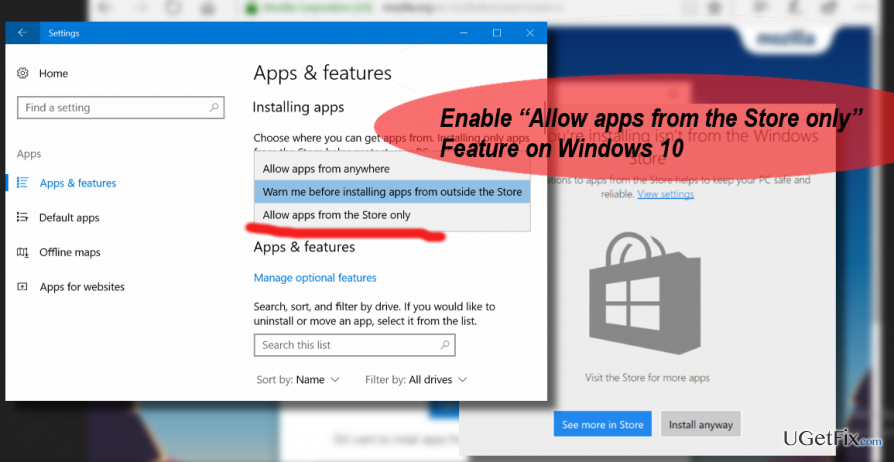
Enabling the “Allow apps from the Store only” feature on Windows 10
Windows 10 comes with the option to allow apps from anywhere by default. If you want to change that, you’ll have to open Settings applet and change a couple of options.
- Make sure that your PC runs Windows 10 Creators Update (15031 version and above).
- Press "Windows key + I" to open Settings app.
- Open "System" and select "Apps & Features" on the left pane.
- Locate "Installing Apps" and three options under it:
“Allow apps from anywhere”
“Warn me before installing apps from outside the Store”
“Allow apps from the Store only” - The first option will be set by default, so choose between option two and three.
- Close Settings app.
PRO TIP: if you are afraid of being over limited regarding the selection of apps, our recommendation would be to set “Warn me before installing apps from outside the Store” option. It will display a warning message saying “The app you are installing is not from the Windows Store” each time when you will try to install software from third-party download source. This way, you will draw your attention and, hopefully, double-check if the app is reliable. If the apps is 100% safe, you will be able to click "Install" button anyway.
If you set the “Allow apps from the Store only,” you won’t be allowed to download and install programs outside the Windows Store. However, the non-Windows Store apps that you have downloaded and installed before enabling the “Allow apps from the Store only” option will keep working normally. Anyway, make sure that you system runs a poweful and updated anti-malware because the most malicious cyber infections can use various exploit kits to infiltrate the system. The more precautionary measures you'll take, the more protected your PC will be. Our recommendation would be to use [d1].
Bottom line
To enable the 'Allow apps from the Store only' feature on Windows 10, open the Settings applet and adjust the necessary options. This feature enhances security by preventing installations from outside the Windows Store. If you encounter issues, you can always disable this feature temporarily to install required programs.
Frequently asked questions
To enable this feature, go to Settings > Apps > Apps & features, then select 'Only apps from the Store' under the 'Choose where to get apps' section.
No, enabling this feature will not remove your currently installed applications; it will only restrict the installation of new apps to those available in the Microsoft Store.
Yes, you can revert the setting by navigating to Settings > Apps > Apps & features and selecting the option to allow apps from anywhere.




Report an issue
What's wrong with this guide? We review every report and update or remove content.
Report received — thank you. We'll review and fix it.
You need a free account to submit a report.
Be the first to comment