How to fix
Enable and use God Mode
on Windows
Unlock ultimate control in Windows 11 by enabling God Mode. Discover essential tweaks and optimizations, all expert-tested for your convenience.

Why does How to enable and use God Mode in Windows 11 occur?
- Difficulty accessing advanced system settings
- Retirement of the classic Control Panel
- Settings scattered across different areas of the interface
- Need for quick access to configurations
- User preference for a centralized location for settings
Repairs Windows system files, removes malware, and restores a clean OS state — without reinstalling.
Hello. I have heard of a hidden feature in Windows 11 where you can access important system settings in one place. How do I find it?
Despite Microsoft's efforts to improve the Windows 11 Settings app, accessing advanced system settings can still be challenging for some users. With the planned retirement of the classic Control Panel, it is more important than ever to have quick and easy access to advanced Windows 11 configurations.
God Mode is a feature in Windows 11 that provides quick access to all of the operating system's settings and configuration options in a single folder. It is not a built-in feature of Windows, but rather a custom folder that can be created by the user. The folder, once created, contains a large number of shortcuts to settings, controls, and options that are otherwise scattered across different areas of the Windows interface.
Having all the settings in one place makes it easier to find and adjust settings, troubleshoot, and perform other tasks. It is also called the Windows Master Control Panel shortcut or Windows Control Panel on steroids. In this article, we will show you four cool things you can do with God Mode, including:
- Customizing sound settings
- Troubleshooting various issues
- Tinkering with advanced Windows settings
- Accessing system information.
So don't waste any more time navigating through confusing menus and read on to discover how God Mode can enhance your Windows 11 experience.
Enable God Mode
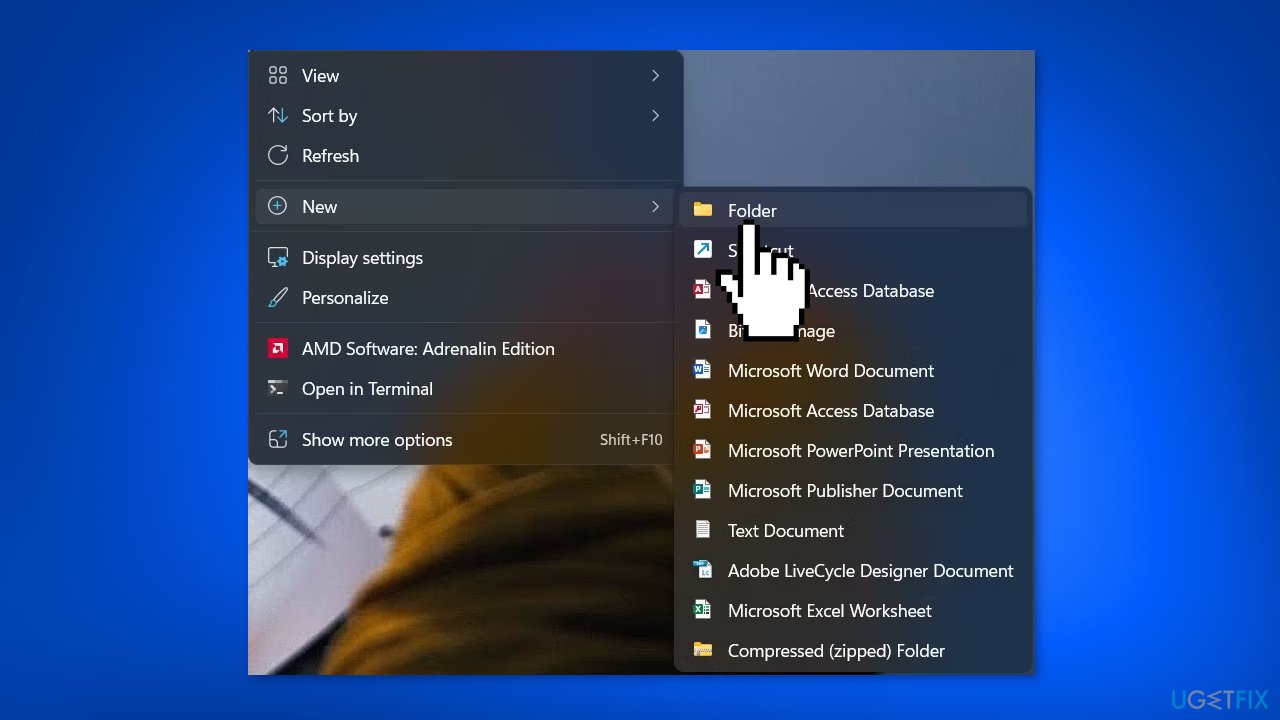
- Right-click on your Desktop
- Hover over New
- Select Folder to create a new folder on your Desktop
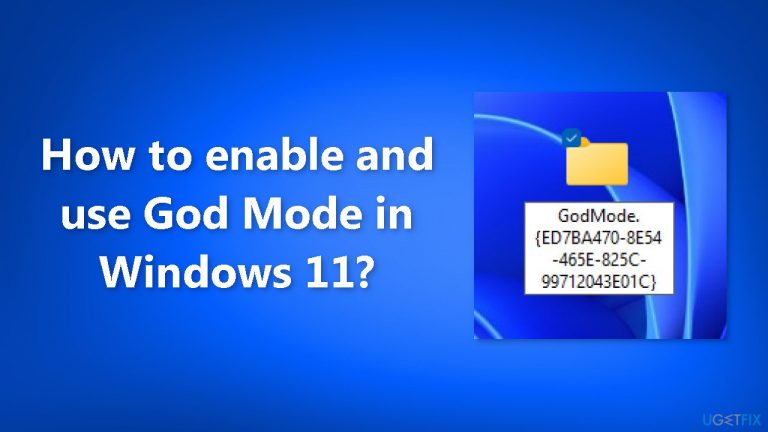
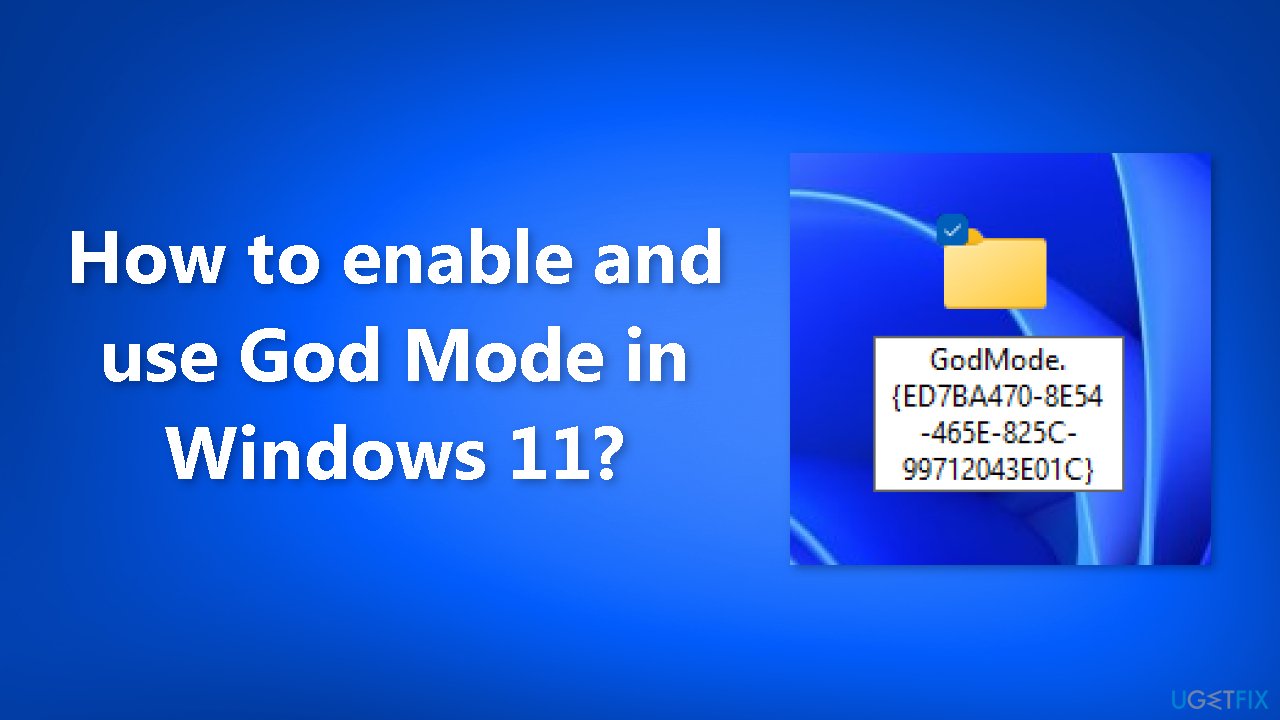
- Rename the newly created folder to GodMode.{ED7BA470-8E54-465E-825C-99712043E01C}
- Click anywhere on your Desktop to save the changes
- Notice that the folder name will disappear, and the folder icon may change to the Control Panel icon
- Open the folder
- View the list of possible setting configurations
- Double-click any setting to launch the option or drag and move that shortcut onto the Desktop or any other folder
Now that you have unlocked the power of God Mode on your Windows 11, you may be wondering what you can do with this hidden feature. So, ready to discover the hidden gems of this feature? Keep reading!
1. Change System Settings
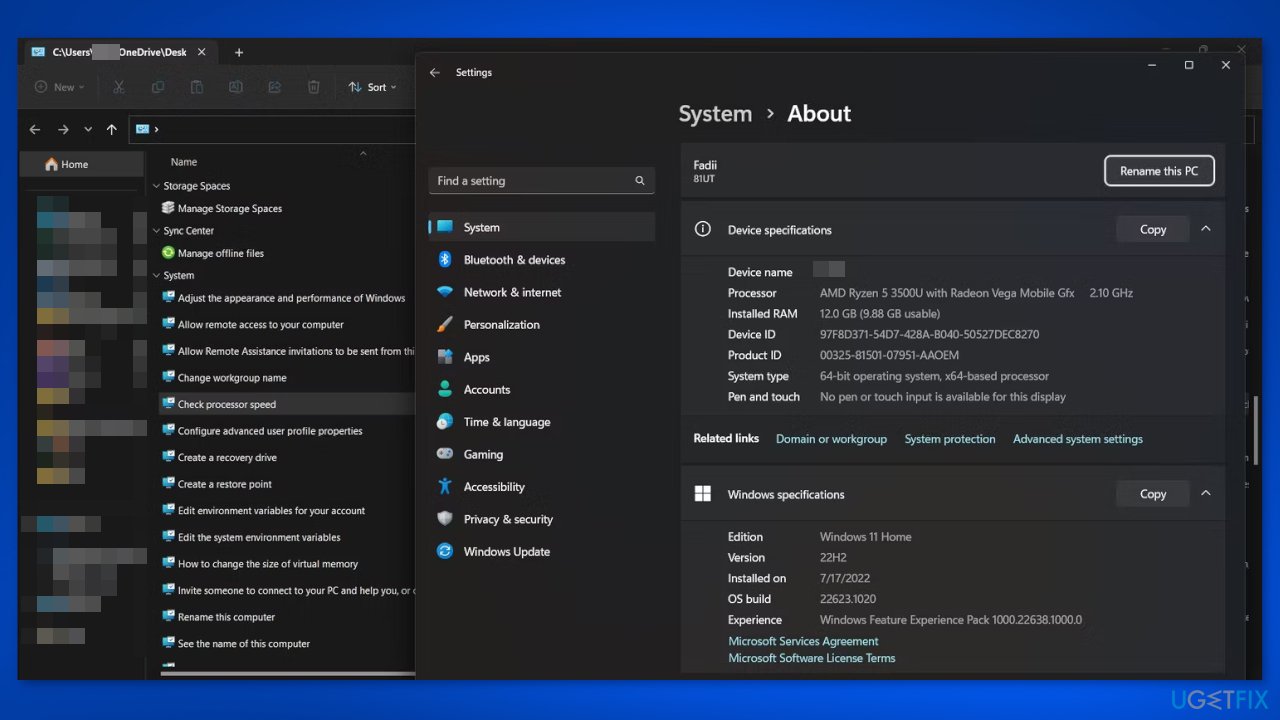
The Windows 11 Settings app has a dedicated section for System-related configurations, such as allowing remote access[ref en-1] to your PC, updating the workgroup name, and managing user profiles. However, it can be difficult to navigate.
An alternative is to use the "God Mode" folder, which contains all System-related options in one place, making it easy to find and change settings. You can quickly adjust the size of virtual memory,[ref en-2] update system variables, personalize your Windows PC, and more. Additionally, you can use the "Show how much RAM is on this computer" and "Check processor speed" options to view information about your PC's RAM[ref en-3] and processor specs.
2. Fix Windows 11 System Issues
It's important to be able to quickly fix issues that may arise on your PC. The "God Mode" folder's Troubleshooting section offers a variety of options for addressing problems with sounds, network, printing, searching, and bluescreen. By using the available troubleshooting options, you can quickly diagnose and resolve issues with your Windows 11 PC.
3. Access Advanced Settings
If you frequently work with advanced Windows settings such as defragmenting drives, formatting disk partitions, or setting up ODBC data sources, the "Windows Tools" settings group in the Windows 11 "God Mode" folder will be particularly useful for you. By using "God Mode," you can easily access advanced settings such as:
- Changing color profiles for displays, printers, and scanners
- Managing Web & Windows Credentials
- Changing device installation settings
- Configuring USB game controllers
- Restoring File History
- Updating Indexing (search) preferences
- Configuring various Network & connectivity settings
4. Adjust Sound Settings
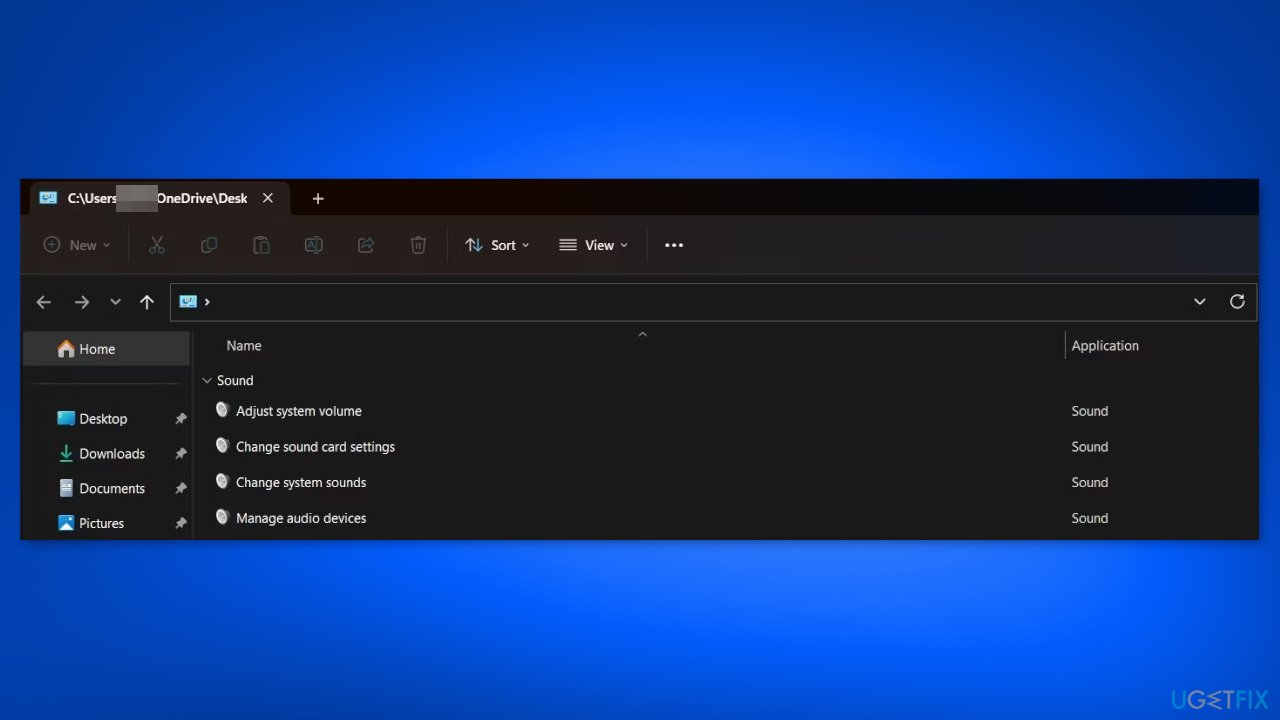
Having the correct sound settings is important for work meetings, watching movies, or listening to music. Navigating between the Control Panel and the Settings app to adjust the sound on your PC can be cumbersome. The "God Mode" folder offers a simple solution by providing easy access to sound configuration options.
To use it, create the God Mode folder, open it, and scroll to the Sound group. From there, you can adjust volume settings for different connected devices, change default system sounds, and manage the sound card configured to your PC.
Bottom line
To enable God Mode, create a new folder on your Desktop and rename it to GodMode.{ED7BA470-8E54-465E-825C-99712043E01C}. This will provide quick access to various system settings. If you encounter issues, consider troubleshooting or seeking additional help.
Frequently asked questions
God Mode is a special folder that provides quick access to various system settings and control panels in Windows 11, allowing for easier management of your system.
To enable God Mode, create a new folder on your desktop and rename it to 'GodMode.{ED7BA470-8E54-465E-825C-99712043E01C}', then the icon will change, indicating it is now a God Mode folder.
No, the settings available in God Mode are predefined by Windows 11, but you can easily access them for quick configuration and optimization.




Report an issue
What's wrong with this guide? We review every report and update or remove content.
Report received — thank you. We'll review and fix it.
You need a free account to submit a report.
Be the first to comment