How to fix
Enable Camera Privacy Indicator
on Windows
Boost your privacy in Windows 11 by enabling the Camera Privacy Indicator. Get expert-tested tips for a secure experience, fixed in minutes.

Why does How to enable Camera Privacy Indicator in Windows 11 occur?
- Lack of LED indicator on the device
- Apps accessing the camera without permission
- Incorrect camera settings
- Malware hijacking the camera
- Absence of native camera indicator
Repairs Windows system files, removes malware, and restores a clean OS state — without reinstalling.
Hi, I've heard that one could enable Privacy Indicator in Windows 11 now, although I am not sure how to do that. My laptop doesn't have an LED indicator. Could you provide any tips, maybe?
The presence of cameras in laptops is becoming increasingly common, with most modern laptops featuring a built-in or external camera for video conferencing and multimedia applications. Camera technology has advanced rapidly in recent years, allowing for clearer, sharper images at faster speeds.
Cameras today are capable of shooting videos and still images in high definition with superior color accuracy. With the growth of Web-based applications, laptop cameras are now used for webcasting and remote controls. They are also becoming more integrated with facial recognition software, allowing for better security and user authentication, and this is not the only security measure out there.
Computer cameras are intended to be used by those who own the device, although this is not always the case. Some apps might try to access your camera without asking for proper permission or because of the incorrect settings.
Cybercriminals can also hijack cameras by using malware and use it for malicious purposes later. Therefore, most modern cameras in laptops or even attachable ones have an LED indicator whenever they are on. Unfortunately, not all of the cameras have this feature, and that's where the camera's Privacy Indicator can come in handy on Windows.
When you install apps on your device, they typically are set to predetermined settings, some of which could access your camera, even if you don't want them to do that. With Privacy Indicator, you can always be aware of when the camera is used or which software is using it.
If your computer doesn't have a native camera indicator or it's not functioning correctly, Windows 11 has you covered. The Hidden Camera Privacy Indicator is a useful feature that displays a notification on-screen anytime the camera or webcam connected to your system is turned off and on. Staying safe online is so much easier now.
However, while being a useful feature, Privacy Indicator is not easily accessible in Windows 11. In order to turn it on, you would have to modify your registry, which some users are not comfortable doing. If you follow the steps below, you can easily avoid issues with the registry. Even if something does go wrong, you could employ a potent PC repair tool [d1] that can easily fix any inconsistencies and corrupt registries in Windows.
Step 1. Prepare the registry backup
We recommend making a backup of the Registry before modifying it:
- Type regedit in Windows search and press Enter.
- User Account Control (UAC) will ask whether you want to make changes - click Yes.
- When Registry Editor opens, click File > Export.
- Under Export range, pick All.
- Name it and save it to the location of your preference.
Step 2. Modify the Registry
The next step is to make modifications to the Registry. Proceed with the following:
- In the Registry Editor, go to the following location:
Computer\HKEY_LOCAL_MACHINE\SOFTWARE\Microsoft\OEM\Device\Capture - Double-click the NoPhysicalCameraLED entry on the right.
- Set the value to 1 and click OK.
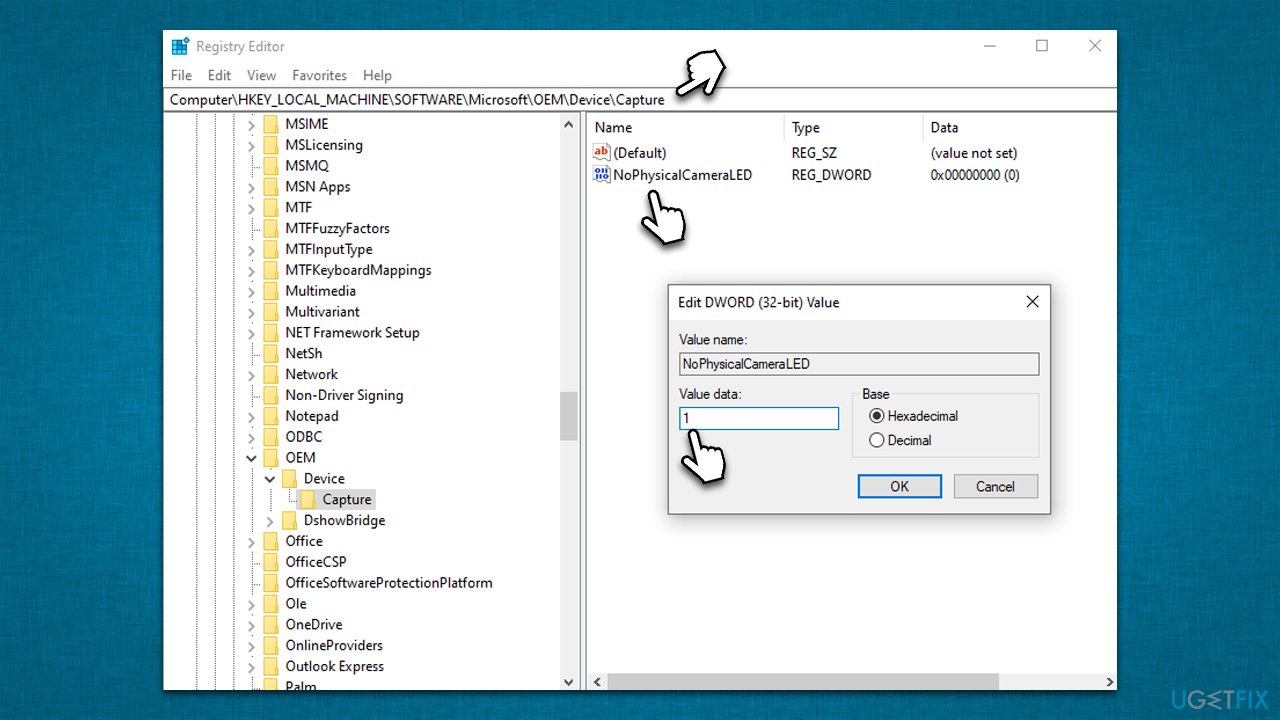
Note: if NoPhysicalCameraLED is missing, you should right-click on empty space of the right panel and select New > DWORD (32-bit Value) and name it NoPhysicalCameraLED. Then proceed with the steps above.
Step 3. Restart Windows Explorer or Restart your PC
in order to enable Camera Privacy Indicator in Windows 11 right away, you should restart Windows Explorer - here's how:
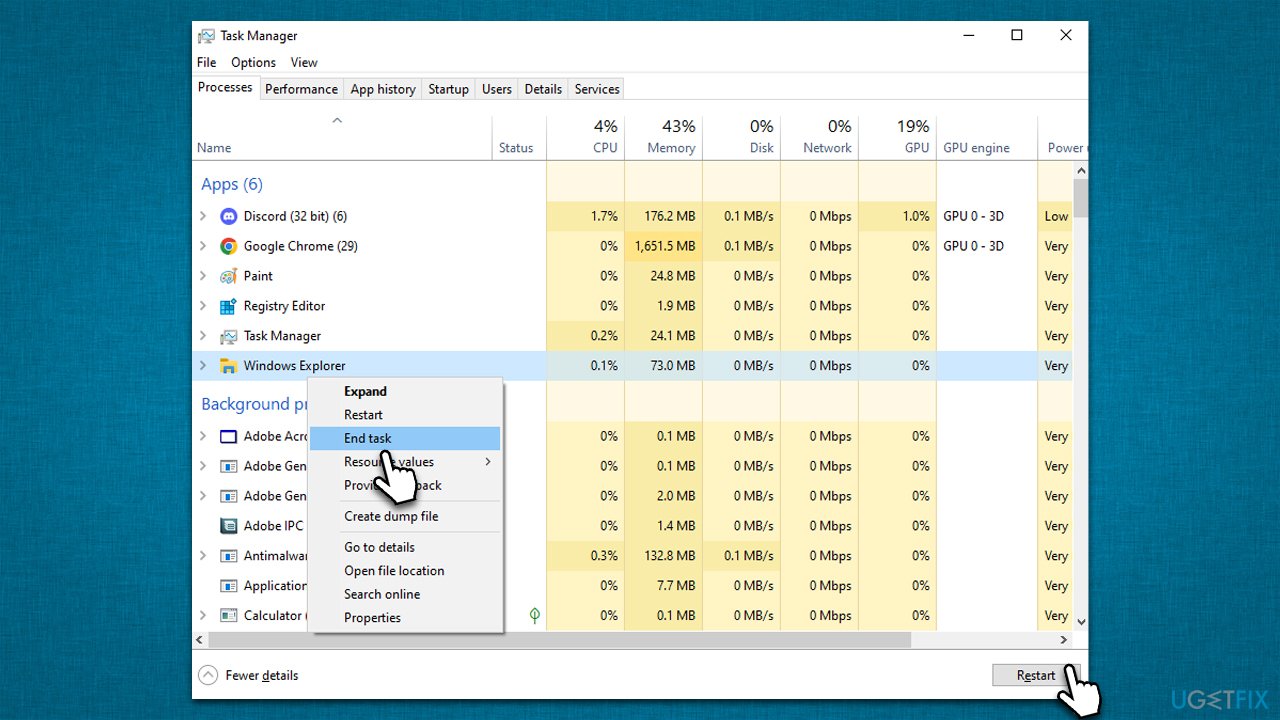
- Press Ctrl + Shift + Esc to open Device Manager.
- Scroll down to find Windows Explorer.
- Right-click on Windows Explorer and select Restart.
- Alternatively, you can also restart your system.
Now, every time your camera is used, you will see the "Camera on" notification, and vice versa.
Bottom line
To enable the Camera Privacy Indicator in Windows 11, you can adjust your settings to display notifications whenever the camera is activated. This feature helps you stay informed about camera usage and enhances your online safety. If these steps do not resolve the issue, consider checking for software updates or consulting additional resources.
Frequently asked questions
To enable the Camera Privacy Indicator in Windows 11, go to Settings > Privacy & security > Camera, and toggle on the 'Camera access' option.
The Camera Privacy Indicator shows a visual cue when your camera is in use, helping you maintain privacy and awareness of your camera's activity.
Yes, you can disable the Camera Privacy Indicator by going to Settings > Privacy & security > Camera and toggling off the 'Camera access' option.




Report an issue
What's wrong with this guide? We review every report and update or remove content.
Report received — thank you. We'll review and fix it.
You need a free account to submit a report.
Be the first to comment