How to fix
Enable Classic Paint
on Windows
Unlock Classic Paint on Windows 10 Creators Update with our easy guide. Enjoy enhanced creativity and nostalgia, all expert-tested for your convenience.

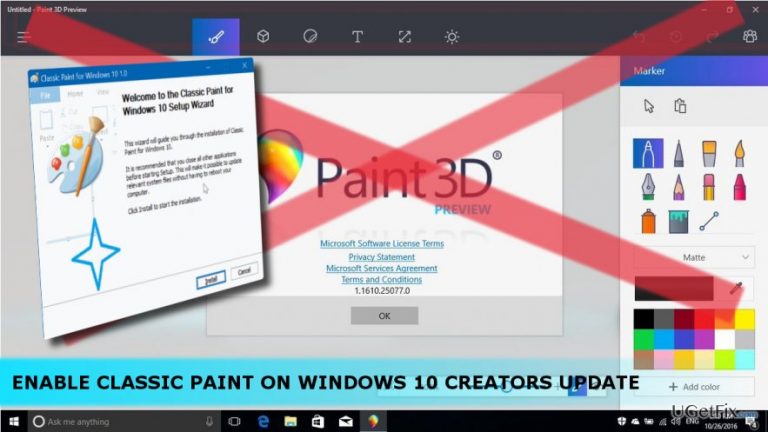
Why does How to Enable Classic Paint on Windows 10 Creators Update occur?
- Classic Paint replaced by Paint 3D in Creators Update
- Users accustomed to classic Paint
- Lack of default installation for classic Paint
- Changes in user interface and design
- Limited options for editing images
Repairs Windows system files, removes malware, and restores a clean OS state — without reinstalling.
I miss good old Paint already… Is it possible to have it on Windows 10 Creators Update?
Devoted Windows OS users must have noticed the tremendous changes delivered by Microsoft with each new OS version and its update. However, the biggest wind of change was introduced with Windows 10, its Anniversary Update and, ultimately, Creators Update. In addition to improved security, added new features, changed interface, and design, the replacement of classic Windows 10 programs with the new ones attracted the most people's attention. For example, Internet Explorer vs. Edge, Control Panel vs. Settings app, Windows Photo Viewer vs. Photos app, classic search vs. Cortana, old Sticky notes vs. new Sticky Notes app, and many others. The program we would like to discuss here is the new 3D Paint, which has already been installed on hundreds of thousands of PCs and other devices with the Creators Update. The new paint enables all people to manipulate shapes and colors in a new (3D) dimension easily, customize, edit, and share the created pictures within Paint community, attach customized stickers, and much more.
Despite many advantages, many Windows 10 users opt for using the classic Paint. Such will is self-understanding having in mind that classic Paint has been a part of Windows OS for a long time and people got used to it. The problem is that Paint 3D substitutes the classic Paint when the Creators Update is installed. Consequently, when a PC user right-clicks on a picture, instead of Edit button he or she finds the Edit with Paint 3D option. To make the habituation period easier, it would have been wise to leave both the classic Paint and 3D Paint installed by default and remove the old one with the upcoming updates. Closer investigation of this issue revealed that Microsoft did exactly what we’ve just said. Although the classic Paint is not installed as one of the default Windows apps, it’s still available on Creators Update and can be re-enabled either by deleting the 3D Paint or initiating a simple registry tweak.
TIP: even if you re-enable Paint, we would strongly recommend getting used to the new 3D Paint because it’s just a matter of time when Microsoft will completely drop classic Paint from Windows 10.
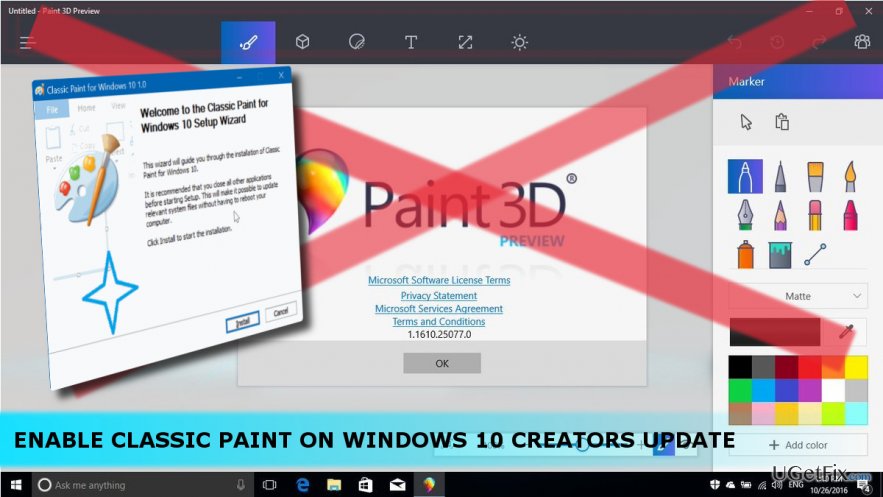
Method 1. Uninstall 3D Paint
To enable classic Paint, you should delete 3D Paint via Settings. After that, classic Paint should be re-enabled automatically. To check that, press Windows key and type Paint or scroll through the Apps list and try to find Paint. If it’s not there, you can reinstall 3D Paint or try to re-enable classic Paint using Method 2.
- Press Windows key + I and select System.
- Open Apps & Features and locate 3D Paint.
- Click on it and select Uninstall.
- Then select Uninstall again to confirm the changes.
Method 2. Modify the Registry
- Press Windows key, type regedit, and press Enter.
- Navigate to the HKEY_LOCAL_MACHINE\SOFTWARE\Microsoft\ Windows\CurrentVersion\Applets\Paint\Settings key.
- If Settings key does not exist, right-click on Paint key and select New > Key. Name it as Settings.
- Then right-click on the newly created Settings key and select New > DWORD (32-bit) Value. Name it as DisableModernPaintBootstrap.
- Now double-click on the DisableModernPaintBootstrap key and change its value from 0 to 1.
- Close Registry Editor and reboot your PC.
Bottom line
To enable classic Paint, users can either delete Paint 3D or perform a registry tweak. If these methods do not work, users may need to seek additional support or alternatives.
Frequently asked questions
To enable Classic Paint, download the Classic Paint executable file and run it on your Windows 10 Creators Update system. Once installed, you can access it from the Start menu.
No, Classic Paint is not included by default in Windows 10 Creators Update; you need to download it separately from a trusted source.
No, enabling Classic Paint does not affect your current Windows 10 settings; it simply adds an alternative painting application.




Report an issue
What's wrong with this guide? We review every report and update or remove content.
Report received — thank you. We'll review and fix it.
You need a free account to submit a report.
Be the first to comment