How to fix
Enable dark mode in Google Docs
on Windows
Transform your Google Docs experience with dark mode on Windows 10 and Windows 11. Enjoy a sleek look and reduced eye strain, expert-tested.

Why does How to enable dark mode in Google Docs occur?
- Absence of a built-in dark mode option in Google Docs
- Need to adjust browser or device settings to enable dark mode
- Dark mode not readily available in Google Suite applications
- Lack of uniform dark mode experience across Google applications
- Potential eye strain from bright backgrounds during late-night work
Repairs Windows system files, removes malware, and restores a clean OS state — without reinstalling.
Hi. I am using Google Docs a lot for my job, and quite a lot of it is done at night. I'd prefer dark mode in Google Docs over the default one but I don't think there's such an option exists. I was trying to look for it but I couldn't find it.
Google Docs, a revolutionary product from Google, has become an essential tool in the realm of online documentation. This web-based software suite allows for collaborative work, editing, and storage of documents, spreadsheets, and presentations - all in real-time. It has undoubtedly transformed the landscape of remote work and study.
However, many users find themselves longing for a feature not readily available in Google Docs, and that's the dark mode. The absence of a clear, one-click setting to enable dark mode on Google Docs may seem baffling, especially considering how this setting is touted for its advantages, such as reduced eye strain, power saving, and an overall soothing experience, especially for those who work late into the night.
Enabling dark mode in Google Docs isn't straightforward, but it can indeed be done. The solution comes through adjusting some settings, not in Google Docs itself, but within your browser or device settings. This includes platforms such as Google Chrome, Microsoft Edge, and mobile devices powered by Android or iOS. This roundabout method might seem like a hassle, but it pays off by extending its influence to other Google Suite applications like Google Sheets and Google Slides, providing a uniform experience across all platforms.
Once this feature is enabled, the stark white background of Google Docs transforms into a dark, muted tone. This change in aesthetic not only provides a sleek and modern feel to your work environment but also offers practical benefits such as reducing screen glare and conserving battery life for OLED and AMOLED screens. Furthermore, in low-light conditions or during the late hours, dark mode can make long sessions of reading or writing significantly more comfortable.
With some fine-tuning in settings on your browser or mobile device, you can enjoy the many benefits this setting offers. Detailed instructions on how to enable dark mode in Google Docs, Sheets, and Slides on various platforms are provided below.
1. Enable in Google Chrome/Microsoft Edge
It is important to note that following the steps below will force dark mode on all the other websites. This works on Windows, macOS, and Linux systems.
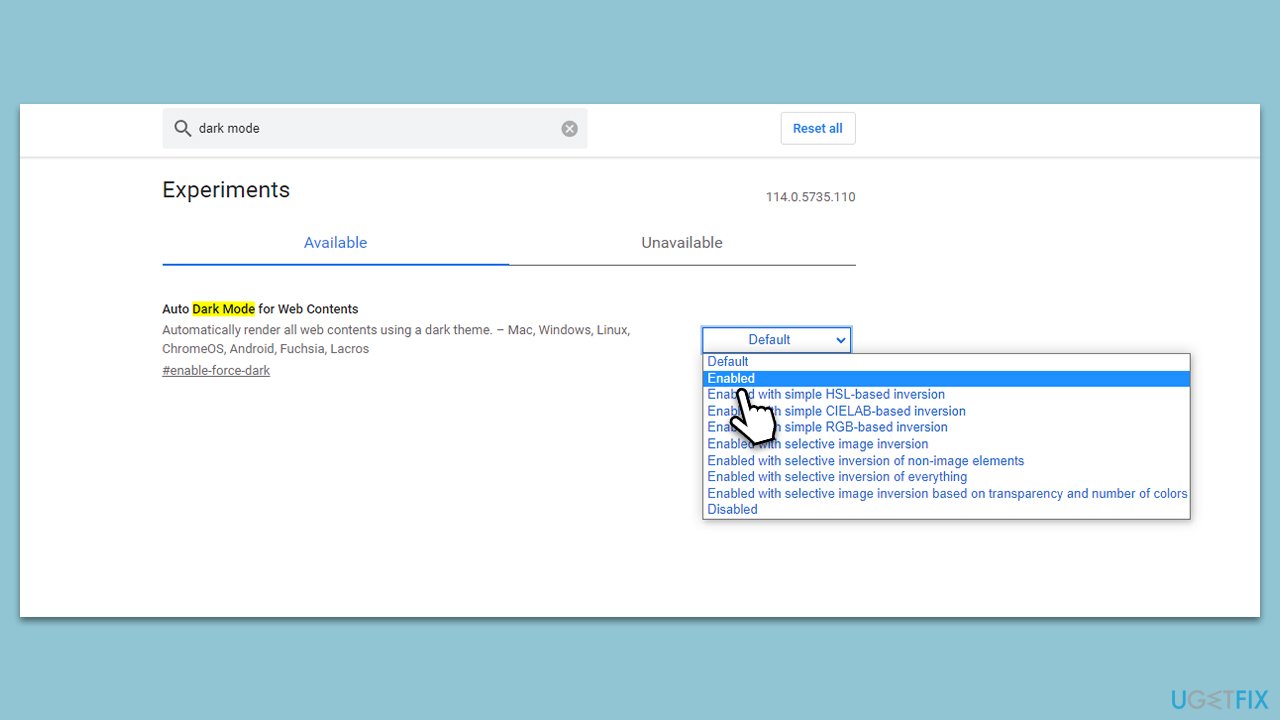
Google Chrome
- Launch Google Chrome.
- In the address bar, type in the following and press Enter:
chrome://flags - In the search bar, type in "dark mode" and press Enter.
- Under Auto Dark Mode for Web Contents, click on the drop-down menu and select Enabled.
- Close down Chrome and launch it again - Google Docs should now show up in dark mode.
Microsoft Edge
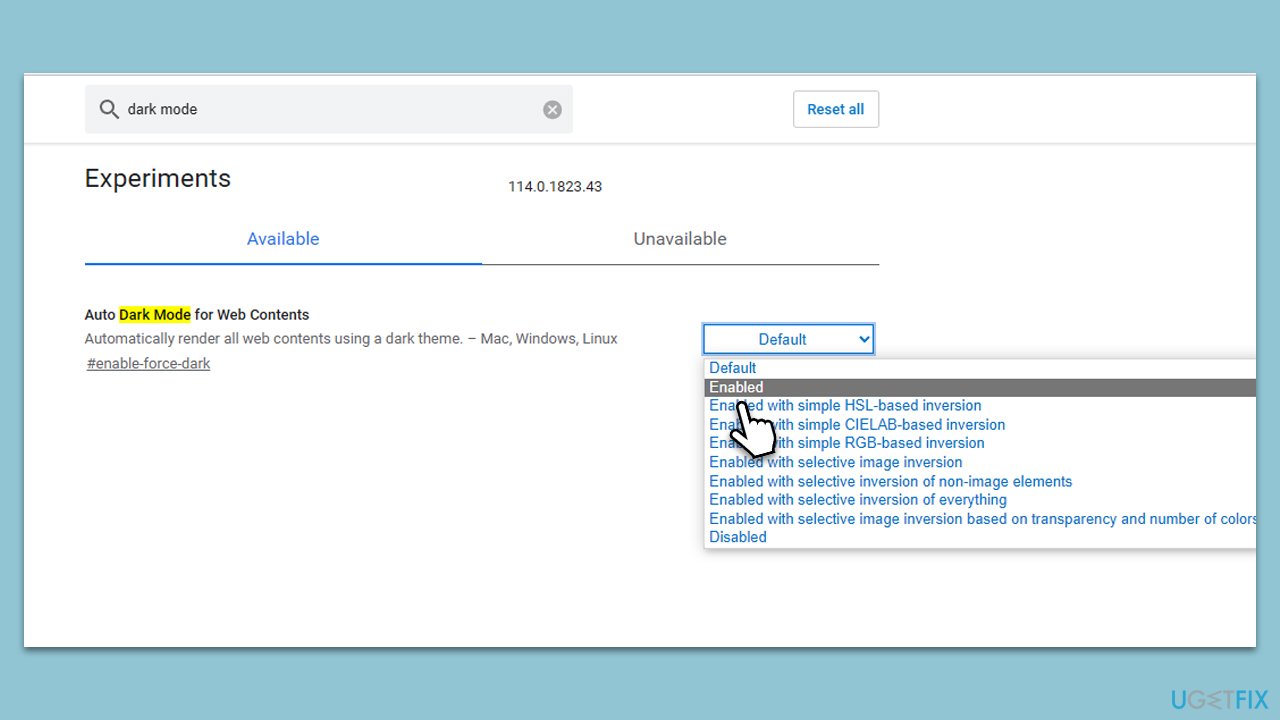
- Open the Microsoft Edge browser.
- In the address bar, type in the following and press Enter:
edge://flags - Type in "dark mode" in the search bar and press Enter.
- Under Auto Dark Mode for Web Contents, click on the drop-down menu and select Enabled.
- Relaunch Edge.
2. Enable Dark Mode on iOS or Android devices
These steps can help you enable dark mode in Google Docs on iPhone, Android phone, or iPad. Follow these steps:
- Open the Google Docs app.
- Click on three horizontal lines and select Settings.

- Tap Choose theme.
- You can choose between three options:
Dark
Light
System default
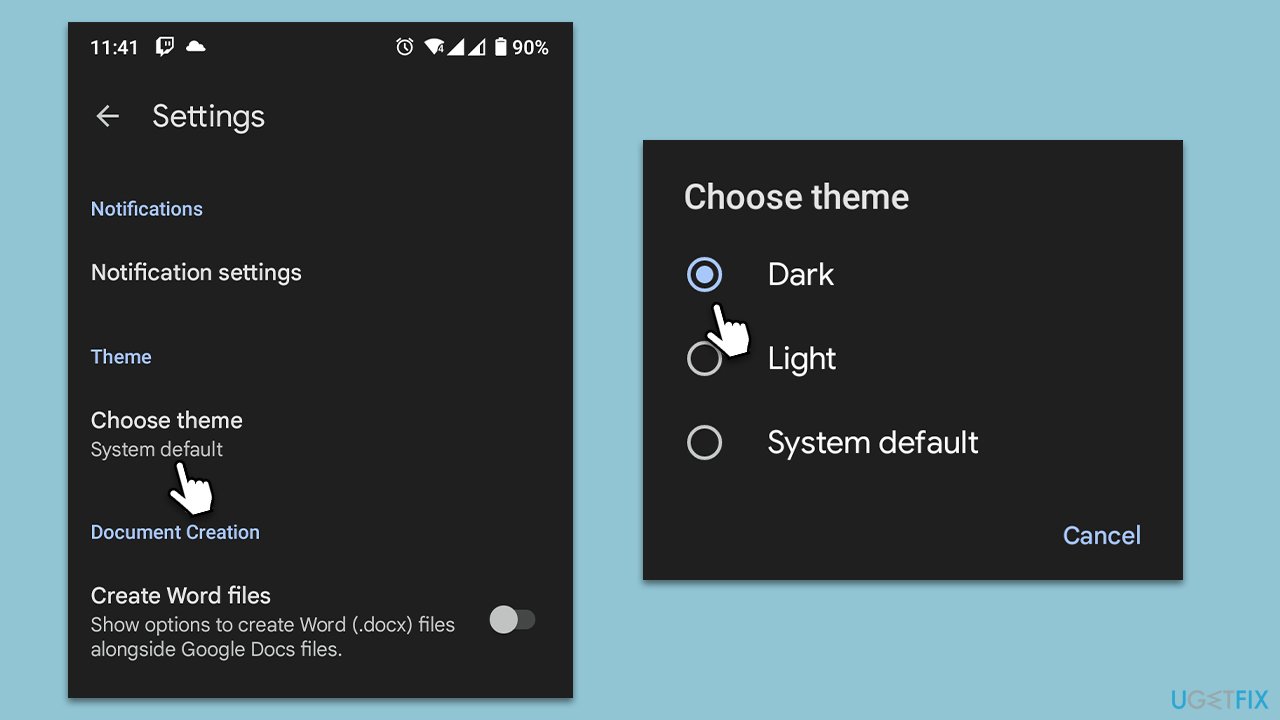
- If you have dark mode enabled for the system, it will adapt to it and show Google Docs in dark mode as well. However, if you want to ensure that Google Docs are always in dark mode, simply choose "Dark."
Related articles:
Bottom line
Enabling dark mode in Google Docs requires adjusting settings in your browser or mobile device rather than within Google Docs itself. This method also affects other Google Suite applications like Google Sheets and Google Slides. If these adjustments do not work, consider looking for browser extensions or third-party solutions.
Frequently asked questions
You can enable dark mode by going to Settings in Windows 10, selecting 'Personalization,' and then choosing 'Colors' to set the default app mode to 'Dark.' This will affect Google Docs if you're using it in a browser.
Yes, in Windows 11, navigate to 'Settings,' select 'Personalization,' then 'Colors,' and choose 'Dark' for the app mode, which will apply to Google Docs in your browser.
Enabling dark mode in Windows 10 or Windows 11 can change the appearance of Google Docs to a darker theme, but you may also need to adjust settings within the browser for full effect.




Report an issue
What's wrong with this guide? We review every report and update or remove content.
Report received — thank you. We'll review and fix it.
You need a free account to submit a report.
Be the first to comment