How to fix
Enable desktop background stickers
on Windows
Easily enable desktop background stickers in Windows 11 to personalize your workspace. Expert-tested tips for a customized look, fixed in minutes!

Why does How to enable desktop background stickers in Windows 11 occur?
- Windows 11 version is not updated to 22H2 (build 22621)
- Stickers feature not enabled in Windows Settings
- Registry settings may not be configured for stickers
- Desktop icons and taskbar may obstruct sticker visibility
- User may not know how to access the Context menu for stickers
Repairs Windows system files, removes malware, and restores a clean OS state — without reinstalling.
Hello. I was wondering how to enable desktop stickers in Windows 11. I heard about this feature but can't find where to enable it.
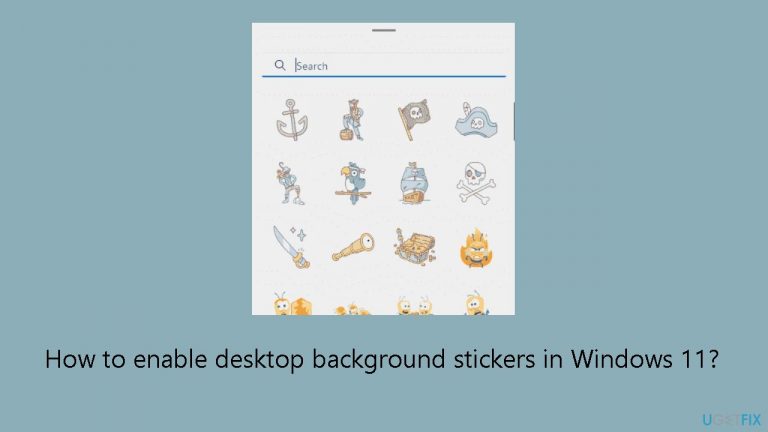
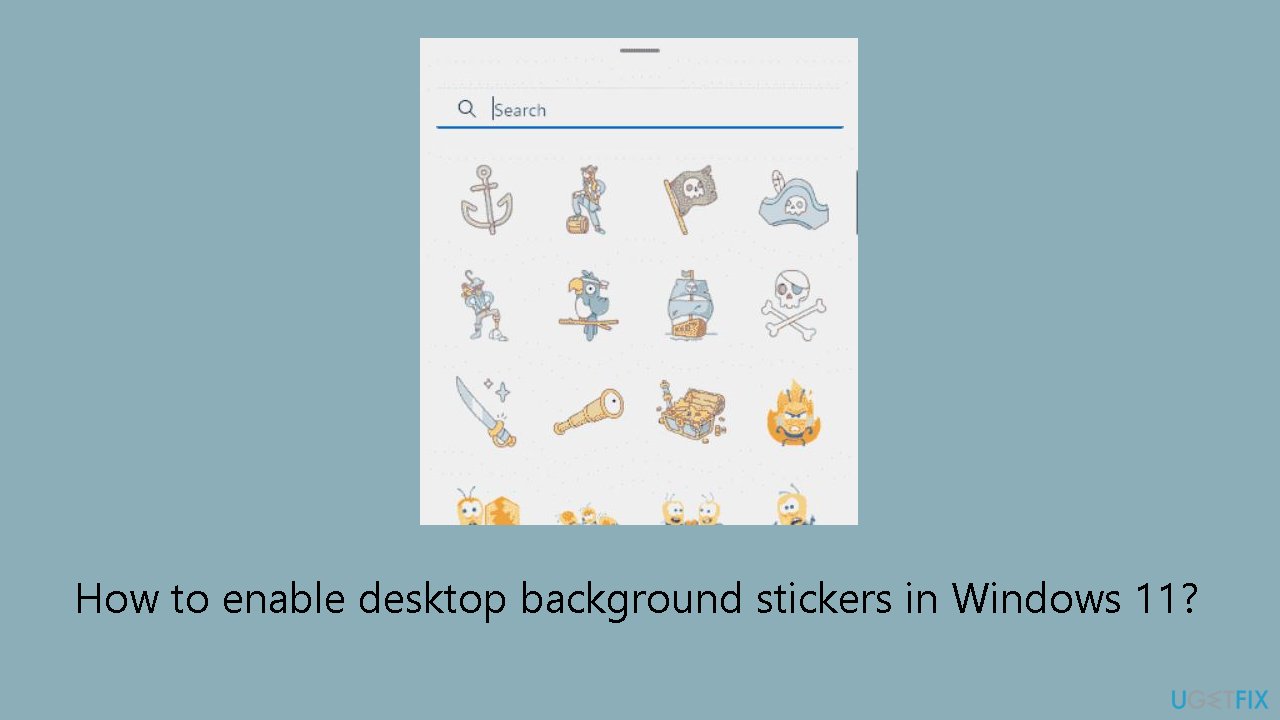
With the release of Windows 11 22H2 (build 22621), users may now further customize their desktops by adding stickers under the Personalization category. Users now have the option to choose and apply stickers to their desktop wallpaper, creating a more unique and eye-catching computer environment.
However, there is another way to enable Desktop Background Stickers via a registry trick for people who might not notice this choice right away. Those who are interested in making the most of their desktop customization options may find this especially helpful.
The desktop experience can be further customized by enabling Desktop Background Stickers through the registry trick. When enabled, the taskbar and desktop icons vanish momentarily to create space for the Stickers feature. The "Add or edit stickers" option will then be available to users through the desktop's Context menu. Users can choose stickers and adjust their size and placement on the desktop with this feature.
Users who value aesthetics and personalization in their computer environment may be on the lookout for the capability to apply stickers to the desktop backdrop. It transforms the desktop into a blank canvas for users to exhibit their uniqueness and creativity. Stickers provide a special method to customize the desktop experience to personal tastes, whether it's by infusing comedy, nostalgia, or inspiration.
In this guide, you will find 2 methods that should help you enable desktop background stickers in Windows 11. If you experience any other OS issues, you can try running a maintenance tool like [d1] that can fix most system errors, BSODs, corrupted files, and registry issues. Otherwise, follow the step-by-step instructions below.
Method 1. Use Windows Settings
- Press the Windows key + I to open the Settings app.
- In the Settings app, click on Personalization.
- Navigate to the right and select Background.
- Look for the option Choose Stickers for your wallpaper.
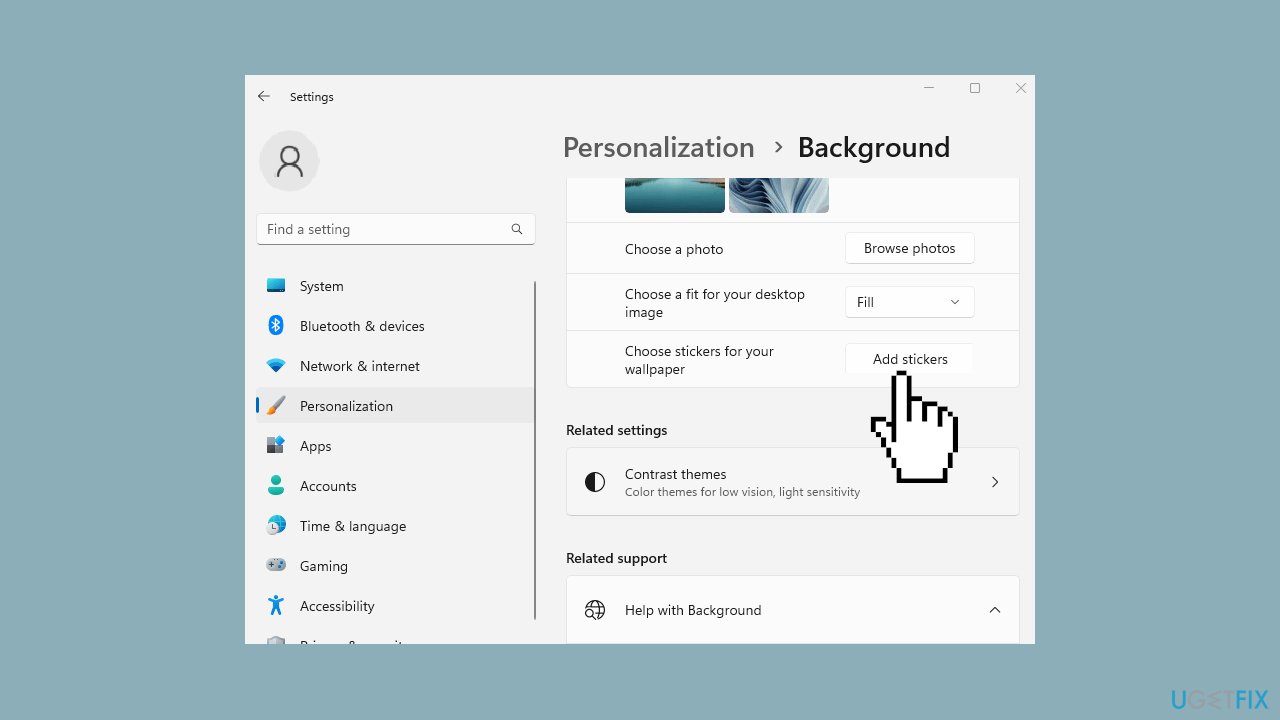
- Click on Add stickers.
- Navigate to the desktop and choose a sticker.
- To make modifications, click on Add or edit stickers.
Method 2. Use the Registry Editor
- Click on Start in the taskbar.
- Type regedit and press Enter.
- Confirm by selecting Yes on the User Account Control prompt.
- In the Registry Editor, navigate to the path: HKEY_LOCAL_MACHINE\SOFTWARE\Microsoft\PolicyManager\current\device
- Right-click on device in the left directory.
- Select New > Key and name the new key Stickers.
- Move to the right, right-click, and choose New > DWORD (32-bit) Value. Name this value EnableStickers.
- Double-click on EnableStickers.
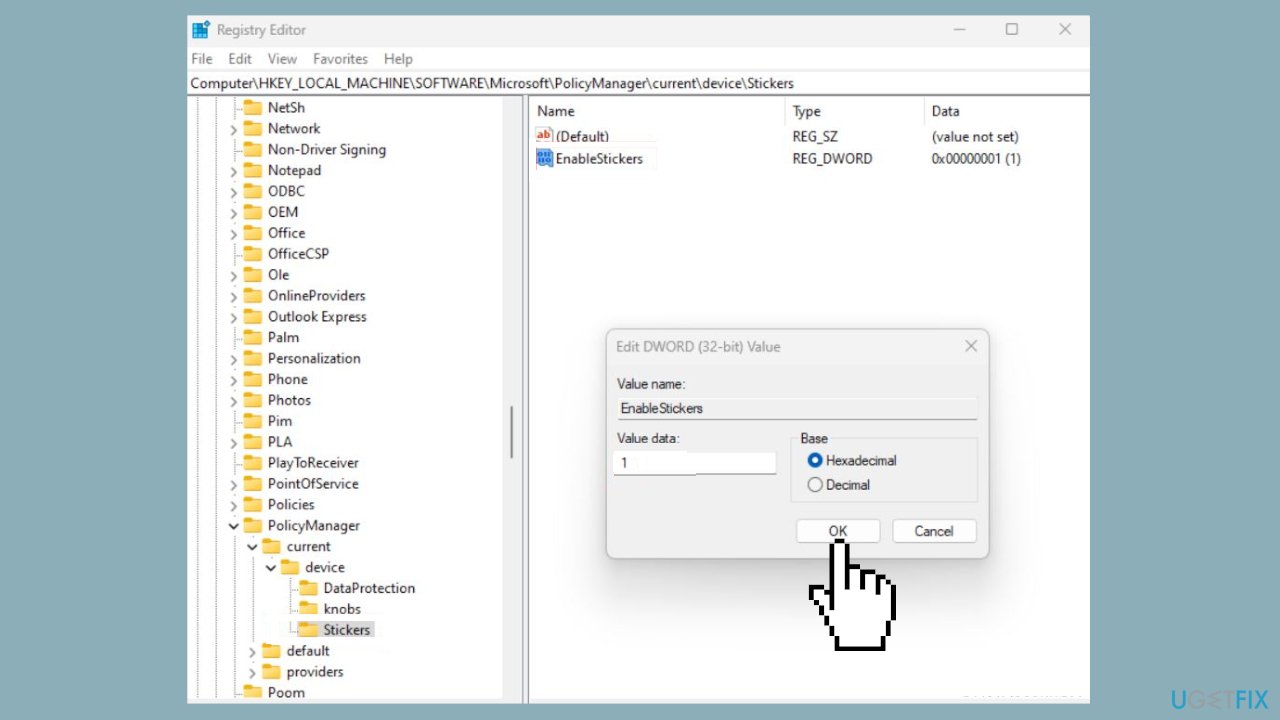
- Set the Value data to 1 (use 0 to disable stickers in Windows 11).
- Restart your computer.
- Press the Windows key + I.
- Select Personalization and then choose Background.
- Check that Add stickers is now functional.
- Click on Add stickers and select stickers for your wallpaper.
Bottom line
To enable desktop background stickers in Windows 11, you can use the Windows Settings method by navigating to Personalization and selecting Background, or apply a registry trick for those who cannot find the option. If these methods do not resolve the issue, consider running a maintenance tool to fix system errors.
Frequently asked questions
To enable desktop background stickers in Windows 11, right-click on your desktop, select 'Personalize,' and then navigate to 'Background.' Here, you can find the option to add stickers.
No, desktop background stickers are a feature exclusive to Windows 11 and are not available in Windows 10.
Yes, Windows 11 allows you to customize stickers by choosing different designs and sizes, which can be adjusted through the personalization settings.




Report an issue
What's wrong with this guide? We review every report and update or remove content.
Report received — thank you. We'll review and fix it.
You need a free account to submit a report.
Be the first to comment