How to fix
Enable Enhanced Taskbar
on Windows
Unlock the full potential of your Windows 11 taskbar with our expert tips. Make it work smarter for you—updated 2025.

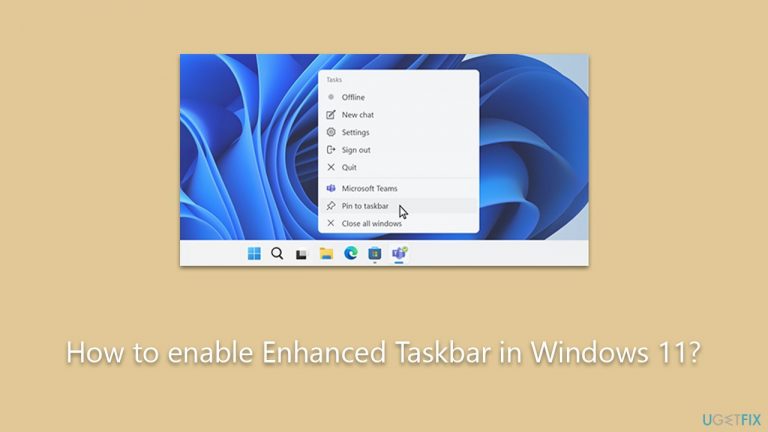
Why does How to enable Enhanced Taskbar in Windows 11 occur?
- Removal of the Microsoft Teams chat icon from the Taskbar
- Improved search functionalities in the Taskbar
- Automatic launch of the Search Box upon hovering
- Enhanced customization options for user interface
- More efficient workspace management
Repairs Windows system files, removes malware, and restores a clean OS state — without reinstalling.
Hi, I have heard there are some changes to the taskbar in the newest version of Windows 11. Can you explain to me how the Enhanced Taskbar works or how to enable it?
Windows 11, since its launch in October 2021, has made significant strides in refining its user interface. One of these improvements is the development of the "Enhanced Taskbar." This feature, launched as part of Windows 11's progressive update cycle, has changed the way users interact with their desktop and work tools.
The Enhanced Taskbar in Windows 11 refers to an array of new functionalities and tweaks aimed at making the user interface more user-friendly and customizable. The crux of these changes, and perhaps the most welcomed one, is the removal of the omnipresent Microsoft Teams chat icon from the Taskbar. While a useful tool for many in the business world, many users found the permanent placement of the Teams icon unnecessary or distracting, particularly those who did not use the application regularly. This change, though seemingly minor, offers a cleaner and more streamlined Taskbar appearance for users, thereby improving the overall user experience.
The Taskbar also gets a few notable enhancements in terms of search functionalities. The Search Box is now improved, with its own dedicated section in the Taskbar settings. This feature now allows for an automatic launch upon hovering, which can prove to be quite a handy tool for quick searches and multitasking.
The Enhanced Taskbar isn't merely about aesthetic tweaks. It's about designing a Taskbar that truly molds to the user's needs, enabling a more personalized and seamless Windows experience. The utility of the Enhanced Taskbar extends beyond basic navigation and provides users with a more efficient way to manage their workspace.
Unlocking the Enhanced Taskbar settings in Windows 11, as of now, is available to users who are part of the Insider Dev program. The changes are present in the Dev build 23466. However, for users who are not part of the Windows Insider program, there are alternative methods to access these features, which involve downloading the Insider builds directly. A helpful tool known as ViveTool will also be needed to enable hidden experimental features on your PC.
Diving deeper into how to enable the Enhanced Taskbar settings will provide users with an even more customizable and intuitive Windows 11 experience.
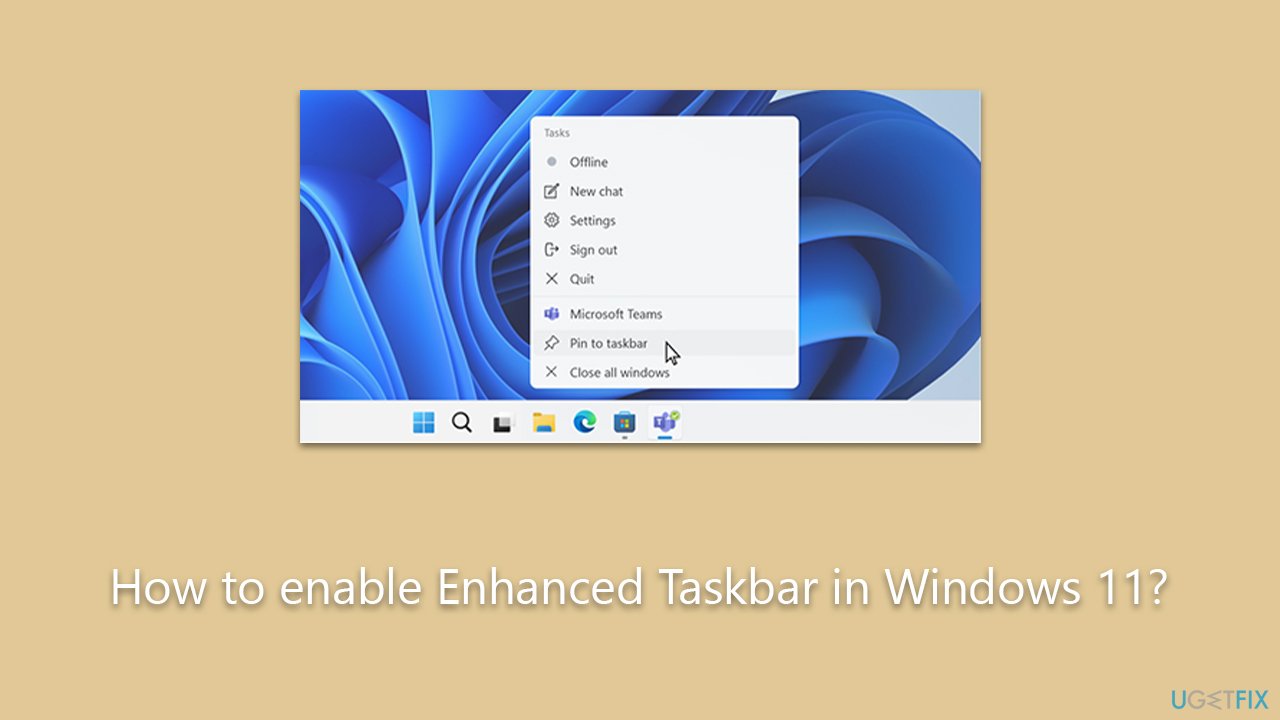
Step 1. Download and install ViveTool
As mentioned, an enhanced taskbar is not quite available yet, and to bypass this limitation, you will have to download an app.
- Open your browser and navigate to the GitHub page for ViveTool.
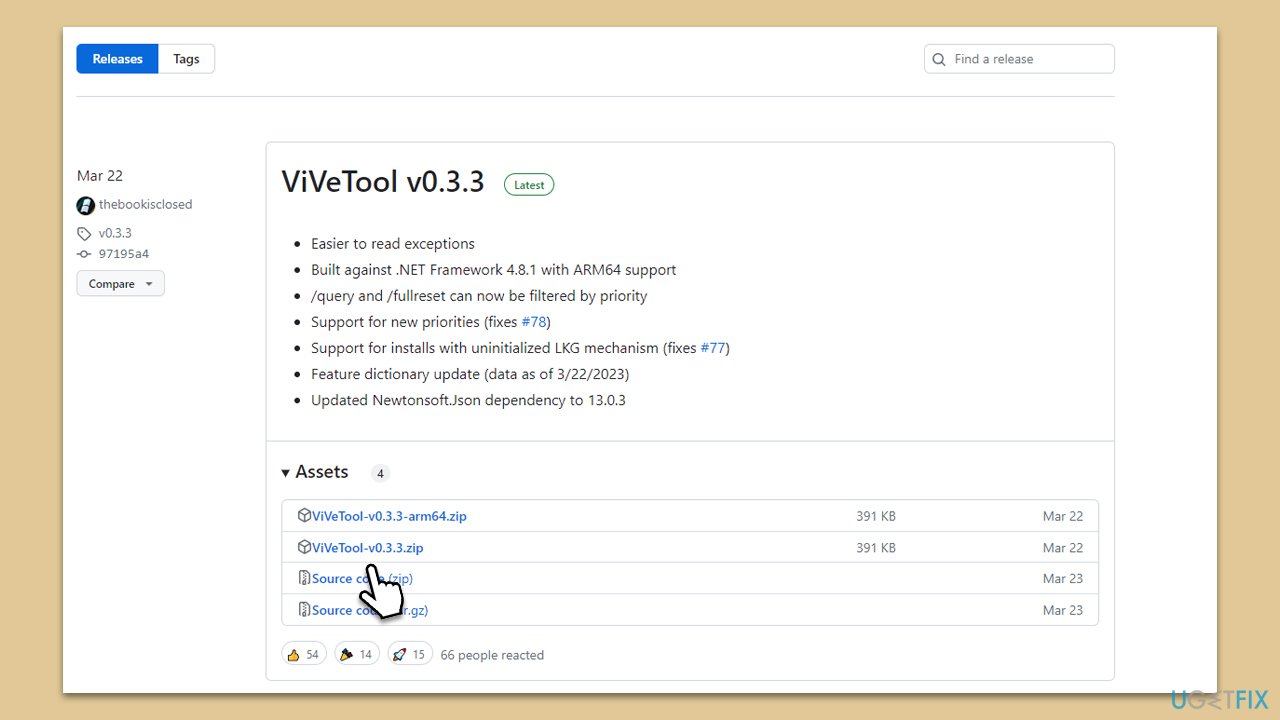
- Click on the ViVeTool-v0.3.3.zip link to download it.
- Unpack, launch the installer, and follow prompts to install the app. Install it on the C (main) drive.
Step 2. Use commands in Command Prompt
The next step is to open Command Prompt as administrator and run commands as follows:
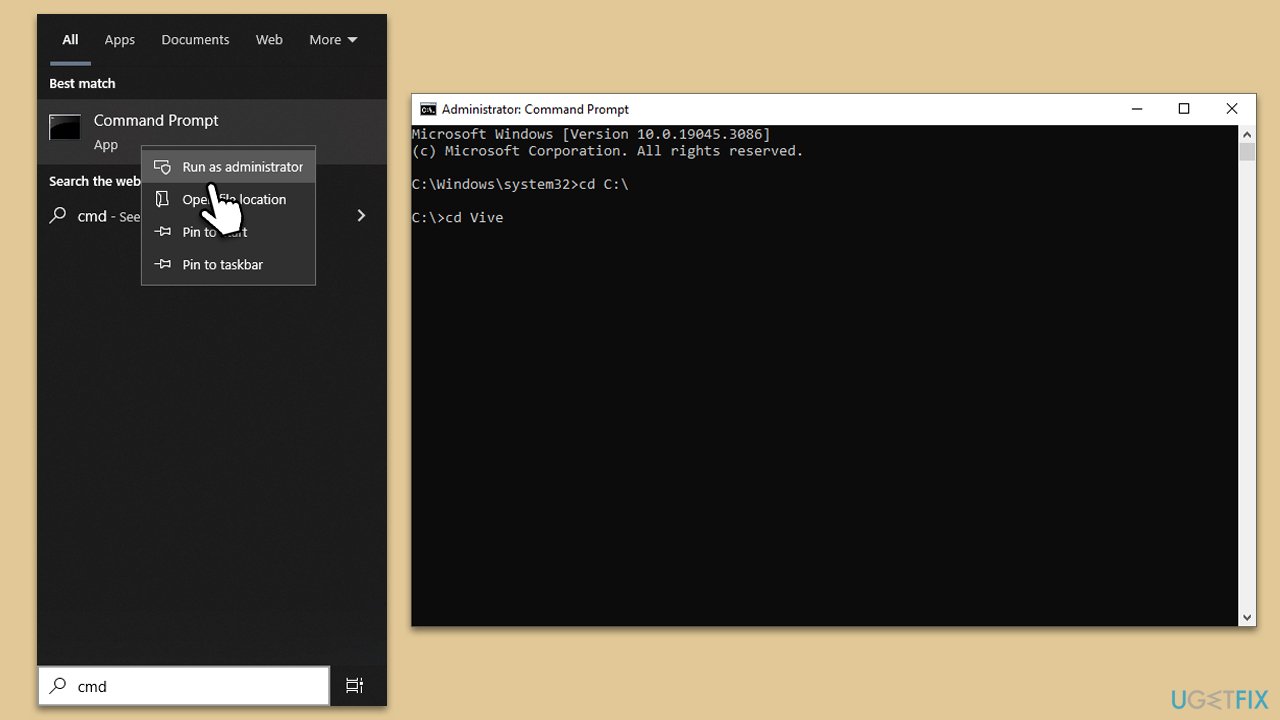
- Type cmd in Windows search.
- Right-click on Command Prompt and select Run as administrator.
- You will be asked whether you want to allow changes - click Yes.
- In the new window, copy and paste each of these commands, pressing Enter after each:
cd C:\
cd Vive
vivetool /enable /id:44520430
vivetool /enable /id:43572692
vivetool /enable /id:41950597 - Once these commands are successfully executed, close down Command Prompt and restart your PC to apply changes.
Step 3. Use the new settings
- Right-click the action on the Taskbar, which will present you with a context menu. From here, select the option that says Taskbar settings.
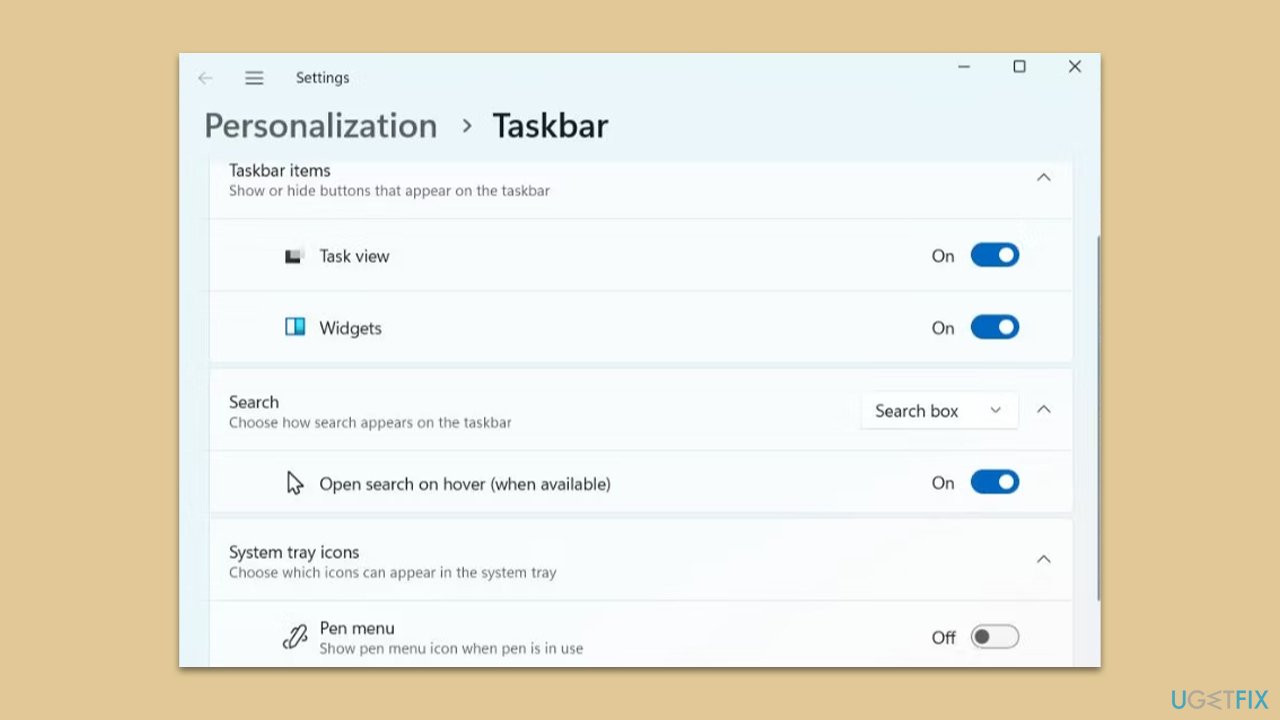
- Once in the settings, the first notable alteration is the absence of the Chat option under the Taskbar Items category. Correspondingly, you will also notice its absence from the Taskbar itself.
- Navigate downwards to the Search section. Here, you can select the Search box option, which allows you to choose from a full view or a condensed view, or you have the option to completely turn off the search box.
- Post-activation of the new Search Box functionalities, the search box will spring to life merely by hovering the cursor over it. If you prefer to turn off this automatic response, you can disable it by clicking on the toggle adjacent to the Open search on hover (when available) option.
Bottom line
To enable the Enhanced Taskbar in Windows 11, users can access the settings through the Insider Dev program or download Insider builds directly. These changes aim to provide a cleaner interface and improved usability. If these methods do not work, consider checking for updates or seeking further assistance.
Frequently asked questions
The Enhanced Taskbar in Windows 11 offers improved customization options and a more streamlined interface for managing apps and notifications. It allows users to pin frequently used apps and access them more efficiently.
To enable the Enhanced Taskbar, right-click on the taskbar, select 'Taskbar settings,' and toggle on the desired options under 'Taskbar behaviors' and 'Taskbar corner overflow'.
No, enabling the Enhanced Taskbar does not negatively impact system performance; it is designed to enhance usability without consuming additional resources.




Report an issue
What's wrong with this guide? We review every report and update or remove content.
Report received — thank you. We'll review and fix it.
You need a free account to submit a report.
Be the first to comment