How to fix
Enable hidden files
on Windows
Unlock the secrets of your system by enabling hidden files in Windows 11. This expert-tested guide ensures you find what you need, fixed in minutes.

Why does How to enable hidden files in Windows 11 occur?
- Hidden files are designed to protect system integrity.
- Certain system files are hidden to prevent accidental alterations.
- Application data folders contain user preferences that are kept hidden.
- Files like 'ntuser.dat' are hidden to prevent tampering with user profiles.
- Hidden files contribute to a cleaner user interface.
Repairs Windows system files, removes malware, and restores a clean OS state — without reinstalling.
Hey, I was going through some troubleshooting and I needed to enter the Windows apps folder but I can't see the folder I'm supposed to. How do I show hidden files?
In Windows 11, hidden files play a pivotal role in the operating system's architecture, primarily designed to protect system integrity and ensure smooth functionality. By default, Windows hides certain files and folders from the user's view. This is done to prevent accidental alterations or deletions that could disrupt system performance or even render the system inoperable. These hidden entities range from system files, such as operating system configurations, to application data that stores user preferences and state information.
The rationale behind keeping these files hidden is straightforward: to provide a cleaner, more manageable user interface and to safeguard critical system files from unintended modifications. For instance, the "ProgramData" folder contains data essential for the operation of installed applications, and the "AppData" folder in each user's directory holds personalized settings and files specific to the software they use. Moreover, files like "ntuser.dat," which store user profile settings, are hidden to prevent tampering that could lead to issues with the user's profile.
Enabling the visibility of these hidden files can be beneficial for various reasons. It allows users to access and back up important data that isn't visible by default, perform advanced troubleshooting, or simply understand more about the inner workings of their operating system. To view hidden files in Windows 11, you can take several approaches which we discuss below.
While the ability to see and interact with hidden files provides a layer of transparency and control, it also comes with the responsibility to tread carefully. Modifying or deleting system files can lead to unexpected behavior or system instability. Therefore, it's recommended that this feature be used primarily by those with a strong understanding of Windows' structure or by individuals following precise instructions for troubleshooting or configuration purposes.
Method 1. Use File Explorer options
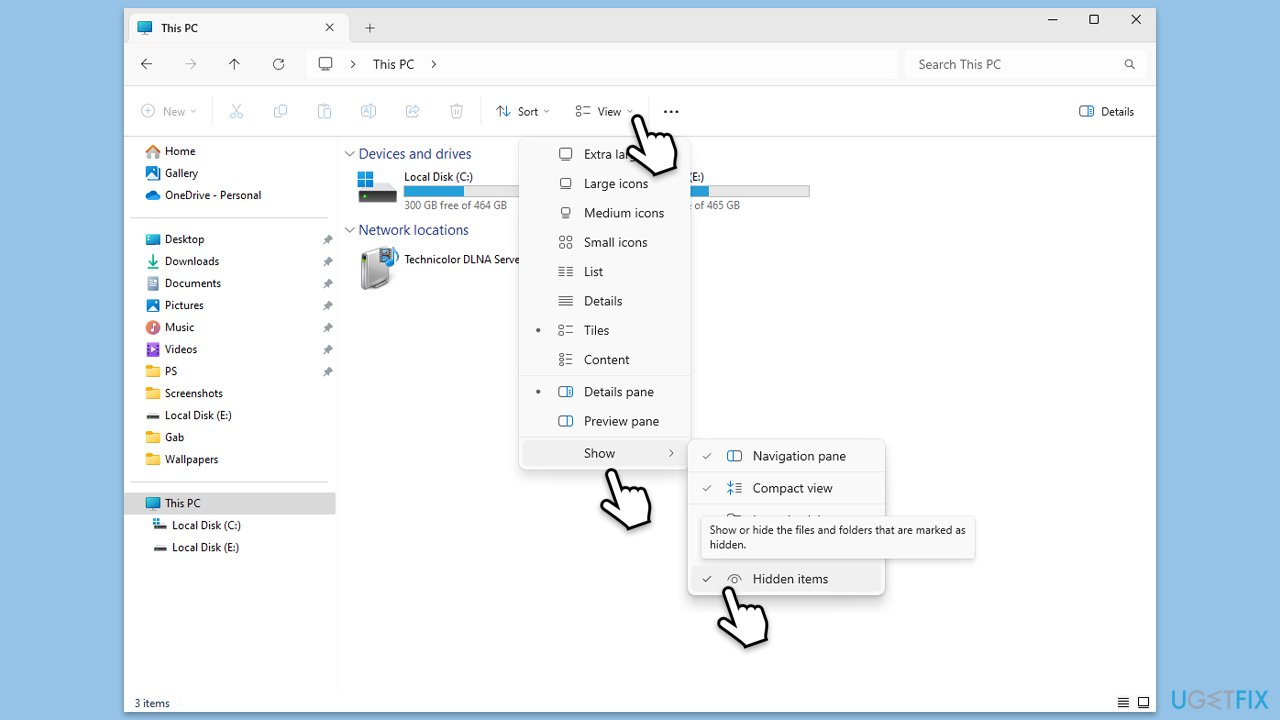
This method allows users to change the view settings within File Explorer, making hidden files, folders and drives visible. It's straightforward, requiring no advanced knowledge, and is thus suitable for users at all levels.
- Press Win + E on your keyboard to open File Explorer.
- Click on View in the menu bar at the top.
- Hover over Show and then mark the Hidden Files option.
- You should now see the Hidden Files.
Method 2. Use the Control Panel
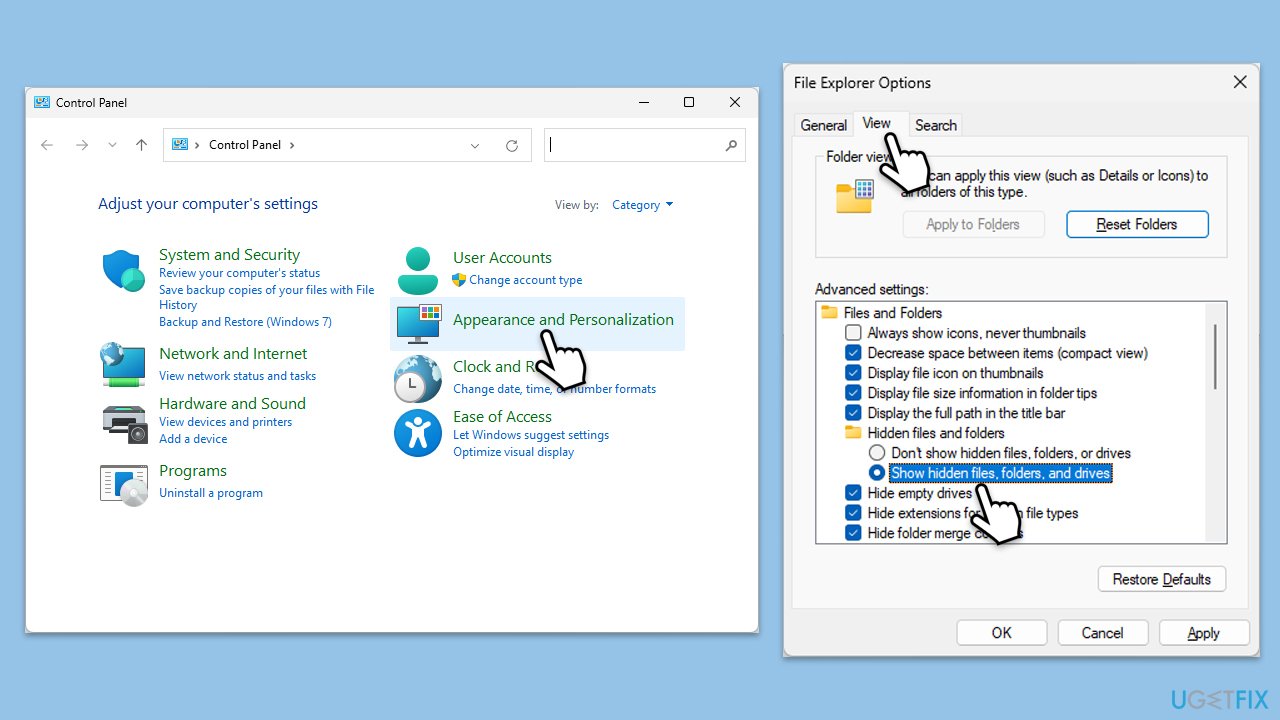
Through the Control Panel, users can access settings to make hidden files visible. This method offers an alternative for those more comfortable with the Control Panel's interface.
- Press Win + S and type Control Panel, then press Enter.
- Click on Appearance and Personalization.
- Under File Explorer Options, click on Show hidden files and folders.
- Switch to the View tab in the Folder Options window.
- Select Show hidden files, folders, and drives under Advanced settings.
- Click Apply, then OK to implement the changes.
Method 3. Use Settings
PowerShell offers advanced scripting capabilities for users who prefer it over Command Prompt.
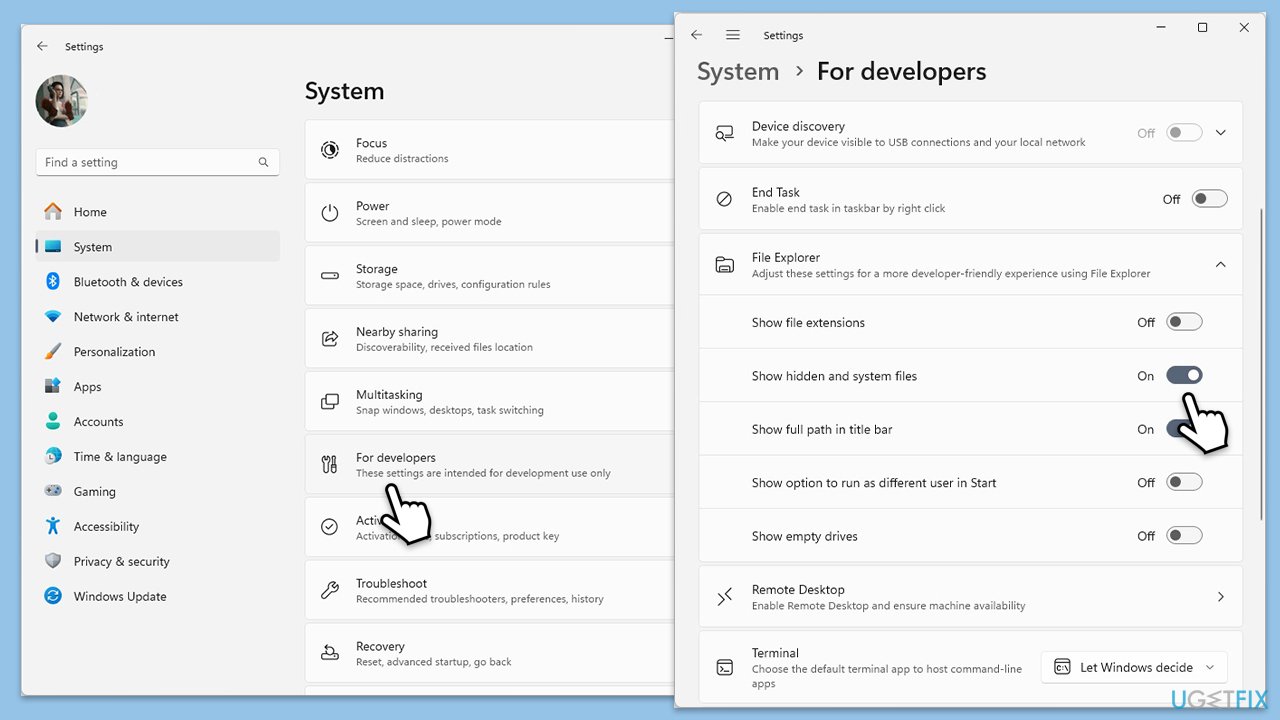
- Click on Start and select Settings.
- Go to the System section on the left.
- On the right side of the window, scroll down to find the For Developers section and click it.
- Scroll down and expand the File Explorer section.
- Click the Show hidden and system files to turn the feature on.
Method 4. Via Windows Terminal
For those comfortable with command-line interfaces, enabling hidden files through commands can be quick and efficient.
- Type cmd in Windows search.
- Right-click on Command Prompt and select Run as administrator.
- When the User account control window shows up, click Yes.
- Type the following commands and press Enter:
cd c:\
dir /adh - The hidden files will be now visible.
Method 5. Edit the Registry
This method is for advanced users comfortable with modifying the Windows Registry. Make sure you make registry database backups before proceeding.
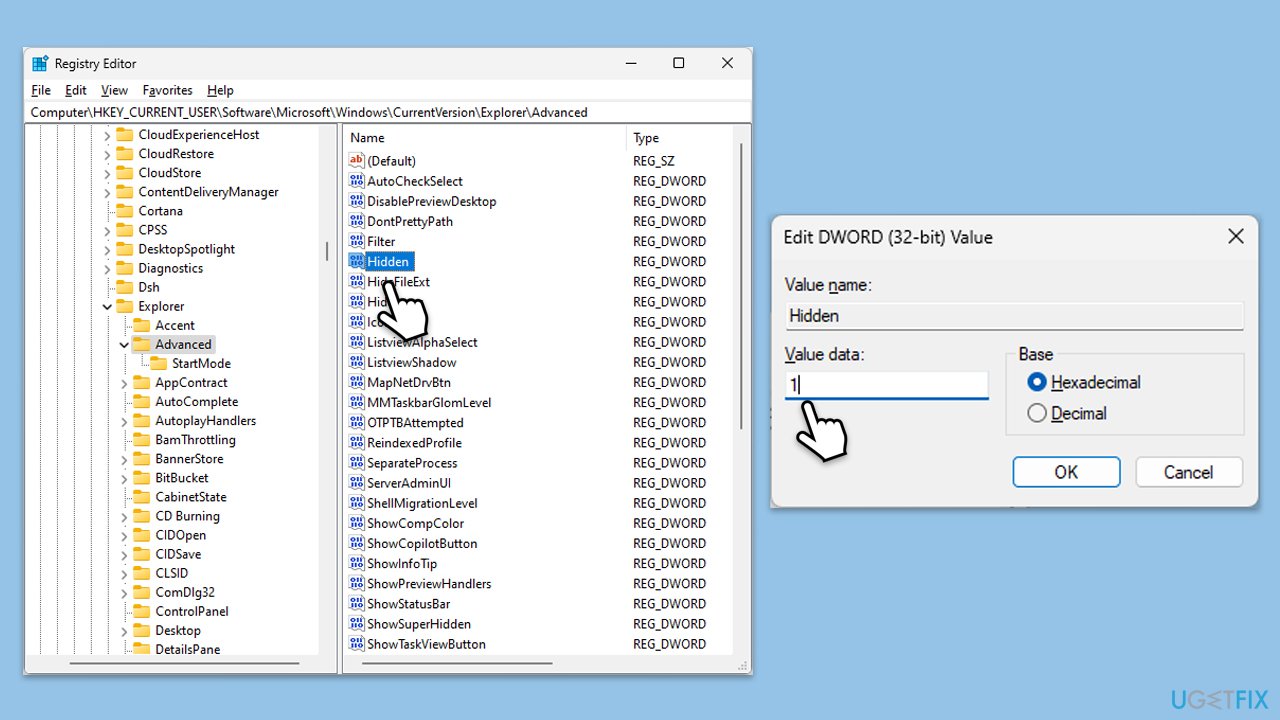
- Press Win + R, type regedit, and press Enter to open the Registry Editor.
- Navigate to the following location:
HKEY_CURRENT_USER\Software\Microsoft\Windows\CurrentVersion\Explorer\Advanced - Find and double-click on Hidden on the right side of the window.
- Double-click Hidden and set its value to 1 to show hidden files, folders, and drives.
- Restart your computer for the changes to take effect.
Method 6. Use Group Policy Editor
This method is best for users on Windows 11 Pro, Enterprise, or Education editions and allows for system setting configurations, including making hidden files visible.
- Press Win + R, type gpedit.msc, and press Enter.
- Navigate to User Configuration > Administrative Templates > Windows Components > File Explorer.
- Double-click on Show hidden files and folders.
- Select Enabled, then choose Show hidden files, folders, and drives under Options.
- Click Apply, then OK, and close the Group Policy Editor.
Bottom line
To enable hidden files in Windows 11, you can use File Explorer options or other methods discussed in the article. This allows you to access important data and perform troubleshooting. If these methods do not work, consider seeking additional technical support.
Frequently asked questions
To enable hidden files in Windows 11 File Explorer, open File Explorer, click on the 'View' menu, select 'Show', and then choose 'Hidden items'.
Yes, you can enable hidden files by opening the Control Panel, navigating to 'Appearance and Personalization', selecting 'File Explorer Options', and then checking 'Show hidden files, folders, and drives' under the 'View' tab.
No, enabling hidden files in Windows 11 does not impact system performance; it simply allows you to view files that are normally hidden from the user.




Report an issue
What's wrong with this guide? We review every report and update or remove content.
Report received — thank you. We'll review and fix it.
You need a free account to submit a report.
Be the first to comment