How to fix
Enable Local Security Authority (LSA) Protection
on Windows
Boost your Windows 11 security by enabling Local Security Authority (LSA) Protection. Ensure peace of mind with expert-tested guidance.


Why does How to enable Local Security Authority (LSA) Protection in Windows 11 occur?
- Authentication issues due to lack of LSA protection
- Inadequate enforcement of security policies
- Increased risk of unauthorized access
- Potential for security breaches without access token management
- Failure to track security-related events
Repairs Windows system files, removes malware, and restores a clean OS state — without reinstalling.
Hello, I have heard about a security feature in Windows known as Local Security Authority, but I am not sure whether I need it. If yes, I would like to enable it - I am not sure how, however.
The Local Security Authority (LSA) is a component of the Windows operating system that is responsible for handling security-related tasks. These tasks include authenticating users, managing security policies, and enforcing security on the local computer.
The LSA is responsible for creating and maintaining the security contexts of all processes running on a system, as well as managing the access tokens that are used to identify a user or process. It also communicates with other security components of Windows, such as the Security Accounts Manager (SAM) and the Active Directory, to authenticate users and manage security policies.
The Local Security Authority (LSA) in Windows provides several benefits for managing security on a local computer:
- Authentication: it is responsible for authenticating users who are trying to log on to the local computer. It communicates with other security components, such as the Security Accounts Manager (SAM) and the Active Directory, to ensure that the user is valid and has the appropriate access rights.
- Security Policies: manages and enforces security policies on the local computer. These policies control settings such as password complexity, account lockout, and auditing.
- Access Tokens: creates and manages access tokens for each user and process running on the system. These tokens are used to identify the user or process and determine what resources they have access to.
- Security Contexts: creates and maintains the security contexts of all processes running on the system. This ensures that each process is running in a secure environment and that it has the appropriate access rights.
- Auditing: The LSA tracks and records security-related events on the local computer, such as successful and failed login attempts. This helps to identify and troubleshoot security issues.
If you want to protect your Windows operating system from attackers, you should enable Local Security Authority in Windows, and in this article, we explain how to do precisely that.
If you are having issues with your computer regularly, we recommend trying [d1]. The program is designed to help fix common problems on a computer. It can be used to repair issues such as system crashes, slow performance, and post-removal issues related to malware infections.
1. Enable via Windows Security
Windows Security serves as a centralized location for all your security needs, allowing you to safeguard your personal information and network settings. It offers features such as virus scanning, account protection, device optimization, and control over apps and browsers.
- Open the system tray by clicking the Show hidden icons button (next to the time and date).
- Double-click the Windows Security icon.
- Click on the Navigation button at the top-left corner of the window.
- Select Device Security.
- Toggle the switch next to the Local Security Authority protection section to the right to the On position.
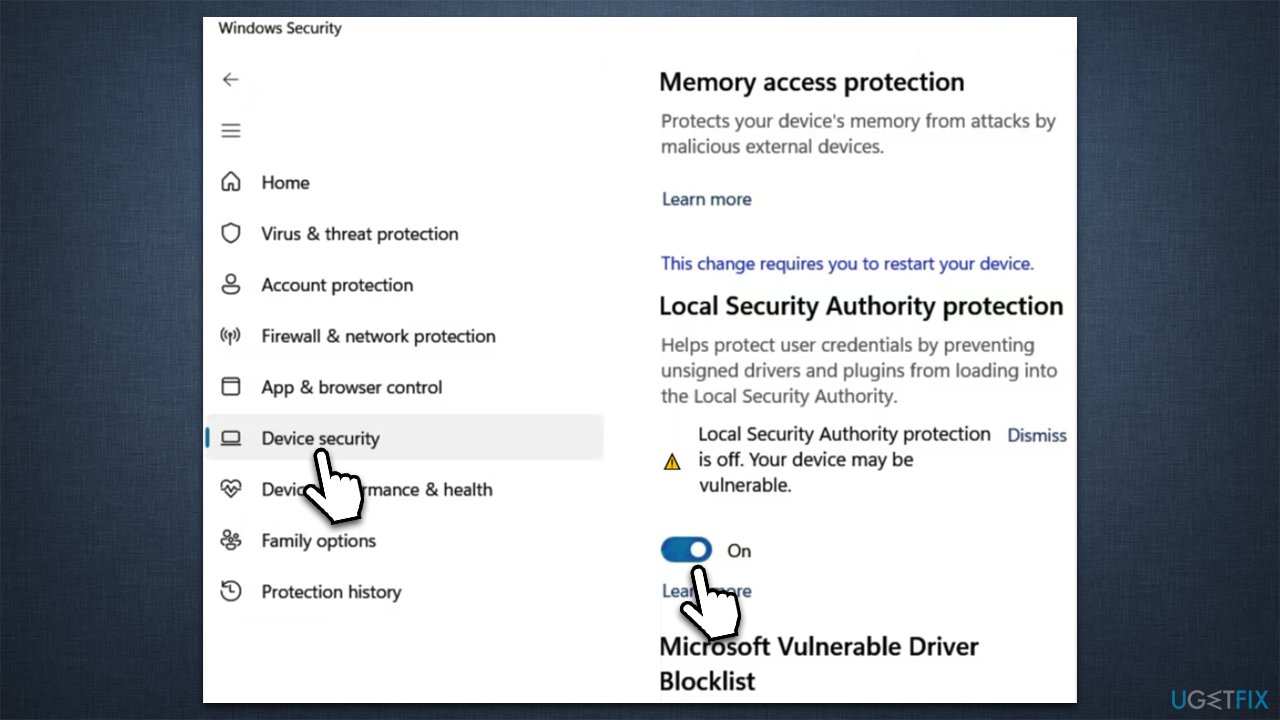
- User Account Control will ask if you want to make changes - click Yes.
- Restart your computer.
2. Enable LSA via Registry Editor
Before proceeding with the next step, make sure you back up your registry database.
- Type regedit in Windows search and press Enter.
- When User Account Control shows up, click Yes.
- Click File > Export.
- Under Export Range, select All and save the backup in your desired destination.
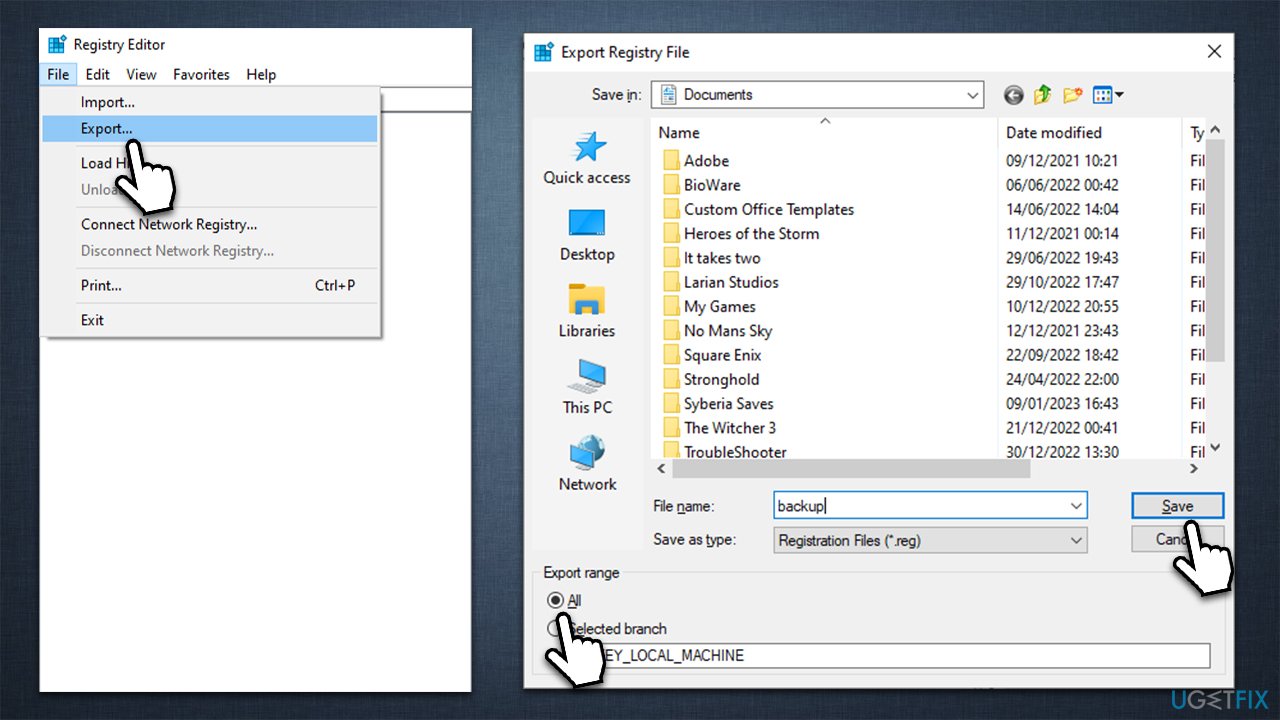
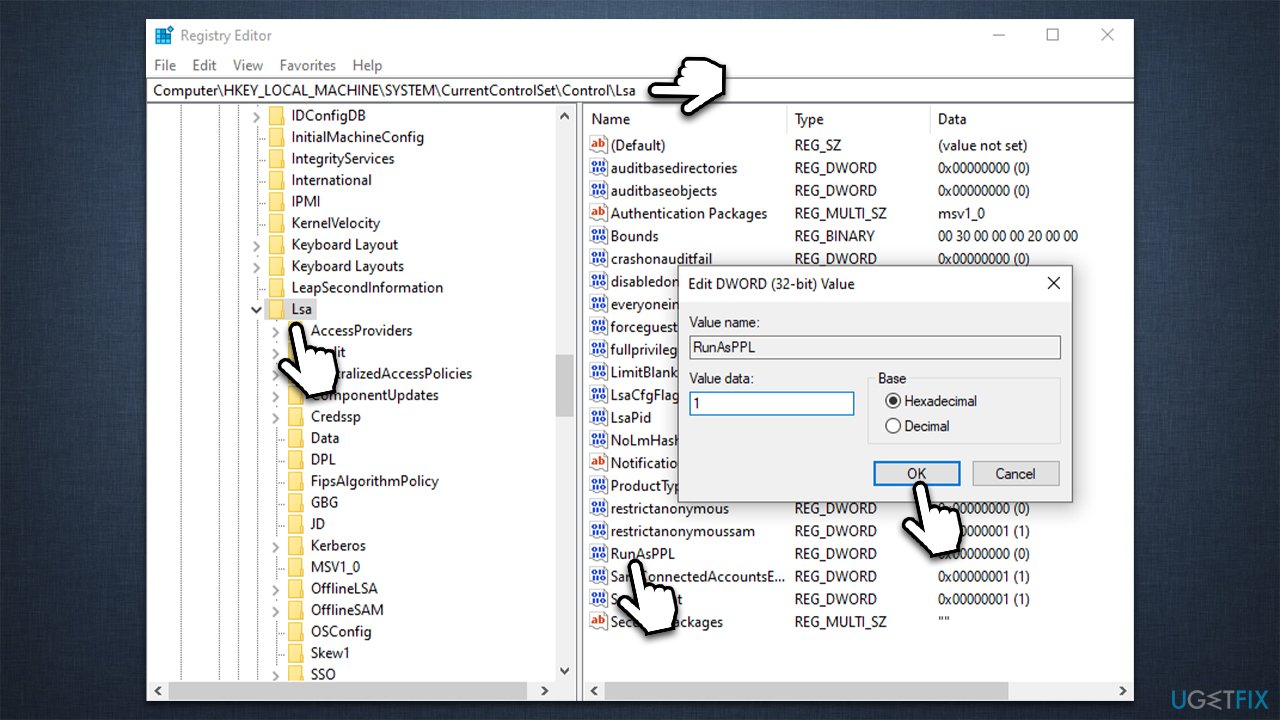
- Next, go to the following location (you can simply copy-paste the text below into the path bar):
Computer\HKEY_LOCAL_MACHINE\SYSTEM\CurrentControlSet\Control\Lsa - On the right side of the window, find the RunAsPPL entry and double-click it.
- Set the value to 1 and click OK.
- Finally, restart your device.
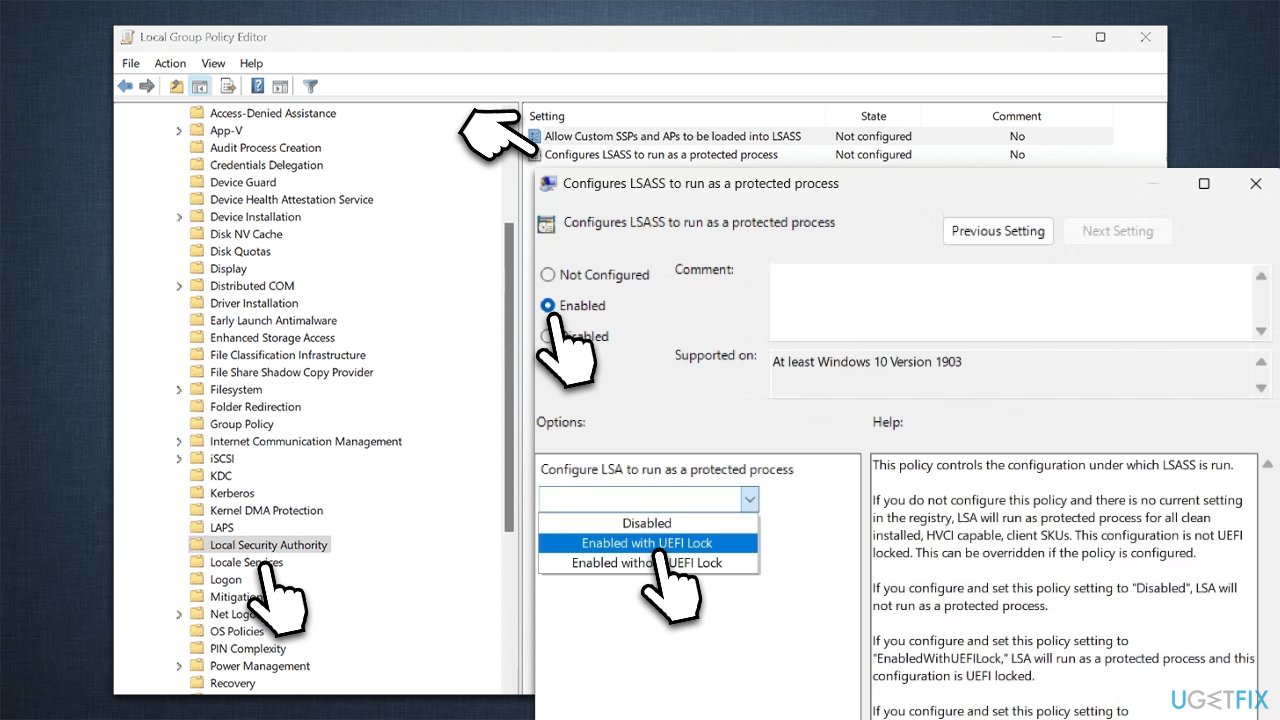
3. Use Local Group Policy
Using Local Group Policy Editor is another way to implement Local Security Authority on your system. Follow these steps:
- Type Group policy in Windows search and hit Enter
- Go to the following location:
Local Computer Policy > Computer Configuration > Administrative Templates > System > Local Security Authority - On the right side of the window, right-click the Configure LSASS to run as a protected process and pick Edit.
- Choose Enabled
- Under Options, select Enabled with UEFI Lock, then click Apply and OK.
- Restart your device.
Bottom line
To enable Local Security Authority (LSA) protection in Windows 11, you should follow the steps outlined in the article. This includes accessing the appropriate settings to enhance your system's security. If these steps do not resolve your concerns, consider seeking additional technical support.
Frequently asked questions
LSA Protection helps safeguard sensitive information by preventing unauthorized access to the Local Security Authority process, enhancing overall system security in Windows 11.
You can enable LSA Protection by navigating to the Group Policy Editor, locating the security options, and enabling the 'Run only specified Windows applications' policy for LSA.
Enabling LSA Protection helps prevent credential theft and other security risks, providing a more secure environment for sensitive operations in Windows 11.




Report an issue
What's wrong with this guide? We review every report and update or remove content.
Report received — thank you. We'll review and fix it.
You need a free account to submit a report.
Be the first to comment