How to fix
Enable Two-Factor Authentication on Twitter
on Windows
Secure your Twitter account with Two-Factor Authentication using our simple guide for Windows 10 and Windows 11. Expert-tested for your peace of mind!


Why does How to Enable Two-Factor Authentication on Twitter occur?
- Two-factor authentication is not enabled
- Email address is not confirmed
- Phone number is not associated with the account
- User is not following the correct steps to enable 2FA
- User is not receiving verification messages
Repairs Windows system files, removes malware, and restores a clean OS state — without reinstalling.
I want to protect my Twitter account from hackers. I’ve set two-factor authentication on Facebook, and I would like to do the same on Twitter, but I couldn’t find how to do it.
Adding an extra layer of protection to your social media accounts is always a good idea. Twitter users, as well as Facebook users, can enable two-factor (2FA) authentication.[ref en-1] This security method allows verifying your identity before letting you access the account.
Normally, users can access any social media platform by entering their password only. However, 2FA requires entering a unique passcode which is sent via text message or an app. Therefore, if someone steals[ref en-2] or guesses your password, he or she still won’t be able to use it because the verification code will be sent to your mobile.
Twitter introduced two-factor authentication in 2013.[ref en-3] This service is known as “Login Verification” and can be accessed via Settings using either web or mobile version of the program. Additionally, in 2017 Twitter reported that they support third-party authentication apps as well.[ref en-4]

Enabling two-factor authentication on Twitter
When you enable 2FA on Twitter, you will need to enter your password and unique passcode sent to your mobile whenever you log in to the social network via app or web browser. Before you start, you should also know that “Login Verification” feature can be enabled if your email address is confirmed.
Turn on login verification on Twitter via web
- Go to Twitter.com and login to your account.
- Click on your profile icon and from the appeared drop-down menu choose Settings and privacy option.
- Navigate to Account settings.
- Mark the checkbox new Verify login requests option.
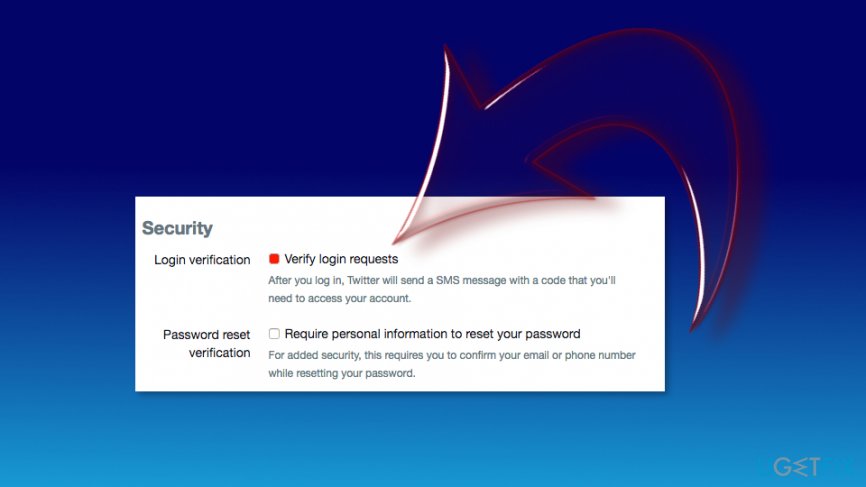
Enable login verification on twitter - Click Okay, send me a message in the prompt window.
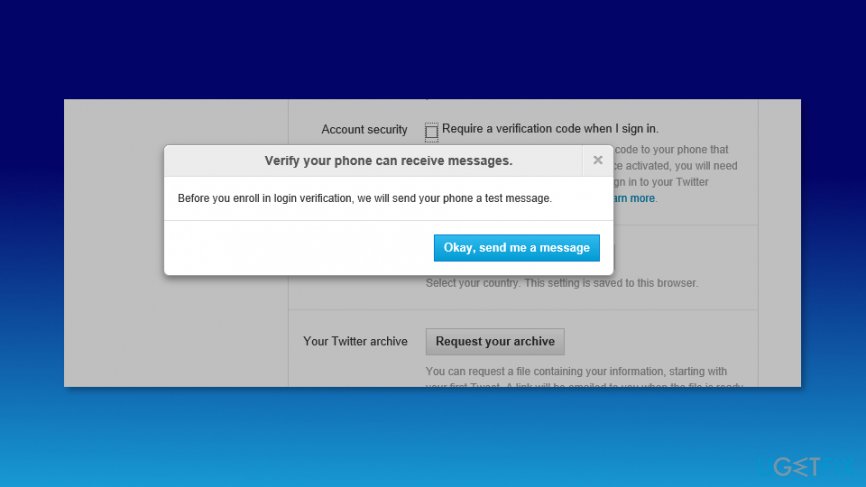
Verify your phone on twitter - Once you receive a verification message, click Yes and enter your password.
- You will be delivered instructions. Read them carefully and click Start.
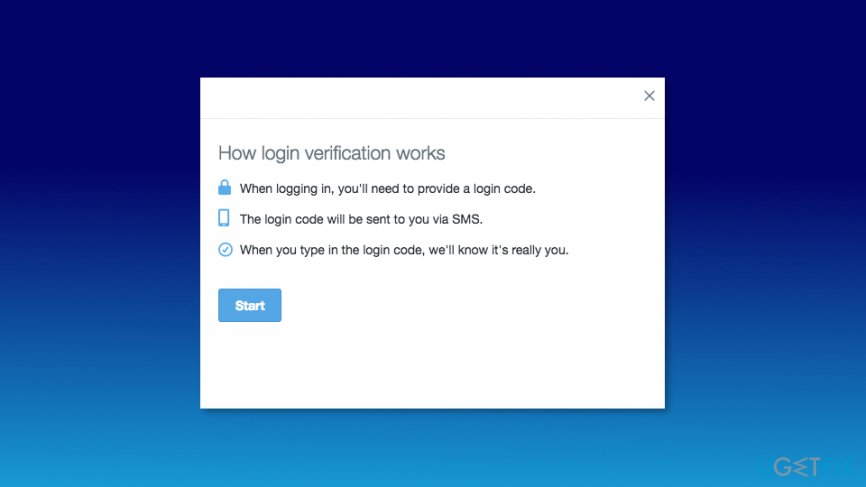
Login verification on twitter - Click Send code option and enter your phone number. However, if you have already associated your phone number with a Twitter account, you will receive a confirmation message.
- Enter verification code when you receive it and click Submit.
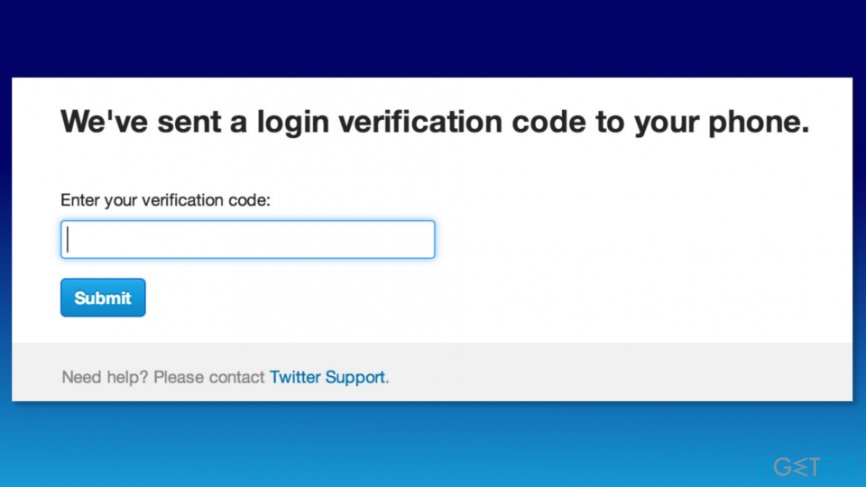
Enter twitter login verification code - Click Continue to proceed.
- Click Get Backup Code. Twitter will generate you a specific code. We recommend making a screenshot of because you may need it if you change your phone number or lose the phone.
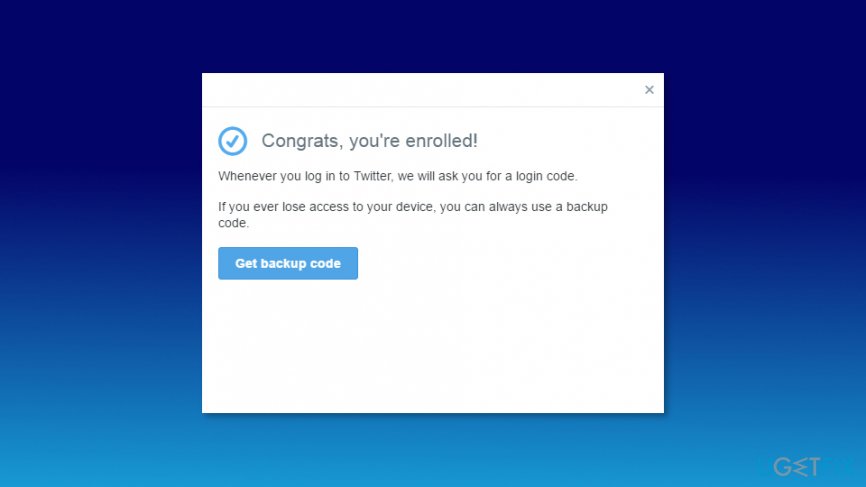
Get backup code twitter
Enable two-factor authentications on mobile app
Twitter allows turning on 2FA authentication using iOS or Android app. In order to do it, you have to log in to the Twitter app and follow these steps:
- Tap your profile icon and choose Settings and Privacy.
- Go to Account.
- Access Security.
Note: Users who do not have their accounts associated with the phone number will be asked to validate it in order to enable login verification. - iOS users have to drag the slides, and Android users tick the checkbox to turn on Login verification.
- Tap Confirm/OK to start the enrollment.
- You will see the instructions. Read them and tap Start.
- Tap Send code and add your phone number (if you have a phone number associated with your Twitter account, you will receive an SMS asking to confirm it).
- Enter the verification code and tap Submit.
- Tap Continue to proceed.
- Tap Get Backup Code. You will receive a unique code. We recommend making a screenshot of it. It will be necessary if you change your phone number or lose the phone.
Bottom line
To enable two-factor authentication on Twitter, ensure your email address is confirmed and follow the steps to access Settings and enable Login Verification. If you encounter issues, double-check your phone number association and ensure you receive the verification code. If none of these fixes work, consider reaching out to Twitter support for further assistance.
Frequently asked questions
To enable Two-Factor Authentication on Twitter using Windows 10, log in to your Twitter account in a browser, go to 'Settings and privacy', select 'Security and account access', then click on 'Security' to find the option for Two-Factor Authentication.
Yes, you can set up Two-Factor Authentication on Twitter via Windows 11 by accessing your account settings in a web browser and following the same steps as in Windows 10.
On Twitter, you can choose to use authentication apps, SMS, or security keys for Two-Factor Authentication, all of which can be configured through your Windows 10 or Windows 11 device.




Report an issue
What's wrong with this guide? We review every report and update or remove content.
Report received — thank you. We'll review and fix it.
You need a free account to submit a report.
Be the first to comment