How to fix
Find battery-draining apps and save power
on Windows
Discover how to identify battery-draining apps on Windows 10 and 11 to extend your laptop's life. Save power efficiently with expert-tested tips.


Why does How to find battery-draining apps and save power in Windows occur?
- Apps that use a lot of power
- Background tasks that run continuously
- Hardware issues that cause increased power usage
- Inefficient power settings
- Unnecessary features that remain active
Repairs Windows system files, removes malware, and restores a clean OS state — without reinstalling.
Hello. How can I find which apps drain my battery in Windows? Are there any ways to save battery power?
If you're like most people, you rely on your device to stay connected and productive throughout the day. Whether you're using it for work, entertainment, or communication, you expect your device to be ready and available whenever you need it. That's why good battery life is so important – it ensures that you can stay connected and get things done without worrying about running out of power.
Unfortunately, poor battery life is a common issue that affects many devices. There are many factors that can contribute to battery drain, such as apps that use a lot of power, background tasks that run continuously, and hardware issues that can cause your device to use more power than it should. That's why it's important to optimize the lifetime of your battery and ensure that you're getting the most out of it.
In this step-by-step guide, we'll show you three different methods for checking your battery usage and identifying any apps that may be draining your battery. We'll also provide tips on how to save battery life in Windows, including adjusting your power settings, turning off unnecessary features, and using hibernation or sleep mode. With these simple steps, you can extend the life of your device's battery and keep it running smoothly for longer.

Let's start by checking which apps drain your battery the most:
Method 1. Use Task Manager
You can use Task Manager to see which apps are using the most CPU, memory, and other system resources.
- Press Ctrl + Shift + Esc to open Task Manager
- Go to the Processes tab
- Sort the list of processes by CPU or memory usage
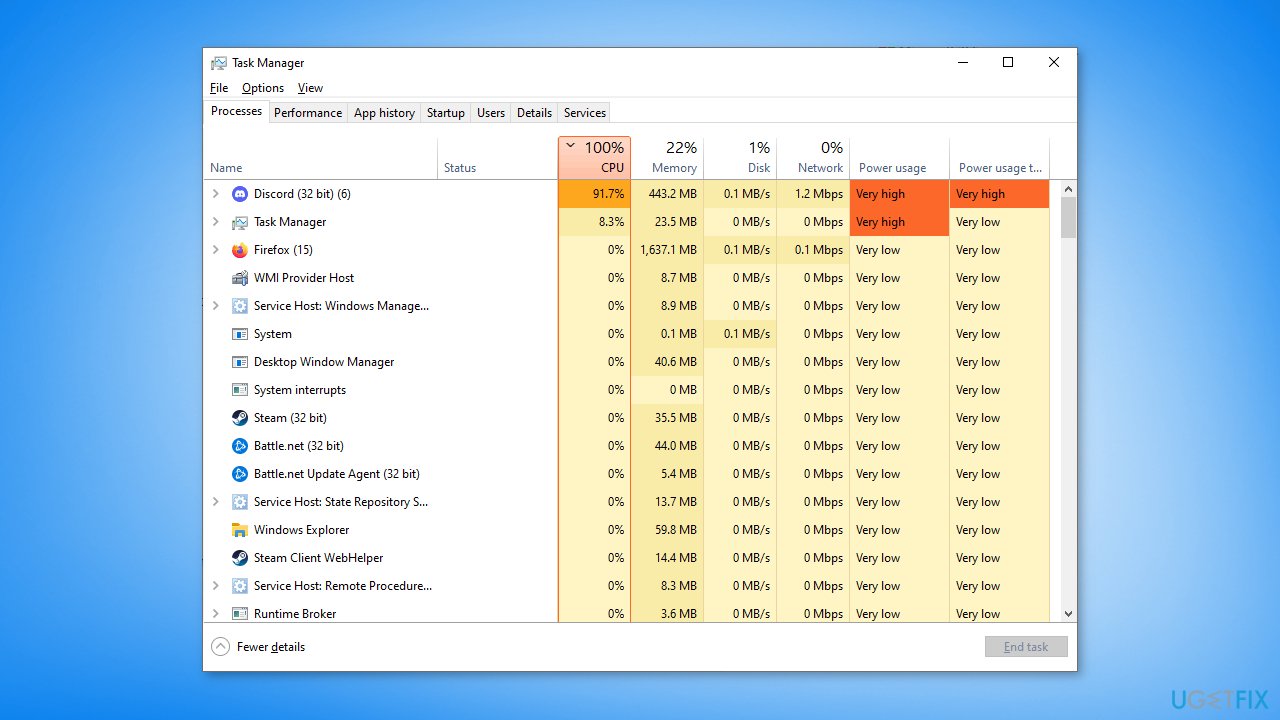
Method 2. Check Battery usage per app Section
- Go to the Windows Start menu
- Click on the Settings icon
- Click on System
- Click on Battery
- Scroll down to the Battery usage per app section
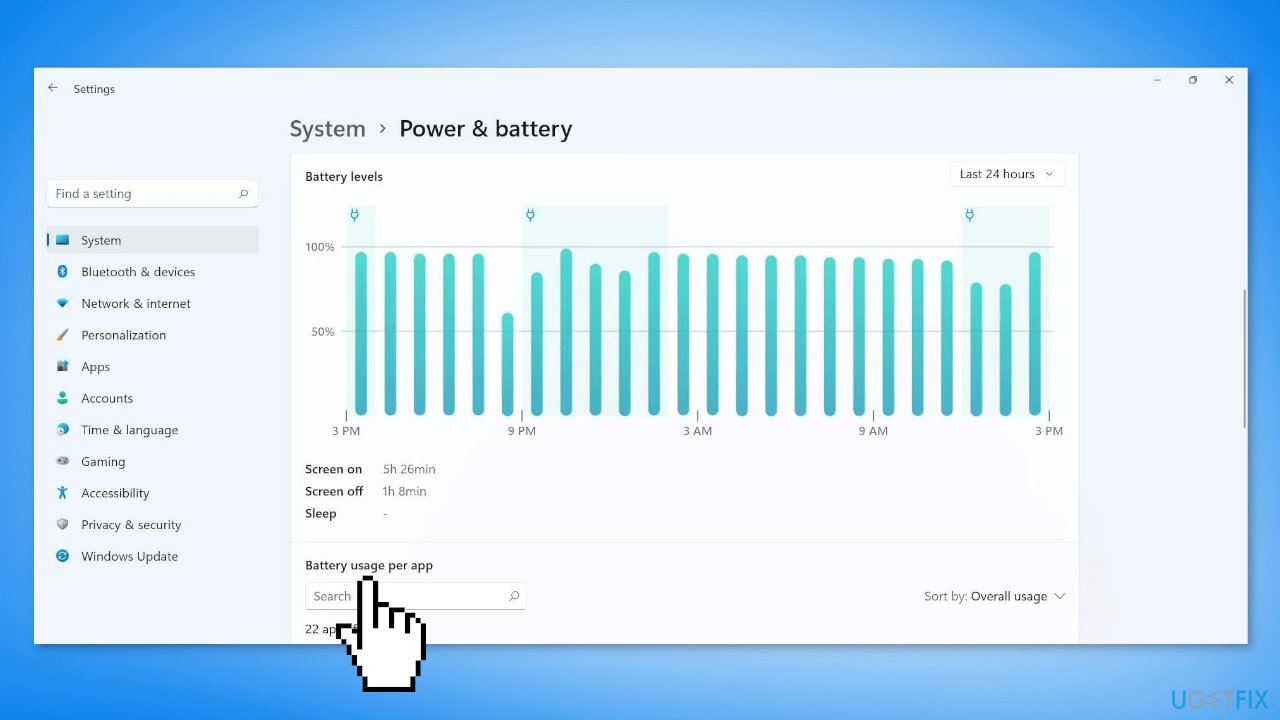
- Review the list of apps and their battery usage to see which app is draining the battery
Method 3. Generate a Battery Report
- Open the Search menu
- Type Command prompt and then select Run as administrator
- Click Yes to allow the program to make changes to your device
- Type powercfg /batteryreport and press Enter
- The battery report will be saved as an HTML file in a folder on your PC. The file location will be shown in the Command Prompt window.
- Open File Explorer and navigate to the folder where the report was saved
- Double-click the battery report (HTML file) to open it in your web browser
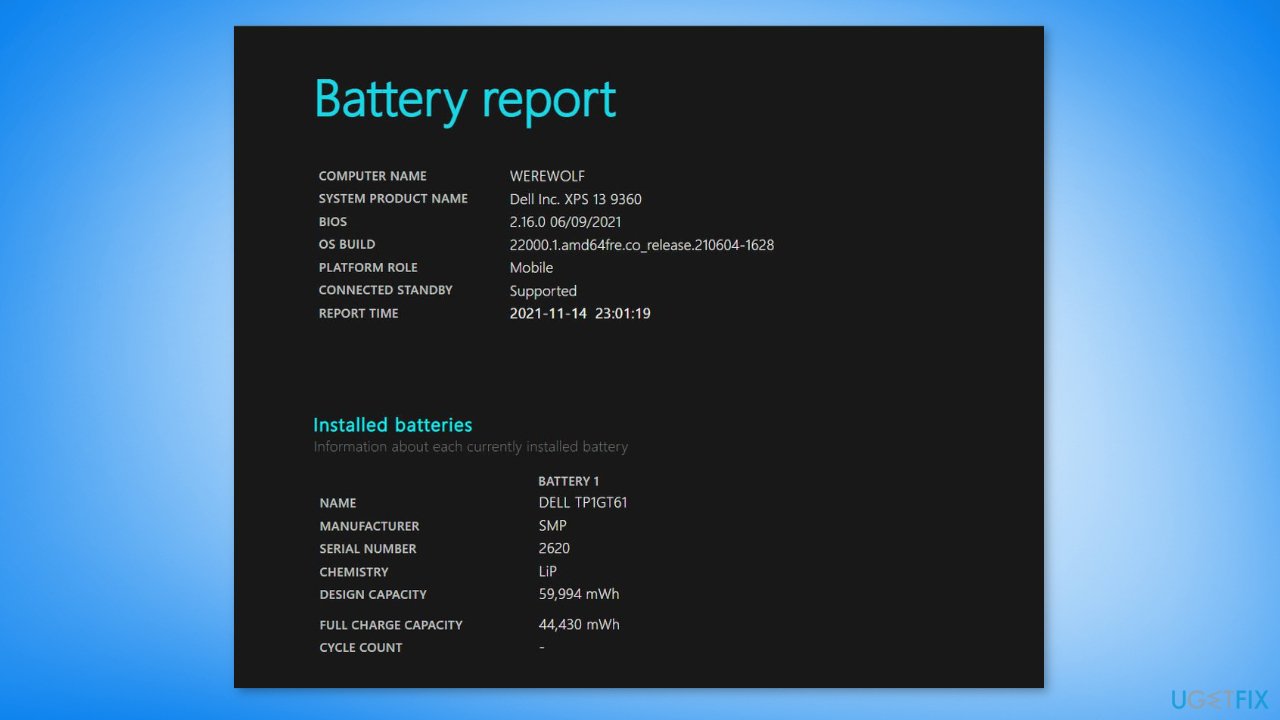
- Review the different sections of the report, including Installed battery, Recent usage, and Battery usage, to get detailed information about your battery usage and capacity
How to save battery life in Windows?
This is a must-read for anyone looking to extend the battery life of their device running Windows. By following the simple steps outlined in the article, you can adjust your power settings to conserve energy and turn off unnecessary features to save power. Plus, with tips on turning off your device when not in use and keeping it cool, you'll have all the tools you need to keep your device running smoothly for longer. Get the most out of your device's battery!
Adjust your power settings
You can adjust the power settings on your device to help save power. To do this:
- Go to the Windows Start menu
- Type power settings and press Enter
- Click on the Edit power plan option
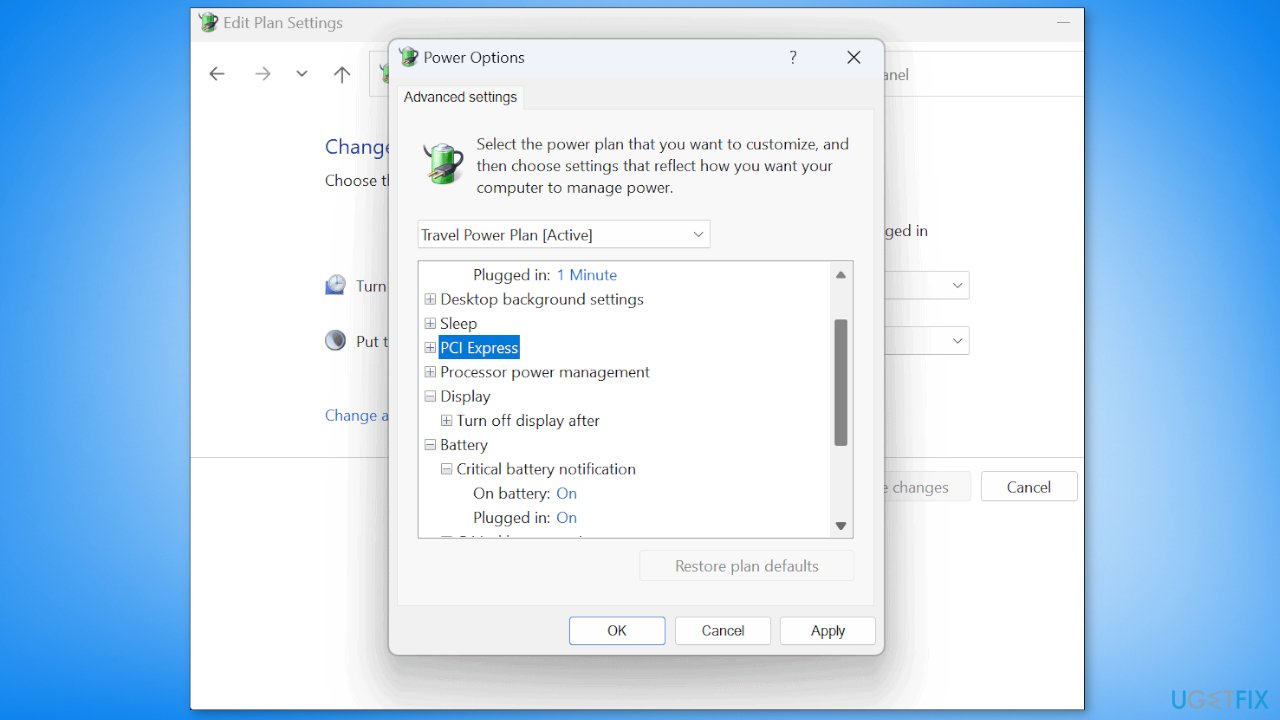
- Review the available power plans and select one that balances performance and power consumption, or create a custom power plan to fine-tune the settings to your needs
- Modify the settings for your chosen power plan as desired
- Click Save changes to apply your modifications
Turn off unnecessary features
There are several features in Windows that can use power, such as the touchscreen, the Wi-Fi adapter, and the Bluetooth adapter. If you are not using these features, you can turn them off to save power.
- Go to the Windows Start menu
- Type device manager and press Enter
- Click on the Device Manager option
- Locate the category that contains the device you want to disable (such as Human Interface Devices for the touchscreen)
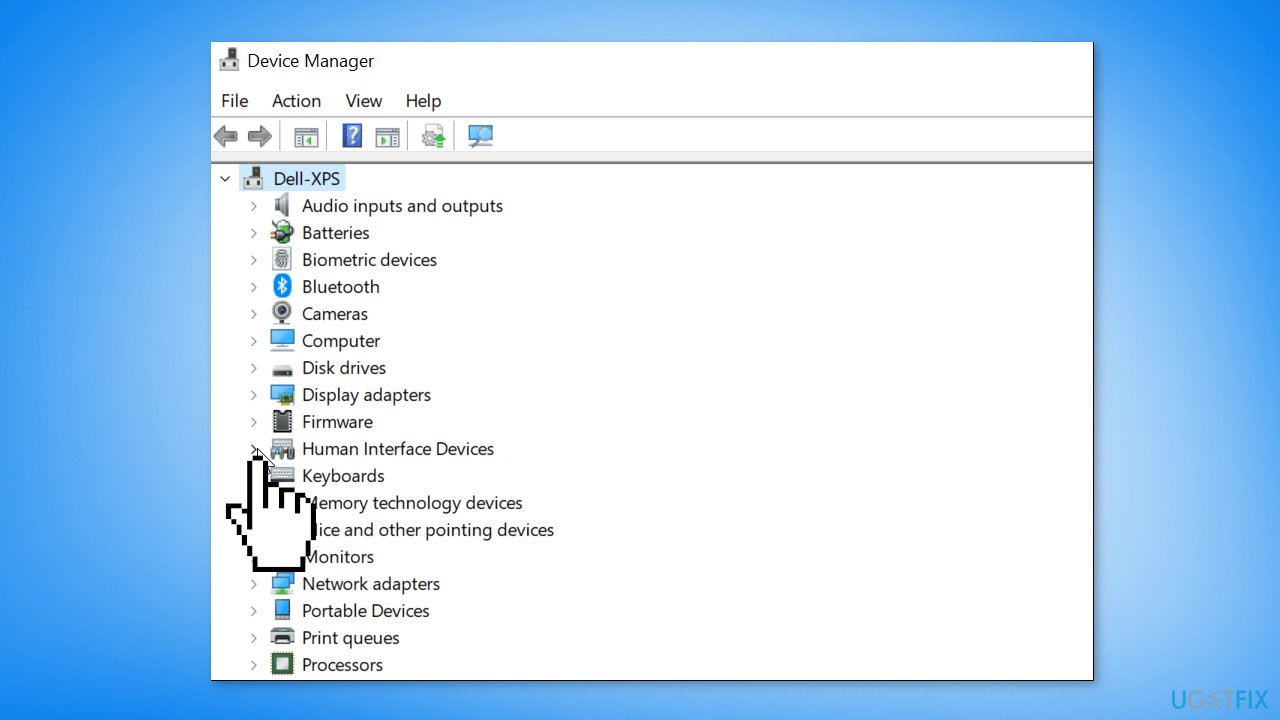
- Expand the category by clicking on the arrow to the left of the category name
- Right-click on the device you want to disable and select Disable
- Click Yes to confirm the action
- The device will be disabled and will no longer be available for use
- You can go back and click Enable device anytime
Use hibernation or sleep mode
When you are not using your device, you can put it into hibernation or sleep mode to save power. Hibernation saves the current state of the system to the hard drive and shuts down the device, while sleep mode puts the device into a low-power state while maintaining the current state in memory. To enable hibernation or sleep mode:
- Go to the Windows Start menu
- Type power settings and press Enter
- Click on the Choose what the power buttons do option
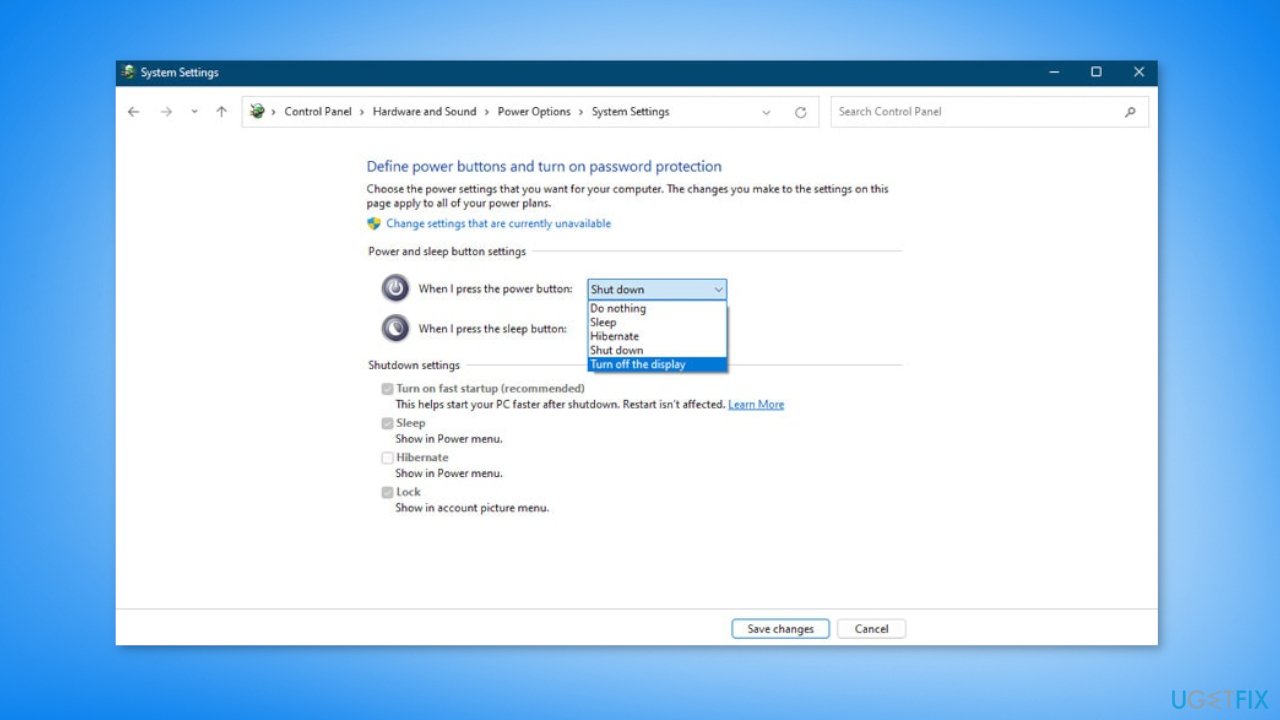
- Review the current power button settings and modify them as desired
- Click Save changes to apply your modifications
You can use these steps to enable or disable hibernation or sleep mode, or to specify different actions for the power button depending on whether the device is plugged in or running on battery power.
Fix underlying system issues
[d1] is a repair utility that can scan and fix various problems on your computer, including issues that may be affecting the performance of your device. It is not specifically designed to improve battery life, but it can potentially help by fixing any underlying issues that may be causing your device to use more power than it should.
For example, if your device is experiencing problems with its operating system, registry,[ref en-1] or has corrupted system files that cause BSODs,[ref en-2] it may be using more power than it should. Reimage PC Repair can help by repairing these issues and restoring your system to its optimal state, as well as clearing cookies and cache[ref en-3] which may in turn help improve the overall performance and efficiency of your device.
Turn off your device when not in use
If you are not using your device for an extended period of time, it can be a good idea to turn it off to save power. This can be especially helpful if you are using a device with a battery that is not fully charged.
Keep your device cool
Keeping your device cool can help save power, as heat can drain the battery and reduce the overall efficiency of the system. You can help keep your device cool by avoiding high temperatures and using a cooling pad or fan if needed.
Bottom line
To find battery-draining apps, you can use Task Manager to check CPU and memory usage, or review battery usage per app in the Settings menu. Additionally, adjusting power settings, turning off unnecessary features, and utilizing hibernation or sleep mode can help save battery life. If these methods do not resolve the issue, consider seeking further technical support.
Frequently asked questions
You can find battery-draining apps by going to Settings > System > Battery, then selecting 'Battery usage by app' to see which applications consume the most power.
To optimize battery usage in Windows 11, enable Battery Saver mode through Settings > System > Battery, and limit background activity for apps in the Battery usage section.
Yes, adjusting screen brightness, turning off Bluetooth when not in use, and managing app permissions can significantly improve battery life on both Windows 10 and Windows 11.




Report an issue
What's wrong with this guide? We review every report and update or remove content.
Report received — thank you. We'll review and fix it.
You need a free account to submit a report.
Be the first to comment