How to fix
Find Hidden Messages and Filtered Message Requests in Facebook
on Windows
Unlock hidden messages and filtered requests on Facebook using your Windows 10 or Windows 11 device. Expert-tested tips for seamless navigation.

Why does How to Find Hidden Messages and Filtered Message Requests in Facebook occur?
- Messages may be filtered by Facebook's algorithm
- The sender may not be connected to you on Facebook
- Messages from non-friends go to the Hidden Messages folder
- Facebook does not notify users about hidden messages
- Users may not know how to access the Hidden Messages folder
Repairs Windows system files, removes malware, and restores a clean OS state — without reinstalling.
Several people asked me if I received messages from them on Facebook. The fact is that I did not receive any messages from them, but they are promising me that they did send a couple of them. No one except me access my account. Is it possible that those messages were lost somehow?
Facebook Messenger[ref en-1] is an extremely popular instant messaging application, which allows communicating with the Facebook community directly via the social network. The cross-platform gained its popularity[ref en-2] due to simplicity, speed, and free service. With the Facebook Messenger, it’s easy to establish contact with the Facebook friends, relatives that are not yet Facebook friends or absolute strangers.
However, it turned out that the application may apply a filter on the message inbox and decide not to show some messages from particular people.
How’s that possible? Facebook has an algorithm,[ref en-3] which is programmed to sort out people and check their connection with you. If the algorithm does not identify the connection of a particular Facebook member and you, the message he or she sends to you will automatically be transferred to the Hidden Messages folder.
The idea of, let us say, “Facebook Messenger spam filter” may seem to be good for some people, but the fact that Facebook does not inform users about hidden messages' inbox is not praiseworthy. This way, people can hardly realize that someone is trying to get in touch with them and it’s not very likely that they will find that because it’s practically impossible to stumble upon the filtered folder accidentally.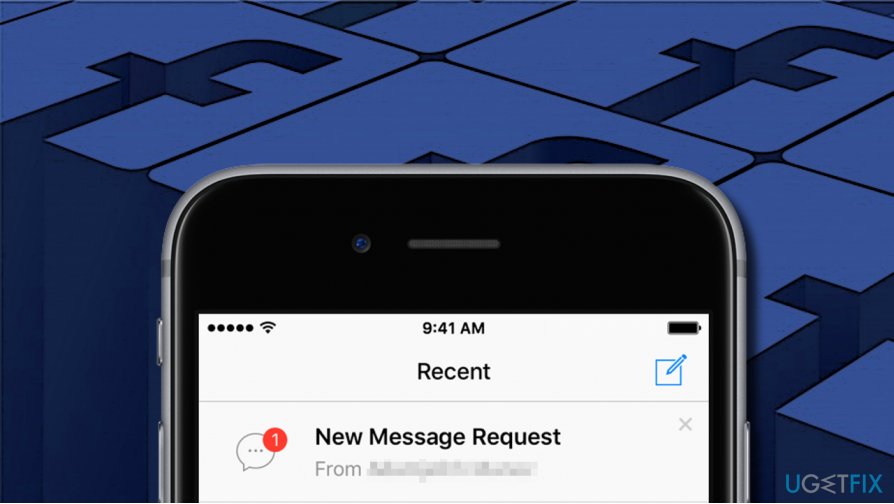
Nevertheless, this folder can be accessed easily. In this post, we will explain how to access the Hidden Messages folder in Facebook Messenger, so that you could check if there are some important messages from people who are, according to Facebook, not connected to you.
Access the hidden messages on Facebook Messenger (Windows)
- Log in to your Facebook account and click on "Messages" icon (at the top of the screen).
- Open "Messages Request" to see messages from people who are not on your Facebook friend’s list.
- Then click "See filtered requests."
- If you want the messages from the message request and filtered request folders to go to the normal Facebook inbox, click "Accept."
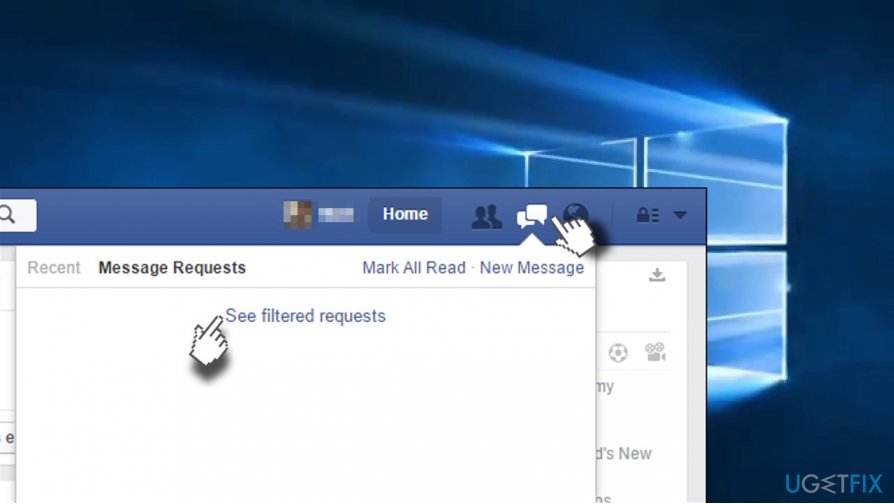
See filtered results
Locate the filtered message requests on Messenger (iPhone and iPad)
- Open your iPhone’s Home screen.
- Launch the "Messenger app" and tap the "Me" button (lower-right corner).
- Open "Settings" and find "People."
- Under People page, find "Message Request" option and click it.
- Then tap on "See filtered requests" to see another folder of hidden messages.
- To open the content of these folders you have to tap on them. If you want to receive the messages from people who sent hidden messages to the normal Facebook inbox, tap "Accept."
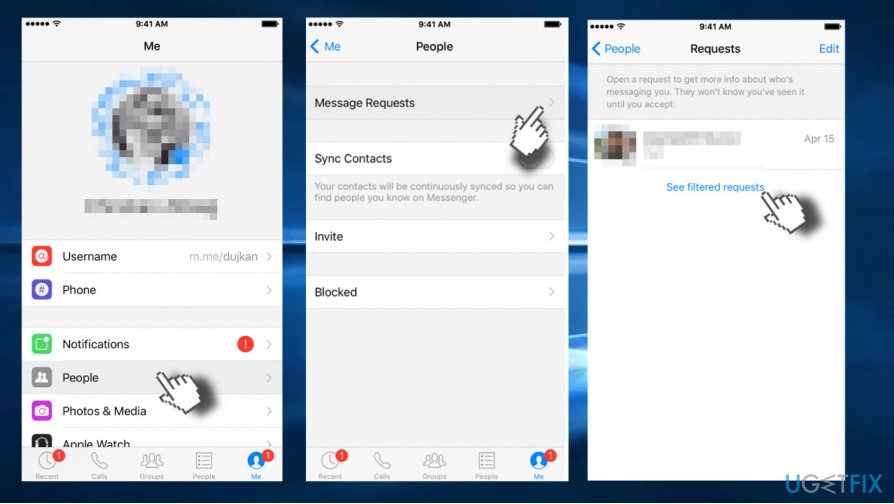
Show message requests on iphone
Open Hidden Messages folder on Messenger (Android)
- Open the Home screen and launch the "Messenger app."
- Tap on "Settings" (upper-right corner) and select "People."
- Select "Message Request" on the People window.
- Then tap on "See filtered requests" to open another source of hidden messages.
- To open the content of these folders you have to tap on them. If you want to receive the messages from people who sent hidden messages to the normal Facebook inbox, tap "Accept."
Bottom line
To access hidden messages on Facebook Messenger, log in to your account, click on the Messages icon, and check the Message Requests section. If you still cannot find the messages, consider checking the Hidden Messages folder directly. If none of these steps work, it may be helpful to reach out to Facebook support for further assistance.
Frequently asked questions
To access hidden messages on Facebook using Windows 10, open Facebook in your browser, click on the Messenger icon, and select 'Message Requests' to view filtered messages.
Yes, you can enable notifications for filtered message requests in Windows 11 by going to your Facebook settings, navigating to 'Notifications,' and adjusting your preferences.
Yes, you can change the visibility of hidden messages by visiting your Messenger, selecting 'Message Requests,' and choosing to respond or archive any filtered messages.




Report an issue
What's wrong with this guide? We review every report and update or remove content.
Report received — thank you. We'll review and fix it.
You need a free account to submit a report.
Be the first to comment