How to fix
Find your Wi-Fi password
on Windows
Easily uncover your Wi-Fi password on Windows 10 or Windows 11 with our simple guide. Get connected quickly and securely. Expert-tested for reliability.

Why does How to find your Wi-Fi password occur?
- Forgotten Wi-Fi password
- Default password reset
- Multiple devices connected without re-entering password
- Need to connect a new device
- Difficulty recalling changed password
Repairs Windows system files, removes malware, and restores a clean OS state — without reinstalling.
Hello. For many years my wi-fi was connecting to my devices automatically without any password, but I got a roommate now and have no idea what the password is or how to connect the new device to the network without it besides the Ethernet cord. He is going to move in soon, and I still don't know how to find my Wi-Fi password. I have an Android phone and a Windows laptop connected to the network at the moment. Can you help and at least move me in the right direction?
It may be difficult to find your Wi-Fi password when you have forgotten it and your friends need to connect to the internet or new device cannot access the Wi-Fi. Users[ref en-1] search for solutions online pretty often because automatically connected devices don't require to re-enter the password that may be reset to the default one or come too difficult to recall.
In most cases, people connect their all devices once, and then there is no need to enter the password repeatedly, so this is a common issue that is not specific for any operating system.[ref en-2] It also comes in question when you are connected to the Wi-Fi with one device, but need to access the web from the other.
You can find your Wi-Fi password on various devices and networks if you have a device that is connected to the internet. There is no need to disable anything or affect the settings of the machine. You can easily track the password from the router's settings and read the password. If some of these methods fail, you can also restore the factory default passwords and change it then to a simpler one. 
How to find your Wi-Fi password
When you want to find your Wi-Fi password, you should determine if the password used is the stock password or the one that you already changed yourself. Routers' documents and the back of the device should contain the default password, so you don't need to check around too much. If that is not the case, you need additional methods. However, before you interfere with any settings, check the system for issues regarding system files or affected parts of the computer with PC repair tool [d1] that can fix those things if anything occurs. This program can detect PUPs[ref en-3] too.
Check your router to find your default Wi-Fi password
The easiest steps can be to check the back of the router or the side where the sticker is placed. On the informational list, the password is also displayed. Each router has its own default password that, in most cases, is randomly made from various characters.
Find your Wi-Fi password on Windows
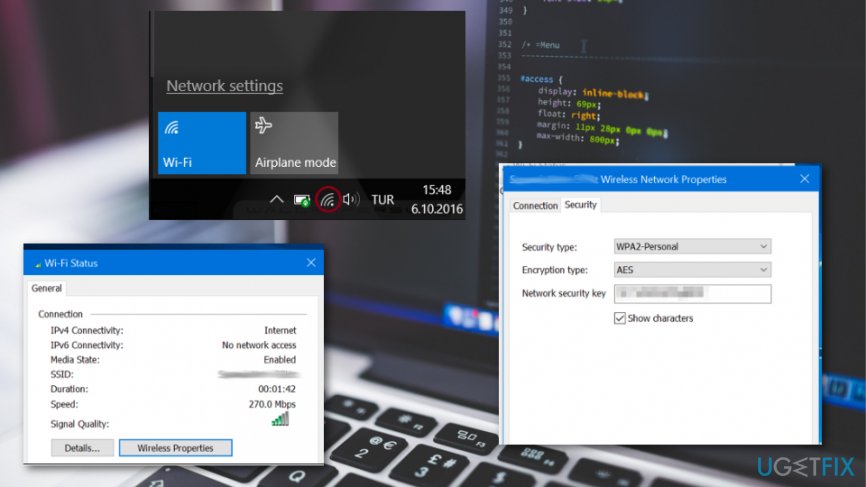
- Click the Wi-Fi icon at the bottom and choose to Change the settings options.
- Choose Network & Internet settings of the menu.
- Then go to Network Connections and right-click on the Wi-Fi adapter in the list.
- Then go Status and Wireless Properties.
- Click the Security tab and mark the checkbox Show characters.
How to find your wi fi password windows
Find your Wi-Fi password on Mac
- Press Command and Space buttons at the same time to open the Spotlight search.
- Type Keychain Access. Press Enter.
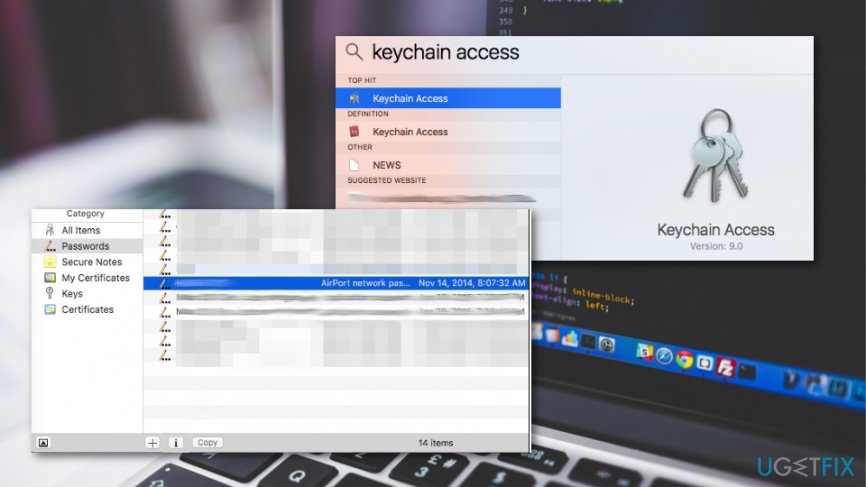
How to find your wi fi password keychain - Launch the Keychain Access application.
- Choose Passwords.
- Find the name of your network on the list.
- Click it and then choose Info (i) button.
- Choose Show Password.
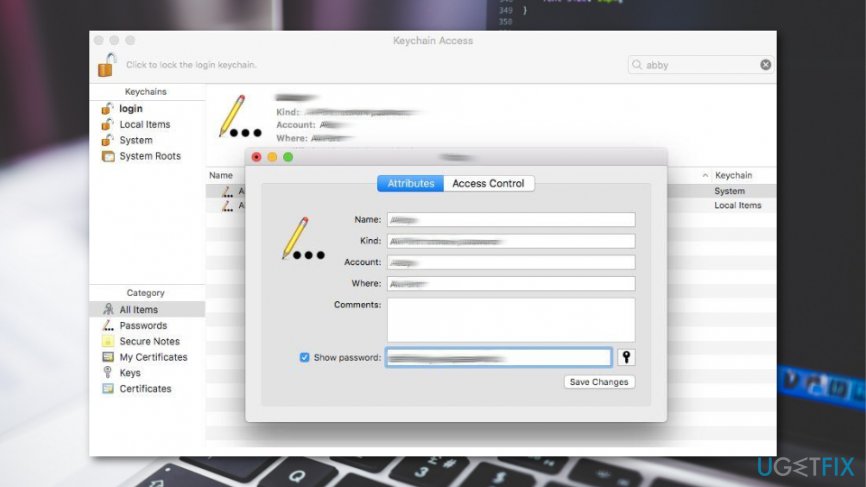
How to find your wi fi password keychain show pass
Find your Wi-Fi password on Android
- Go to Settings and find Network&Internet options.
- Choose Wi-Fi and tap Share button to see the password.
Bottom line
To find your Wi-Fi password, check the router's documentation or the back of the device for the default password. If that doesn't work, you can access the router's settings to view the password or restore factory defaults. If none of these methods work, consider changing the password to something simpler.
Frequently asked questions
To find your Wi-Fi password on Windows 10, go to Settings > Network & Internet > Status, then click on 'Network and Sharing Center'. Select your Wi-Fi network, click on 'Wireless Properties', go to the 'Security' tab, and check 'Show characters' to reveal your password.
Yes, you can open Command Prompt as an administrator and type 'netsh wlan show profile name="YourNetworkName" key=clear' to display your Wi-Fi password under 'Key Content'.
If you can't find your Wi-Fi password on your Windows device, you can reset your router to its factory settings, which will also reset the Wi-Fi password to the default listed on the router.




Report an issue
What's wrong with this guide? We review every report and update or remove content.
Report received — thank you. We'll review and fix it.
You need a free account to submit a report.
Be the first to comment