How to fix
A blurry iPhone Home Screen wallpaper
on Windows
Transform your Windows 10 or Windows 11 experience with crystal-clear wallpaper tips. Achieve stunning visuals with expert-tested solutions!

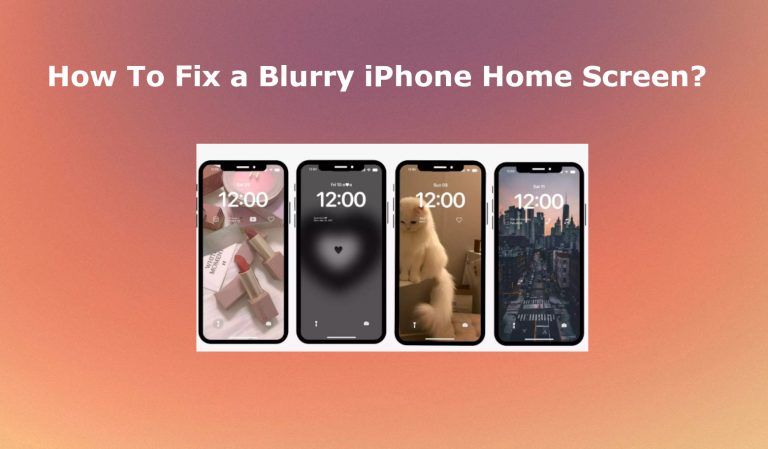
Why does How to fix a blurry iPhone Home Screen wallpaper occur?
- Blurry wallpaper after setting a new wallpaper
- Low-resolution wallpapers
- Stretching images to fit screen size
- Software updates causing performance issues
- Default blurry home screen wallpaper feature in iOS 16
Repairs Windows system files, removes malware, and restores a clean OS state — without reinstalling.
Wallpaper blurry on iPhone Home Screen and I cannot find out why. Help! It is blurry at the top and I recently noticed this. I have iOS 17 right now. That might be related or not. I have no idea. Can you give some tips?
Blurry iPhone Home Screen can be a bit annoying. It is not an error message, bug, or performance problem that could keep you from using the device properly. However, the issue when a certain part of the wallpaper gets blurry out of nowhere can make people wonder if other things are okay on the system.
Users claim that the issue appeared on the device after the recent update of their operating system[ref en-1]. That might not be related to the Wallpaper blurry on iPhone Home Screen issue. However, it is common for these software updates to cause other problems on devices related to errors or general performance.
Have you noticed that your iPhone Home Screen wallpaper gets blurry after you set a new wallpaper? Don't worry; you're not alone, and there's an easy fix for this. This is also a common problem reported by people. It seems that blurry wallpaper is a problem occurring in various scenarios across iPhone users.
Sometimes, the blurriness might also be due to low-resolution wallpapers. To ensure your wallpaper looks its best:
- Use High-Resolution Images: Choose high-resolution wallpapers. You can find these in various wallpaper apps or online.
- Avoid Stretching Images: Make sure the wallpaper fits your screen size without needing to be stretched, as this can cause blurriness.
As per the particular OS version and update reasoning, with the release of iOS 16, Apple introduced many new customization options for the lock screen. One of these features is a default blurry home screen wallpaper. This is designed to minimize distractions and make app icons easier to see, creating a seamless look between the lock screen and home screen while keeping the home screen tidy.
iOS 16 also brings other exciting customization features. You can now add widgets from third-party apps like Spotify to your lock screen, use wallpaper filters, add depth effects, and even change the clock font and color. The lock screen can display Live Activities and link to different focus modes.
These might be the reasons why these changes got applied to your device automatically and you now shape Blurry iPhone Home Screen. However, if your home screen background appears blurry after pairing it with your lock screen wallpaper, you can easily change it to a clear image.
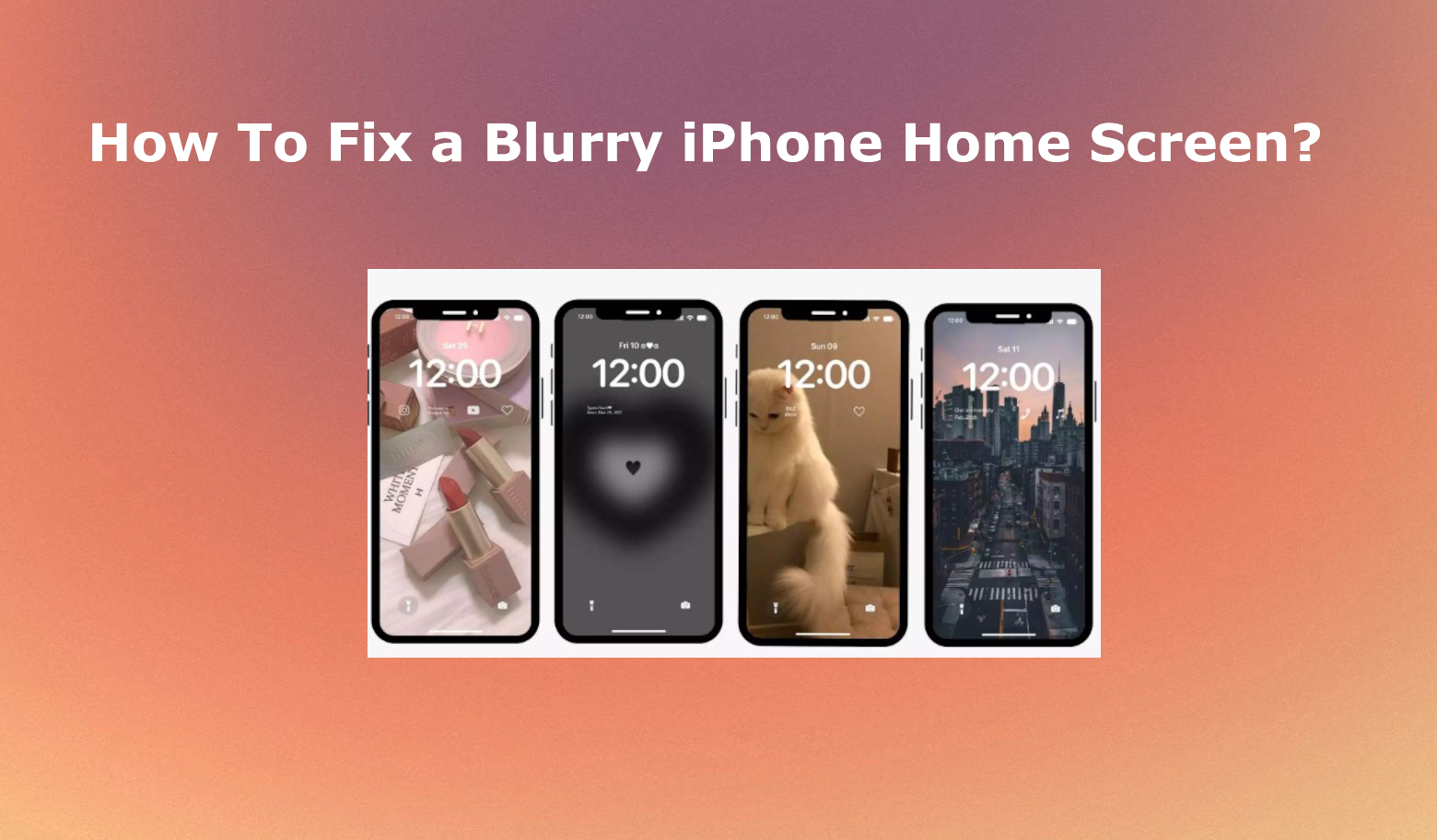
How to fix a Blurry iPhone Home Screen?
Remember, this blurriness is a feature meant to enhance your viewing experience by reducing distractions. But if you prefer a crisp home screen, simply follow the steps above to disable the blur effect and get rid of this Blurry iPhone Home Screen effect. Enjoy the new customization options new versions of iOS has to offer!
However, if you want to fix Blurry iPhone Home Screen issue to the previous stage, you need to alter particular settings. Of course, if you are worried about the possibility of intruders or system issues, you can try to find an optimization tool like [d1] that can optimize the device's system. iOS and other Apple products are not 100 percent immune to threats and viruses after all.
Turn off the Blur Feature on iPhone
- Open Settings on the iPhone.
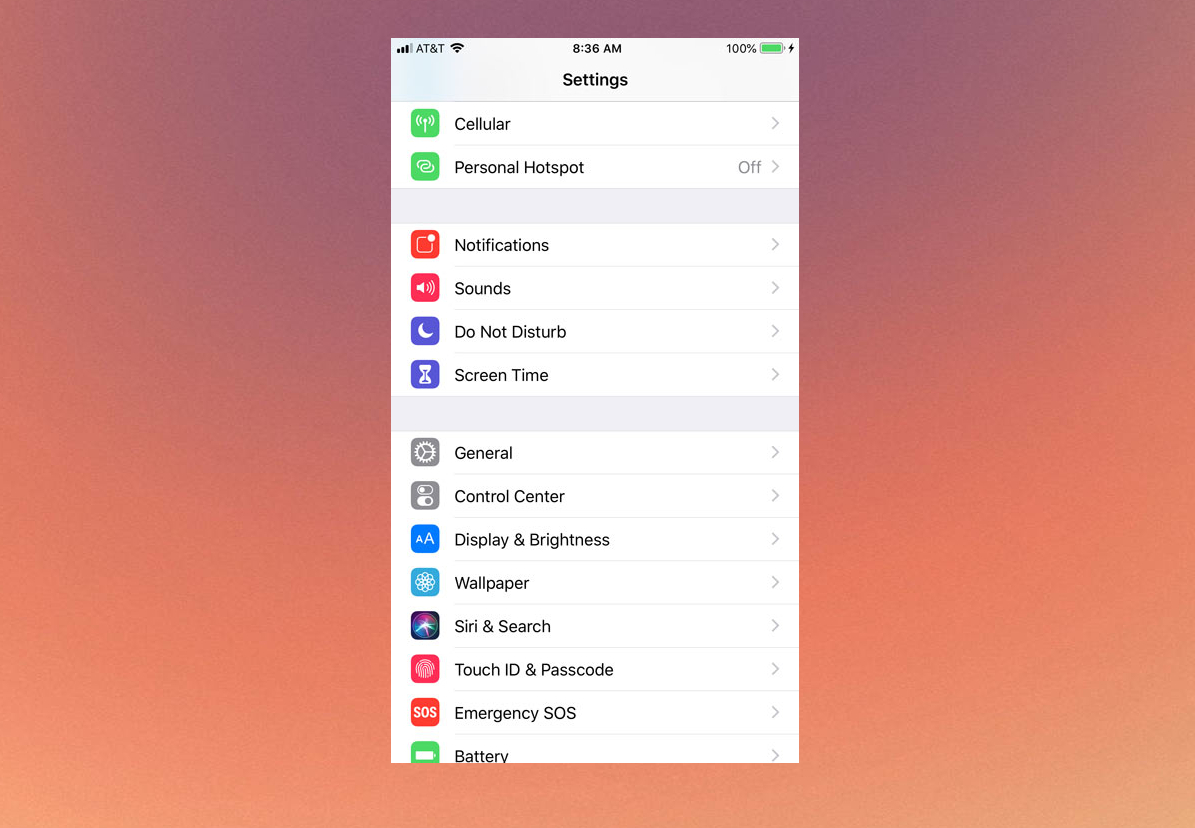
Blurry home screen iphone fix settings - Choose Wallpaper.
- Next, tap on Customize for the home screen.
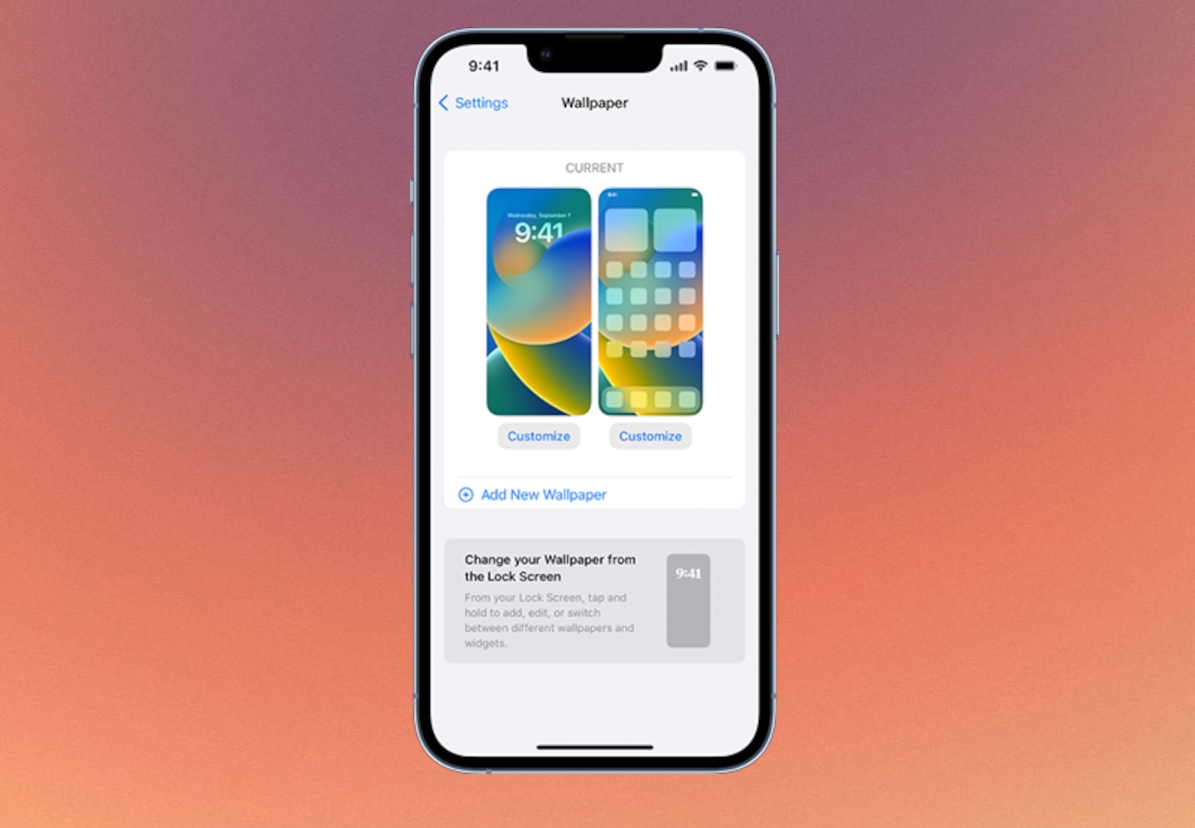
Blurry home screen iphone fix customize - Tap on the drop icon for the function above Blur to disable the feature.
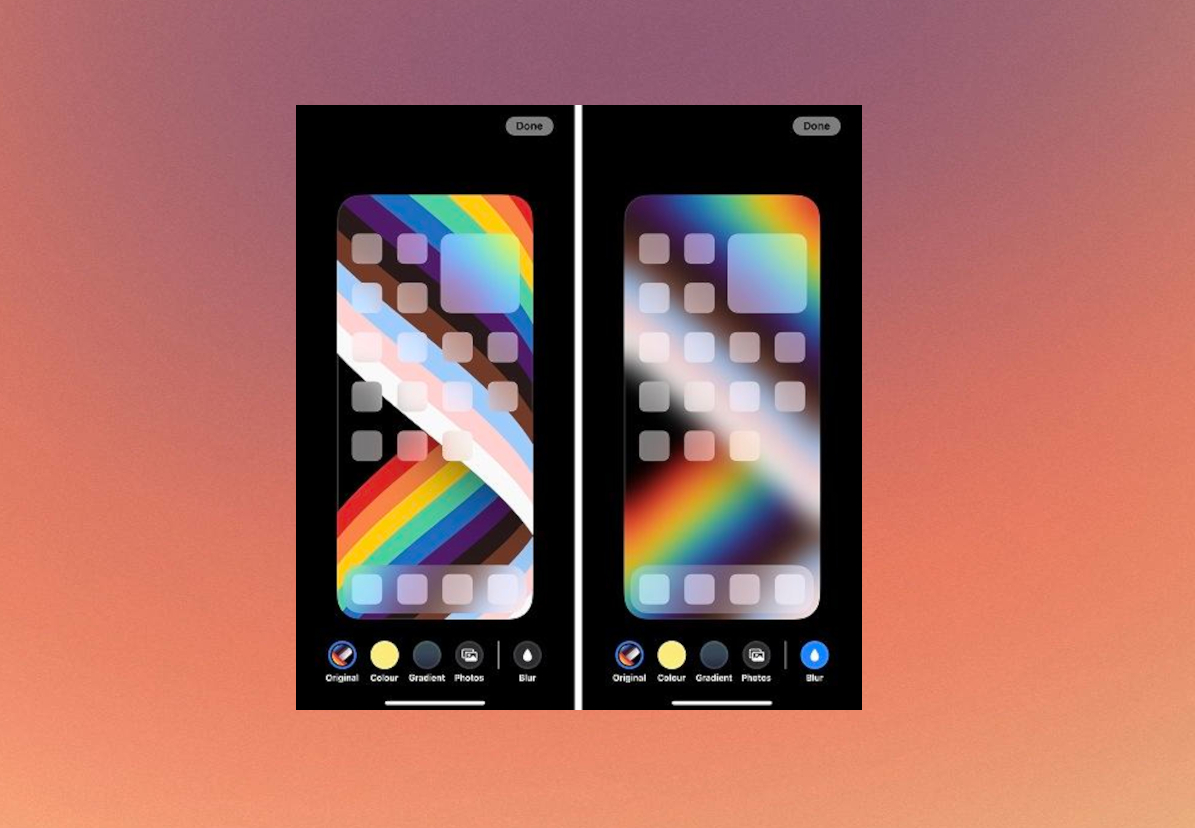
Blurry home screen iphone fix blur feature - Choose Done in the top right corner.
- Blurriness should be gone.
Bottom line
To fix a blurry iPhone Home Screen wallpaper, use high-resolution images and avoid stretching them. If the issue persists, consider checking for software updates or resetting your wallpaper settings. If none of these solutions work, further troubleshooting may be needed.
Frequently asked questions
While you can set any image as your wallpaper on Windows, it's best to use high-resolution images to avoid blurriness. Ensure the image matches your screen resolution for optimal clarity.
To keep your wallpaper sharp on Windows 11, choose images that are at least the same resolution as your display. You can also adjust the wallpaper settings to 'Fill' or 'Fit' to enhance its appearance.
If your downloaded wallpaper appears blurry on Windows 10, try downloading a higher resolution version of the image or checking your display settings for proper scaling.




Report an issue
What's wrong with this guide? We review every report and update or remove content.
Report received — thank you. We'll review and fix it.
You need a free account to submit a report.
Be the first to comment