How to fix
Broken registry items
on Windows
Repair broken registry items in Windows 10 effortlessly with expert tips and proven techniques. Enjoy a smoother PC experience, fixed in minutes!

Why does How to fix broken registry items in Windows 10 occur?
- Duplicate keys
- Unused values
- Entries left over after program uninstalls
- Corrupted registry
- Faulty hardware
- Disk issues
Repairs Windows system files, removes malware, and restores a clean OS state — without reinstalling.
Hello. I think there are some serious issues with my registry entries. My security tool indicates many broken ones in Windows Registry, but none of them get properly fixed by the program itself, so I don't know what I should do myself. Can you help to fix broken registry items on my Windows 10 computer?
Broken registry items in Windows Registry can cause difficult reboots of the system or trigger unexpected shutdowns. A corrupted registry leads to issues with processes and systems drivers.[ref en-1] Users[ref en-2] report issues with the registry because there are various failures that can keep them from using devices normally.
Stopped processes or corrupted programs can be the result of broken registry items in Windows 10, so you should look put for an inconsistent state of the registry. Unfortunately, it is not recommended to fix the registry yourself or use shady programs for that.[ref en-3]
You might damage the machine when trying to fix broken registry items in Windows 10 yourself. Modifying such important parts of the device can lead to additional issues with the performance. You should indicate the particular reasons and causes for the registry errors.
The more common causes for the broken registry items include duplicate keys, unused values, entries left over after some program uninstalls from the computer. Some of the registry errors indicate serious problems with the Windows Registry, so your computer is not working properly due to serious issues.
How to fix broken registry items in Windows
Broken Windows Registry entries can cause unexpected shutdowns, corrupt the registry further, program, or even the OS failure. If these registry issues are also related to faulty hardware or disk issues, you may need some serious help from PC repair tools.
So to fix broken registry items in Windows, you either need to rely on tools like [d1] and run the scan to find and repair corrupted or altered files, registry entries, other program files. It is not the job of everyday users to repair registries manually, so rely on tools and automatic solutions, methods below. Do not modify the registry if you are not tech-savvy.
Backup your registry
You should know that there are many reasons to back up your files, but you should back up the Registry to avoid issues with the performance.
- Click the Start button and select Run.
- In the Run box, enter regedit and click OK to launch the command.
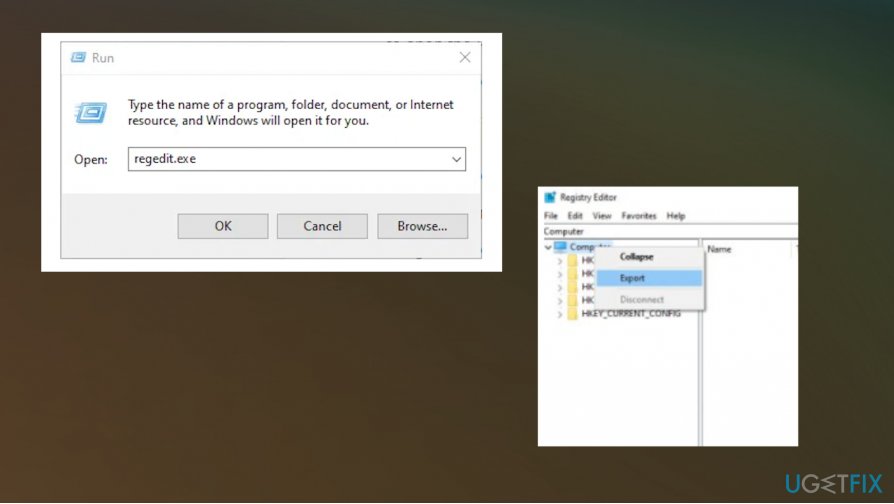
How to fix broken registry items in windows import - Then right-click on the Computer at the left and choose to Export.
- Name the backup file and save it in a separate drive or cloud storage.
Restore Registry to fix broken Windows Registry items
- Open Registry Editor again.
- Click the File menu and from the drop-down choose the Import button.
- Navigate to the backup file from there and open it.
Reset the system to fix broken registry items
- Open the Settings panel and then find Update & Security.
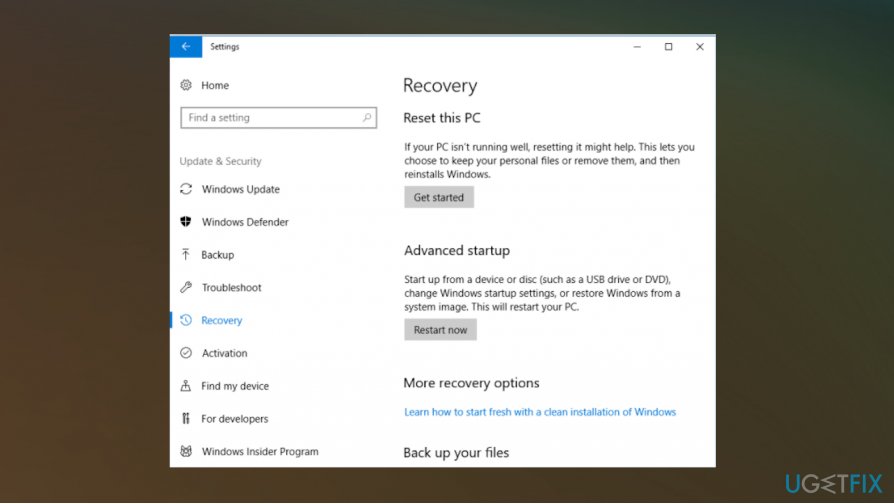
How to fix broken registry items in windows recovery - Locate Recovery.
- Click Get started.
- Choose to Keep your files or not and move on.
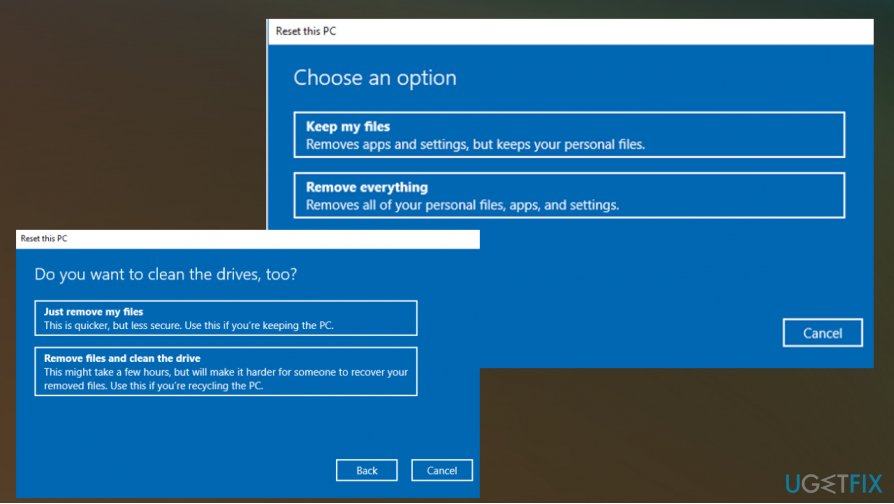
How to fix broken registry items in windows recovery options - Choose from driver cleaning options.
- Reset the PC.
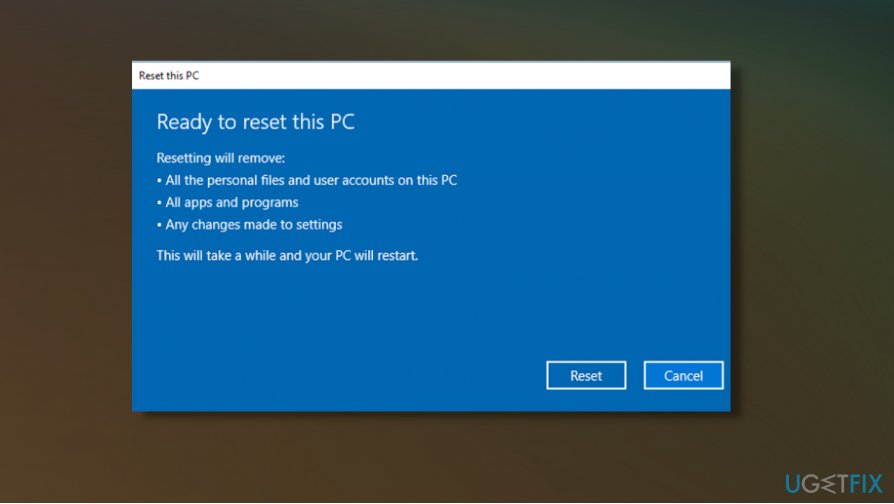
How to fix broken registry items in windows recover the pc
Run SFC to fix broken registry items in Windows 10
- Run Command Prompt as administrator.
- Type sfc /scannow and click Enter.
- Allow the process to run and follow suggestions if any appears on the screen.
- Repair errors and restart the PC.
Bottom line
To fix broken registry items in Windows 10, it is recommended to rely on PC repair tools that can scan and repair corrupted files and registry entries. Manual modification of the registry is discouraged as it can lead to further issues. If these tools do not resolve the problem, seeking professional help may be necessary.
Frequently asked questions
You can use built-in tools like the Registry Editor or third-party software such as CCleaner to identify and fix broken registry items.
To back up the registry, open the Registry Editor, select 'File' > 'Export', choose a location, and save the backup file.
Yes, fixing broken registry items can help improve system performance by eliminating errors and optimizing the registry.




Report an issue
What's wrong with this guide? We review every report and update or remove content.
Report received — thank you. We'll review and fix it.
You need a free account to submit a report.
Be the first to comment