How to fix
Chrome keeps crashing or won’t open at all
on Windows
Resolve Chrome crashes on Windows 10 and Windows 11 quickly with our expert-tested fixes to get your browser running smoothly again. Fixed in minutes!

Why does How to fix Chrome keeps crashing or won’t open at all occur?
- Faulty program installations
- Rogue applications added
- Issues triggered by OS updates
- Software conflicts
- Specific websites causing crashes
Repairs Windows system files, removes malware, and restores a clean OS state — without reinstalling.
Hello. Something is wrong with my Google Chrome browser. I think. It stops working, sometimes crashes, or cannot be opened at all. Don't know what is wrong because other functions and programs work okay. The computer is fairly new since I got it with the installed OS almost a year ago. Does Chrome have any bugs or issues? Can you help me fix it?
Chrome keeps crashing issues can occur on various machines and is pretty common due to the Google Chrome browser popularity. This web browsing tool is a default for many people, so complaints[ref en-1] surface more often. It is not bug-free or perfect, so it might crash or stop responding. Still, people rely on this browser since it is a very stable, fast, and trustworthy option.
There are a few issues with Google Chrome, and some of them might occur after faulty program installations when you add rogue applications[ref en-2] or browser-based programs yourself. Or when OS updates and software trigger issues with the machine, including the Chrome browser. The issue might occur on certain websites, and when Chrome keeps crashing or won't open at all, you cannot use the internet at all. It gets extremely frustrating.
It might be tempting to choose another browser and ditch Google Chrome entirely when Chrome keeps crashing or won't open at all, and it happens every time you launch your device. We can explain common issues with these crashes and the reasons behind them. Also, a few methods listed below should show how it is possible to get your browser back to a stable state.
If Google Chrome crashes or freezes, you might see an error code that states if the problem is with your browser or with the webpage:
- err_name_not_resolved - website address that does not exist;
- err_connection_refused - the site keeps your browser from connecting;
- err_connection_reset - connection was interrupted mid-loading;
- err_connection_timed_out - page took too long to load;
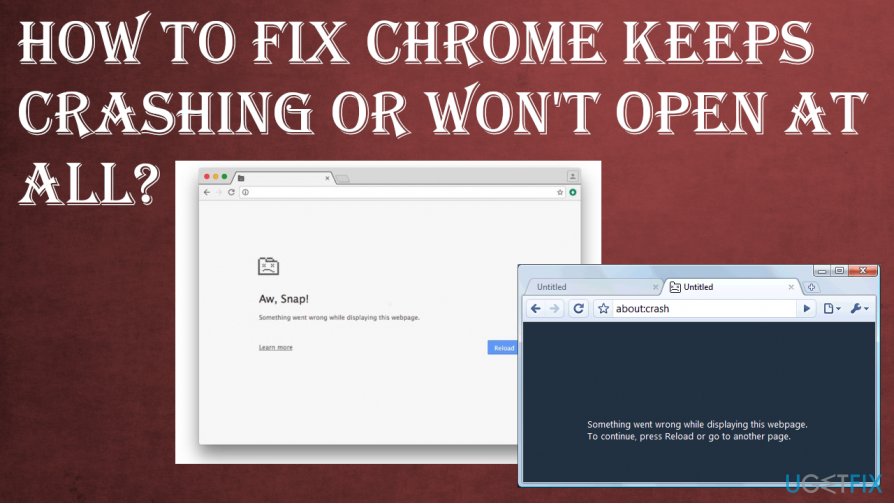
- Aw, snap! - website triggered the browser to crash.
Chrome keeps crashing or won't open at all is not a crucial issue and can occur on macOS devices as often as it appears on Windows machines. Any device can experience these browsing problems, so do not panic this is not a malware[ref en-3] issue, and Google Chrome is not having any widespread issues.
How to fix Chrome keeps crashing or won't open at all
Even though it can be a problem for users, it is an issue that can be solved. Throughout the years, people reported similar problems with the browser. The reasons behind them differ from website issues to connection or third-party program problems.
You can rely on [d1] or a similar application that can check for altered parts of the machine, corrupted system files, issues in parts of the machine. System optimization, PC repair programs can fix some of the related issues for you, so the problem with Chrome won't opening at all or crashing should no longer bother you.
There are a few Google Chrome issues that can be solved with the methods below. You might try a few of them to fix Chrome keeps crashing or won't open at all properly. It shouldn't be difficult even for a new user or a person that has little to no knowledge about computers or web browsers.
Quick options to fix the Google Chrome issue
- Use another web browser;
- Close all the tabs;
- Disable browser add-ons, applications;
- Run the security program or AV tool;
- Close the browser and run it again;
- Reinstall the web browser entirely.
Disable extensions
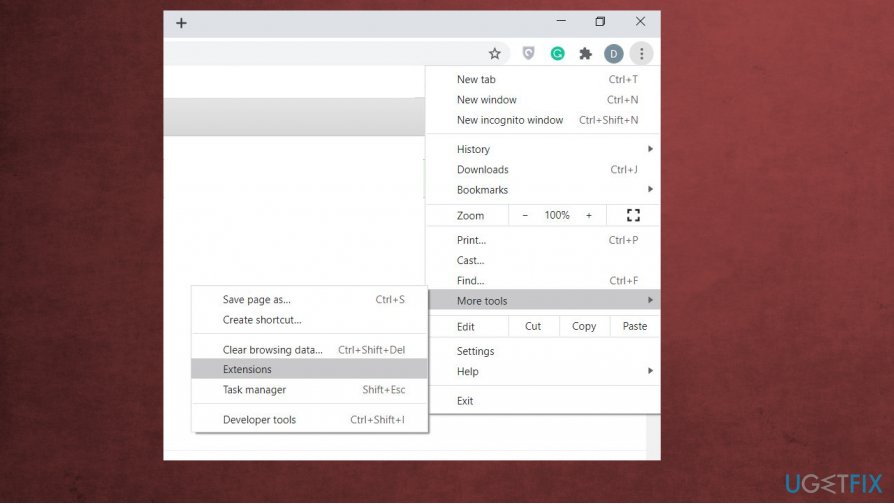
- Go to Menu on your browser and click More tools.
- Then locate to Extensions and disable or remove any active extensions.
Chrome crash or wont open at all fix settings extensions
Disable Hardware Acceleration to fix the Chrome crashing problem
- Click Menu.
- Go to Settings and choose Advanced.
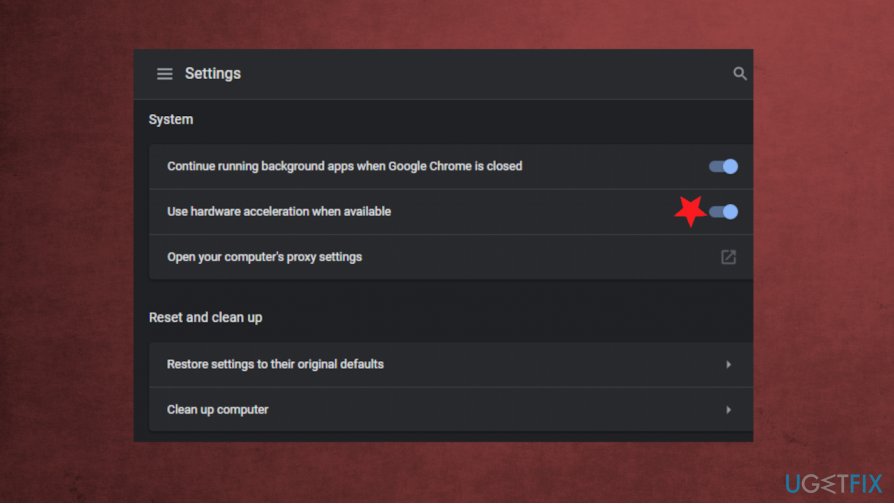
Chrome crash or wont open at all fix acceleration - Then disable Use hardware acceleration where available at the bottom.
Reset the browser without reinstalling
- Head to the menu and then find Advanced settings again.
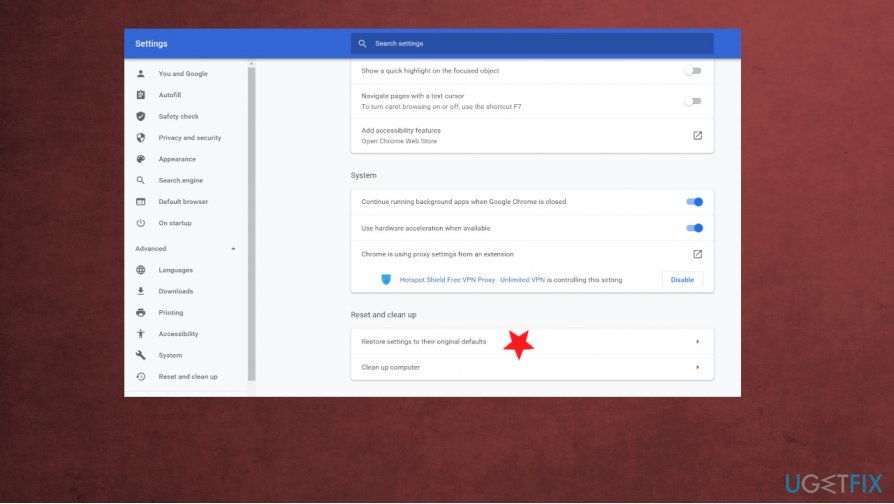
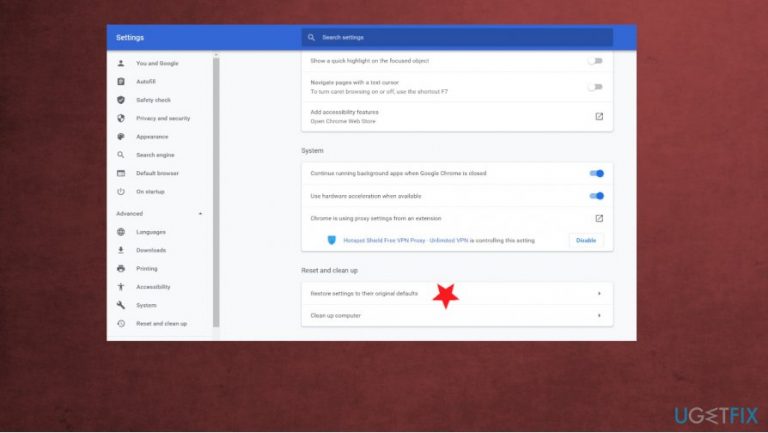
Chrome crash or wont open at all fix restore settings to default - Click Restore settings to their original defaults.
- Chrome will reset settings except for bookmarks, history, and passwords that have been saved.
- Confirm the resetting.
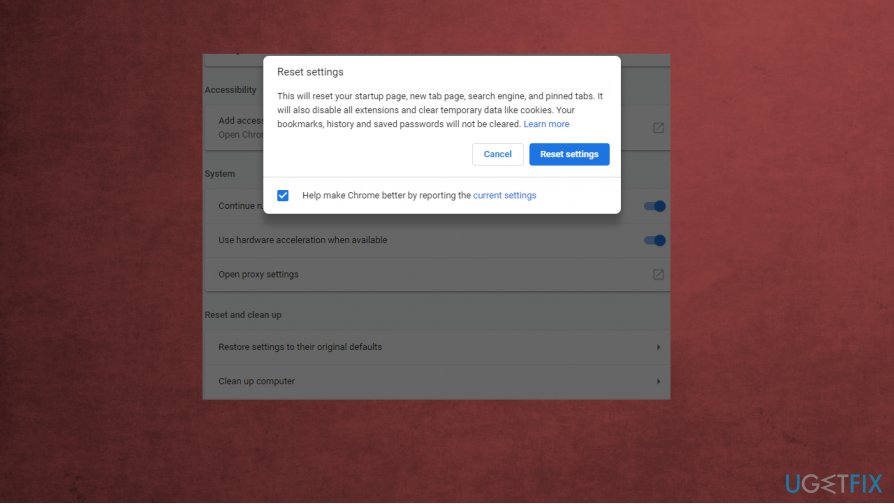
Chrome crash or wont open at all fix resetting
Check the program compatibility to fix Chrome keeps crashing or won't open at all
- Copy and paste chrome://conflicts in your Google Chrome address bar.
- Go to Advanced settings.
- Click Update or remove incompatible applications that is under the Reset and clean up section option.
- Remove the application.
- Restart the browser and check for the issue.
Bottom line
To fix Chrome crashing or not opening, you can try clearing cache and cookies, disabling extensions, or reinstalling the browser. If these methods do not resolve the issue, consider switching to a different browser temporarily.
Frequently asked questions
Try clearing the browser cache and cookies, as corrupted data can lead to crashes. Additionally, ensure that your Chrome is updated to the latest version.
First, check if Chrome is running in the background via Task Manager and end the process if necessary. If that doesn't help, consider resetting Chrome settings to default.
You can disable hardware acceleration in Chrome's settings, which may help if your system has compatibility issues. Additionally, running a malware scan can identify and eliminate potential threats causing instability.




Report an issue
What's wrong with this guide? We review every report and update or remove content.
Report received — thank you. We'll review and fix it.
You need a free account to submit a report.
Be the first to comment