How to fix
Duplicate desktop backgrounds across different computers
on Windows
Easily resolve duplicate desktop backgrounds on your Windows 10 or 11 devices with our simple guide. Enjoy a personalized look, expert-tested solutions.

Why does How to fix duplicate desktop backgrounds across different computers in Windows occur?
- Sync settings in cloud services like Microsoft OneDrive
- Local network sharing settings
- Devices logged into the same account
- Unawareness of device settings allowing sharing
Repairs Windows system files, removes malware, and restores a clean OS state — without reinstalling.
How can my living room computer automatically update its desktop background with an image edited on my bedroom computer, despite not having the file and no visible network connection between the two? I don't understand how this is happening, I'd like to have different backgrounds on these PCs.
Many users experience an unexpected issue where their computer's desktop background changes to match an image from another device without manual intervention. This often occurs without the file being physically transferred or visible on the computer that displays the new background. This issue can leave users puzzled about how their devices are interconnected and exchanging information without their direct permission, and the cause of it is sync settings.
Synchronization across different computer backgrounds typically happens through cloud services such as Microsoft OneDrive, which automatically update changes across all devices logged into the same account. For instance, editing an image on one device can trigger an automatic update on all other devices connected to that account, reflecting the changes almost instantaneously.
Additionally, local network settings could play a role if devices are set up to share files within the same network. Often, users might not be aware that their device settings allow such comprehensive sharing, which can lead to unexpected sharing of files like desktop backgrounds.
To manage or prevent duplicate desktop backgrounds across different computers and unwanted synchronization, consider the following (you can find more detailed instructions below the article):
- Review and adjust the synchronization settings in any cloud services you use.
- Inspect your device's network sharing settings to ensure that only desired files and folders are accessible across your network.
- Use separate user accounts for devices that should not share content to avoid unintended syncing.
Implementing these steps can help maintain control over what is shared and updated across your devices. Additionally, using a maintenance and repair utility like [d1] can aid in keeping your system running smoothly, securing your data, and fixing various system errors and crashes, ensuring that your devices perform optimally.
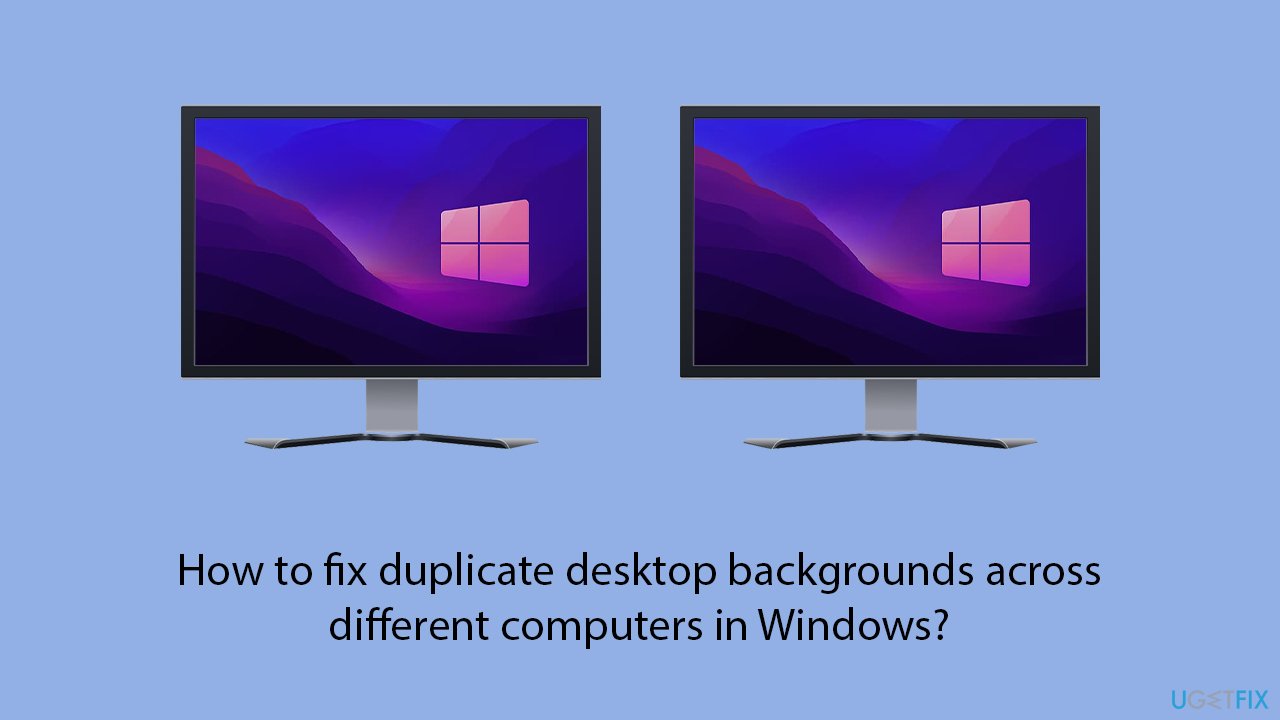
Method 1. Disable OneDrive desktop sync
In most cases, the sharing of desktop background is related to OneDrive settings. To adjust this, follow these steps:
- Click on the OneDrive icon in your taskbar and click Help & Settings (cogwheel).
- Select Settings.
- Pick Sync and backup section.
- On the right side of the window, click Manage backup.
- Disable Desktop and Pictures by toggling the switch to the left.
- Confirm with Stop backup.
- Finally, click the Save changes button.
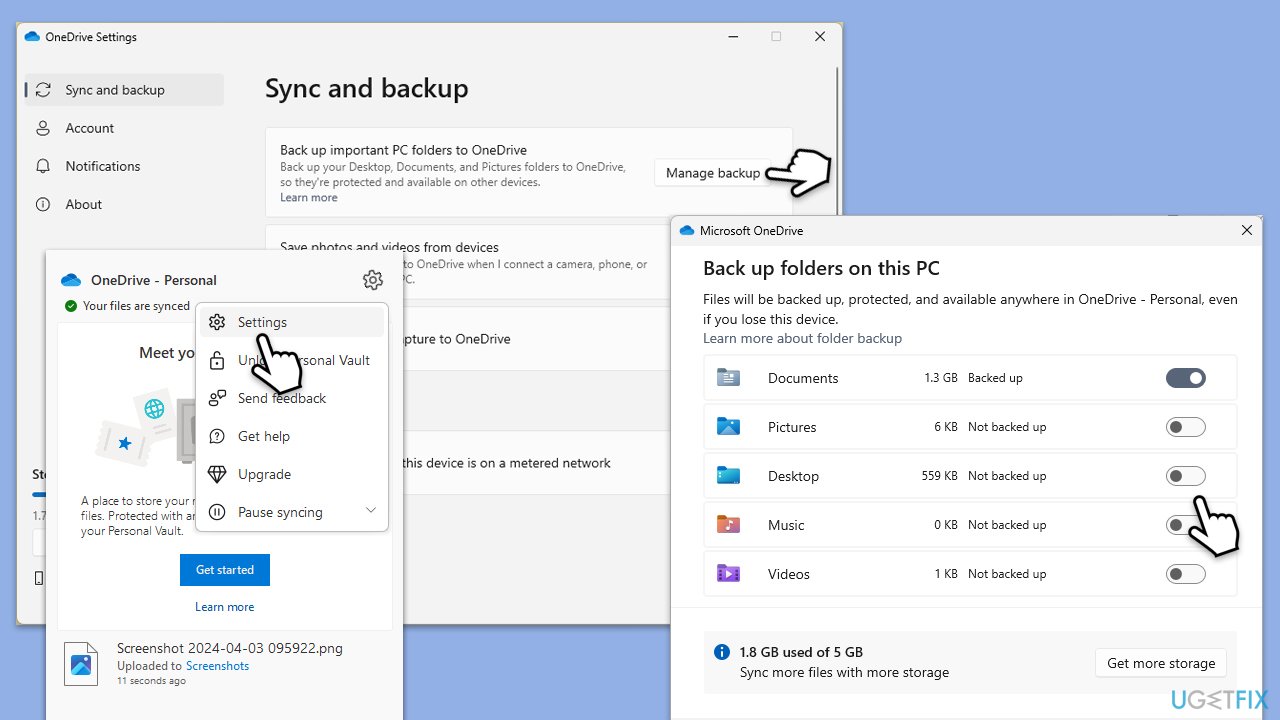
Method 2. Turn off sync in Accounts settings
This method involves stopping your devices from automatically syncing files and settings, which prevents the automatic updating of your desktop background across devices. By turning off sync, each device operates independently with its local files.
Windows 10
- Right-click on Start and pick Settings.
- Navigate to Accounts.
- Click on Sync your settings.
- Turn off the Sync Settings option.
- Alternatively, you can toggle off Theme.
Windows 11
- Open Settings.
- Go to Accounts and select Accounts on the right.
- Pick Windows backup.
- Expand Remember my preferences.
- Untick the Personalization checkbox - you can disable more options if you like.
Method 3. Use a different Microsoft account for each PC
Using separate accounts for each device ensures that settings and files, including desktop backgrounds, are not automatically shared. This approach helps maintain individual preferences and settings on each device.
- Boot the computer you don't want your background to be synced.
- Go to Settings.
- Click on Accounts.
- Select Email & accounts and sign in with a different Microsoft account for each device.
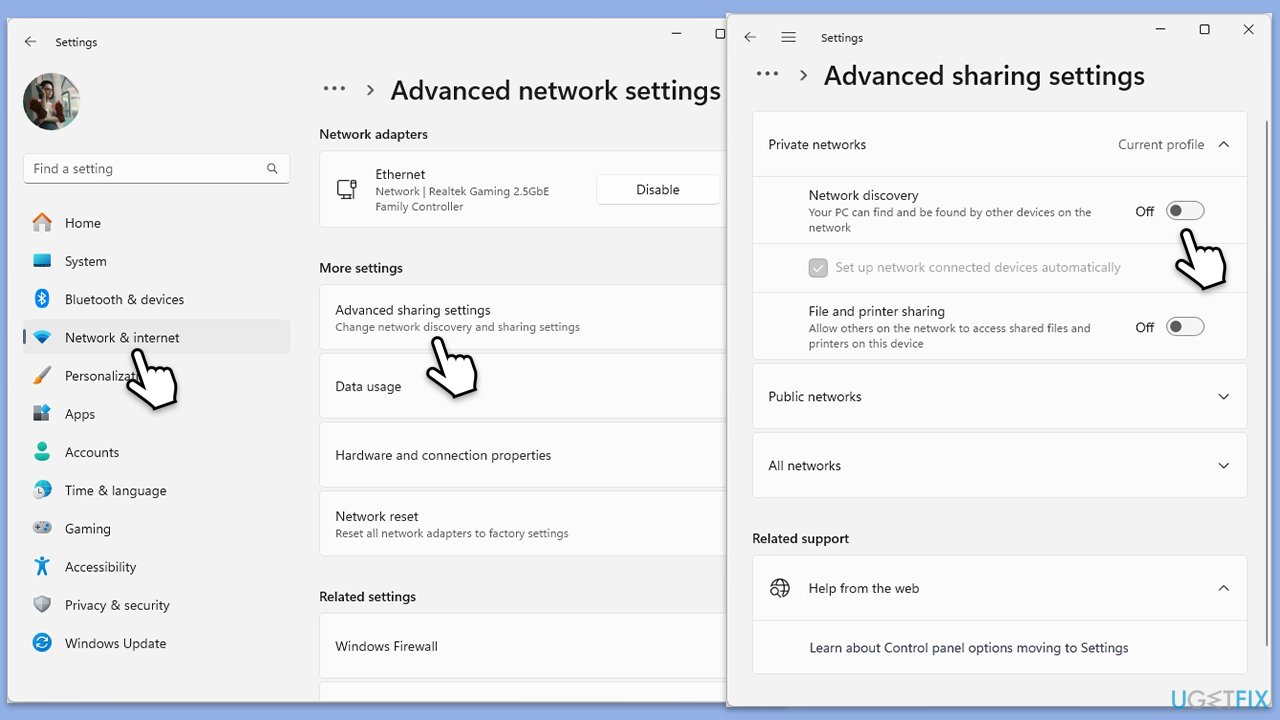
Method 4. Check network-sharing settings
Adjusting your network sharing settings can prevent other devices on the same network from accessing files or settings without permission. This control can be crucial for maintaining privacy and data integrity across your devices.
- Open Settings and go to Network & Internet.
- Select Advanced network settings > Advanced sharing settings.
- Ensure Network discovery is turned off to prevent devices from seeing each other.
- Turn off File and printer sharing to stop sharing files across the network.
- Choose Use user accounts and passwords to connect to other computers to increase security (Win 10).
- Save changes.
Bottom line
To fix duplicate desktop backgrounds, review and adjust synchronization settings in cloud services, inspect network sharing settings, and use separate user accounts for devices that should not share content. If these steps do not resolve the issue, consider using a maintenance and repair utility to help manage your system.
Frequently asked questions
To prevent duplicate desktop backgrounds, go to Settings > Accounts > Sync your settings and turn off the 'Theme' option on your Windows 10 devices.
In Windows 11, navigate to Settings > Personalization > Background and select a different wallpaper, then disable sync settings under Accounts > Sync your settings.
Yes, each user can set their own wallpaper by going to Settings > Personalization > Background, ensuring that the sync settings are disabled for each account.




Report an issue
What's wrong with this guide? We review every report and update or remove content.
Report received — thank you. We'll review and fix it.
You need a free account to submit a report.
Be the first to comment