How to fix
Flash not working in chrome incognito
on Windows
Resolve Flash issues in Chrome Incognito on Windows 10 and 11 effortlessly! Get expert-tested solutions that work instantly, with screenshots included.

Why does How to fix flash not working in chrome incognito occur?
- Adobe Flash is disabled by default in Chrome incognito mode
- Adobe Flash is no longer supported by major companies
- Security vulnerabilities in Adobe Flash
- Chrome 76 blocks Adobe Flash by default
- Users may not see the pop-up to enable Flash
Repairs Windows system files, removes malware, and restores a clean OS state — without reinstalling.
Hello. For some reason, Adobe Flash won't run when I'm in Chome incognito mode. Before I was able to go to chrome://plugins and just turn flash off and on, but I cannot do that when going incognito. Is Adobe Flash completely gone?
Adobe’s Flash Player is one of the most widely used web browser plug-ins allowing users to launch web games, animations, or even YouTube videos. Several years ago we could still have landed on many web domains powered by Flash. However, the cybersecurity news portal kept reporting about multiple Flash security vulnerabilities[ref en-1], which due to the easy exploitation of hackers, worked as a perfect medium to transmit viruses and malware.
Despite Adobe’s security measures to strengthen Flash’s security, the number of its exploits was uncontrollably increasing[ref en-2]. Steve Jobs was the fist who disabled Adobe Flash Player in 2010. Later on, companies, including Apple, Microsoft, Facebook, and Google officially announced the end of support for Adobe Flash in 2020.
In July 2019 Google released Chrome 76[ref en-3], which marked the block of Adobe Flash by default as the biggest change in the update. Since there are thousands of websites that are still relying on Flash, Google leaves them a chance to move away until December 2020.
Upon the release of Chrome 76, users of the browser flooded forums with concern about why they cannot view content on various web browsers. Instead of videos or other flash-supported content, they see a black window saying "click to enable Adobe Flash Player." The click triggers a pop-up window at the top-left corner next to a padlock icon near URL, which indicates the address of the visited website and provides allows selecting whether to Allow or Block Flash Player on it.
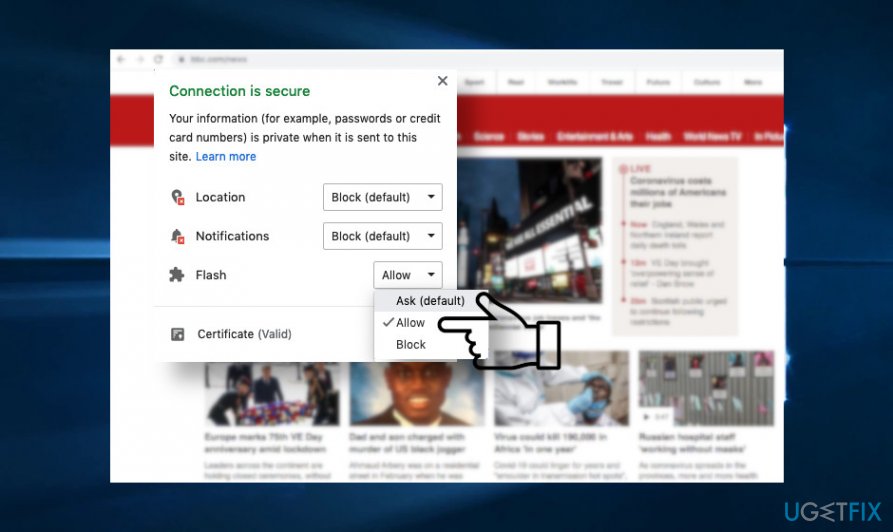
In some of the cases, you may not see the pop-up allowing Flash Player. Instead, a notification "Plugin blocked" at the Chrome's address bar may show. In this case, to enable flash player in Google Chrome, you should
- Click in the "Plugin Blocked" notification and select Manage option
- Open Settings and navigate to Advanced section
- Open Privacy & Security and heed to Site Settings
- Finally, open Flash and slide a toggle Ask first instead of Block sites from running Flash (recommended)
This way, Google Chrome will always display a pop-up warning that Flash Player is required to view the content and you will be able to enable it by one click directly on the notification. While most of the Google Chrome users are aware of this tweak, forums[ref en-4] are full of users' questions on how to enable flash in incognito mode.
Google Incognito, a feature presented in 2008, is a privacy option offering protection against browser-history tracking. As Google's Vice President of Chrome, Darin Fisher[ref en-5] explains, incognito makes it
easier and more convenient for people who share computers to do so without mucking up their devices with another user's cookies -- the temporary or permanent files stored on your computer by websites to help them recognize you and keep track of your preferences.
In other words, the new Chrome Incognito window is a blank page without recognizing user's website preferences, clicks, search queries, and so on. Therefore, even though you have enabled Flash on a website you want to visit in incognito, incognito calculates a site engagement score and treats as 0, thus surpassing permission to run flash.
Flash player not working in incognito issue makes it difficult for people to see the content of many websites. In some cases, changes browser's settings as explained above or clicking on the padlock icon and enabling Flash makes the website to reload, though the content still can't be viewed.
Was on "ask", i put it on "Always allow on this site", i reload (even restarting Chrome) but flash is not loaded.
Note that Flash gets enabled by default each time when Chrome is reloaded. Therefore, if you opened the browser and headed to incognito, you need to change the settings each time. There are two ways to bypass the restriction.
Change settings on Chrome
Those who are using Chrome flash not working incognito may be a tiresome experience. Going through the settings each time is disruptive, though there's no way out since it Google's decision. To enable the plug-in on your browser, you should perform these steps:
- Open Incognito window.
- Navigate to the website of your preferences. Click on the padlock icon on the top left side of the screen next to the URL window.
- Open Site Settings window.
- Find Flash and click on the arrow next to it.
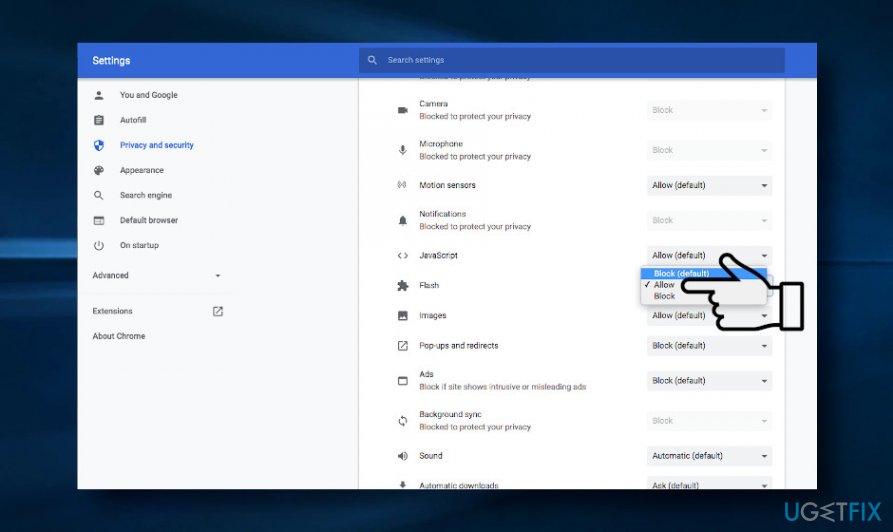
- Select the Allow option and do not reload the browser. Otherwise, you will have to repeat the steps.
In case Adobe Flash player remains disabled when browsing incognito, try this:
- Open Google Chrome
- Enter chrome://flags/#prefer-html-over-flash in the URL address bar
- Change the Prefer HTML over Flash dropdown box to Disabled
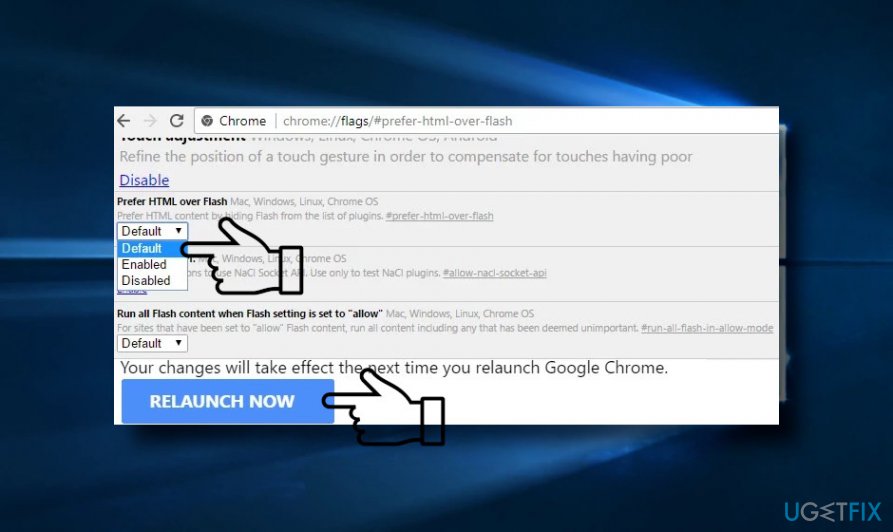
- If you did not find the option, open chrome://flags/#run-all-flash-in-allow-mode and disable HTML preference over Flash
Finally, you may find alternative third-party automated flash site enabler software. However, before trusting such programs, we strongly recommend taking precautionary measures and make sure it's safe to use.
Bottom line
To enable Flash Player in Google Chrome, you can click on the 'Plugin Blocked' notification and select the Manage option, then navigate to the Advanced section under Privacy & Security. If you still cannot enable Flash, consider checking your browser settings or looking for alternative solutions, as Flash support has been discontinued.
Frequently asked questions
Flash may be disabled in incognito mode due to Chrome's privacy settings. You can enable it by going to Chrome settings and adjusting site settings for Flash.
To enable Flash in incognito mode on Windows 11, open a new incognito window, go to Chrome settings, and modify the permissions under 'Site Settings' to allow Flash.
Ensure that your Windows 10 system is updated and that Chrome has permission to run Flash in incognito by checking both the Chrome settings and Windows firewall configurations.




Report an issue
What's wrong with this guide? We review every report and update or remove content.
Report received — thank you. We'll review and fix it.
You need a free account to submit a report.
Be the first to comment