How to fix
Missing partitions after installing Windows 10 Anniversary Update
on Windows
Resolve missing partitions after the Windows 10 Anniversary Update with our expert-tested solutions. Get your system back on track in minutes!

Why does How to fix missing partitions after installing Windows 10 Anniversary Update occur?
- Recognition failure of partitions
- Missing ISO files
- Bugs in the latest update
- Outdated drivers
- Registry system issues
Repairs Windows system files, removes malware, and restores a clean OS state — without reinstalling.
After installing the update, my partitions disappeared. There were important files there. Are they gone as well? Help me find a solution. Thanks.
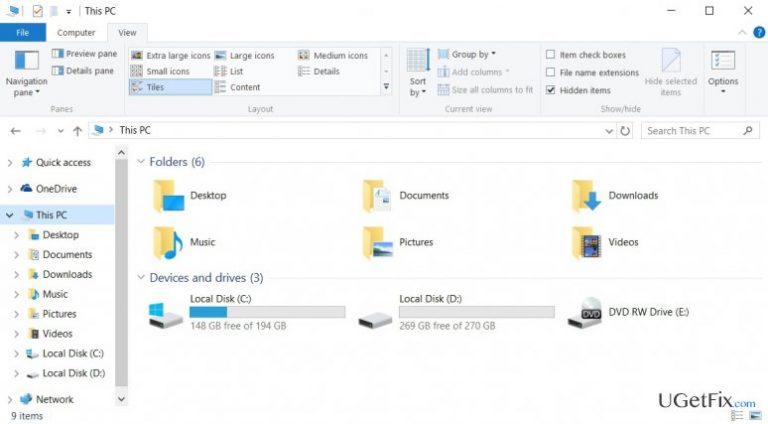
Disappearing partitions in Windows 10 after installing Anniversary update is another issue which Windows users face. Luckily, it is not a very spread problem. Nonetheless, suddenly missing partitions, where personal files were kept, might seriously alert and enrage any user. Let us assure that though it may seem that the entire partition has vanished, all your important files did not disappear. In order to recover both, the partitions and the data, you may attempt restoring the system. This option might not be practical as this function does not restore deleted partitions. It is useful when backing up files.
This phenomenon of disappearing partitions might be caused due to the recognition failure. In other words, the operating system might not recognize them. Alternatively, missing ISO files might be at fault for this occurrence. Likewise, you might need to reinstall the update by downloading its official files from their primary source. We will present you several solutions to recover the partitions and your files.
Option 1. Updating drivers
The bugs of the latest update might have interfered the interaction between the partitions and the system. Therefore, you might need to update Network card, Wireless Card, Video card, and HDD controllers drivers. Generally, Windows 10 installs the required updates automatically, but if you want to reinstall them, download the drivers from their official manufacturers. Avoid downloading them from secondary distributors as you might install a potentially fraudulent application. Lastly, it would be practical to check your the state of your registry system with [rev id=”RegCure Pro”].
Option 2. Reinstalling the Anniversary Update
If ten days have not passed after the installation of the Anniversary Update, restore your computer to the previous state.
- Click Start button. Enter the Settings section.
- Afterward, navigate to Update & Security and choose Recovery.
- Select the option to return to the previous state by clicking Go back to an earlier build.
Microsoft has committed to removing the issue. In case, the update has reached you quite recently and you still encountered the partition problem, try the above-mentioned methods and check the official Microsoft page whether they have published the suitable patch for this problem.
Bottom line
To fix missing partitions after the Windows 10 Anniversary Update, you can update your drivers, reinstall the update, or restore your computer to a previous state. If these solutions do not resolve the issue, consider seeking further assistance or professional help.
Frequently asked questions
First, check the Disk Management tool to see if the partitions are hidden or unallocated. If they are not visible, you may need to use a partition recovery tool to retrieve them.
Yes, you can try using the built-in Command Prompt to run diskpart commands, but this may require more advanced knowledge of partition management.
Performing a system restore can potentially recover lost partitions, but it may also lead to other issues, so ensure you back up your data before proceeding.




Report an issue
What's wrong with this guide? We review every report and update or remove content.
Report received — thank you. We'll review and fix it.
You need a free account to submit a report.
Be the first to comment