How to fix
System using too much data
on Windows
Optimize your Windows 10 or 11 settings to reduce data usage effectively. Get actionable tips and expert-tested solutions for data management.


Why does How to fix System using too much data in Windows occur?
- Windows Updates
- Telemetry
- Synchronization
- App Updates
Repairs Windows system files, removes malware, and restores a clean OS state — without reinstalling.
I am on a limited data plan, and ever since I upgraded to Windows 11, I've noticed that I use a lot of data in the background. I did some research, and it turns out that System is using almost a third of my monthly allowance. Is there a way to limit this data usage?
Internet data has become an integral part of our daily lives, with a vast majority of activities, ranging from work to entertainment, relying on it. However, not everyone has the luxury of unlimited data. There are many users globally who operate on metered or limited data plans. Overuse can lead to additional charges or throttled speeds. For these users, every megabyte counts.
It becomes particularly concerning when, upon checking their data usage, they find "System" consuming a substantial amount of their data, especially on Windows 11 machines. But why does the System component use so much data?
Windows, especially its latest versions, is designed to stay updated, efficient, and secure. To achieve this, there are numerous background activities and processes it constantly runs. Some of these include:
- Windows Updates. Windows periodically checks for and downloads updates. These can be sizable, especially if it's a major update.
- Telemetry. Windows sends diagnostic data to Microsoft to improve the operating system's performance and security. This uses data in the background.
- Synchronization. If you use Microsoft services like OneDrive, Windows may sync your files, settings, and other data in the background.
- App Updates. Windows Store apps can automatically update themselves, which can use up a significant amount of data.
For users on a tight data budget, these activities can be problematic. Fortunately, Windows provides options to limit or even prevent excessive data usage by the System. There are settings that allow users to set their connection as "metered," thereby reducing background data activities. Additionally, users can manually manage which apps can run in the background and update.
To simplify the optimization process, users can consider using [d1] optimization software. This software is designed to optimize and repair various Windows issues automatically, providing a seamless experience while preserving data.
Fix 1. Set your connection as metered
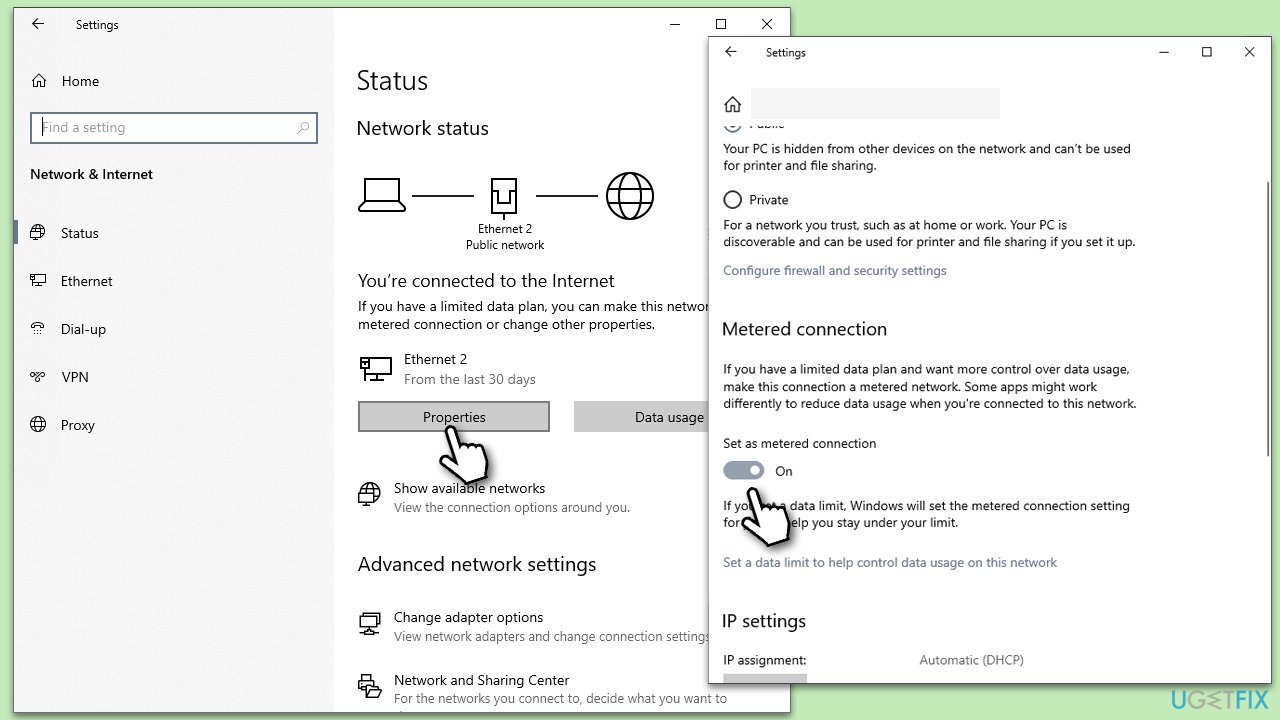
This feature informs Windows you're on a limited data plan. When active, it restricts large updates and other high-data tasks.
- Press Win + I to open Settings.
- Navigate to Network & Internet.
- Depending on your connection, click on Wi-Fi or Ethernet.
- Select Properties.
- Scroll down to find the Set as metered connection option and toggle it on.
Fix 2. Disable background apps
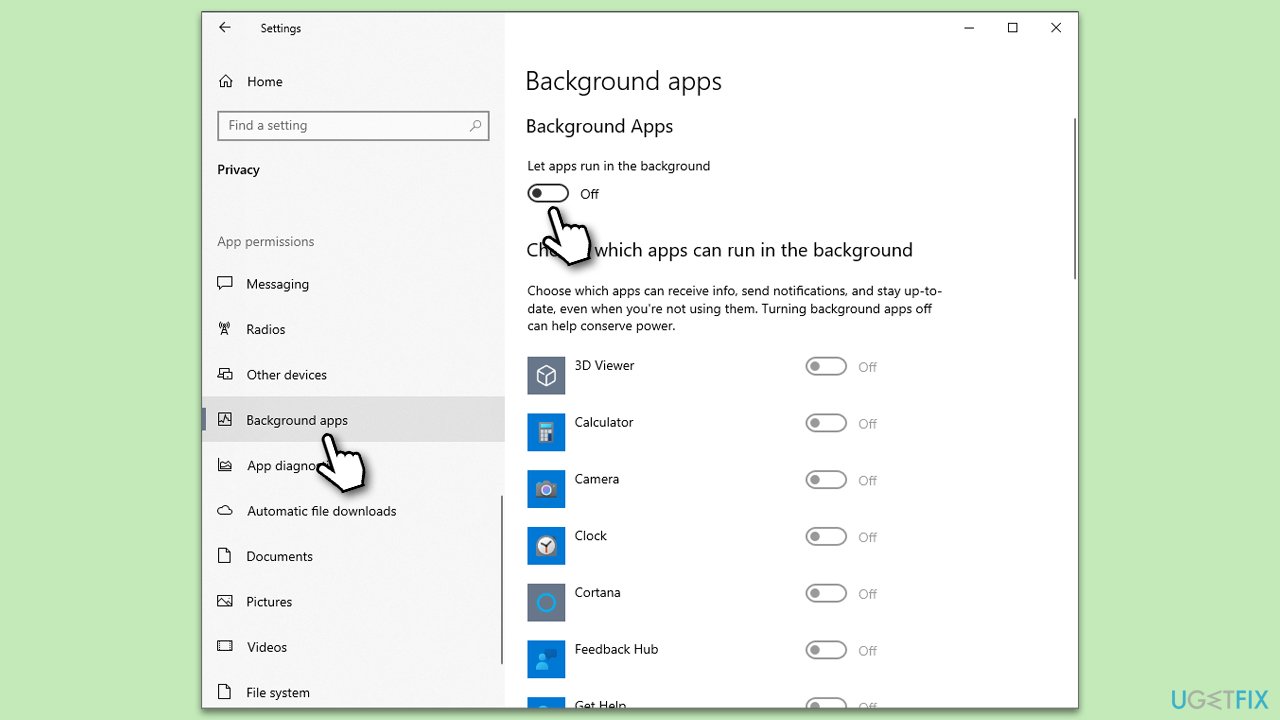
Apps can consume data in the background without your active use. By disabling unnecessary ones, you can save data.
- Press Win + I to open Settings.
- Go to the Privacy section.
- From the left sidebar, choose Background apps.
- A list of all apps will appear. Toggle off those you wish to prevent from running in the background.
Fix 3. Manually manage Windows updates
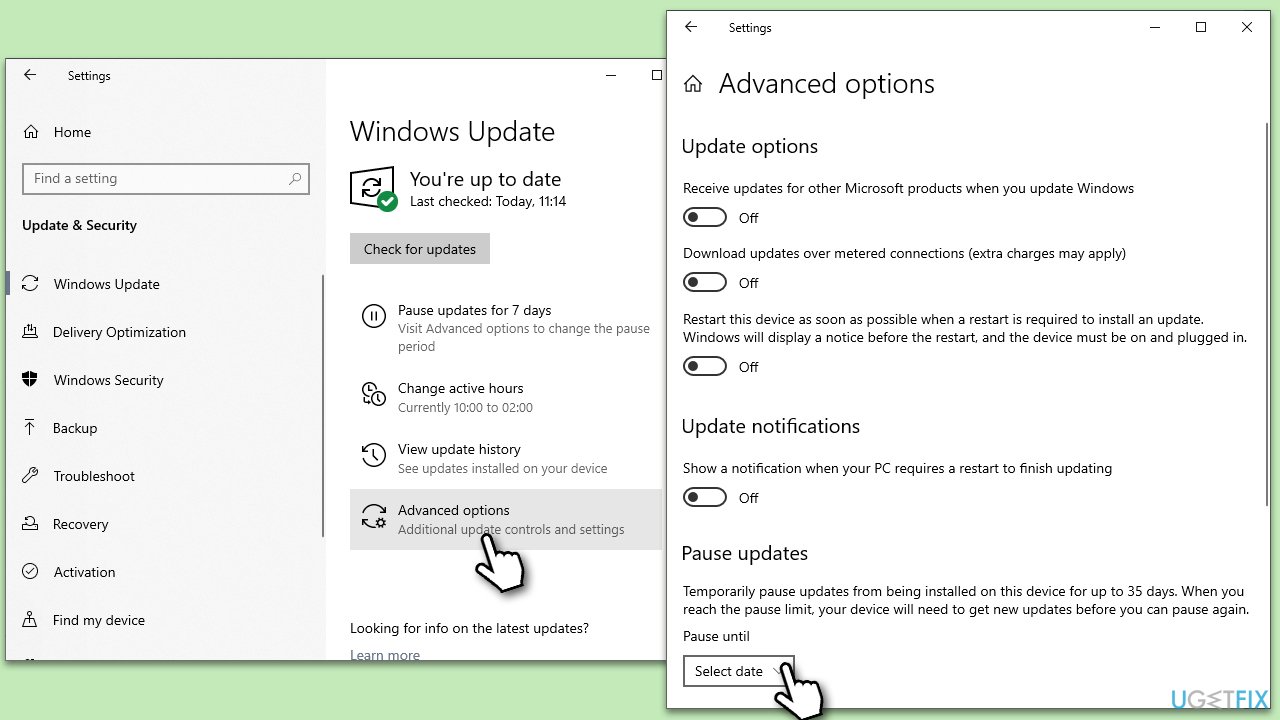
Updates can be sizable. By setting them to manual, you control when to download and install, avoiding surprises in data consumption.
- Press Win + I to open Settings.
- Navigate to Update & Security, then Windows Update.
- Click on Advanced options.
- You can either Pause updates for a limited time (you can redo this again later) or simply disable all the switches.
Fix 4. Restrict app updates
Automatically updating apps can consume data. Control this by disabling auto-updates.
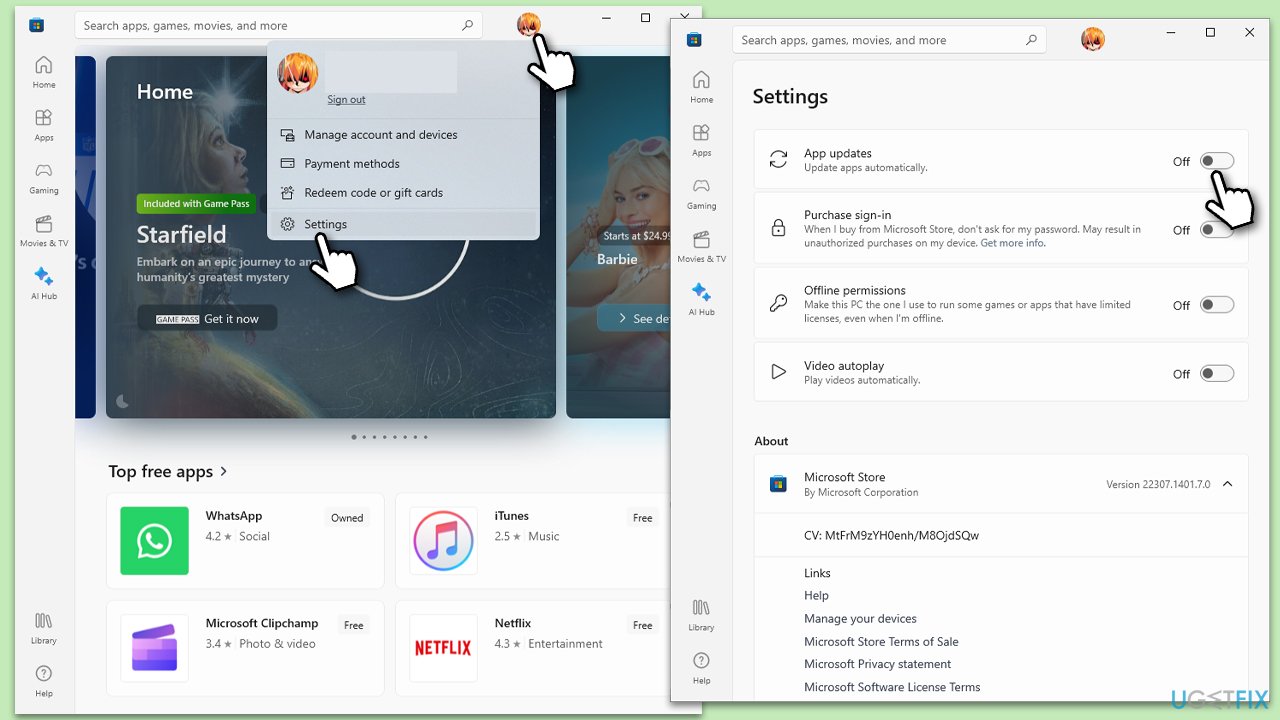
- Open the Microsoft Store from your start menu.
- Click on your profile icon in the upper right.
- Select Settings.
- Under App updates, toggle off Update apps automatically.
Fix 5. Turn off OneDrive synchronization
OneDrive auto-sync can use substantial data. Adjust the settings to prevent unwanted syncs.
- In the taskbar notification area, find and right-click on the OneDrive cloud icon.
- Select Settings.
- Under the Account tab, click on Choose folders.
- Deselect folders you don't want to sync automatically.
Fix 6. Disable live tiles
Live tiles actively update content, leading to data use. Turn them off to conserve data.
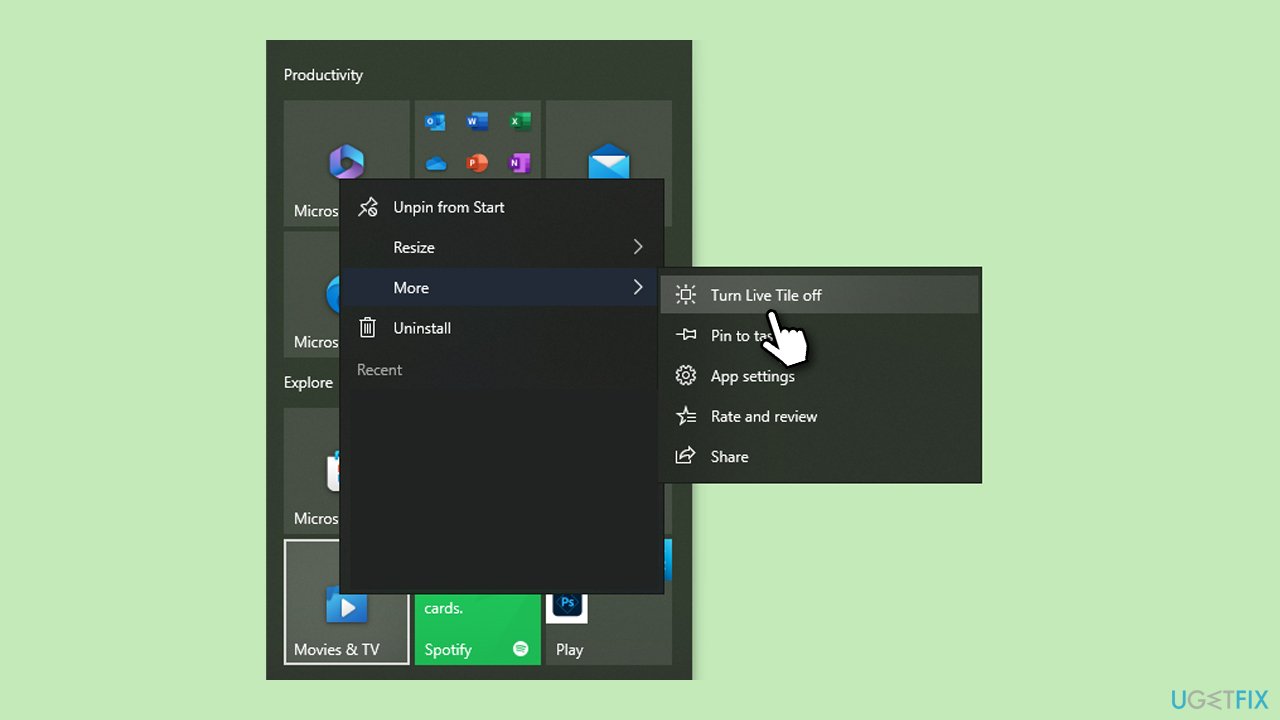
- Click on the Start button to open the Start menu.
- Find a tile that shows real-time information. Right-click on it.
- Choose More, and then select Turn live tile off.
Fix 7. Change telemetry settings
Windows sends diagnostic and usage data. Reduce this data by adjusting the feedback settings.
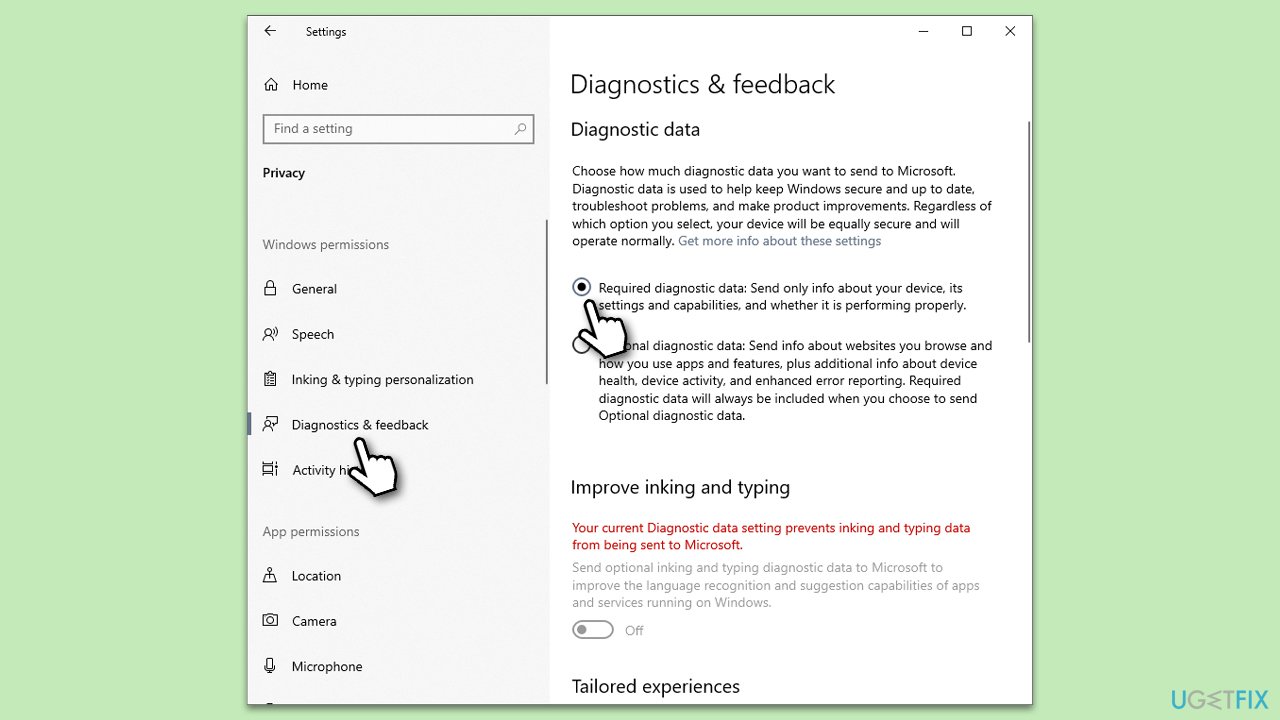
- Press Win + I to open Settings.
- Go to Privacy, then Feedback & diagnostics.
- Under Send your device data to Microsoft, select Required diagnostic data to limit the data sent.
If you would like to disable Telemetry completely, you will have to modify Group Policy settings as follows:
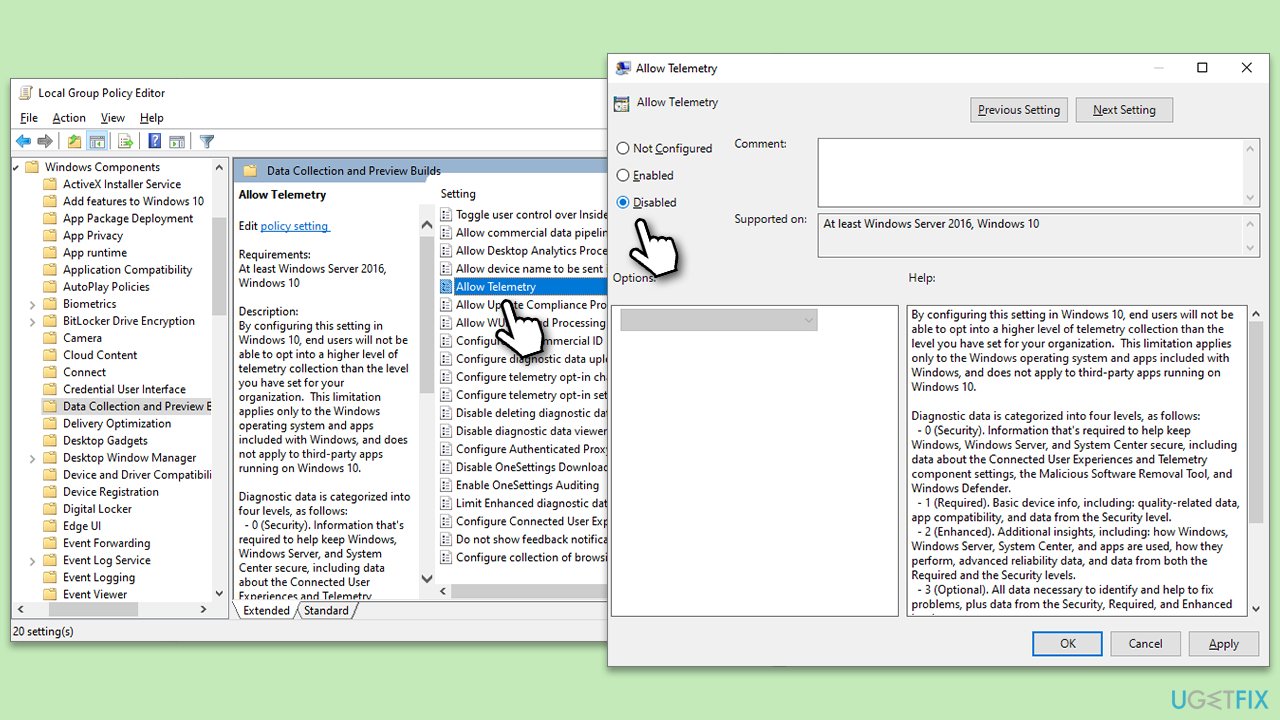
- Type Group Policy in Windows search and press Enter.
- In the new window, navigate to the following location:
Computer Configuration > Administrative Templates > Windows Components > Data Collection and Preview Builds. - In the right pane, locate Allow Telemetry and double-click it.
- Select Disabled.
- Click Apply and OK, then restart your PC.
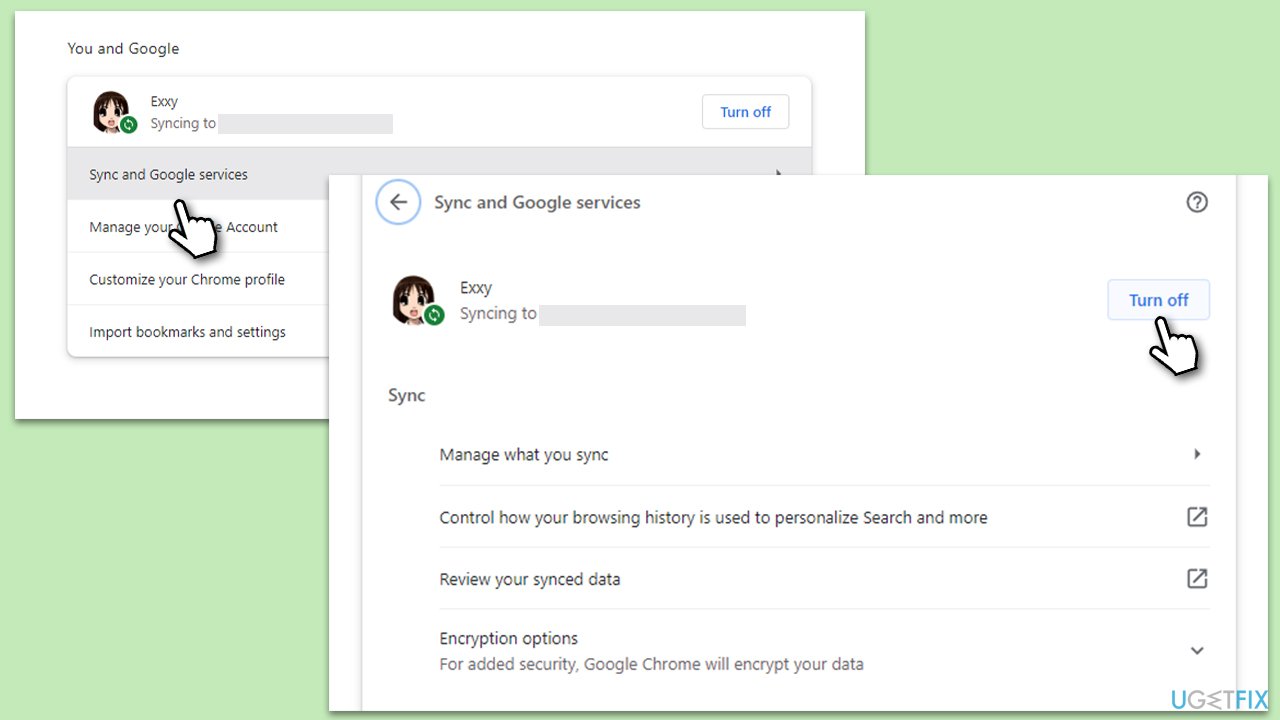
Fix 8. Pause syncing in browsers
Browsers can sync bookmarks, history, and more. Control this to save data.
- Open your browser (e.g., Microsoft Edge, Chrome).
- Go to Settings or Options.
- Look for "Sync" or similar settings and choose what you want to sync or pause syncing altogether.
- In Chrome, for example, you can selectively disable which apps are being synced.
Fix 9. Configure update delivery options
Windows can share updates with other PCs, consuming data. Control this feature to restrict data use.
- Press Win + I to open Settings.
- Navigate to Update & Security, then Windows Update.
- Click on Advanced options.
- Go to Delivery Optimization.
- Ensure Allow downloads from other PCs is off.
Bottom line
To limit data usage by the System in Windows, users can set their connection as 'metered' and manage which apps can run in the background and update. Additionally, using optimization software can help automate the process. If these solutions do not resolve the issue, further investigation may be necessary.
Frequently asked questions
Excess data usage on Windows 10 can be caused by background updates, syncing applications, or certain programs consuming more bandwidth than expected. Check your data usage settings to identify which apps are using the most data.
In Windows 11, you can limit background data usage by going to Settings > Network & Internet > Data Usage and selecting the app you want to restrict. You can set it to 'Background data' to limit its activity when you're on a metered connection.
To reduce data usage on Windows, consider disabling automatic updates, turning off background apps, and using a metered connection. Additionally, adjusting your privacy settings can help limit apps from accessing your data.




Report an issue
What's wrong with this guide? We review every report and update or remove content.
Report received — thank you. We'll review and fix it.
You need a free account to submit a report.
Be the first to comment