How to fix
Windows 10 Automatic Repair Loop issue
on Windows
Resolve the Windows 10 Automatic Repair Loop hassle quickly and efficiently. Get expert-tested solutions to fix your system in minutes!

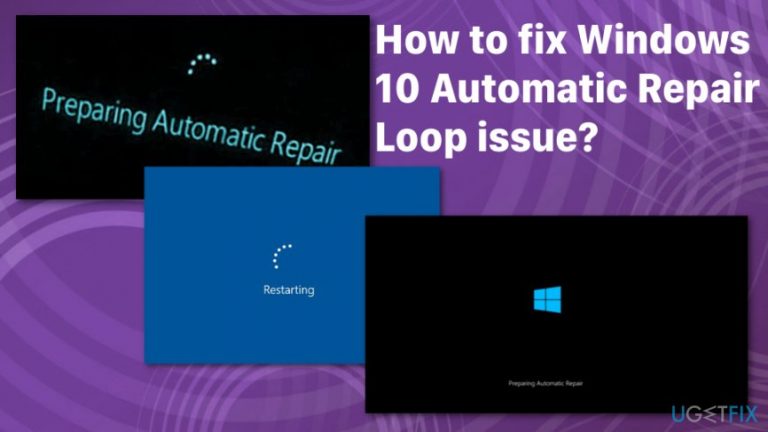
Why does How to fix Windows 10 Automatic Repair Loop issue occur?
- Corrupted or damaged Windows 10 ISO files
- Malfunctioning hard drives
- Missing registry keys
- Complex malicious rootkits
- Mismatches between Windows Defender and anti-malware tools
Repairs Windows system files, removes malware, and restores a clean OS state — without reinstalling.
After I turned on my PC, Windows 10 loading took much more time than usual. That is why I restarted the device. A message appeared that Windows could not start normally and that Windows Automatic Repair will fix the solution. However, after an hour, when the supposed repair process finished, a new notification appeared declaring that the problem could not be solved. Now I can‘t normally restart the computer. It would be a big help as my computer is frozen in this state already for a couple of days.
The main cause of Windows 10 Automatic Repair loop issue might be the corrupted or damaged Windows 10 ISO files.[ref en-1] Specifically, other factors such as malfunctioning hard drives, missing registry keys or even complex malicious rootkits might cause the issue. This issue is one of many other Windows bugs and errors that online users report often.[ref en-2]
Additionally, if you have updated your system to Windows 10 Anniversary Update, there might be some mismatch problems between Windows Defender and your preferred anti-malware tools. Though Microsoft has improved the protection of an operating system, some users might face boot problems due to these interferences of additional security application and Windows OS itself.[ref en-3]
Since the main cause of Windows 10 Automatic Repair loop might vary in each case, we present several solutions for you to solve the issue. Make sure to try at least a few methods before giving up completely. Waiting out for the loop to end is rather useless, so reliable methods should help fix the issue without Windows repair.
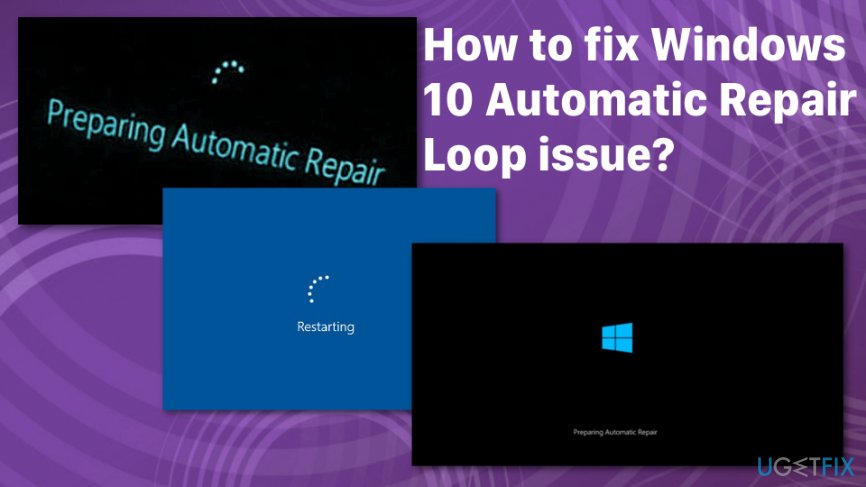
You may encounter various messages regarding this Windows 10 Automatic Repair Loop issue, but this error message means the same thing and you can fix the Automatic repair loop issue yourself.
Windows 10 Automatic Repair loop issue shows:
Preparing Automatic Repair
Automatic repair couldn't repair your PC
You may encounter various messages regarding this Windows 10 Automatic Repair Loop issue, but this error message means the same thing and you can fix the Automatic repair loop issue yourself.
Methods to fix Windows 10 Automatic Repair Loop issue
Windows 10 Automatic Repair Loop issue can be fixed, but since this is a common bug there are many possible reasons and fixes for it. Firstly, we should note that Windows is a popular operating system that has many flaws that need to be patched occasionally. Also, recovery may cause problems. Use [rev id=”Reimage”] as your initial method and can the machine. This way the system can be checked for malware or corrupted files.
Besides this automatic system check, you can employ System Restore feature for the recovery and OS issue removal. Also, Command Prompt allows running a system file check and disk check scans. We prepared more in-depth methods for Windows 10 Automatic Repair Loop issue. Try all of them to end the frustration. 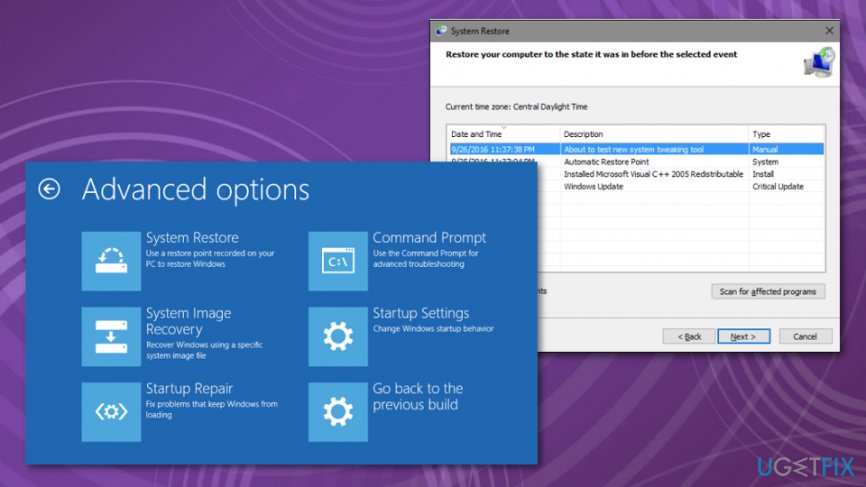
Restore Windows Registry to fix Windows 10 Automatic Repair Loop issue
- Go to Advanced options and Troubleshoot.
- Under Advanced Options choose Command Prompt.
- Enter the following and press Enter:
copy c:windows\\system32\\config\\RegBack* c:windows\\system32\\config - When you get asked to overwrite files, type All and press Enter.
- Type exit and press Enter to exit the Command Prompt.
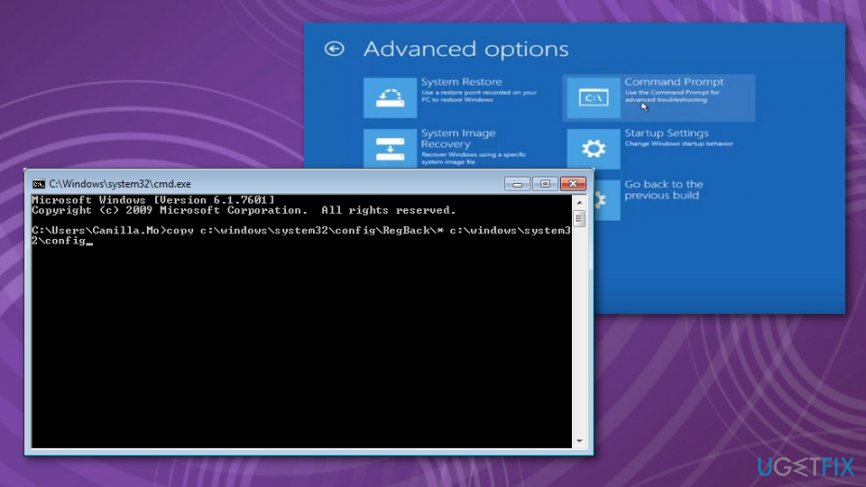
How to fix windows 10 automatic repair loop issue command prompt
Disable Early Launch Anti-Malware protection
In case, the issue is triggered by above-discussed factors, you might need to follow these instructions to enable the usual boot of the device.
- Type “Advanced startup options” after clicking the “Start” button and enter them. Note you need to be logged in as the administrator in order to access advanced startup options.
- Type Command Prompt. In the newly opened window, type this:
bcdedit /set {globalsettings} advanced options true - This will enable you to access the advanced options. In the list locate “Disable early launch anti-malware protection.” Activate this option. Afterward, you should be able to restart the system.
Here is an alternative way to access boot time options. After rebooting the system a couple of times, you should be granted the option to access boot options.
- In the Boot Menu, opt for Troubleshoot, Advanced Options, and then Startup Settings.
- After the device restarts, you see the list of possible options.
- Locate Disable early launch anti-malware protection. Press it and then reboot the computer.
Reinstall the Windows 10 ISO file and fix Windows 10 Automatic Repair Loop issue
Download the ISO file from the official Microsoft website. Burn it into a DVD or USB and reinstall Windows. You might also try reformatting your disks. However, as we have mentioned, the cause of this phenomenon might differ. If this solution takes no desired effect, proceed to further repair methods.
Checking the hard drives
Due to possible malware infection or a system crash, some local drives might have lost essential files necessary for proper operation of the system. In order to check for missing files and restore them, you may install [rev id=”Reimage”]. This utility is specifically designed for dealing with corrupted and damaged system files. Additionally, you might try removing and inserting the hard disk. System Reset might be an option as well. You can find it in the advanced boot settings.
Bottom line
To resolve the Windows 10 Automatic Repair Loop issue, you can try several methods such as checking hard drive health, repairing registry entries, or addressing conflicts with security applications. If these solutions do not work, consider seeking professional help or reinstalling Windows.
Frequently asked questions
The Automatic Repair Loop in Windows 10 is often caused by corrupted system files, recent updates, or hardware issues that prevent the OS from booting properly.
You can access Advanced Startup Options by interrupting the boot process three times, which will prompt Windows 10 to enter recovery mode where you can troubleshoot the issue.
Yes, performing a system restore can help resolve the Automatic Repair Loop by reverting your system settings to a previous state before the issue occurred.




Report an issue
What's wrong with this guide? We review every report and update or remove content.
Report received — thank you. We'll review and fix it.
You need a free account to submit a report.
Be the first to comment