How to fix
Windows 10 synchronization error “0x8500201d”
on Windows
Resolve the Windows 10 sync error "0x8500201d" easily. Get expert-tested solutions to optimize your settings for smooth performance. Fixed in minutes!

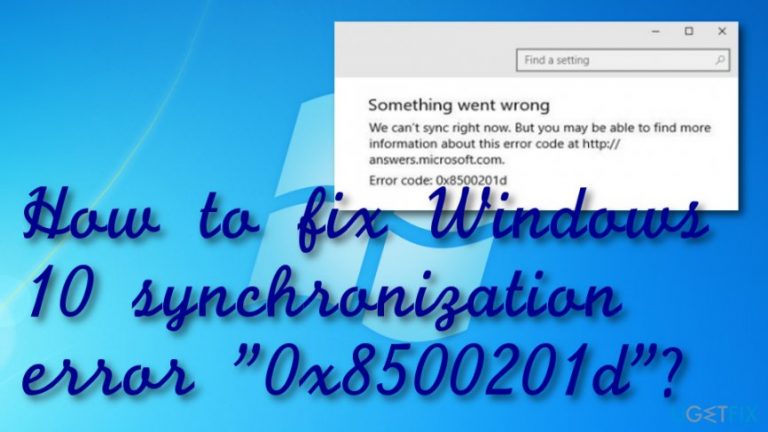
Why does How to fix Windows 10 synchronization error “0x8500201d” occur?
- Recent Outlook update
- Windows 10 Anniversary Update
- Issues with the integrated Mail application
- Problems with synchronization settings
- Corrupted user account settings
Repairs Windows system files, removes malware, and restores a clean OS state — without reinstalling.
Lately, Windows 10 stopped synchronizing with the email accounts. I tried managing the synchronization settings but no improvements so far. Any ideas on how to solve this problem?
Windows 10 synchronization error 0x8500201d often occurs when attempting to synchronize Outlook.[ref en-1] Users might encounter such a message which says that something went wrong and that the application fails to synchronize at that moment. This phenomenon might have caused by the recent Outlook update.
Additionally, some users, who installed Windows 10 Anniversary Update,[ref en-3] might have run into such notification as well. Others reported that the integrated Mail, which manages your email account, started also to display 0x8500201d error. Therefore, you might have attempted to reset the settings.
Like many other similar problems, there are solutions to this one as well. If your efforts did not bring wanted results, take a look at our recommended methods. Windows 10 synchronization error 0x8500201d might be fixed by using the following techniques or you can try scanning the entire system for possible issues with reputable antimalware.[ref en-2]
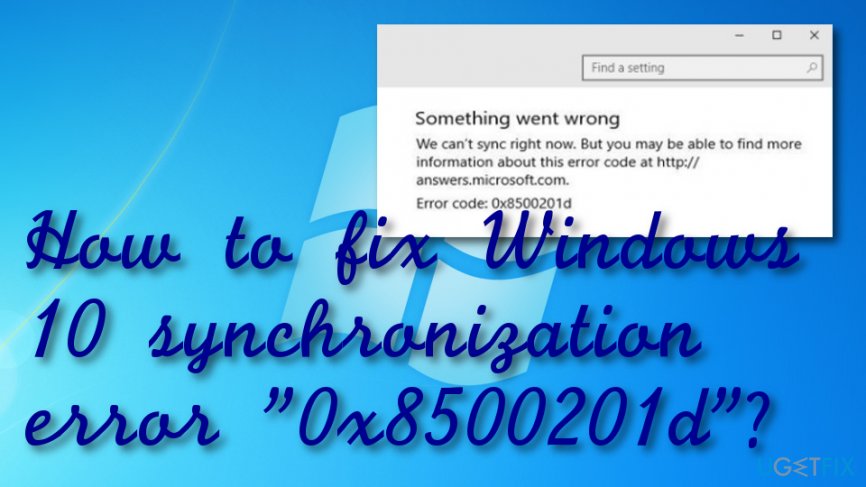
How to fix Windows 10 synchronization error "0x8500201d"?
Option 1: Add your Outlook account again
In order to empower the synchronization, you might need to delete the added Outlook account and then add the same again. This option might also work on you encounter the same message in Mail.
- Locate the mail program.
- Enter Settings.
- Click the Manage Accounts button.
- Choose your account and delete it.
- Open the mail application and add the account again.
Option 2. An alternative way to manage the account
There is also a bit different way to synchronize the account. The initial steps are the same.
1. Launch the app and navigate to Settings.
2. Later on, click on Add account. Type correct credentials and add the account.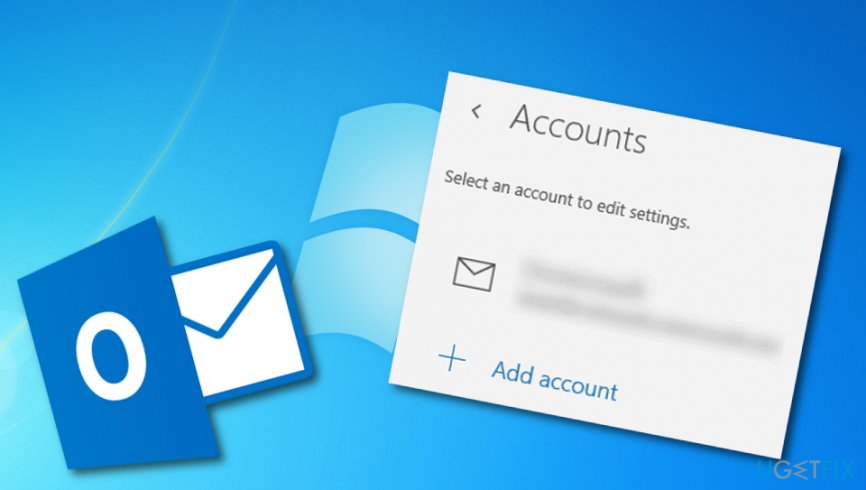
3. Launch the Mail app and choose Settings. Then, navigate to Manage Accounts and select your account. Click Disable Contact sync there. After completing these steps, exit the program and launch it again. The synchronization should work again.
Option 3. Troubleshoot the operating system
If the above-mentioned solutions did not help, it is likely that the problem lies not in the very applications. Errors in Microsoft servers might be the cause of this occurrence and synchronization failure. Besides using the integrated functions of troubleshooting, you can also check your system for possibly missing files with [rev id=”Reimage”].
Option 4. Clean boot your computer system
If the previous methods were not found successful in the removal of error 0x8500201d, you can try the following instructing steps and perform a clean boot for your machine:
- Go to the Windows Start menu.
- Launch Search and type in "msconfig".
- Choose the option that says "System Configuration".
- Access the Services tab.
- Select the checkbox near Hide all Microsoft services.
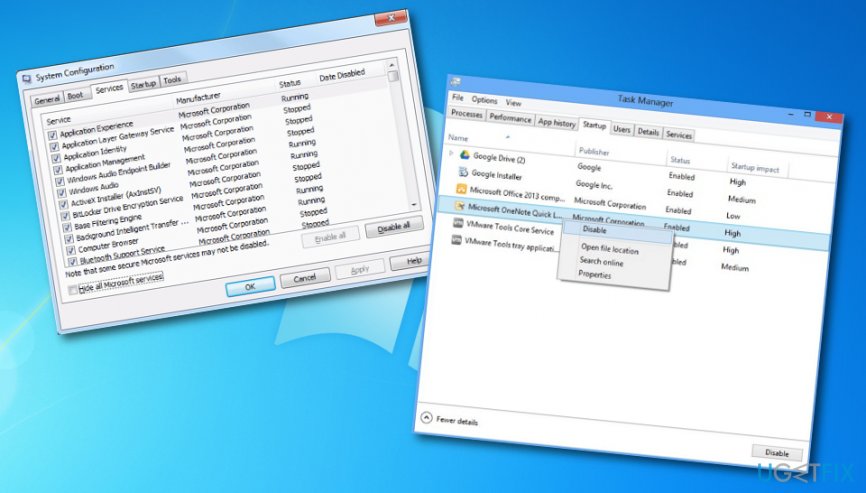
Fixing option - Afterward, go to Startup tab and open your Task Manager tool.
- Enter the Startup tab in your Task Manager and click Disable for all items placed there.
- Save changes in System Configuration by selecting OK.
- After you finish these actions, restart your computer.
Bottom line
To fix the Windows 10 synchronization error '0x8500201d', you can try adding your Outlook account again, managing the account settings differently, or troubleshooting the operating system. If these methods do not resolve the issue, consider scanning the system for possible problems with reputable antimalware.
Frequently asked questions
The error code '0x8500201d' typically indicates a synchronization issue with your Microsoft account or Outlook settings in Windows 10.
To resolve synchronization errors, you can try resetting your Microsoft account settings or re-adding your account through the Settings app in Windows 10.
Yes, clearing the cache for the Mail app in Windows 10 can help fix the '0x8500201d' synchronization error by refreshing the app's data.




Report an issue
What's wrong with this guide? We review every report and update or remove content.
Report received — thank you. We'll review and fix it.
You need a free account to submit a report.
Be the first to comment