How to fix
Windows 7 won’t update
on Windows
Resolve Windows 7 update issues effortlessly. Discover expert tips to optimize settings and get your system running smoothly again. Fixed in minutes!

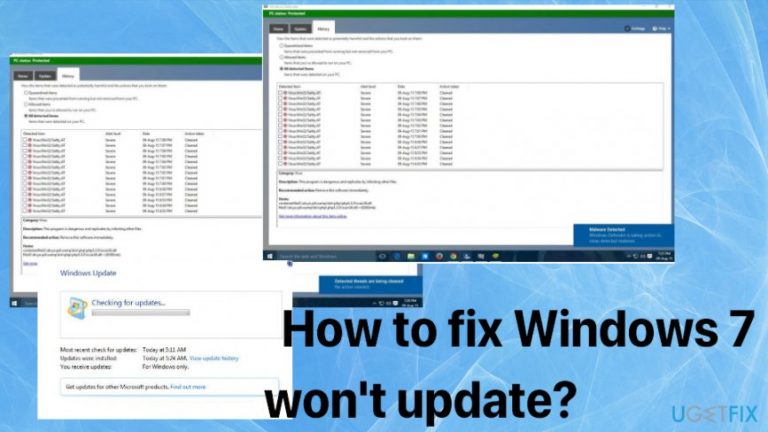
Why does How to fix Windows 7 won’t update occur?
- User settings preventing updates
- Fresh Windows 7 install issues
- Automatic updates turned off
- Vulnerabilities in the OS
- Errors during the update process
Repairs Windows system files, removes malware, and restores a clean OS state — without reinstalling.
Hey. I think that Windows updates should happen in the background, but my Windows 7 won't properly update. Checking for updates takes too long and download/install fails. It is totally unexpected and I don't know what to do to get it properly to update. Why this is happening and how to fix that?
Windows Updates typically happen quickly with zero issues because the system can install an update on its own, and the OS is up-to-date without users' interference or frustration. However, sometimes user settings or other issues with the machine prevent this process from running as it supposed to. Users[ref en-1] claim that is is a pretty common problem that affects people.
Fresh Windows 7 install won't update to a later version or the process stops working in the middle. There are ways to fix the update that got stuck or frozen or the procedure that is not happening properly in the first place. Sometimes such OS updates show errors and freezes on the searching for updates part forever.[ref en-2]
Updating your devices is important, and when you can't update Windows 7 to a later version or upgrade any of your programs it typically gets frustrating. There are various problems that can trigger such troubles with Windows Updates and affect the performance significantly.
The question of why can't I update Windows 7 is a typical one because some people turn off the automatic updates and forget about it. Actually, it is not recommended by experts and malware researchers, because you can't avoid malware interactions. When there are some vulnerabilities in your OS, and you are not updating the system automatically, you leave the machine vulnerable to new attacks and exploitation of those flaws that didn't get patched properly.[ref en-3] 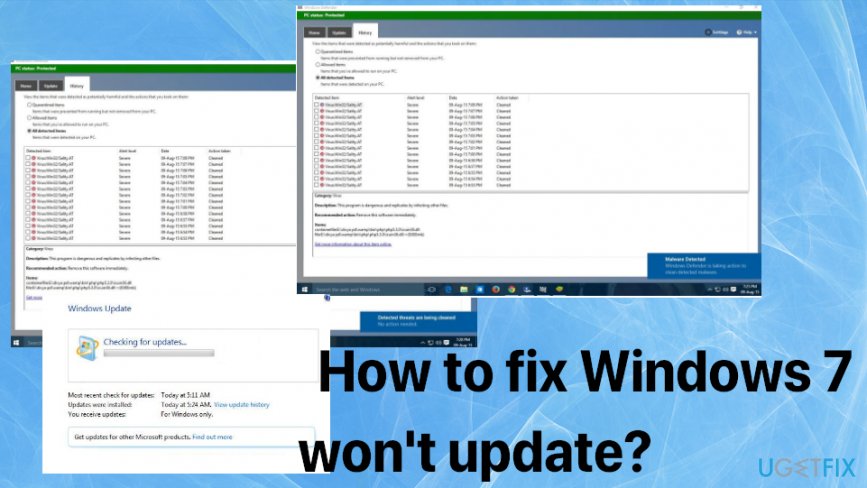
How to fix Windows 7 won't update
In most cases, Windows updates happen smoothly and didn't cause any issues. But when it is not downloading properly, and the process gets stuck on Checking for updates step or stops working entirely it is not possible to achieve what you wanted. The only answer that is certain for the question of what is the reason behind such issue - malware is not responsible for the issue when the system can't update Windows 7. You may need to troubleshoot to find the particular issue and fix it or clear some laces like cache, check Windows Update service, add some disk space. You can also try to automatically repair some OS files by running the software like [d1]. If that is not helping, rely on manual methods listed.
Run the Troubleshooter
- Go to Control Panel.
- Then Troubleshooting and Update Troubleshooter.
- See if there are some issues found or fixes for the problem.
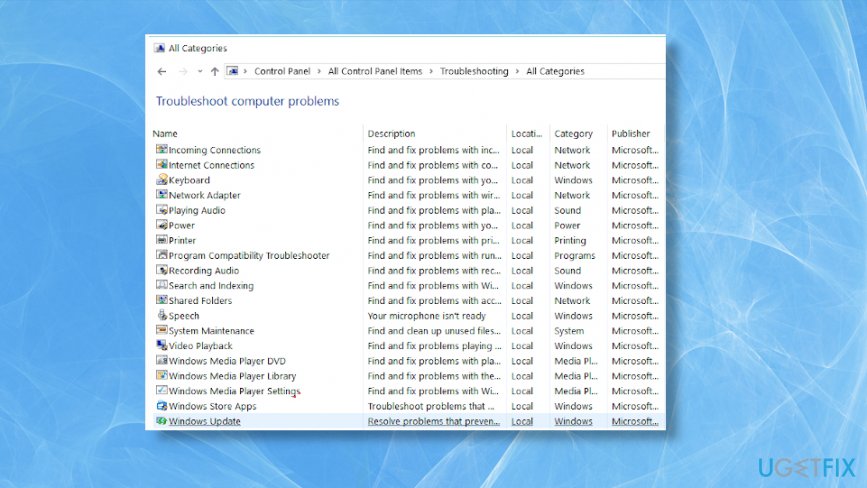
How to fix windows 7 wont update update service
Restart the BITS service to fix Windows 7 won't update
- Click Start to open the Start menu and open Control Panel from the Administrative Tools folder.
- Then find Administrative tools.
- Open Services.
- Right-click the Background Intelligent Transfer Service.
- Click Properties.
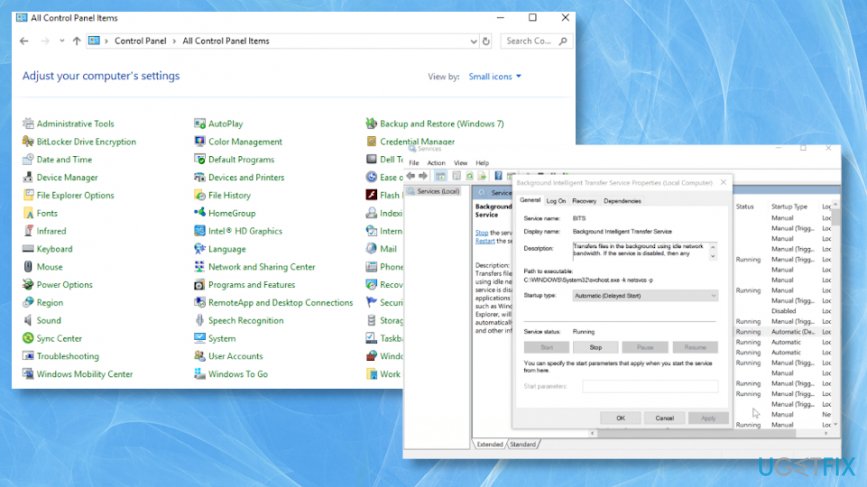
How to fix windows 7 wont update startup - Choose the General tab and then Startup type.
- Make sure to select Automatic option.
- Check Start under the Service Status.
- Click OK.
- Restart the PC to save everything.
Tweak the Windows registry
- Open the Registry Editor.
- Follow the path: HKEY_USERS\\.DEFAULT\\Software\\Microsoft\\Windows\\CurrentVersion\\Explorer\\User Shell Folders
- Make sure that the value of AppData is
%USERPROFILE%\\AppData\\Roaming. Change it to this value, if not.- Close and try to update the OS again.
Free Disk space
- Search for the Disk cleanup and runt he program.
- Then choose the drive you want to clean up and press OK.
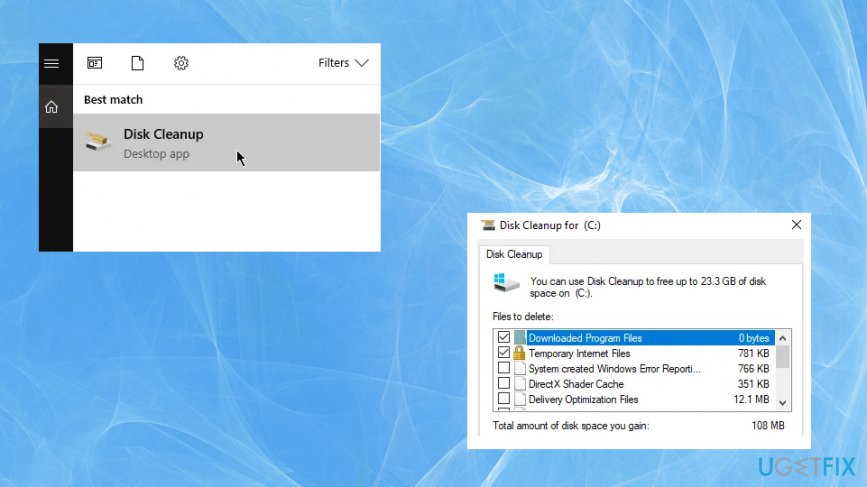
How to fix windows 7 wont update disk cleanup - Allow the scan and delete some files that can be deleted to free the space.
Bottom line
To fix Windows 7 update issues, users can check their update settings, ensure automatic updates are enabled, and troubleshoot any errors that may arise during the update process. If these solutions do not resolve the problem, consider seeking professional assistance or further technical support.
Frequently asked questions
You can troubleshoot specific error codes by running the Windows Update Troubleshooter, which can identify and fix various update issues in Windows 7.
You can download the necessary updates directly from the Microsoft Update Catalog website and install them manually on your Windows 7 system.
Yes, you can upgrade to Windows 10 using the Media Creation Tool available on Microsoft's website, which allows you to bypass Windows 7 update issues.




Report an issue
What's wrong with this guide? We review every report and update or remove content.
Report received — thank you. We'll review and fix it.
You need a free account to submit a report.
Be the first to comment