How to fix
Force Quit
on Windows
Discover effective ways to optimize your Windows 10 or Windows 11 experience by force quitting unresponsive apps quickly and easily. Expert-tested!

Why does How to Force Quit on Mac occur?
- Unresponsive applications
- Frozen programs
- Inability to shut down device
- Lack of response from running apps
Repairs Windows system files, removes malware, and restores a clean OS state — without reinstalling.
I am new to Mac. However, I faced some problems with unresponsive programs, and I am not sure if there’s a way to force quit to shut them down?
Switching from Windows to Mac computer might make you miss the old good Ctrl + Alt + Delete [ref en-1] combination that solves unresponsive programs’ issues immediately. However, Macs also have a force quit feature. There’s no need to hit the power button and fix problems with froze apps in such a harsh way. It’s a radical method that should be used if none of the “soft” options help.
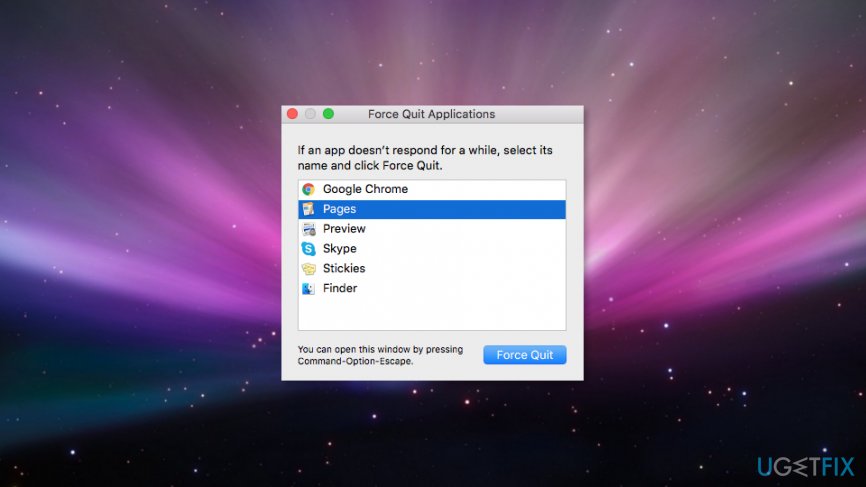
Executing Force Quit feature on Mac
Method 1. Use Force Quit option in the Dock

If some application that you use became unresponsive and prevents you from shutting down the device, you should start with the easiest method and choose force quit option from the Dock[ref en-2] menu:
- Go to the Dock at the bottom (or right corner) of the screen.
- Find the icon of an unresponsive app.
- Right-click it.
- In the appeared drop-down menu choose Quit (or Force Quit) option.
The troublesome app should be closed. Additionally, once the program freezes, you can click on the Apple icon at the top of the main menu bar and hit Force Quit option from the appeared drop-down menu.

Method 2. Use keyboard combination
Just like Windows, Mac operating system also has a magic keys combination that forces all programs to quit:
Command + Option + Escape
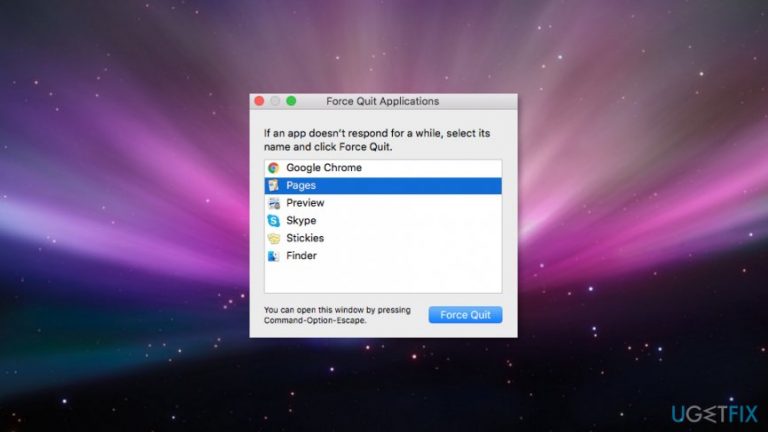
Once you click these three buttons together, you will receive a pop-up window with currently running programs. Choose the app that does not respond and click Force Quit button.

Method 3. Use another keyboard combination
Sometimes users cannot leave a frozen or unresponsive app, and the previous methods do not work. In this situation, you have to click other keys on the keyboard in order to run Force Quit on Mac:
Command + Option + Shift + Escape
Once you hit these keys, the troublesome program will be shut down immediately.
Method 4. Run Force Quit command with Activity Monitor
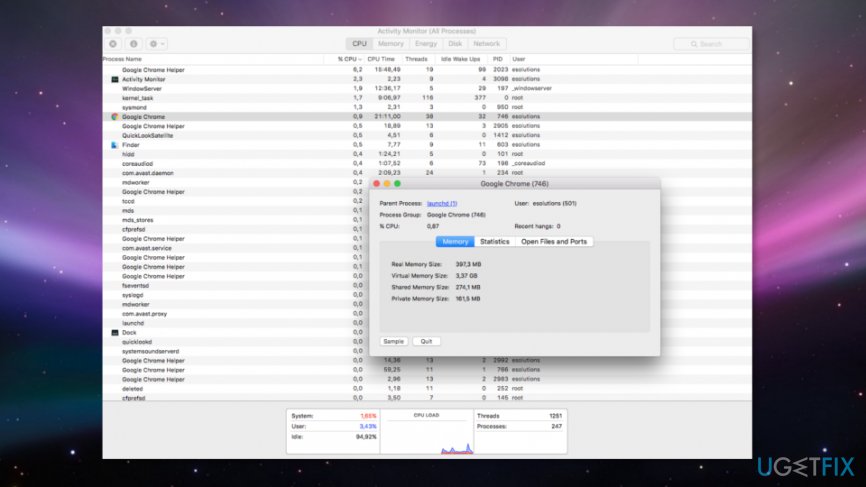
Activity Monitor[ref en-3] is a built-in application that allows seeing all running processes in Mac operating system. It’s like a Task Manager[ref en-4] in Windows. If particular application crashes, you can see what’s wrong with it using this application.
- Go to Applications.
- Acess Utilities.
- Open Activity Monitor. Here you should see all applications and processes that are running on your device.
- Double-click the app that causes you problems. You will receive a windows with a bunch of technical information. If you are higly-skilled, you can try to figure out what caused the app to stuck.
- Find and click Quit button.
Running Force Quit when Mac freezes
As you can see fixing problems with unresponsive apps is not complicated. However, sometimes programs might freeze the whole system. Therefore, previously mentioned methods will not work to solve this problem.
Fortunately, Mac operating system is stable, and such situations rarely happen. However, in this case, you have to hold down the power button. You will receive a dialog box offering to choose one of the options: Restart, Sleep or Shut down. Thus, select restart to reboot the system.
However, if you do not receive this dialog box, keep holding the power button until your Mac is forced to shut down. Though in this way, you might lose some of the unsaved data, unfortunately, it’s the only way to fix this problem.
Bottom line
To force quit unresponsive applications on a Mac, you can use the Force Quit option in the Dock, a keyboard combination (Command + Option + Escape), or the Activity Monitor. If these methods do not resolve the issue, consider using the Command + Option + Shift + Escape combination to immediately shut down the troublesome program.
Frequently asked questions
Yes, you can force quit applications on Windows 10 and Windows 11 by using the Task Manager. Simply press Ctrl + Shift + Esc, select the application, and click 'End Task.'
In Windows 11, you can use the Alt + F4 keyboard shortcut to close the active application, which can be helpful for force quitting unresponsive apps.
Yes, you can use the command prompt to force quit a program by typing 'taskkill /IM programname.exe /F', replacing 'programname.exe' with the name of the application.




Report an issue
What's wrong with this guide? We review every report and update or remove content.
Report received — thank you. We'll review and fix it.
You need a free account to submit a report.
Be the first to comment