How to fix
Format an external drive
on Windows
Looking to optimize your Windows 10 or Windows 11 experience? Discover expert tips to format external drives effortlessly, fixed in minutes!

Why does How to format an external drive on Mac occur?
- You purchased a new USB Flash drive pre-formatted for Windows OS.
- Your Mac does not support some drive formats developed for other operating systems.
- You need to protect your external drive in case it is lost or stolen.
- You want to share your drive with PC users.
- You require more than 4GB of space on your drive.
Repairs Windows system files, removes malware, and restores a clean OS state — without reinstalling.
Hi, I would like to know how to format an external drive on Mac. I'm a little bit confused since there are multiple file format options. Which one should I use?
Learning how to format an external drive on Mac is necessary for numerous reasons. One of them is that you might purchase a new USB Flash drive[ref en-1] which is pre-formatted for Windows OS and you will be unable to use it on your Mac. However, this is one of the many reasons why you should know how to format the drive for both Mac and Windows operating systems.
Fortunately, Mac computers have an already built-in Disk Utility[ref en-2] which makes it easy to format external drives for different types of formats. Although, you should be aware that not all formats are designed to work on all operating systems. Therefore, your mac might not support some drive formats which are developed for other OS.
Here is a quick summary of which format you should use depending on your preferences:
- Apple File System (APFS)[ref en-3] is a new file format which is readable only by Macs running High Sierra. Likewise, you will not be able to use your drive on Macs with older operating systems and well as on Windows, or Linux computers;
- MacOS Extended (Case-sensitive, Journaled, Encrypted) (HFS+) is an excellent choice for those who would like to protect their external drive in case it is lost or stolen. You can encrypt the data stored on the drive and put a password on it. Additionally, note that this file format is readable for Windows OS devices. However, they cannot be used else way;
- MS-DOS FAT (FAT32) is great for those who share their drives with PC users since this format is readable by Windows, Linux and Mac operating systems. Although, files are limited to 4GB. Thus, people needing more space can find it useless;
- ExFAT allows users to share the drive with PC users as well as offers over 4GB of space;
- NTFS format is designed only for Windows OS. Likewise, Mac computers can just read this file format without the ability to write to it.
How to format a drive on Mac
Before proceeding to the instructions, note that formatting the drive requires to erase all contents stored on it. Therefore, you should copy the files from the drive to avoid losing any valuable information.
Use Disk Utility to format an external drive on Mac
- Hit Command + Space and type Disk Utility;
- Open it and check the available drives on the left side of the window.
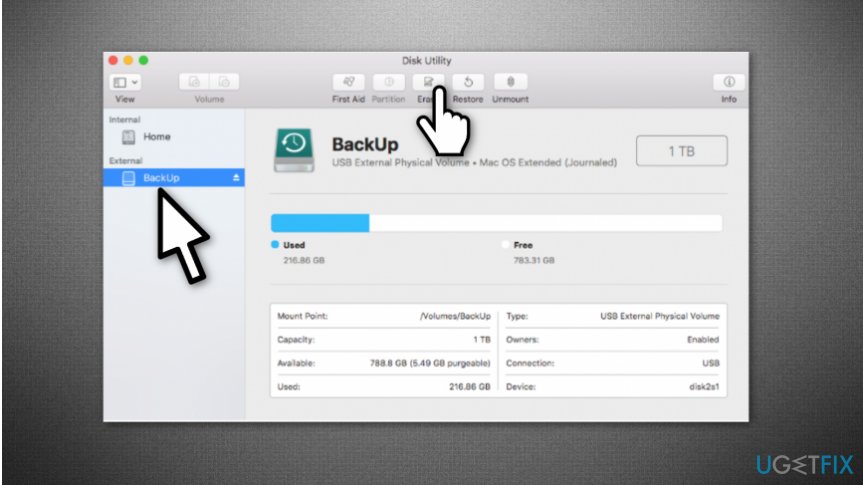
Erase your external drive on mac - Select the drive you need and click Erase button.
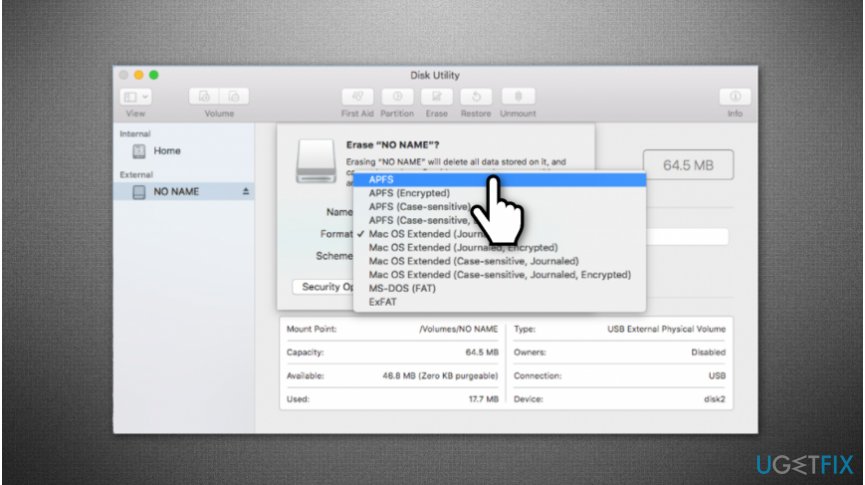
Choose the file format of your external drive on mac - Disk Utility will select the file format automatically. However you can change it manually if you know which format you need. For that, head above and check the quick summary of file format types;
- Name your drive and proceed to Security options.
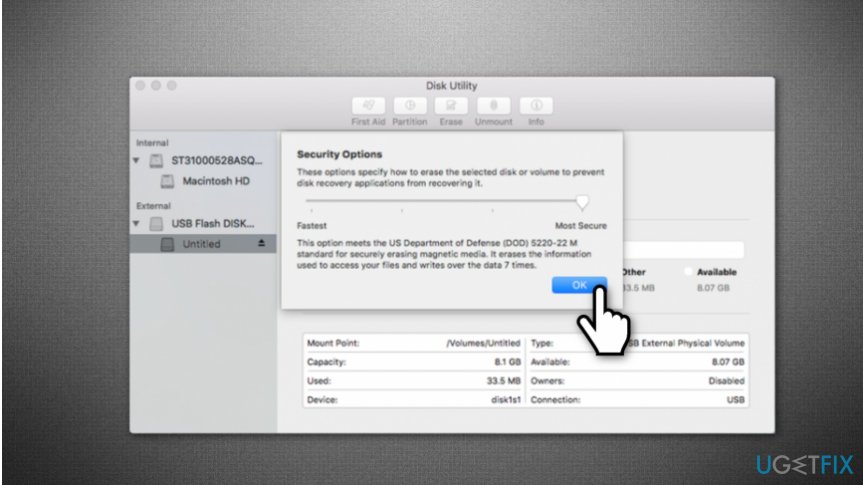
Alter security options on the external drive on mac - Select the options from the left (Fastest) to the right (Most Secure);
- Click OK and wait until the drive is ready to use.
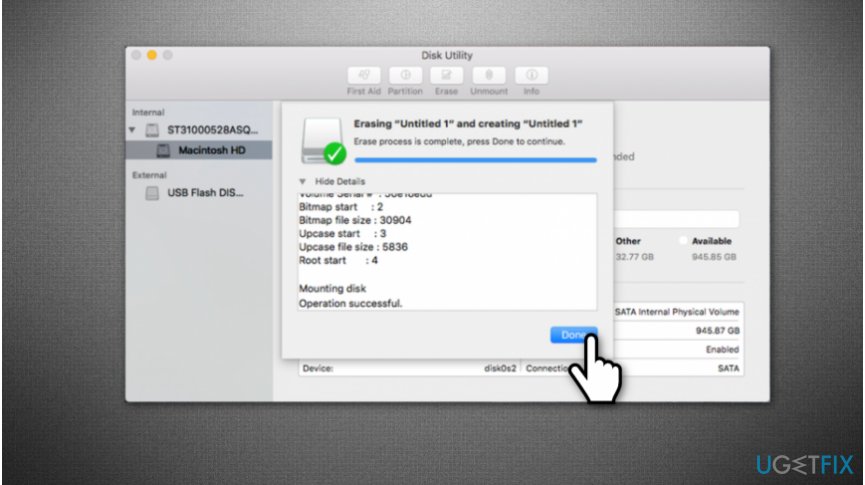
Window showing how long will it take to format the drive on mac - Copy the files back to your drive.
Bottom line
To format an external drive on Mac, you can use Disk Utility to choose from various formats like APFS, HFS+, FAT32, ExFAT, or NTFS depending on your needs. If you encounter issues, ensure you select the appropriate format for compatibility with your devices. If none of these solutions work, consider seeking professional assistance.
Frequently asked questions
Yes, but you may need to reformat the drive to a compatible file system like NTFS or exFAT for full functionality on Windows 10 or Windows 11.
For compatibility with both Windows and Mac, choose exFAT, as it supports large files and works seamlessly across both operating systems.
Yes, formatting will erase all data on the external drive, so ensure you back up any important files before proceeding.




Report an issue
What's wrong with this guide? We review every report and update or remove content.
Report received — thank you. We'll review and fix it.
You need a free account to submit a report.
Be the first to comment