How to fix
Free Up Disk Space
on Windows
Discover tips to free up disk space on Windows 10 and Windows 11 effortlessly. Boost performance and improve system efficiency with expert-tested methods.

Why does How to Free Up Disk Space on Mac OS X occur?
- Running out of disk space due to large files
- Accumulation of unnecessary applications
- Presence of duplicate files
- Application leftovers taking up space
- Potential malware using disk space
Repairs Windows system files, removes malware, and restores a clean OS state — without reinstalling.
I was a little bit surprised when I saw that my Mac is running out of space. Please tell me what should I do to clean up disk space and how to keep a sufficient storage all the time? Thanks!
It doesn’t matter if you are using Apple Mac or Microsoft Windows, none of them provide an endless disk space.[ref en-1] As we are using our Mac every day, we forget that each file and application takes up space. We simply download and install the stuff we need without considering much whether we really need that or no.
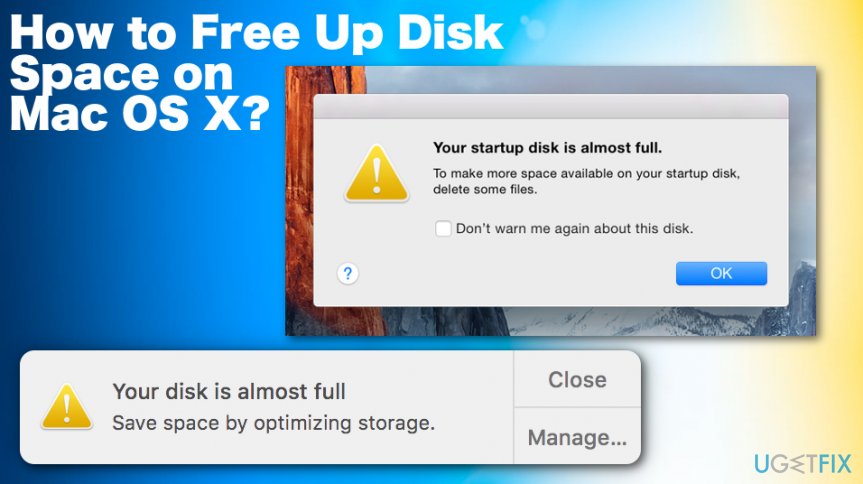
Usually, people start thinking about Mac’s optimization and clearance of its disk space when they are not allowed to download some apps and the alert “Your startup disk is almost full” shows up on the screen. It would be better not to wait until this message shows up unless you don’t mind your Mac being sluggish, unresponsive, and freezing.[ref en-2]
You can free up disk space by deleting big files or putting them on external devices instead of keeping on the machine but there are many other ways that we don't think of. There might be an issue of malware[ref en-3] that uses disk space or any ordinary issue regarding too many useless files.
No matter what is the reason why you decided to clean your Mac’s disk space, it’s never late to do so. In this post, we will provide several tips that will help you to keep your Macs disk’s storage sufficient and clean, so don’t waste your time!
How to Free Up Disk Space on Mac OS X
Specialists recommend using Mac‘s optimization tools, such as [rev id=”MacCleanse”] or [rev id=”MacKeeper”]. This way, the system will not store duplicate files, application leftovers, unnecessary files, and other details that take up disk space but gives no benefit. However, it‘s advisable to perform the steps listed below to ensure that the system is fully optimized.
Remove unnecessary applications
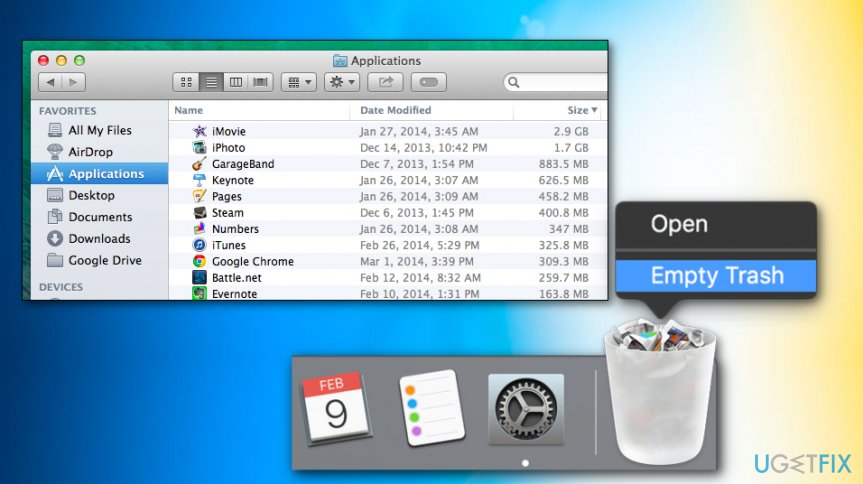
We are pretty sure that you have more apps on your Mac than you really need. We would recommend you to open the Applications folder and analyze the list of apps.
- Once you find apps you haven’t been using for several months, drag-and-drop it to the Trash.
- Then navigate to the /Library/Application Support/, /Library/Preferences/, and /Library/Caches/ folders.
- Delete the file leftovers. Repeat the same steps with all unnecessary apps.
- Remember to Empty the Trash.
How to free up disk space on mac os x clearing applications
Delete duplicate files
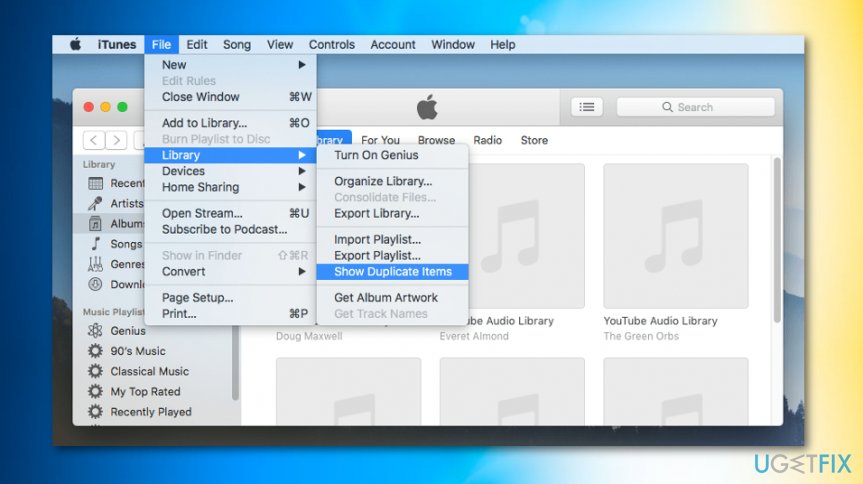
Duplicate files clog the system and eventually may take up a considerable amount of disk space, which may cause system’s slowdowns, freezes or crashes. You can do so in iTunes library:
- Open iTunes.
- Click File in the top menu.
- Choose Library, then Show Duplicate Items.
How to free up disk space on mac os x clearing duplicates - Remove duplicate files.
Empty the Trash Cans
Beware of the fact that Mac has multiple Trash Cans, including iPhoto, iMovie, and Mail. All deleted files are transferred into the Trash and are kept there for a long time or until the Mac use decides to empty the Trash. Therefore, to free up some disk space, make sure that all trash cans are empty.
Remove web browser’s cache
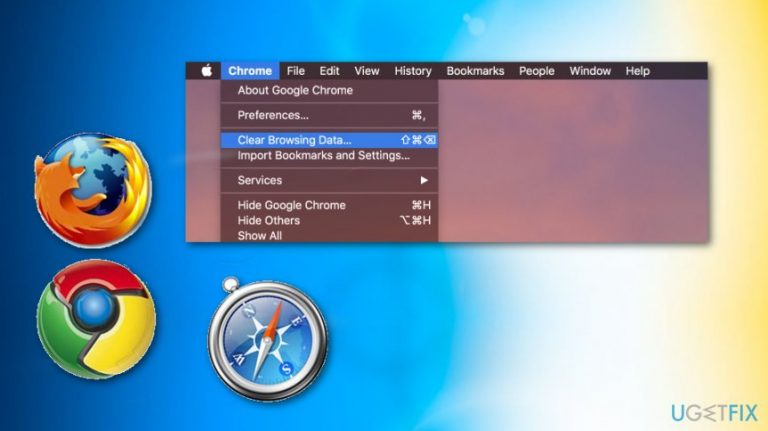
This method depends on the web browser that you need. What you have to do is to open your web browser, open its settings and select Clear Browsing Data. Actually, you should do the same with all web browsers installed on the system.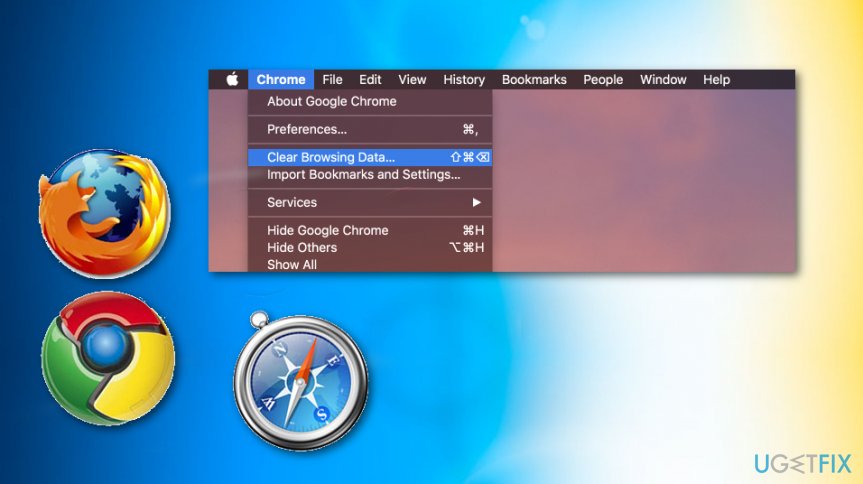
Remove language file
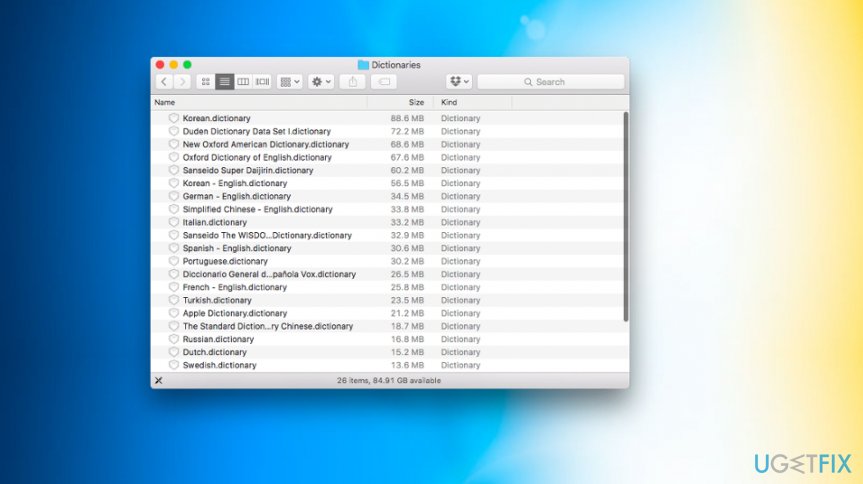
Each application installed on Mac has its own language files. The number of those files depends on the number of languages that the application supports. If you are always using one language, for example, English (USA) on your Mac, other language pack files are staying idle and just take up the disk space. To remove language files, you should use Monolingual language pack.
Locate: /Macintosh HD/Users/Your User/Library/ Dictionaries
Bottom line
To free up disk space on Mac OS X, you can remove unnecessary applications, utilize optimization tools like MacCleanse or MacKeeper, and delete or transfer large files to external devices. If these steps do not resolve the issue, consider further investigation into potential malware or other underlying problems.
Frequently asked questions
While some principles may overlap, Windows 10 has its own unique tools and settings for disk cleanup that you should use instead.
Windows 11 includes Storage Sense, which automatically frees up space by deleting temporary files and managing storage settings.
Yes, there are several third-party tools available for Windows 10 and Windows 11 that can help you analyze and free up disk space effectively.




Report an issue
What's wrong with this guide? We review every report and update or remove content.
Report received — thank you. We'll review and fix it.
You need a free account to submit a report.
Be the first to comment