How to fix
Get “Missed Call Notifications”
on Windows
Boost your Windows 10 experience with missed call notifications on your desktop. Easy setup and expert-tested methods ensure no alerts are missed.

Why does How to Get “Missed Call Notifications” on Windows 10 Desktop occur?
- Cortana app not installed on the mobile device
- Both devices not signed in with the same Microsoft account
- Missed Call Notifications feature not enabled on both devices
- Using a mobile device that does not support the feature
- Cortana settings not properly configured on the PC
Repairs Windows system files, removes malware, and restores a clean OS state — without reinstalling.
I’ve installed Windows 10 Creators Update and decided to enable Missed Call Notification in Cortana settings. Currently, I’m using a Nokia Lumia 730, which runs Windows 8.1. I tried to enable this feature, but probably did something wrong because I haven’t received Missed Call Notifications. Could you please help me? Should both my laptop and mobile run Windows 10 to enable the new feature? Thanks!
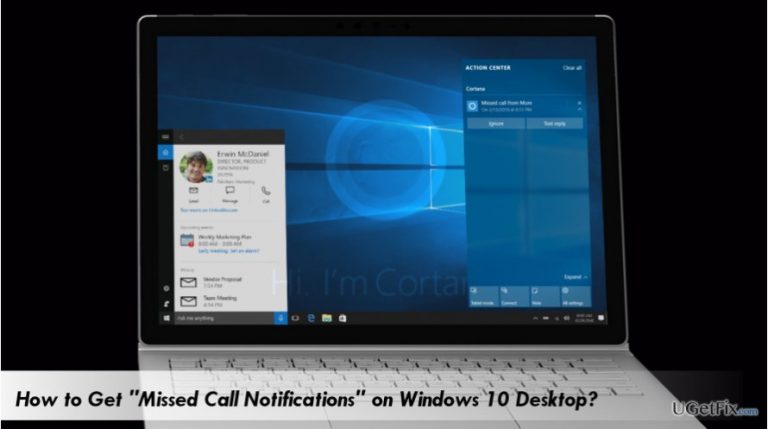
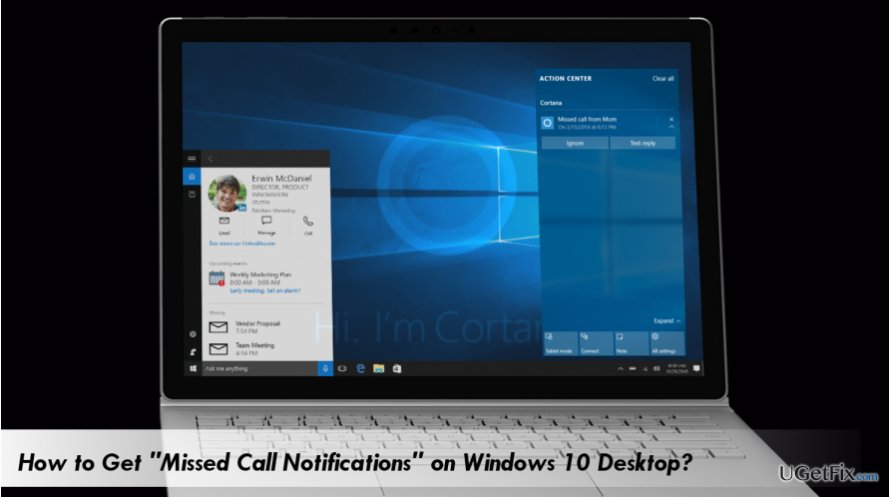
Often people consider Cortana to be a “slightly” improved Windows search. Partially, it’s true, but the word “slightly” does not fit in this case. Cortana is a virtual personal assistant that is always ready to help a PC user to find anything stored on the computer, reminds of upcoming events, allows sending emails/ texts, manage calendar, works as a navigation system, and many other features. With each new Windows 10 update and build Microsoft improves Cortana and implements with new capabilities. Starting with the Windows 10 Fall Creators Update (build 16199), which has been released to Windows 10 PC and Mobile Insiders on Sunday, May 21st, people will be able to see “Missed Call Notifications” on Windows 10 Desktop via Cortana. When the new feature is enabled on both PC and Mobile, the user will be able to see incoming call notifications on the desktop and decline the call if needed. Besides, the PC user will be able to write a text message using a PC and send it to the number from which the incoming call was registered. Unfortunately, the Missed Call Notification is currently available for Android phones only. However, it is expected that it won’t take long for Microsoft to adapt the feature to iPhone as well.
Enabling “Missed Call Notifications” feature on Windows 10 Desktop
First of all, make sure that Cortana app is available both on your PC and Android device. If you don’t have Cortana on your phone, make sure to download if from the Google Play Store. In addition, both devices should be signed in with the same Microsoft account. If you are ready, please perform these steps:
- Access Cortana on your PC.
- Click on “Menu” (three horizontal lines at the top left of the screen).
- Select “Notebook,” which should be the third icon from the top.
- When the “Settings” window shows up, locate the “Missed call notifications” option.
- Slide a toggle to “On.”
- After that, take your Android phone and make sure that Cortana has successfully been downloaded and installed.
- If yes, click the "Search" button and launch Cortana.
- Tap on “Menu” (three horizontal lines) and select “Notebook” icon.
- When the “Settings” window opens, locate the “Missed call notifications” option.
- Make sure to slide a toggle to “On.”
From now on, you should receive “Missed Call Notifications” on your desktop each time someone calls to your Android phone. If you want to inform the person who calls you that you are busy and that you’ll call him/her later, you can send an SMS text message using Cortana. The Incoming Call Notification will have to options - “Ignore” and “Text Reply” option. If you want to send a text message, select the latter option. You will be redirected to a text box near the Start. Simply type in the text and click “Send.”
Bottom line
To enable Missed Call Notifications, ensure that the Cortana app is installed on both your PC and Android device, and that both devices are signed in with the same Microsoft account. If you still do not receive notifications, check your Cortana settings and ensure the feature is enabled on both devices. If none of these solutions work, consider reaching out to Microsoft support for further assistance.
Frequently asked questions
To enable missed call notifications, ensure that the Your Phone app is installed and linked to your Android phone, then navigate to the app settings and enable notifications for calls.
Yes, you can customize the notification sound by going to Settings > System > Sound, then selecting 'App volume and device preferences' to adjust the sound for the Your Phone app.
Yes, missed call notifications are supported on Windows 11, just ensure that the Your Phone app is updated and properly linked to your mobile device.




Report an issue
What's wrong with this guide? We review every report and update or remove content.
Report received — thank you. We'll review and fix it.
You need a free account to submit a report.
Be the first to comment